
Job Tasks (Job Cost/RevenueCodes)
Job Tasks represent Cost Budgets and Contract Revenues. They organized by Activity, Process and Operation codes. Job Tasks that represent Cost Budgets and Contract Revenues contain detailed Planning Lines.
If you are using the percentage or completion recognition method, you must set up a Job Task with both Budgeted Costs and Contract Revenues.
A Cost Budget provides the basis for comparison of the actual usage as recorded through the Job journal, thus providing the basis to determine the completion of the Job. Therefore, to fully benefit from the Job options, we recommend that you use Cost Budgets for all Jobs regardless of the WIP method you use. Recording actual usage against a Cost Budget and observing any differences and variances improves the quality of any Cost Budget and estimates for future Jobs, reducing the risk of underestimating the overall cost.
Before you create a Cost Budget it is recommended that you divide the Job into clearly defined activities, each activity into processes and each process into operations. The number of activities, processes, and operations you should define is determined by the detail to which you want to be able to compare the Cost Budgets against actual figures. The activities, processes and operations defined become Job Task Lines.
EXAMPLE:
Here is an example of a Job Task Line for site work at construction Job:
- Activity 02000 – Site Requirements
- Process 02300 – Earthwork
- Operation 02315 – Excavation and Fill
- Operation 02330 – Embankment
- Operation 02370 – Erosion and Sediment Control
- Process 02800 – Site Improvements and Amenities
- Process 02300 – Earthwork
- Activity 03000 – Concrete
- Process 03100 – Concrete Forms and Accessories
- Process 03200 – Concrete Reinforcement
- Activity 04000 – Masonry
…and so, on
As you enter the Job Task Line, you will see that Dynamics-BC sorts the lines alphabetically in the order of the activities, processes and operations. You can override this sorting by preceding the activities, processes, and operations with a number followed by a dash (-). To get the activities in the order shown in the previous example you would enter the activities as follows:
02000 – Site Requirements
03000 – Concrete
04000 – Masonry
If you want to use activities, processes, and operations in your Job Task Line, you must set them up first. See “Maintaining Activities, Processes, and Operation Information” for more information.
To set up a Job Task Line, do the following:
From the Job card of the Job you want to create a Cost Budget for, click “Job Task Lines” from process tab on ribbon

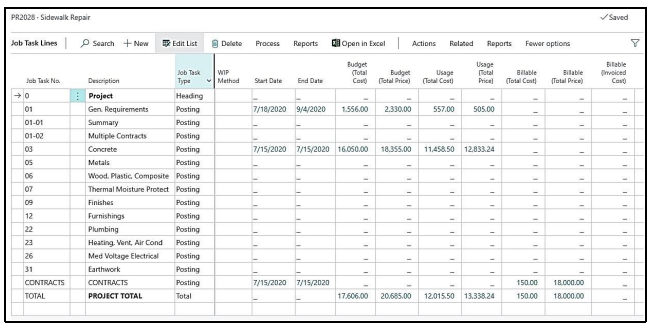
Drill into Job Task No. field
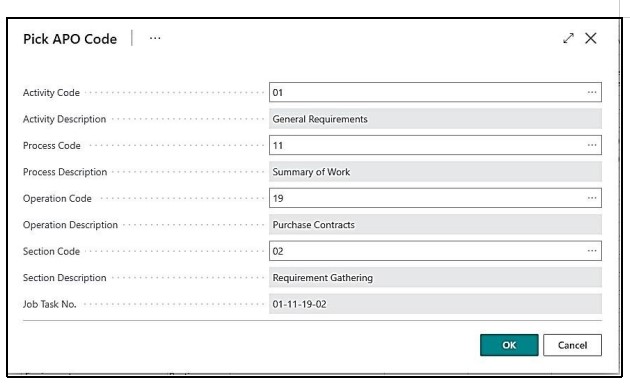
Select Activity Code, Process Code, Operation Code and Section Code to create a Job Task No. Continue adding Job Task Numbers for each step in the job process. Not all levels are required but will need at least the Activity Code for a proper Job Task line.
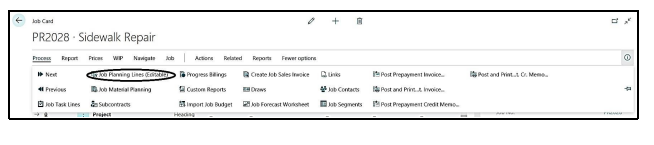
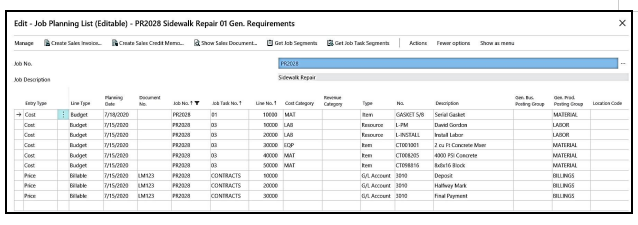
Once each step for cost and price has been defined, in order to setup Cost Budget and Contract prices…click
|
FIELD |
DESCRIPTION |
|
Line Type: |
In this field, you specify the type of planning line. The options are:
Budget: The planning line contains expected usage for the job that will not be invoiced to the customer. You use this option if the costumer will be invoiced from a different planning line (of type Billable or Both Budget and billable), or if the expected usage for this planning line is not chargeable.
Billable: The planning line specifies an amount that should be invoiced to the customer, but no usage relates to the line. You use this option if no schedule of usage has been planned for the job, or if the expected usage for the job has been specified on different planning lines (of type Schedule).
Both Budget and Billable: The planning line contains expected usage for the job that should be invoiced to the customer. You use this option if the scheduled usage equals what you want to charge your customer. |
|
Cost Category: |
Cost Categories represent Materials, Equipment, Labor, Subcontract that are user definable. |
|
Revenue Category: |
Revenue Categories represent a code for the types of revenues that are billed on a job. If on one job there is Roofing, Metal Siding, New Construction – These can be assigned different Revenue Categories for further analysis by Revenue Category Codes. |
|
Planning Date: |
In this field you enter the date of the planning line. You can use the planning date for filtering the totals of the job, for example, if you want to see the scheduled usage for a specific month of the year.
Attention: If you change the planning date, then the Currency Date field is updated, if the Currency Date was the same as the Planning Date before your change. |
|
Document No.: |
In this field you can enter a document number for the planning line. |
|
Type: |
This field contains the type of account to which the planning line relates. The options are:
Resource, Item, G/L Account, Text
To see the types that are available, click the Assist Button in the field. |
|
No.: |
This field contains the number of the account to which the resource, item or G/L account is posted, depending on your selection in the Type field.
You can see the numbers that are available by clicking the Assist Button in the field. |
|
Description |
The application automatically displays the name of the resource, item, or G/L account to which this entry applies. You can change the description, a maximum of 50 characters, both numbers and letters, are allowed. |
|
Quantity: |
You can enter the number of units of the No., that is, the resource, item, or G/L account number, that should be specified on the planning line. If you later change the No., the quantity you have entered remains on the line.
Attention: If you change the quantity, then the contents of the Total Cost, Total Cost (LCY), Total Price, Total Price (LCY), Line Amount, and Line Amount (LCY) fields are updated. |
|
Unit of Measure Code: |
You can select a unit of measure code, which is used in determining the unit price. This code specifies how the quantity is measured. The code is retrieved from the corresponding item or resource card. To see the units of measure available, click the AssistButton in the field. Attention: If you change the unit of measure, then the values of the Unit Cost, Unit Cost (LCY), Line Amount, and Line Amount (LCY) fields are updated. |
|
Unit Cost: |
This field contains the unit cost for the selected Type and No. on the planning line. The unit cost is in the job currency, which comes from the Currency Code field on the Job Card.
Unit cost is automatically retrieved (in the job currency) of the selected Type and No. if the type is Item or Resource. If the type is G/L Account, unit cost is automatically retrieved if you have set up Unit Cost in the Job G/L account Prices window.
You cannot change unit cost when costing method is Standard.
Attention: If you change the unit cost, then the values of the Unit Cost (LCY), Total Cost, and Total Cost (LCY) fields are updated. If you have set up a cost factor for the Type and No. fields, then changing the unit cost also updates the contents of the Unit Price and Unit Price (LCY) fields.
When calculating the Unit Cost (in job currency), unless the unit cost is based on the Job G/L Account Prices, the Unit-Amount Decimal Places and Unit-Amount Rounding Precision fields for the job currency are used. |
|
Unit Price |
This field contains the unit price for the selected Type and No. on the planning line. The unit price is in the job currency, which comes from the Currency Code field on the Job Card. Unit price is automatically retrieved (in the job currency) of the selected Type and No. if the type is Item or Resource. |