
Journal Entries
On the ProjectPro Role Center, click on Job Journal from actions.
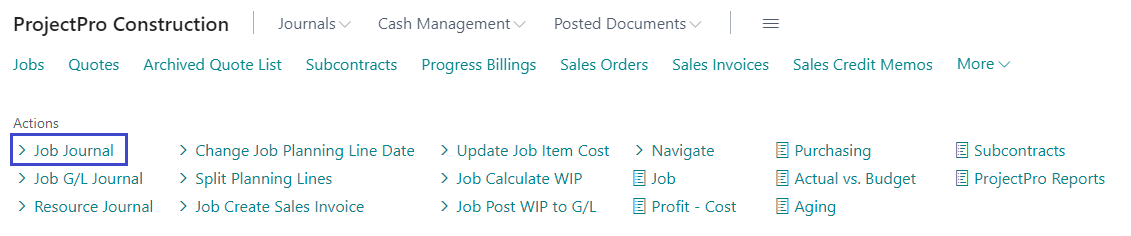
This will open the job journal batch with a specific Batch Name, see highlighted below.
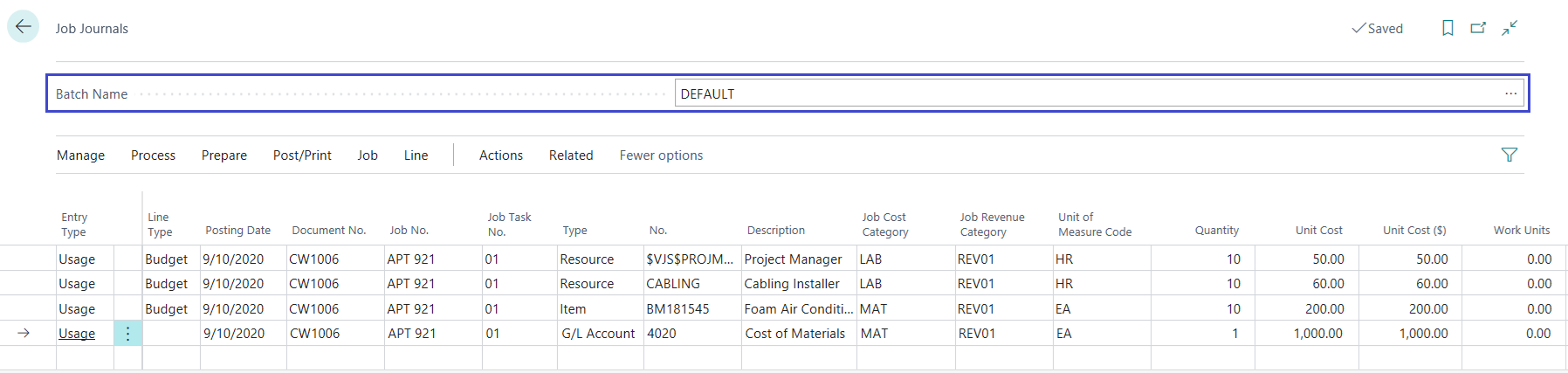
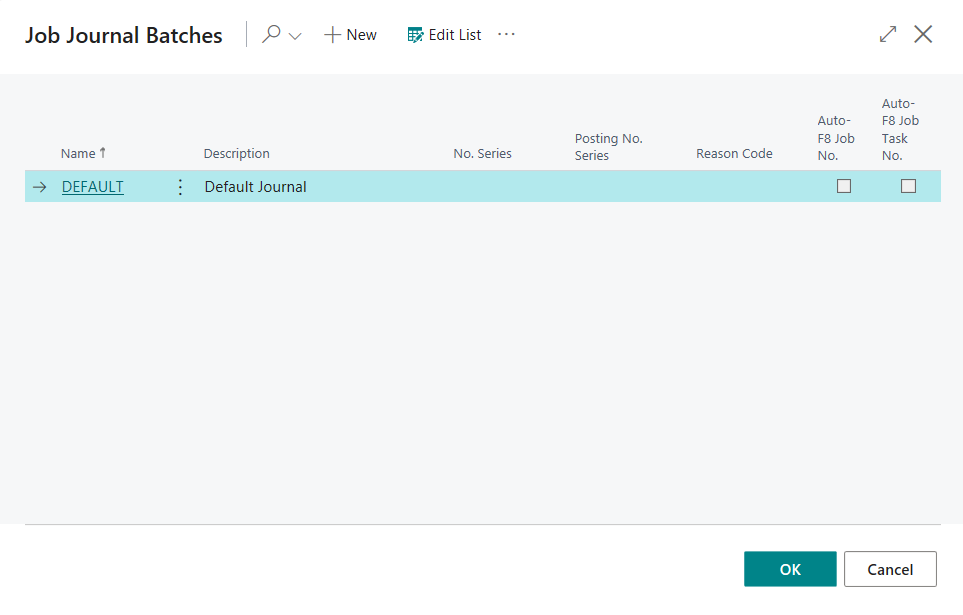
This can be changed by clicking on the drop down, which will show you the complete list of the batches. You can also create a new batch, by clicking on “New” or “Edit List”.
On the selected journal batch, make entries in the various fields. Your window might look slightly different from the window shown above because of your ability to customize windows; however, the fields in the following table should appear in the Job journal.
| FIELD | DESCRIPTION |
|---|---|
| Posting Date | The journal entry date, i.e., posting date. |
| Entry Type | The journal entry type is for usage, sale, released, or earned entries.
|
| Document No. | The number of the document used in this entry. |
| Job No. | The number of the Job you are making an entry for. For example, if you are recording resource usage for Job number 1001, enter 1001 in the Job No. field. Click the drop down to select from a list of Jobs if you do not know the Job number. The program displays a window that shows you detailed information about the Job, such as the bill-to customer. You can use only those Jobs whose status is ordered. |
| Type | The type of usage you are entering in the Job, which can be selected from:
If you need materials or items that are not in your inventory, use the purchase order cycle to order the item and use the Get Activity/Process/Operation option to assign the purchase to the Job. |
| No. | Click the drop down to select a resource, item, and account or resource group, depending on what you entered in the Type field. |
| Quantity | Enter the quantity of usage for this transaction. For example, for 4 hours of an accountant’s time, enter 4 here. If you selected G/L Account as the type of usage, enter 1 here and the actual usage amount in the Unit Cost field. |
| Unit of Measure Code | This code specifies how the type of entry is measured. The program enters this information based on what you entered in the Type and No. fields. For example, if you entered the type as Resource and the resource card is set up in hours, the program enters Hours in the Unit of Measure Code field. |
| Work Type Code | The type of work being done in the entry. A Job can have several different work types, such as overtime driving or working with heavy machinery. The program adjusts the prices for the Job depending on the work type you enter. If you need a work type that does not appear when you click the Assist Button ⇪, see Resources Manual for instructions on creating additional work types. |
| Job Task No. | Required cost or revenue code |
| Revenue Category | Required revenue code |
| Cost Category | Required cost code |
| Unit Cost | The program displays the unit cost here if you enter an item or an item group. If you entered an account, you must enter the total amount. |
| Total Cost | This field shows you the total cost for the entry. The cost equals the unit cost times the quantity. |
| Unit Price | This field shows you the unit price for the resource or item in the entry. The program retrieves this information from the resource or item card unless you have set up alternative prices for the resource or item. |
| Description | The program automatically displays the name of the resource, item or account you entered. This serves as a convenient way to make sure you selected the correct one. This makes transactions easier to identify when you look at the various reports and transaction registers. |
*Note: Resource entries in the Job journal will post directly to G/L.