Change Order To Progress Billings
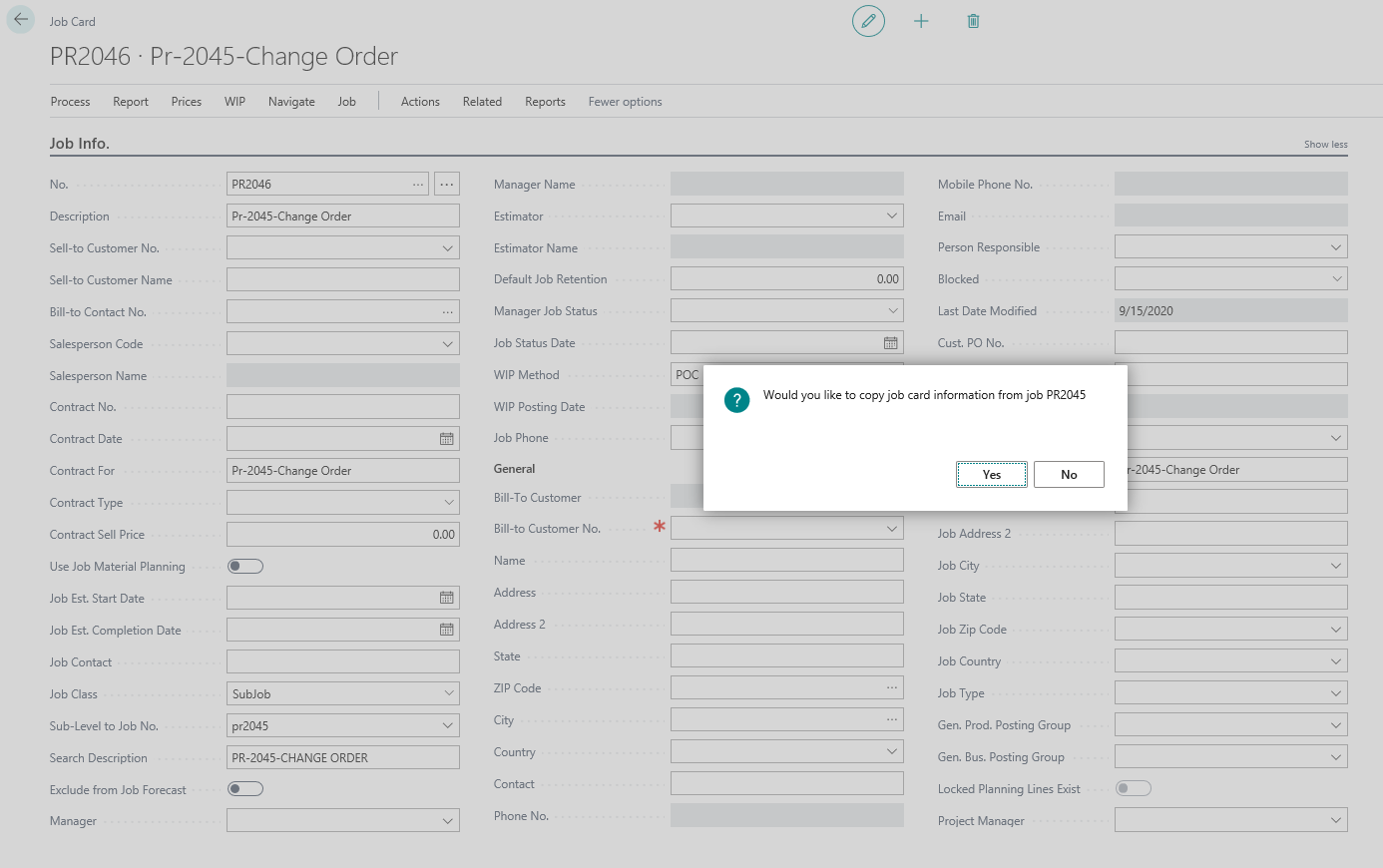
Go to Jobs List and click New button to create new Job. Input a Change Order Job no. related to the master Job. Once the Job number is assigned set Job Class to Change Order and go to the Sub-Level to Job No. field and enter the Master Job No. As you press enter, ProjectPro will ask if you wish to copy the master Job information to your change order, in most scenarios select Yes. Then go to Job Planning Lines (Editable) and enter change order contract amount.
Note: Make sure the contract date is within your next progress billing date (or this change order will not appear on the progress bill) and set the Job Status to “Order.” The ‘Contract Date’ is used to indicate whether this Job card and billing items represents a current month change order or a previous months billing item on the AIA G702.
In order to add the change order to the next progress billing, you must create a second requisition billing. Select Process ? New Requisition. Then click on Get Billings and choose the change order as your Job. This will add the change order line items to the new progress billing.
See the additional billing item added for additional work.
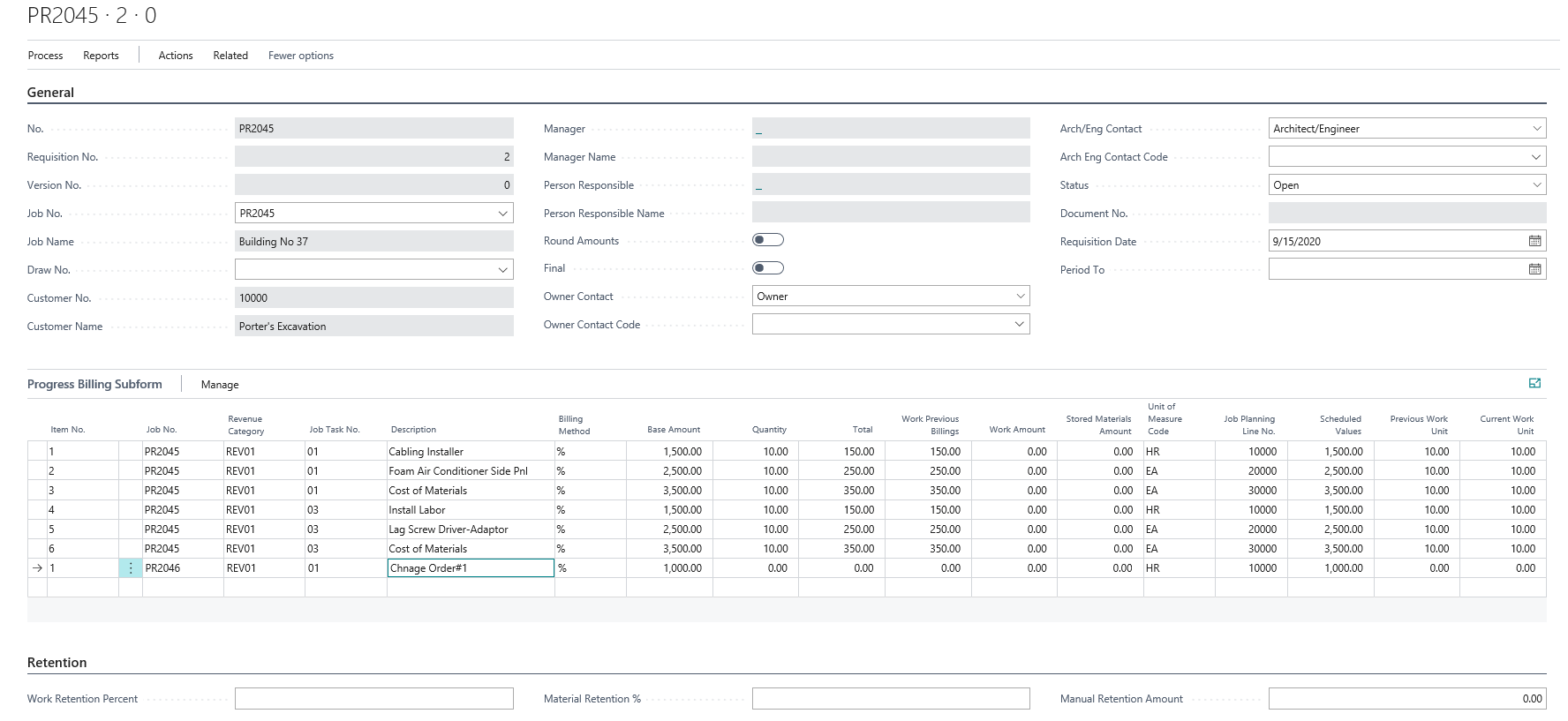
Sample Progress Billing with Change Orders
Progress Invoice(Page 1):
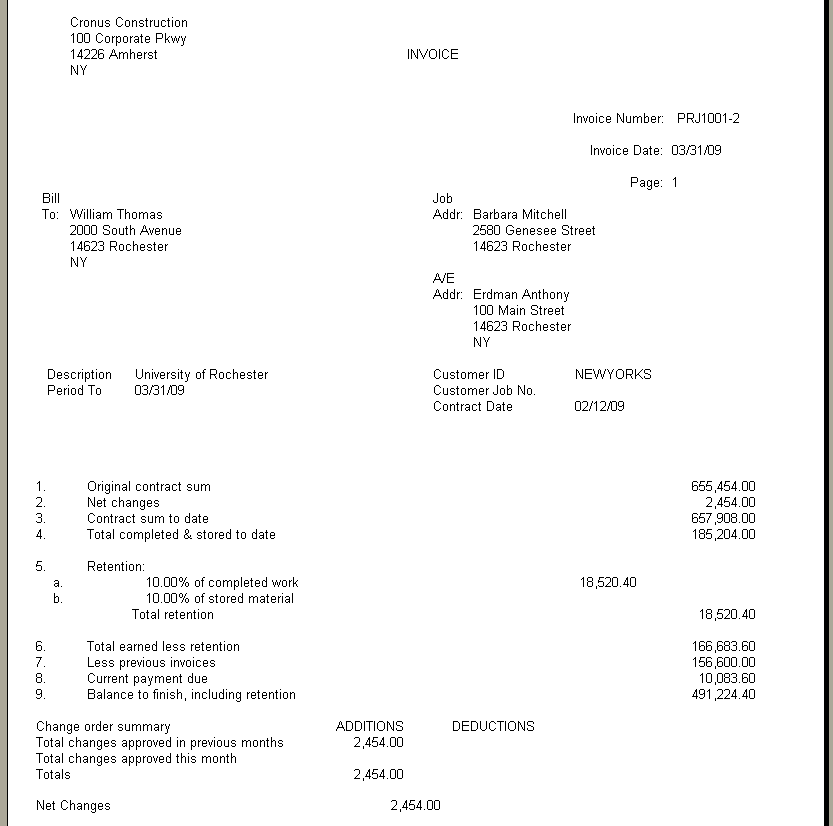
Progress Invoice(Page 2):
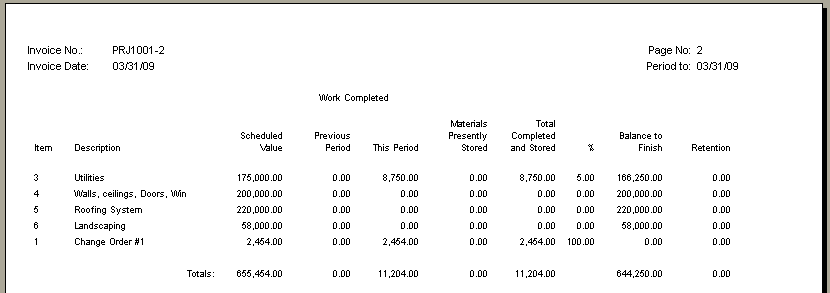
Sample AIA G702
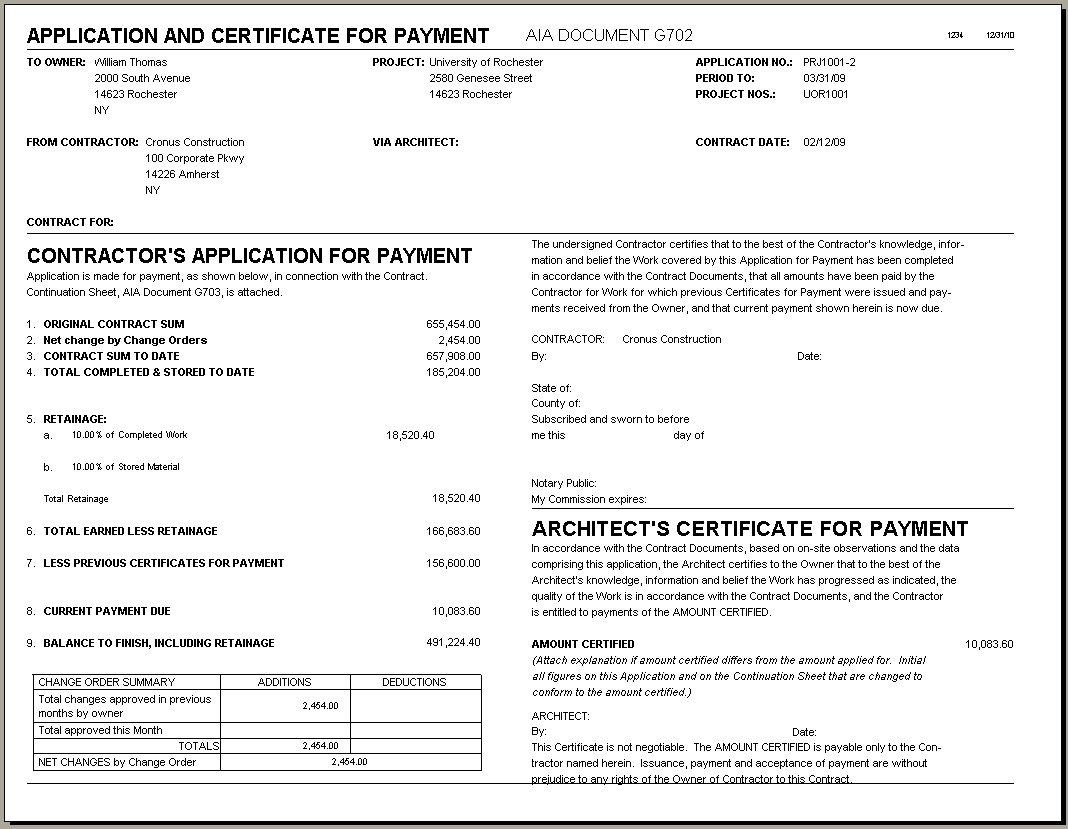
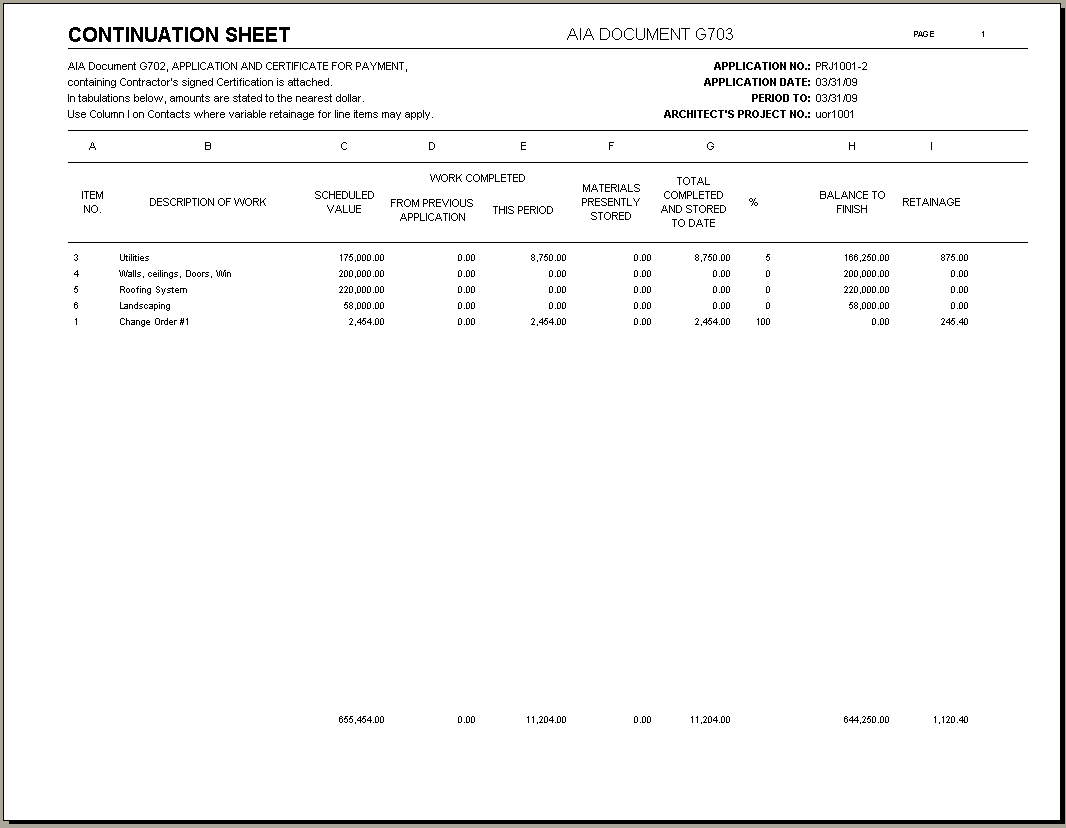
Sample AIA G703