
Creating Lien Release Waivers
Lien Release Waivers are documents that are generated during the subcontract payment process. These documents contain the legal content in which the subcontractor is acknowledging that the work performed for the owner or general contractor is either partially or fully completed on a specific job. These documents are either “Progress Payment” or “Final Payment” depending on the work completed that is now due for payment.
Use the Payment Journal for processing Payment and generating a Lien Release Waiver document.
When the subcontractor’s invoices are due for payment in the Payment Journal, there is a field to indicate that you wish to generate either Progress or Final Lien Release document.
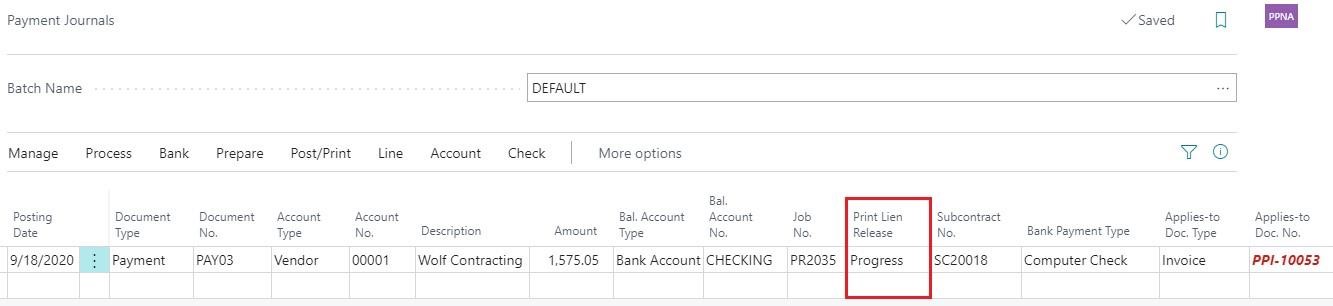
Only after the check(s) have been printed and posted can you then select to Print Lien Releases from vendor ledger entries.
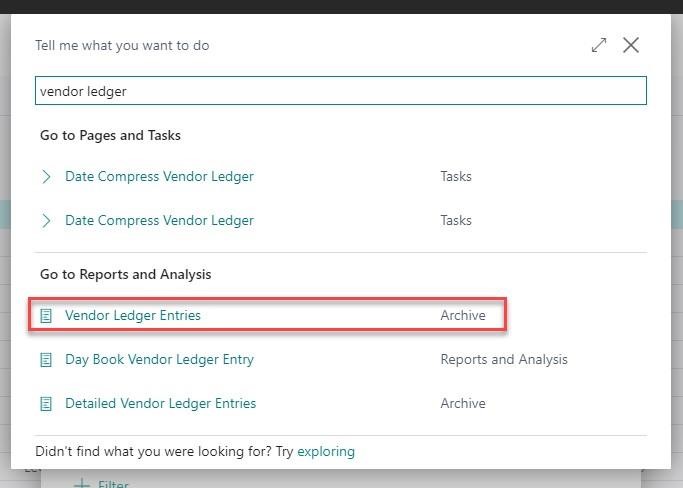
Once you have printed and posted, search for “Vendor Ledger Entries” from the search icon at the top of your screen.
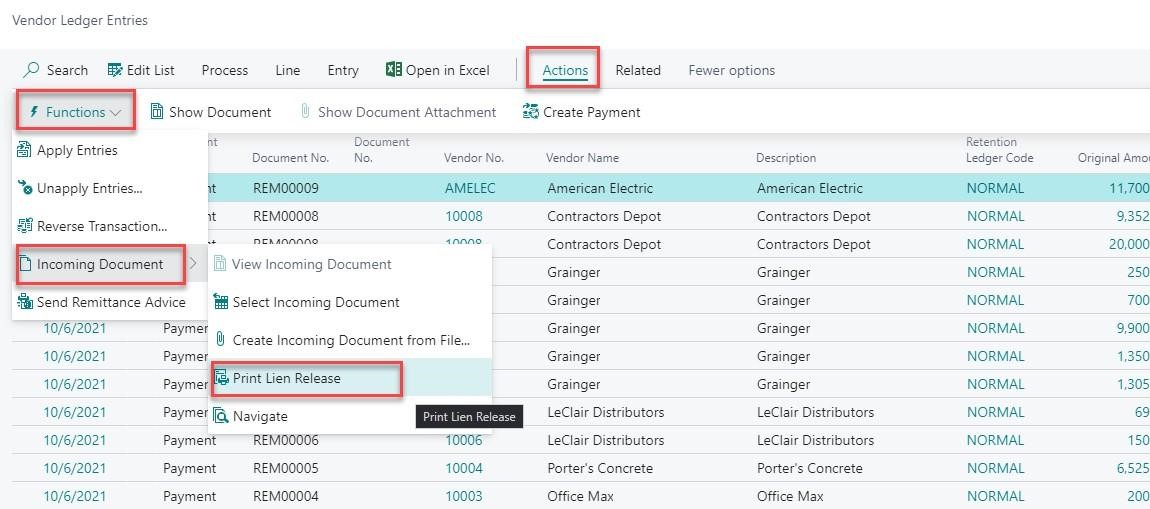
Find the payment you are looking to print the lien release for and click on it to select. (You will see a small arrow on the left-hand side of the entry indicating that it has been selected)
From the ribbon, select “Actions” then “Functions” then “Incoming Document” then “Print Lien Release”
When prompted, select options that are relevant to your lien waiver.
Select “Mark as Printed” to have the Vendor Ledger Entry screen reflect that the waiver has been printed.
Select “print” or “preview and close”
The Lien Waiver will be generated for you.
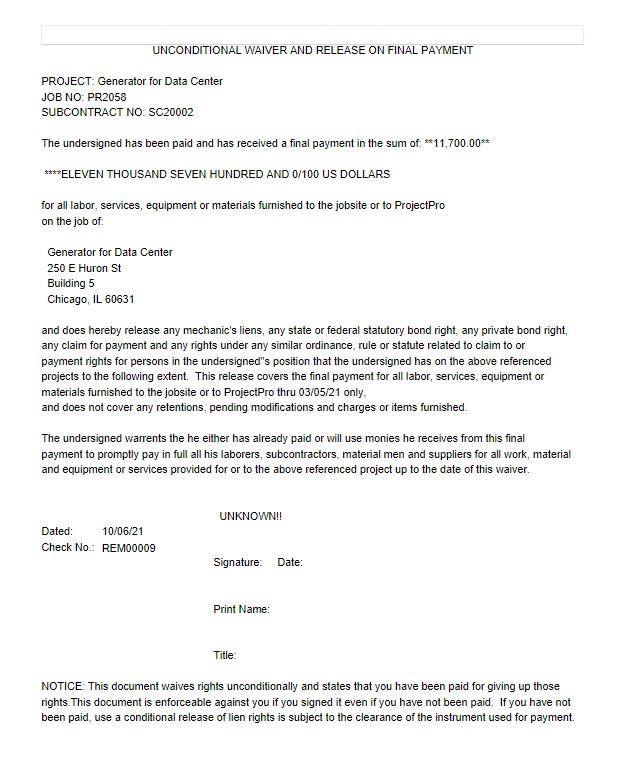
If at any time you need to reprint a lien waiver, you can do so by following the steps below
Select the entry that you are looking to reprint the waiver for. (You will see a small arrow on the left-hand side of the entry indicating that it has been selected)
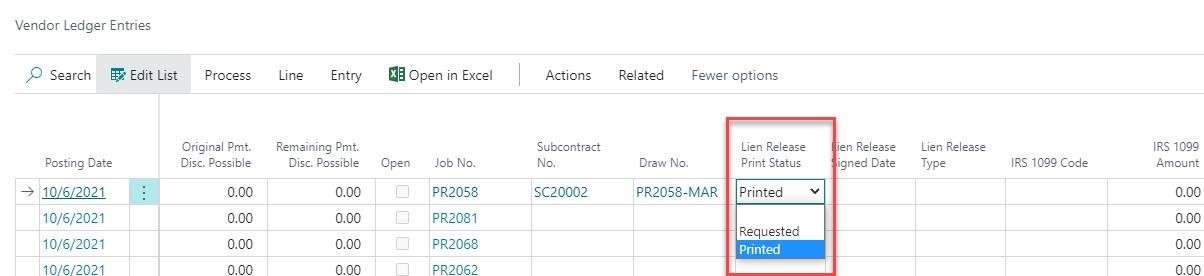
On the entry line change the Lien Release Print Status field to “Requested” instead of “Printed”.
From the ribbon, select “Actions” then “Functions” then “Incoming Document” then “Print Lien Release”
When prompted, select options that are relevant to your lien waiver.
Select “Mark as Printed” to have the Vendor Ledger Entry screen reflect that the waiver has been printed.
Select “print” or “preview and close”
The Lien Waiver will be re-generated for you.