Defining A Job Quote
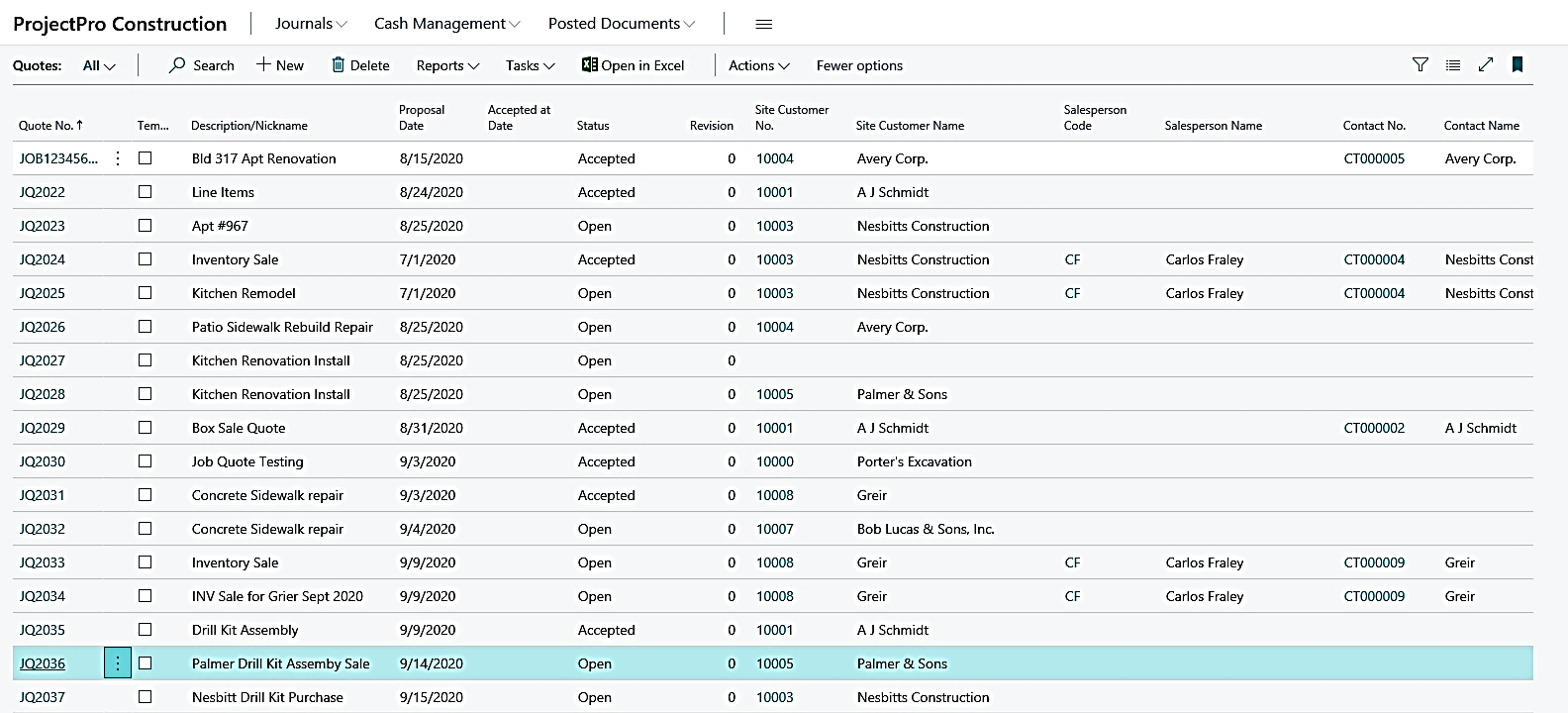
For defining a Job Quote, open Quotes list either from search option available or by clicking on the Quote icon available at Role Center. Once you have opened up your existing Quote list click on “New” option to create a new Quote. After entering your Quote No., you will have an option to bring in Default Job Tasks or add your own Job Task Codes to this Quote.
General Tab:
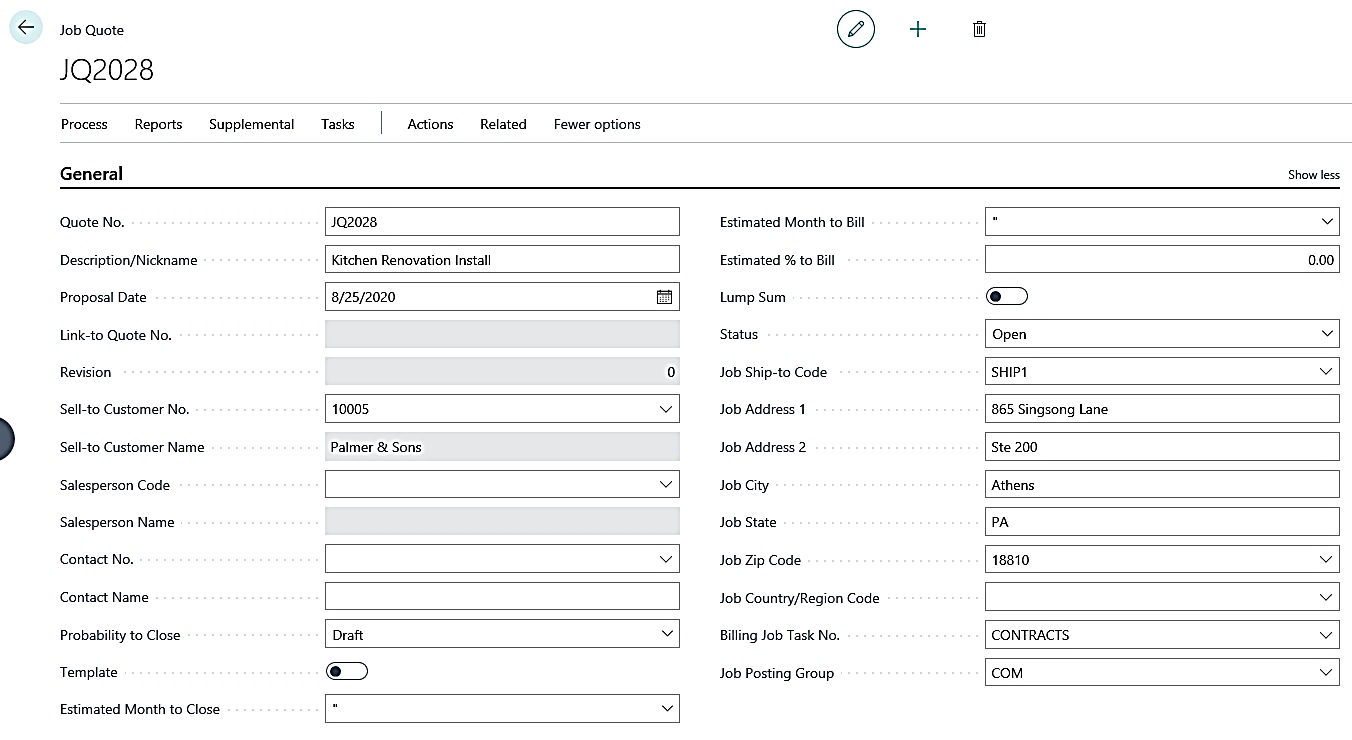
| FIELDS | DESCRIPTION |
| Quote No.: | Defines the unique no. for this Quote or can be set to automatic if number series is selected. |
| Description/Nickname: | Name or description of the Quote. |
| Proposal Date: | Date of the Proposal. |
| Link to Quote No.: | If you want to link it to some other Proposal. |
| Revision No.: | If you are creation a revision of the existing quote than system automatically increments the number. |
| Sell to Customer No.: | Defines the customer no. |
| Sell to Customer Name: | Defines the name of the customer |
| Salesperson Code: | Defines the code of the salesperson |
| Sales Person Name: | Defines the name of the Sales Person |
| Contact No: | Contact No. |
| Contact Name: | Contact name for this Quote |
| Probability to Close: | Define the probability to close this quote out of available options |
| Template: | Set this Boolean to yes if it is a template and not the actual quote |
| Estimated Month to Close: | Defines the estimated month to close this Quote |
| Estimated Month to Bill: | Defines the estimated month to bill for this quote |
| Estimated % to Bill: | Defines the estimated % to bill |
| Lump Sum: | Select this Boolean to yes if it is a lumpsum Quote |
| Status: | It defines the status of this Quote |
| Job Ship-to Code: | If in case you have define the job ship to code than you can select from the drop down and address and other fields gets populated on its own from card. |
| Job Address 1: | Defines the Job address 1 |
| Job Address 2: | Defines the Job address 2 |
| Job City: | Defines the Job City |
| Job State: | Defines the Job State |
| Job Zip Code: | Defines the Job Zip Code |
| Job Country/Region Code: | Defines the Job Country |
| Billing Job Task No.: | Defines the Job Task No |
| Job Posting Group: | Defines the Job Posting group for this Quote |
Lines Tab:
Under the lines tab you can define Items and Resources for a customer quote. In this case, your lines, when converted to a job will be Budget/Billable lines. This will allow your sales invoices to be created directly from the job.

Package Lines Tab:
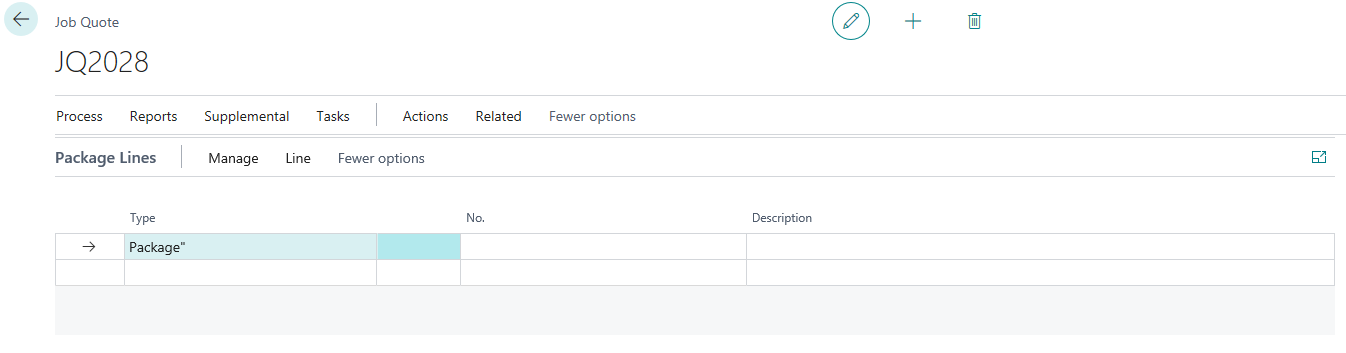
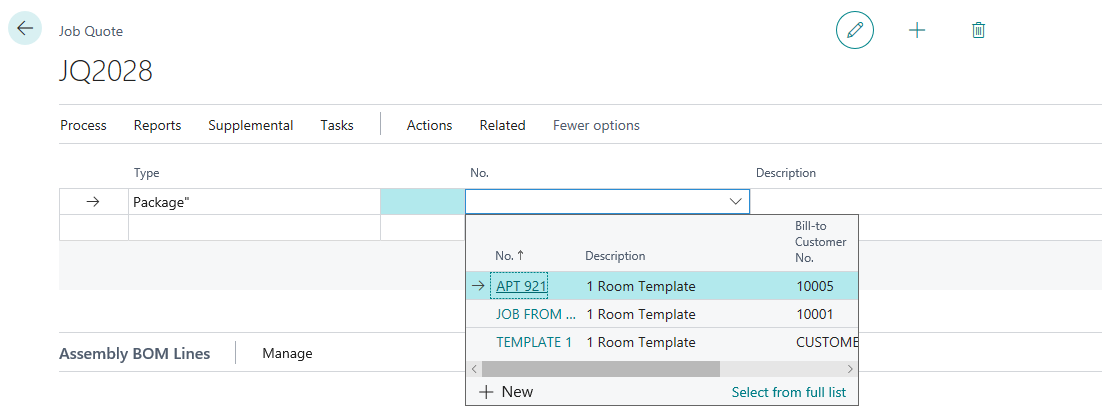
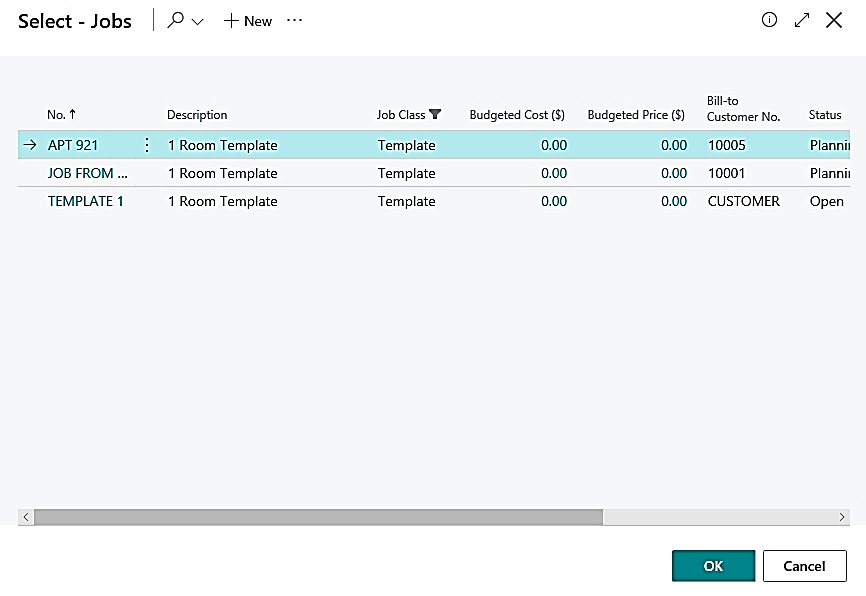
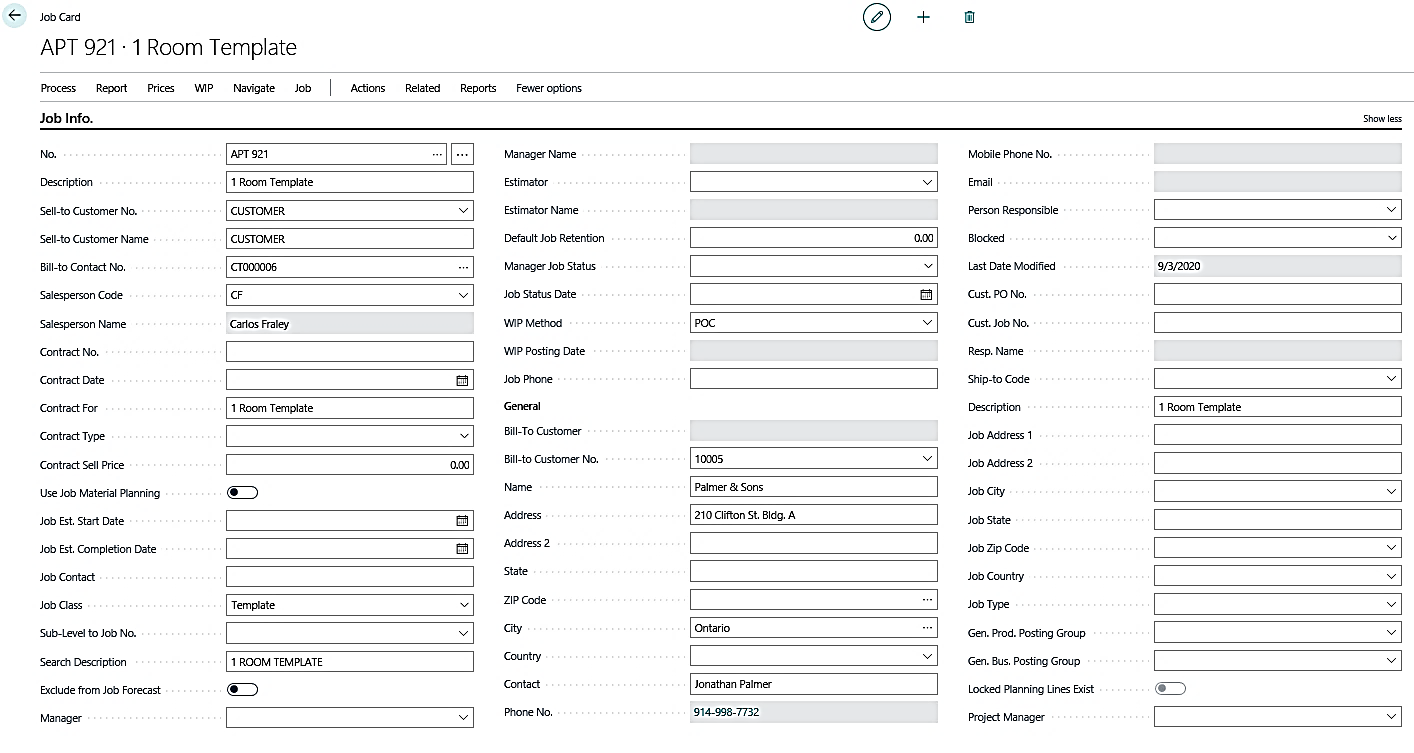
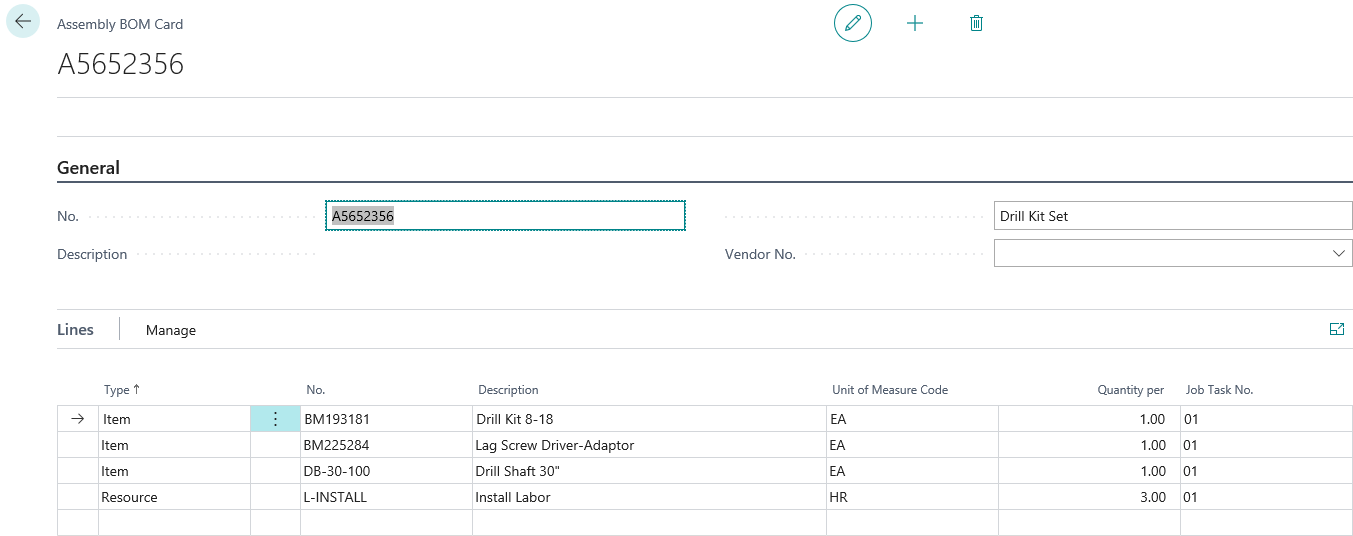
Through this you can populate the Job Task Codes through your package. From the drop-down option select the package no. Templates are the job card with Job Class set as Template (created by user), which has as pre requisites containing the Job Task Codes & Planning Lines containing contract line and total line.
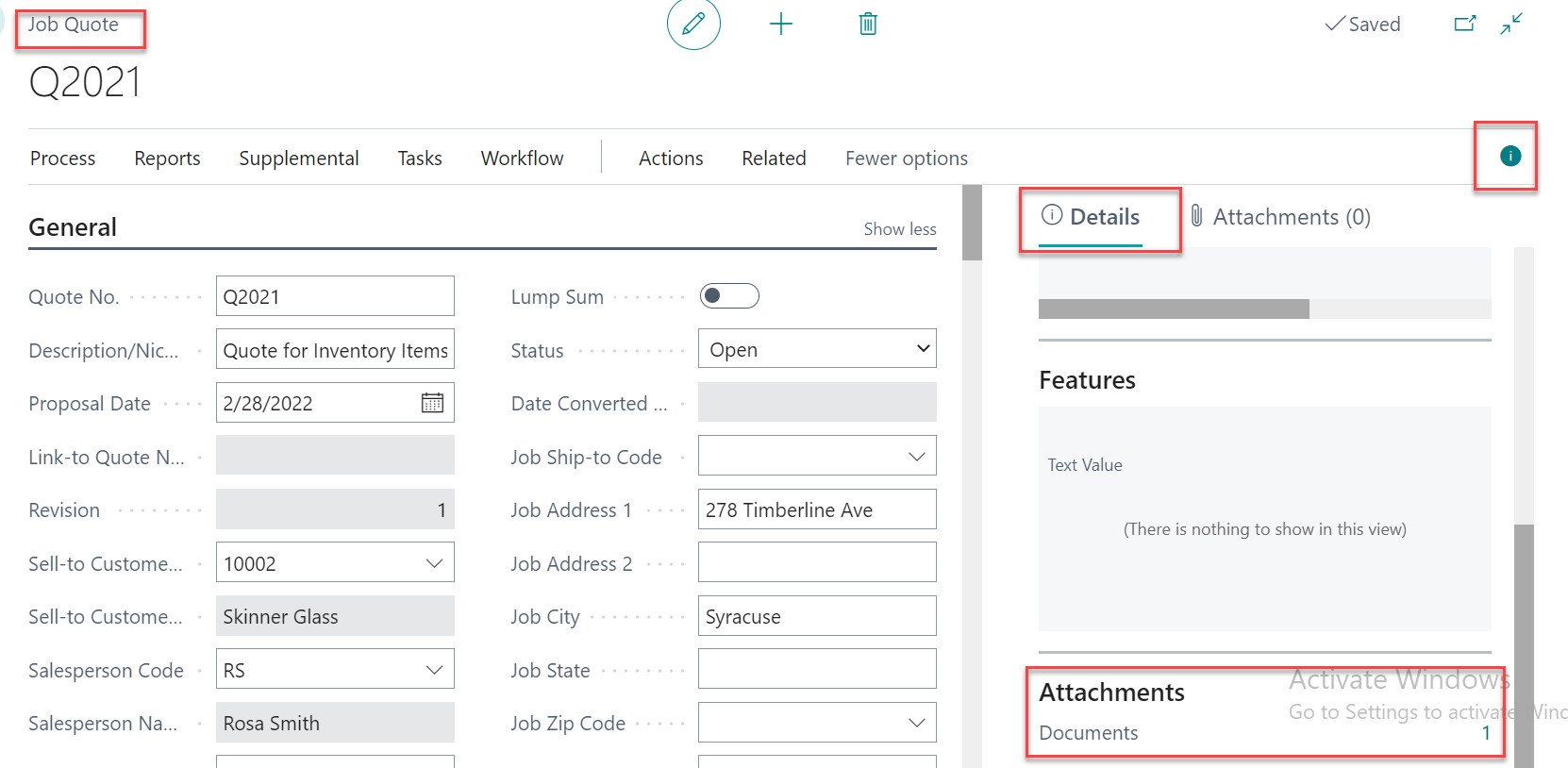
In a Job Quote, we can add an attachment to a Job Quote. To add an attachment click on “I” button then click on the “Details” tab. In the “Attachment” section we can add the file.
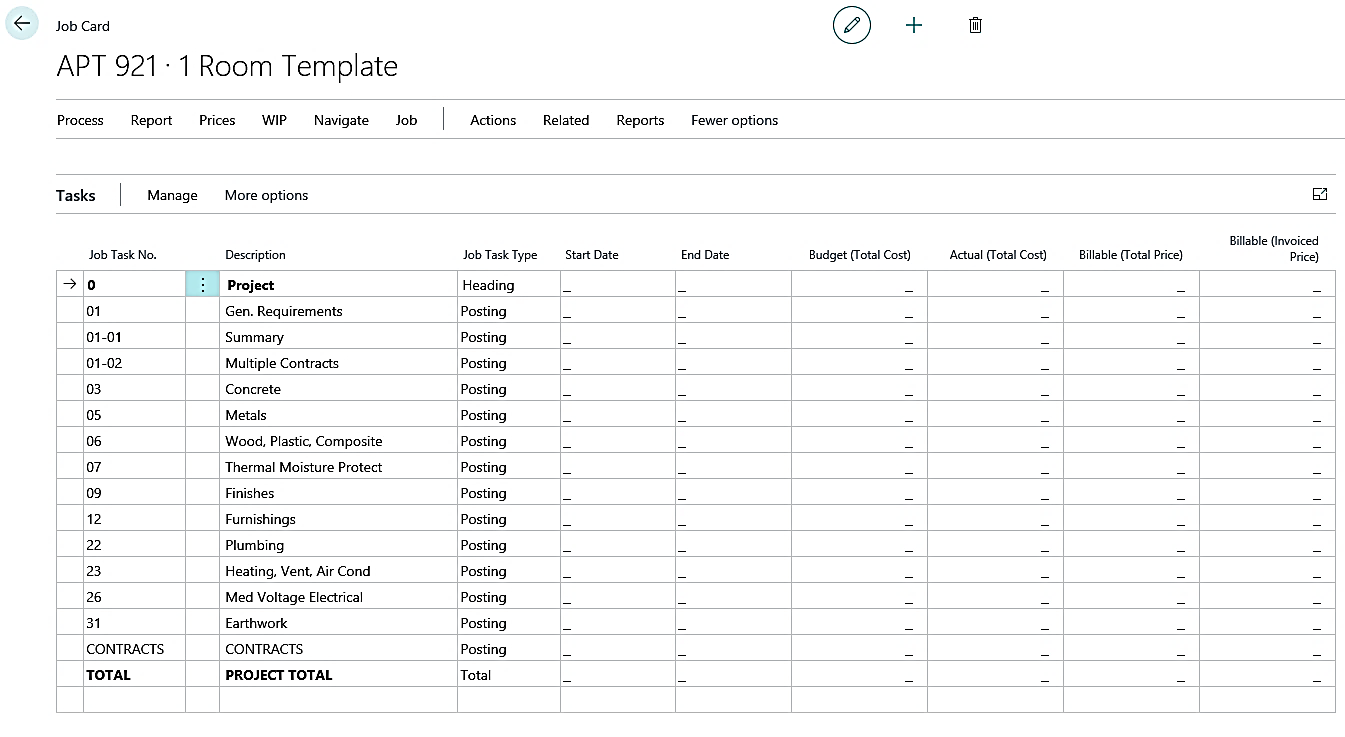
Assembly BOM lines
In this you can define the assembly BOM under the number tab you can select from the list of pre-defined Bom prepared with various combinations and qty defined.
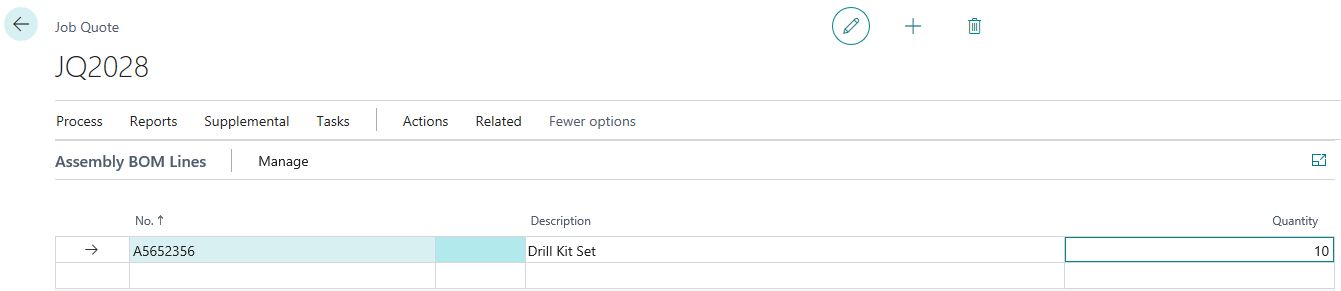
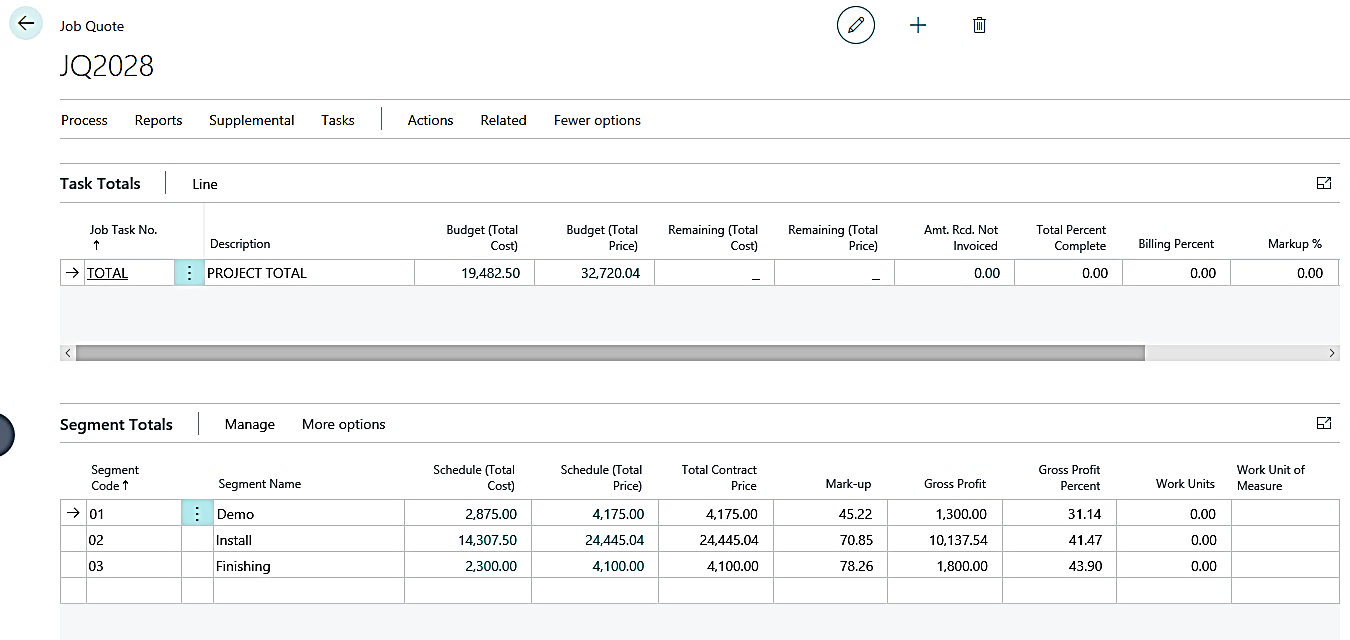
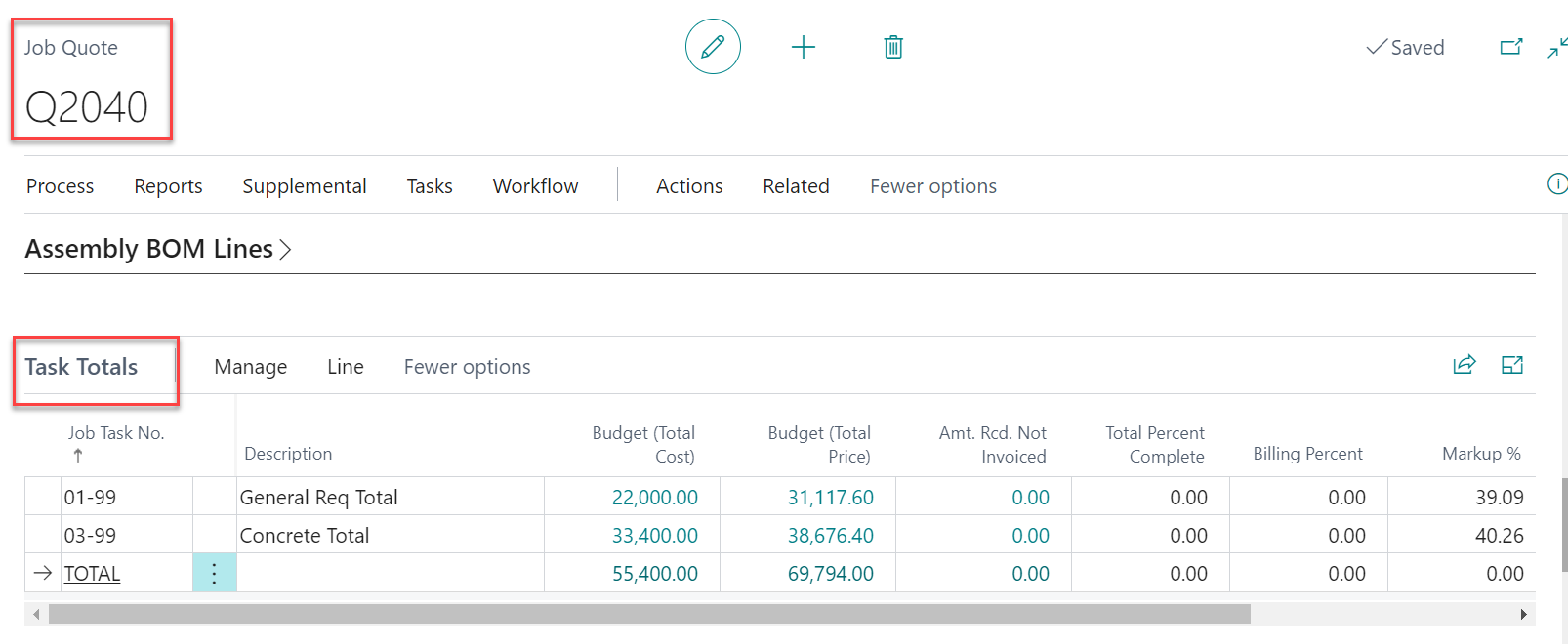
Task Totals
It displays the total of the budgeted cost & price taken at the job task lines and planning lines.
In a Job quote with task totals we can view a report based on the Task totals
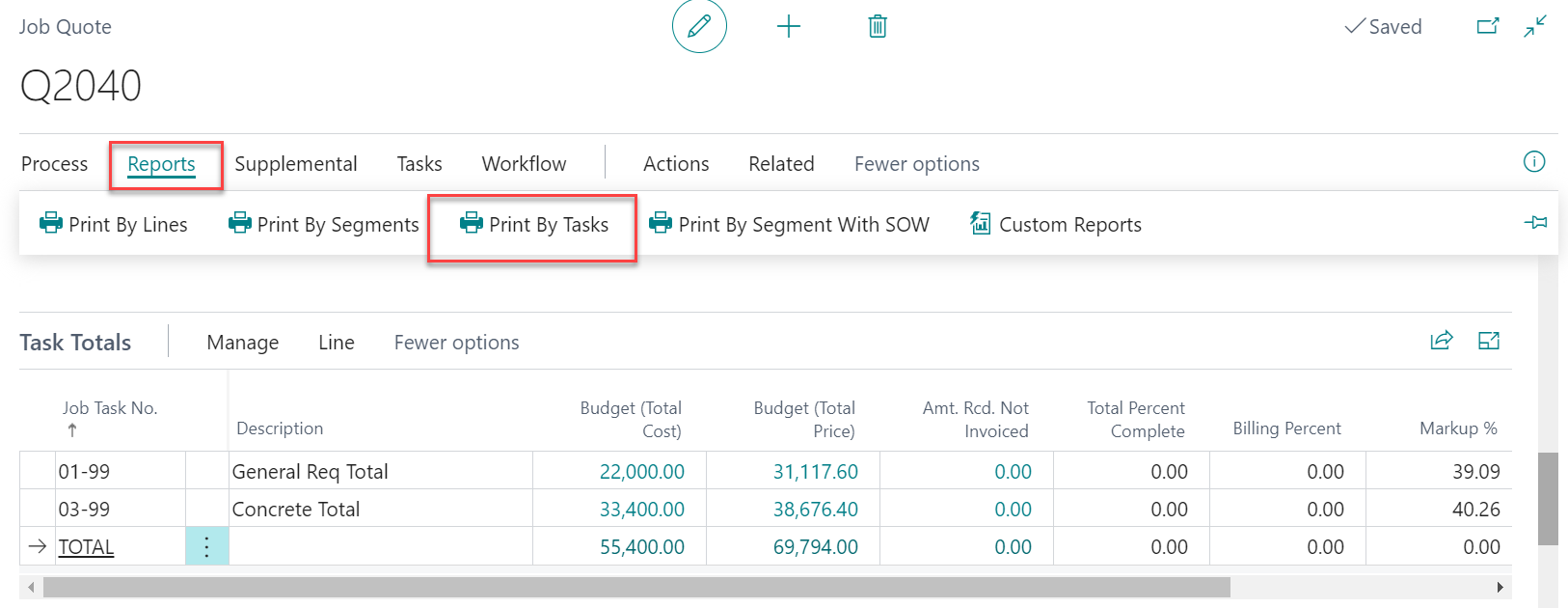
To generate the report, On the Job quote page, click on “Reports” then click on “Print By Tasks”.
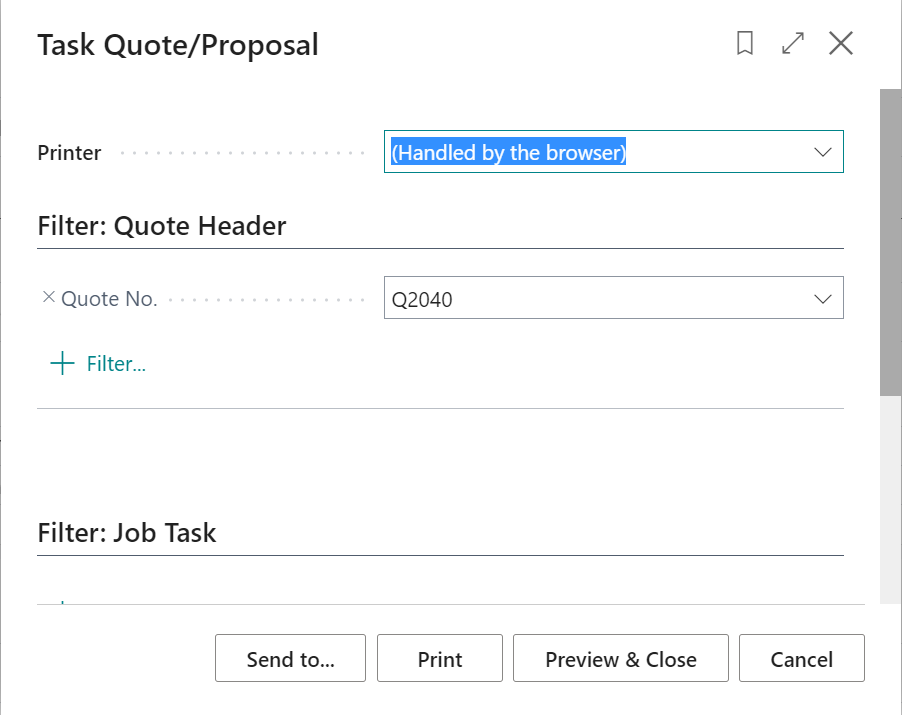
Click on “Preview and Close”
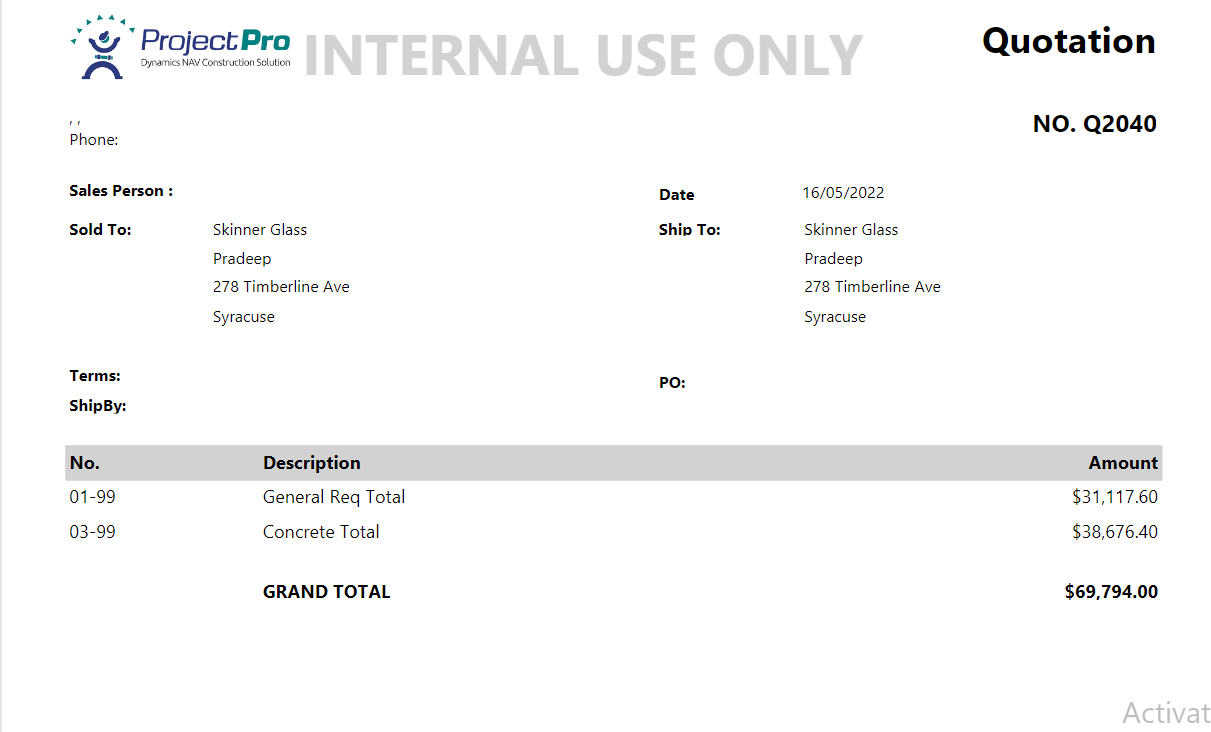
In this report we can see the task totals for each activity.
Segment Totals
In this we can categorize/group the various budget/cost lines on the basis of segment code and segment names in order to have the proper break-down of the costs across your task codes and planning lines.
In the segment code and segment name fields, define the desired segment code nomenclature you would like for identifying the grouping of similar tasks.
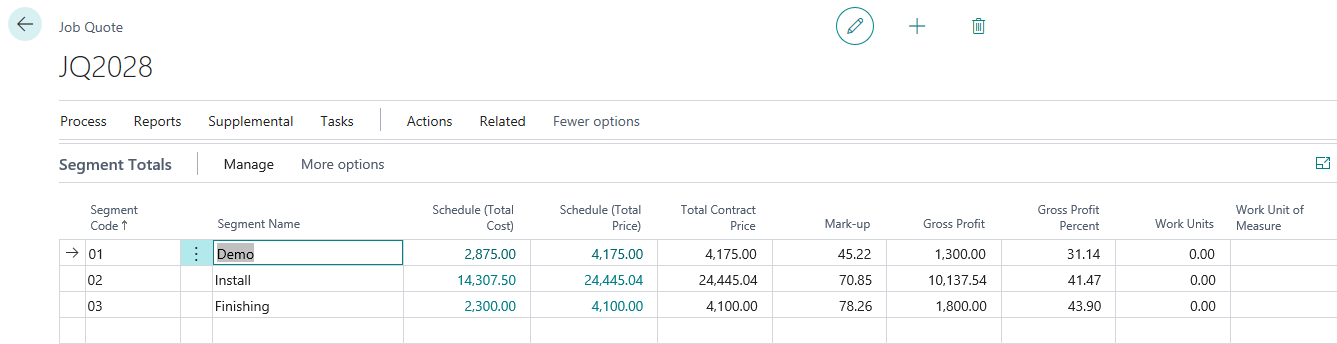
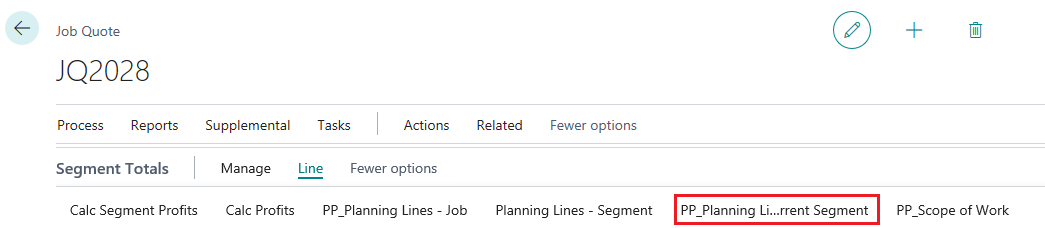
Under the Line section there are two options:
- Planning Lines-Segment – If you want to see all planning lines broken down by segment
- PP_Planning Line Current Segment – In this you can view planning lines of selected line segment only
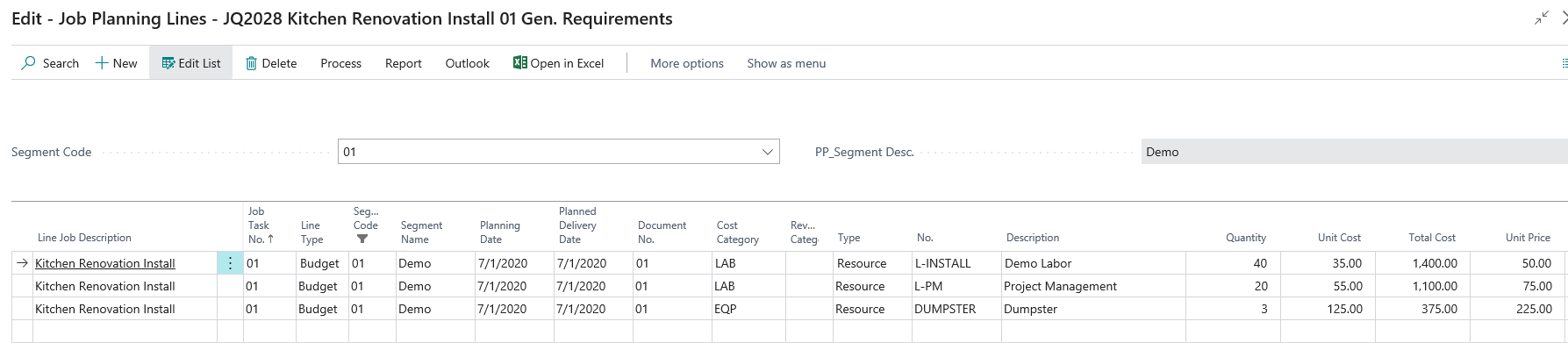
In the “PP_Planning Line Current Segment” option the following window opens. Select the Job Task No. and Line Type. In type option select the option out of Resource/G/L/Item and enter the number. Populate the quantity and the respective unit cost and unit price for each line.
Segment and Task Total Calculation
If User clicks on any quote that Quote will be opened and on the Job Quote Page under the Task totals → Manage → Refresh Tasks, the function of this button is that if the user made any changes on the Values in the Planning lines or in the Task Totals of the Quote then the values will not get update automatically and for that this Refresh button is provided.
Values before Refreshing the Task Totals
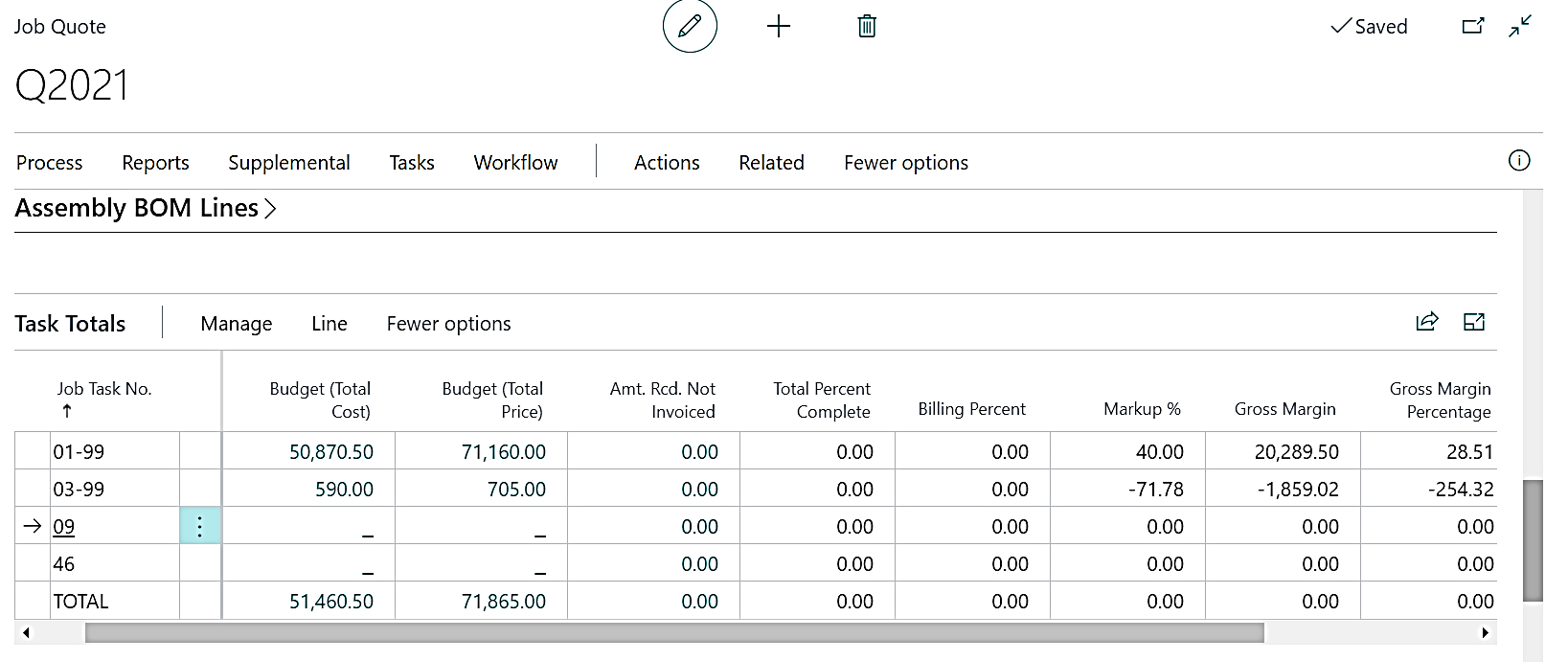
Values post Refreshing the Task Totals
If the user decrease the Markup % in the Task totals from 40 % to 30%, and refresh the Task Totals under the Manage button then the values get refreshed
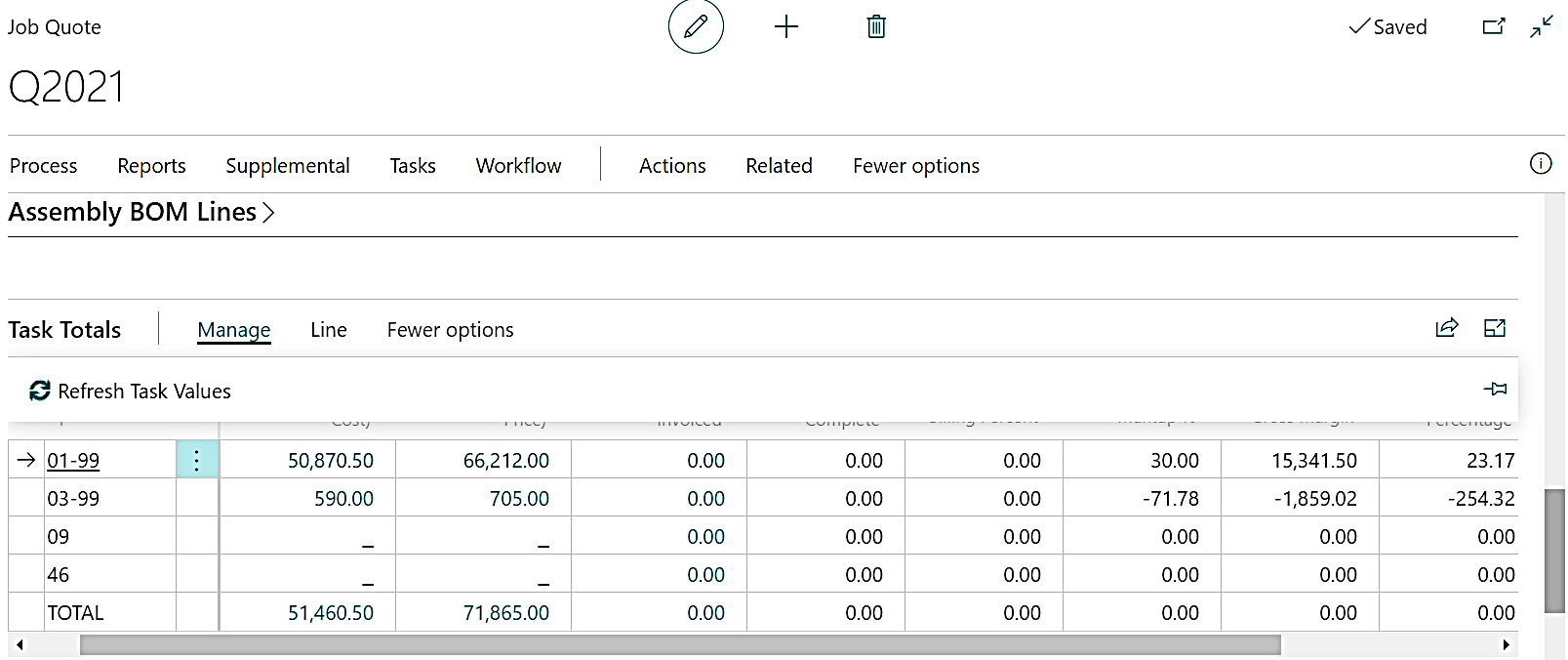
Refreshed Values
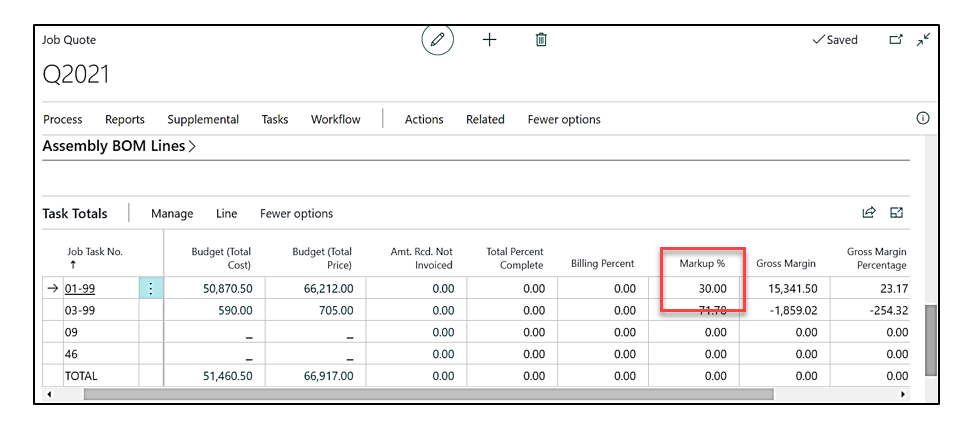
Same in case of the Segment Totals is applicable if the Markup % is 43.94 % and if the user want to increase upto 50% then the values will be updated after the user clicks on Refresh segment Values
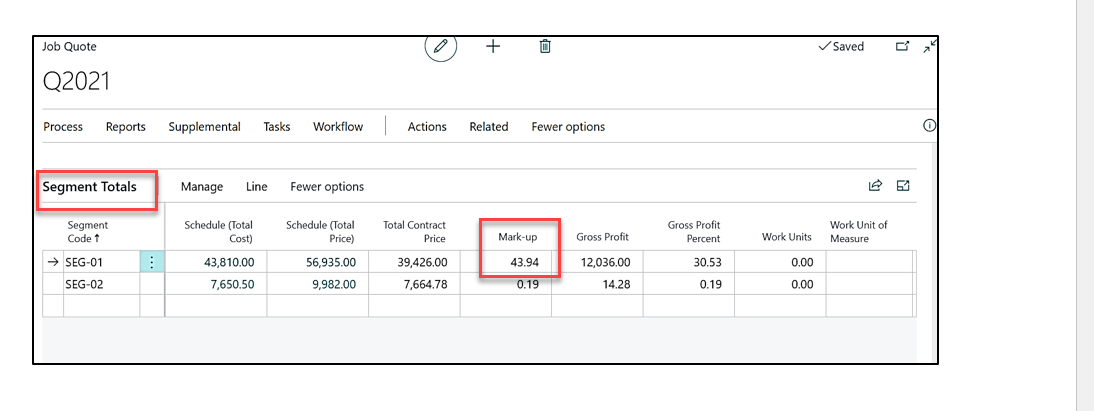
Once the user clicks on Refresh Segment Values the values get updated.
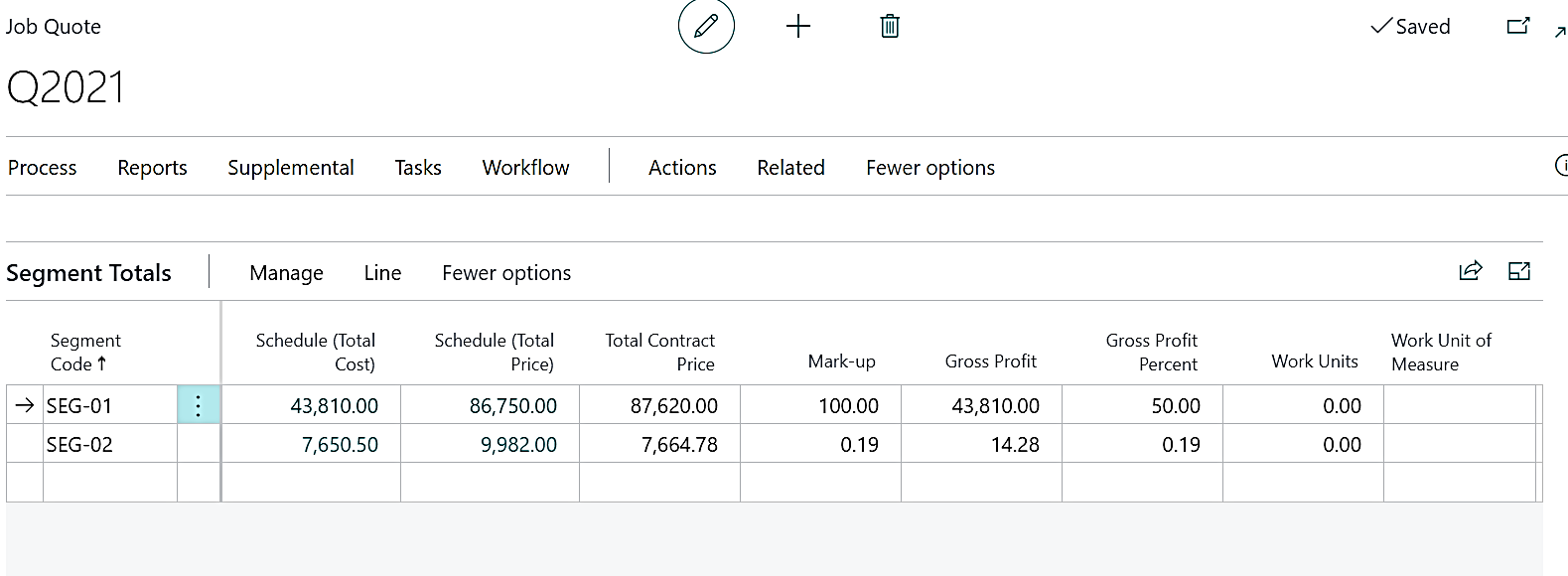
Margins
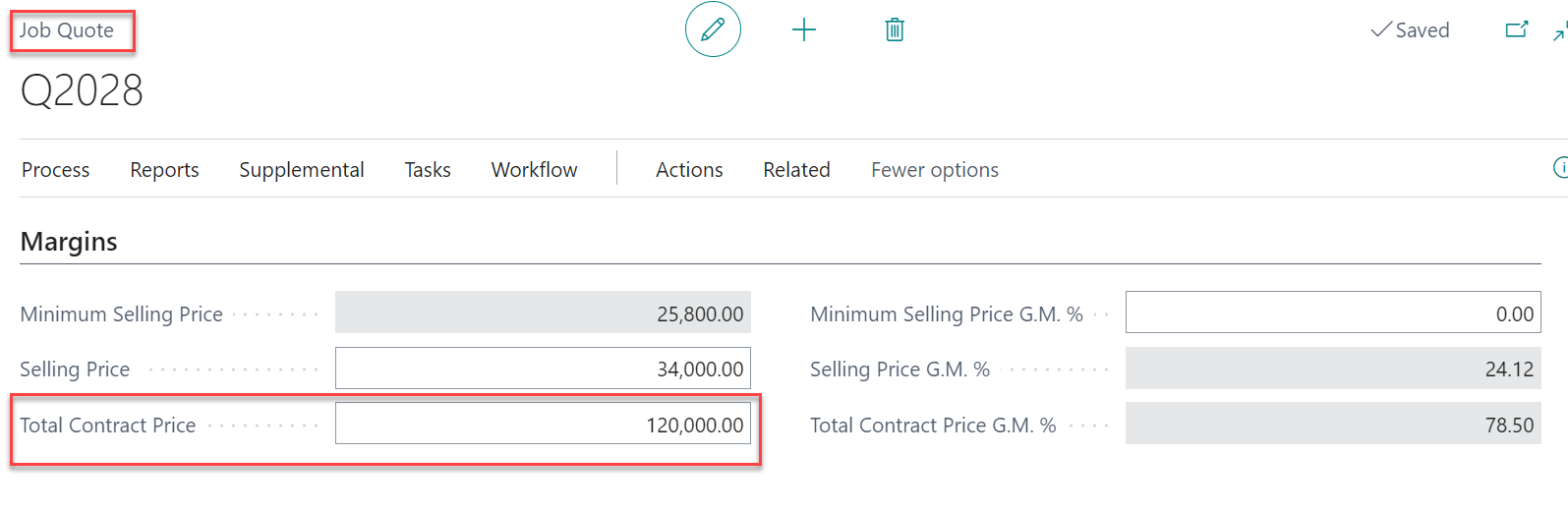
After defining cost and prices at different segment code and planning lines under segment codes the budgeted cost and budgeted price automatically is updated in the total tab. You can alter and define your Total Contract price by adding gross margins to your minimum selling price. Your Total Contract Price will be the Quote amount sent to the customer for approval.
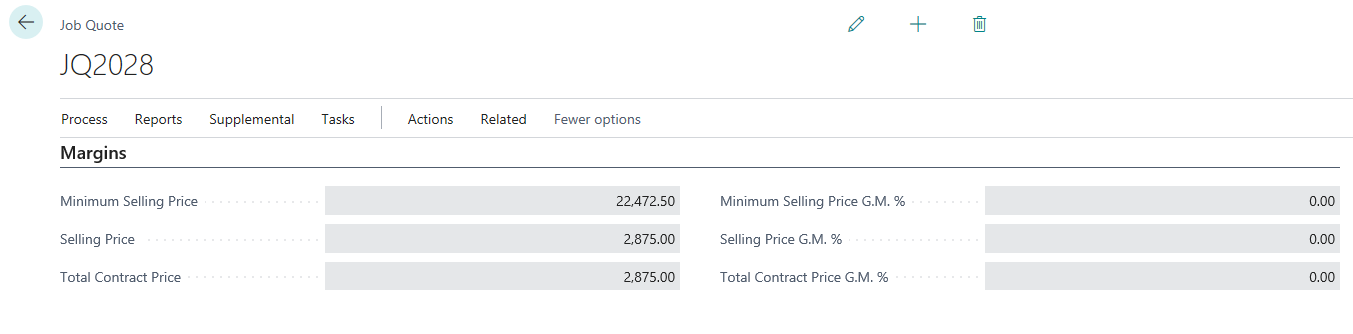
Default Minimum Selling Price G.M. %
A new field has been added on the Margine Tab which is “Default Minimum Selling Price G.M. %” The percentage defined in this field is default but editable value which flows to “Job Quote Margins Tab” on field “Minimum Selling Price G.M. %”. It also leads to auto calculation of field “Minimum Selling Price”,
This value will flow to new Job Quotes created.

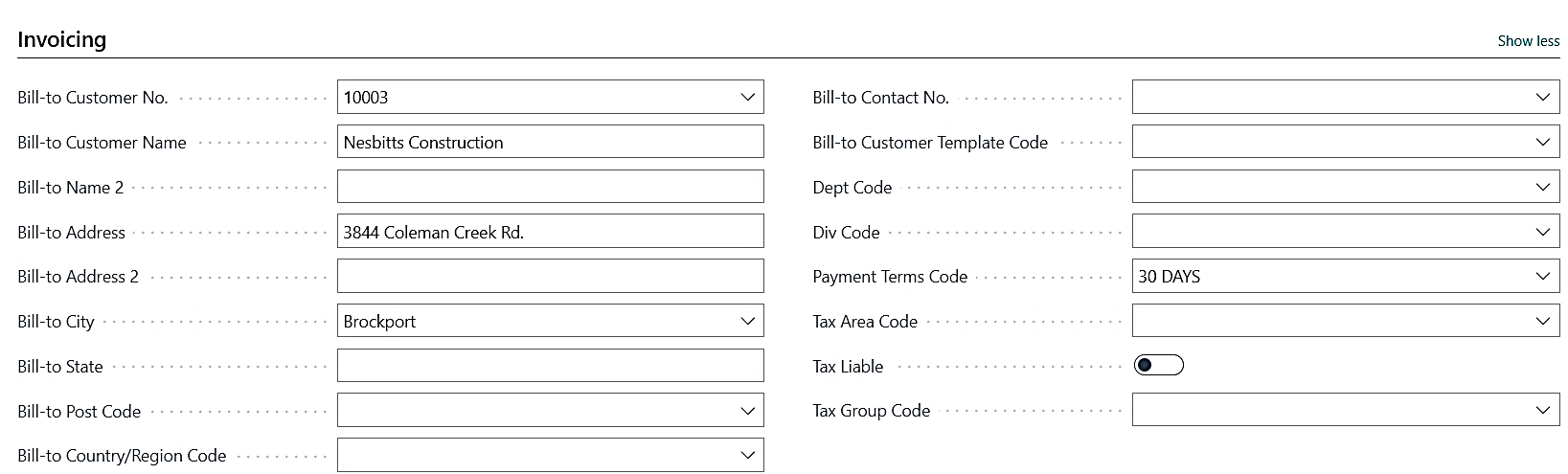
Invoicing
Under the invoicing tab you can view the customer information and details tagged with the customer. You can also edit the details and update in case any details have not been updated at the customer card.
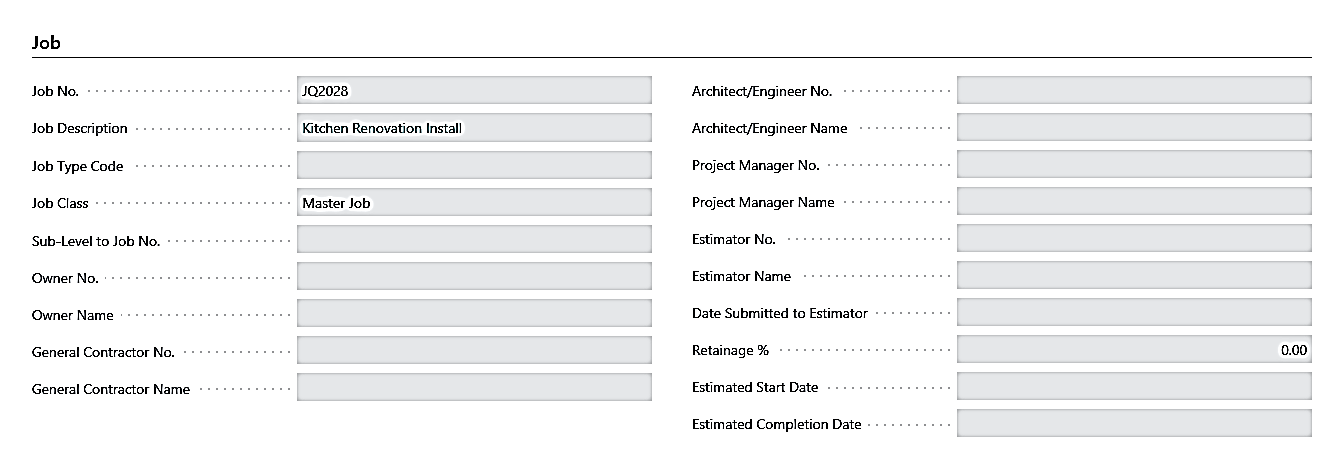
Job
Under this section we can mention the details of the Job and update all the relevant fields required for converting this Quote to a new Job.
On the Quote list page, in the “Total Contract Price” column
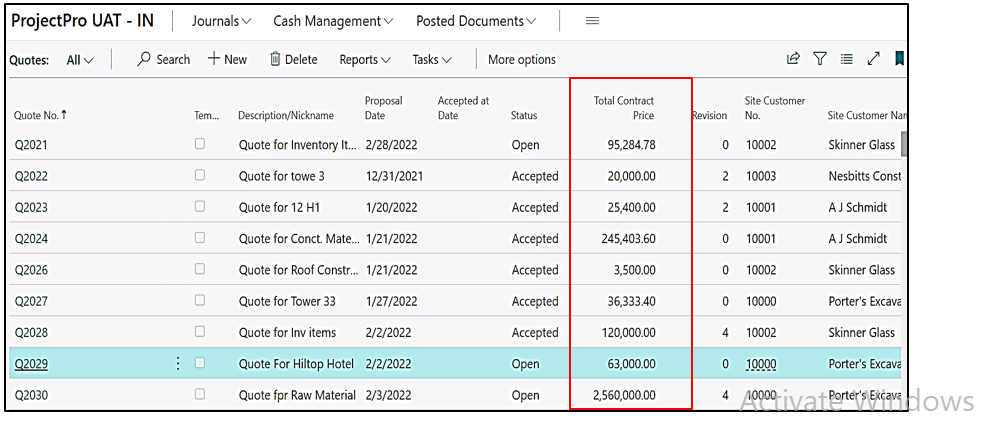
The value for “Contract Price” is derived from the field of “Total Contract Price” from the “Job Quote card”, under “Margins” tab