
Posting Labour To Job Journal
Post Labor to Job through Job Journal
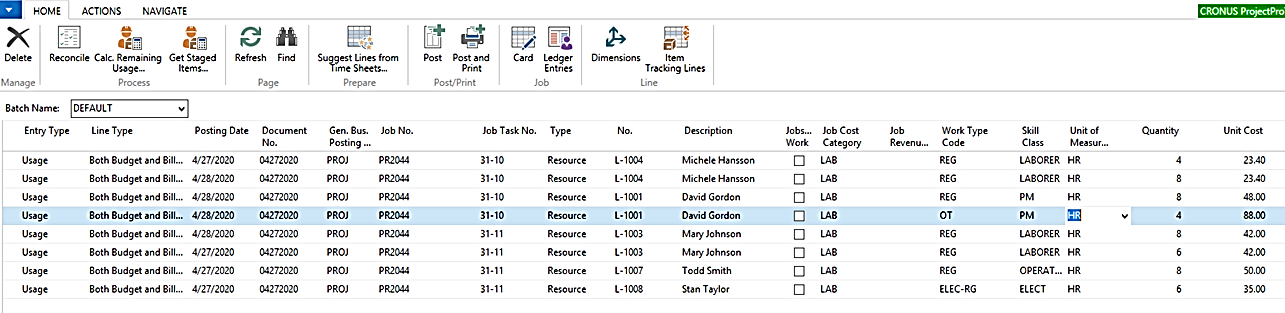
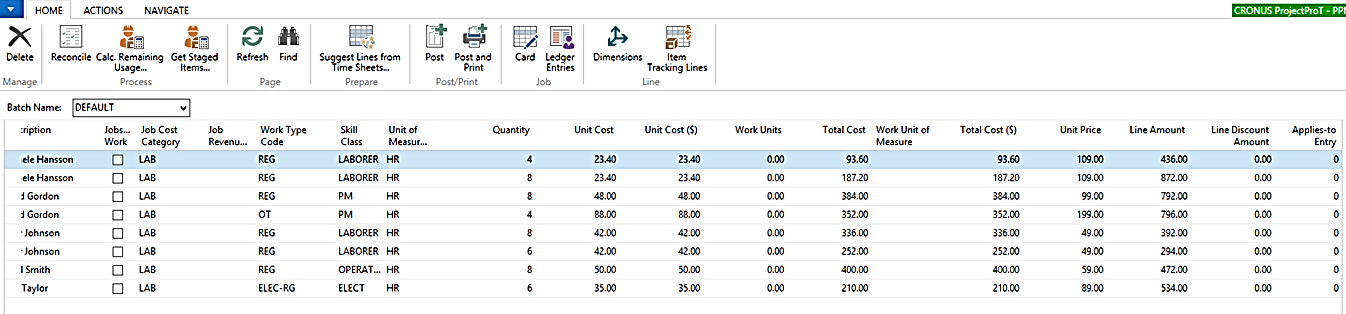
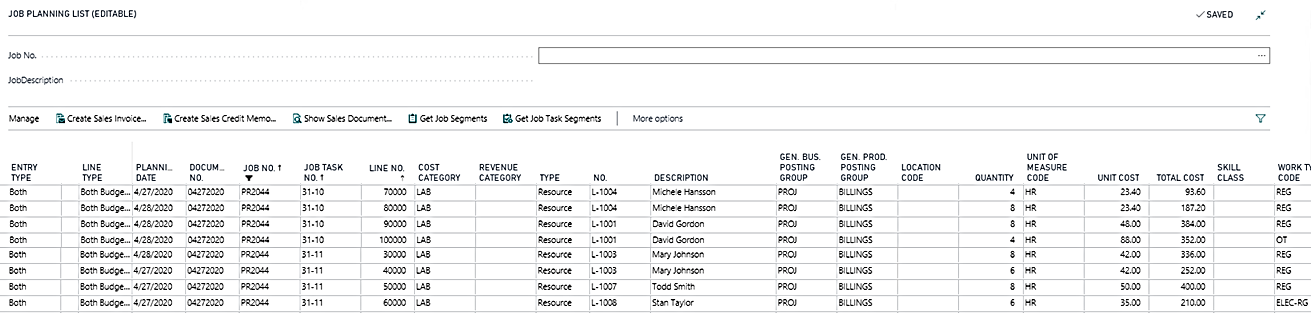
Review the Job Planning Lines to see Labor Postings
You can also post the labor hours and rates through time sheet functionality wherein you can:
- Create Multiple Project based time sheets
- Submit the time sheet
- Approval authority can approve the time sheets
- From job journal fetch the time sheets for the given period and job
- Post the Job Journal and revisit the Job planning lines to check the impact.
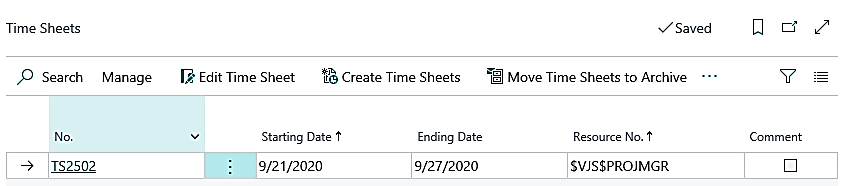
Click on Edit Time Sheet button from ribbon, edit the time sheet and fill in the relevant details required for filling in the timesheet.
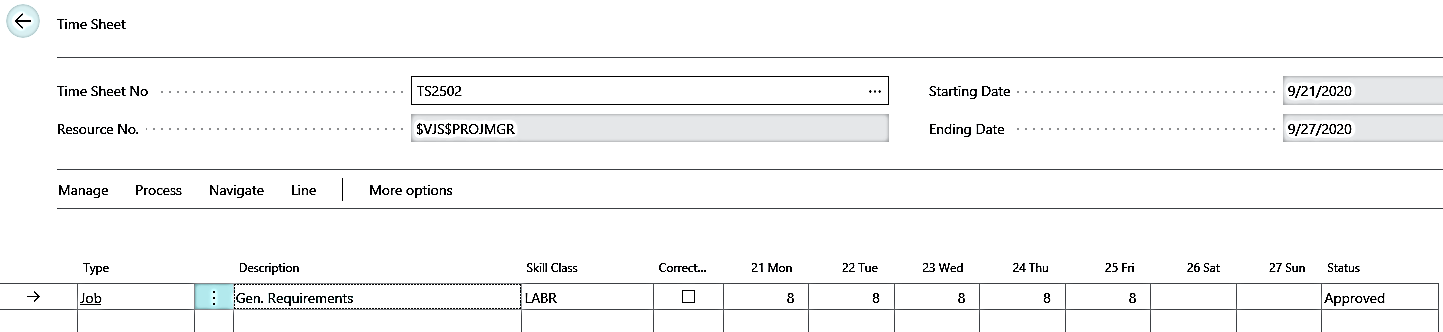
- Select the Type as Job
- Select Job No, Job Task No, Description and Work Type Code.
- Select the Skill Class for time sheet entry.
- Enter respective hours that you want to log in for respective days for a respective resource.
Click on Process → Submit, to submit your timesheet.
Search for “Manager Time sheets” using search option, to approve the time sheets submitted by the resource. The approval manager can be defined on the resource card.
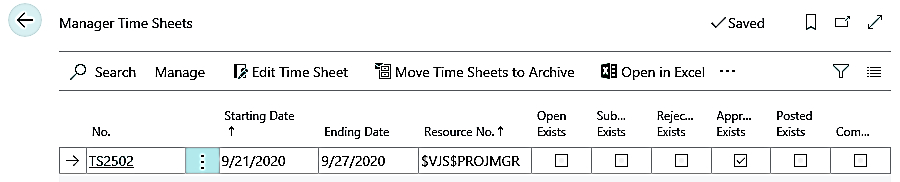
From Edit Timesheet option on ribbon you can edit the timesheet that are pending for approval from Manager Time Sheet. Once the time sheet has been entered, manager can either Approve/Reject/Reopen the time sheet.
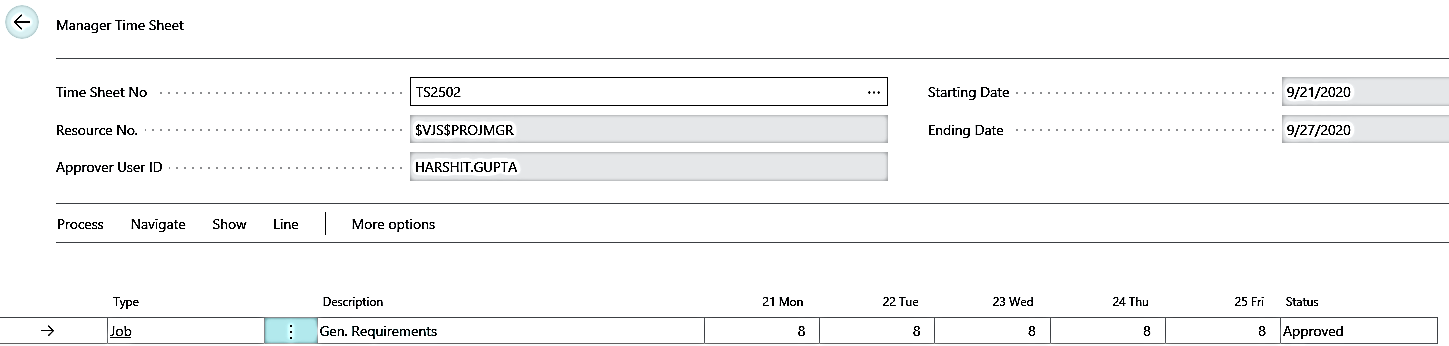
All approved time sheets can be fetched from job journal for final posting of a job. Search for Job journal or can select the same from Role Center.
On Job Journals, click on Actions → Functions → Suggest Lines from Time Sheets. Using this option, pull in all the approved time sheets to job journal lines.
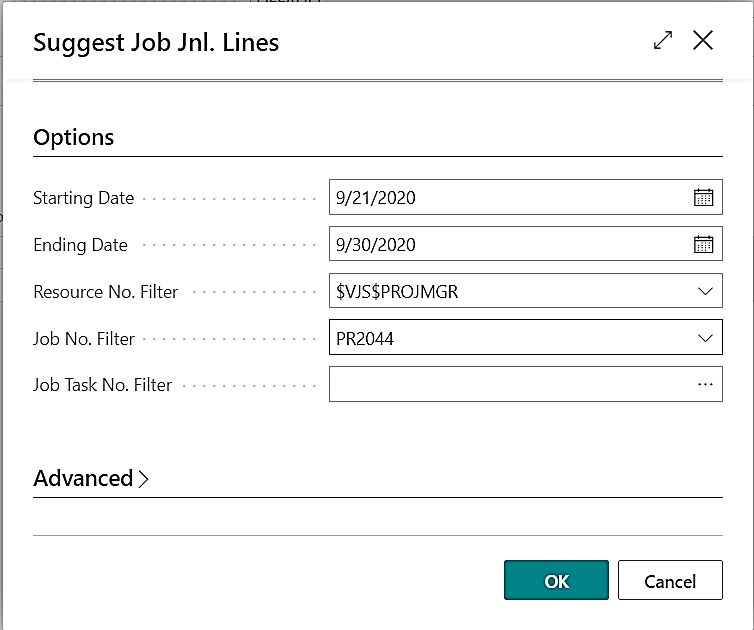
When you click on OK, respective lines will populate to Job Journal. Check all the Job Journal lines populated and click on Post from Post/Print option available at the ribbon of Job Journal.
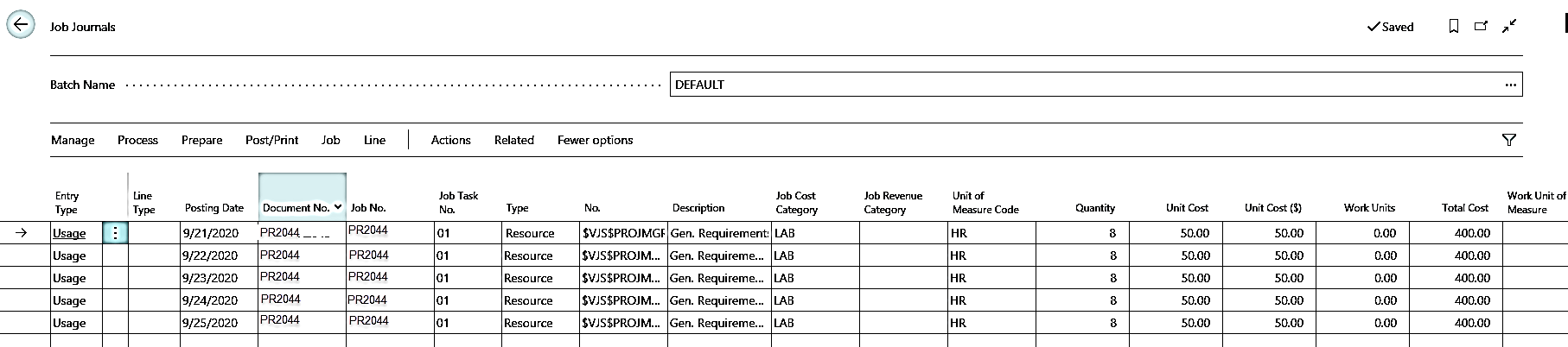
Once the respective Job Journal has been posted, then check the impact on the Job Planning Lines.

Print Work Order from job card.
