
Payments Applied to Jobs
To apply cash receipts to a Job, begin by searching for Deposits using search icon and select the related link under Lists section.
This will open the list of all deposits.
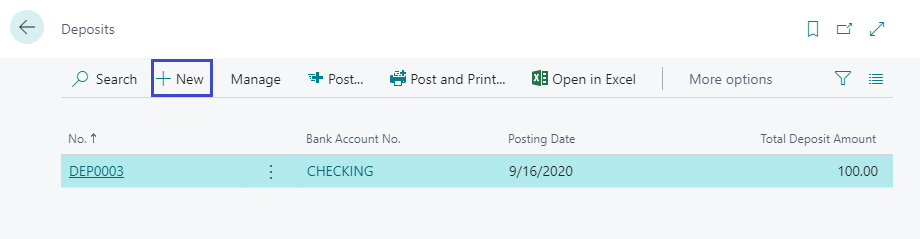
Click on New to create a new deposit, or to edit existing deposit select the required entry and click on Manage → Edit.
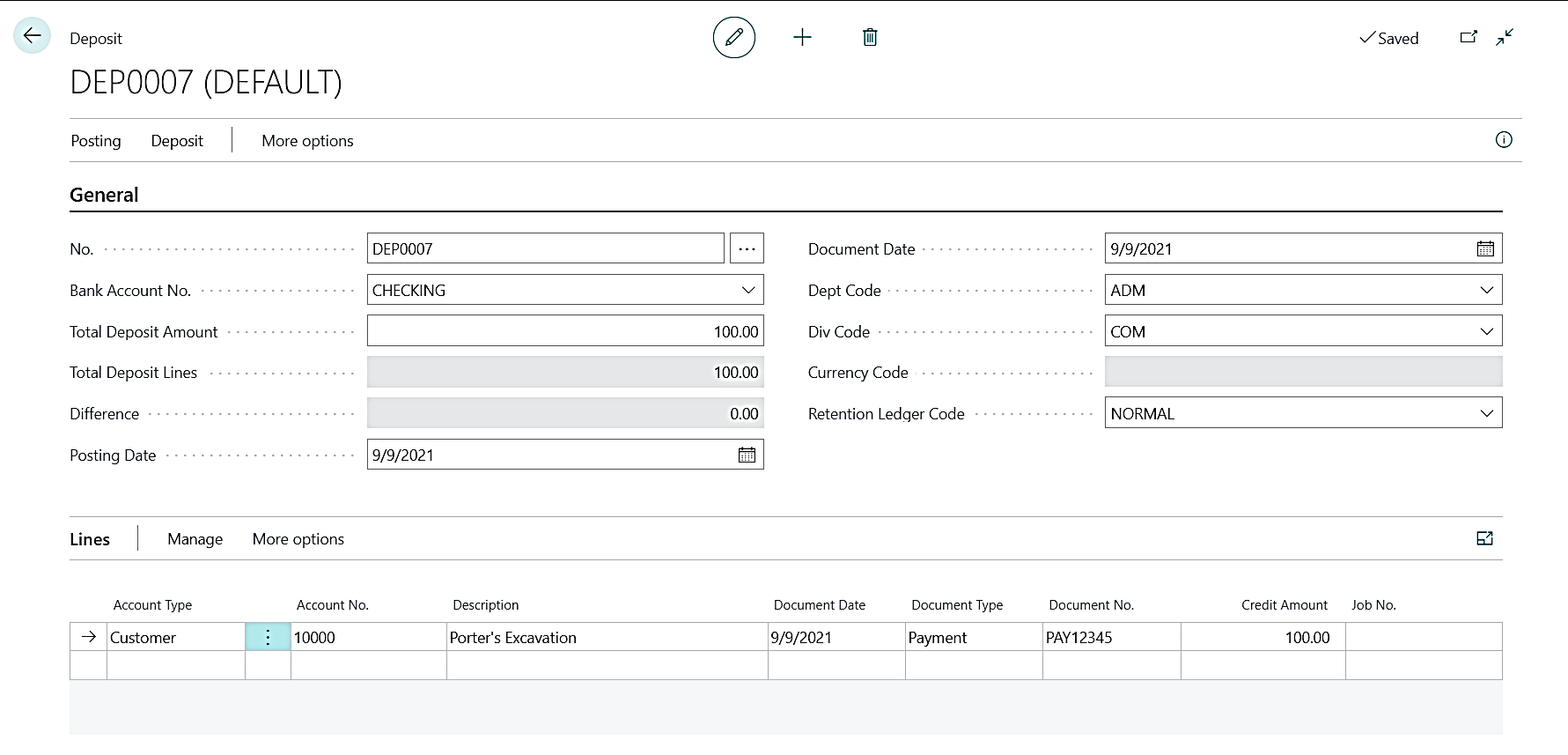
| FIELD | COMMENTS: |
|---|---|
| No. | Press Enter for the next Deposit No. |
| Bank Account No. | Select which bank account you would like the deposit to apply to. |
| Total Deposit Amount | Enter total amount for the deposit. |
| Posting Date | Enter the posting date for the deposit to be posted on. |
| Document Date | Enter the document date which is typically the date of the check. |
| Ledger Code | Must select MAIN ledger or RETENTION ledger depending on the payment type from the customer. Use MAIN ledger for payments designated for accounts receivable. Use RETENTION ledger for payments designated for retention receivables. |
The Deposit line items are as follows:
| FIELD | COMMENTS: |
|---|---|
| Account Type | Chose “Customer” from the drop down. |
| Account No. | Select which customer you would like to apply the deposit to. |
| Document Date | The date of the check. |
| Document Type | Select Payment. |
| Document No. | Enter the check number. |
| Ledger Code | Must select MAIN ledger or RETENTION ledger depending on the payment type from the customer. Use MAIN ledger for payments designated for accounts receivable. Use RETENTION ledger for payments designated for retention receivables. |
To apply deposit line towards a specific invoice,
- On the Lines fast tab, click on More Options → Functions → Apply Entries.
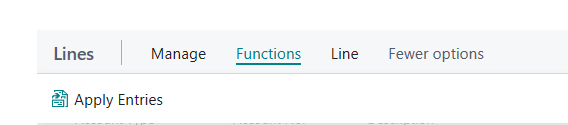
- This will show the open customer ledger entries that can be applied to the selected deposit line
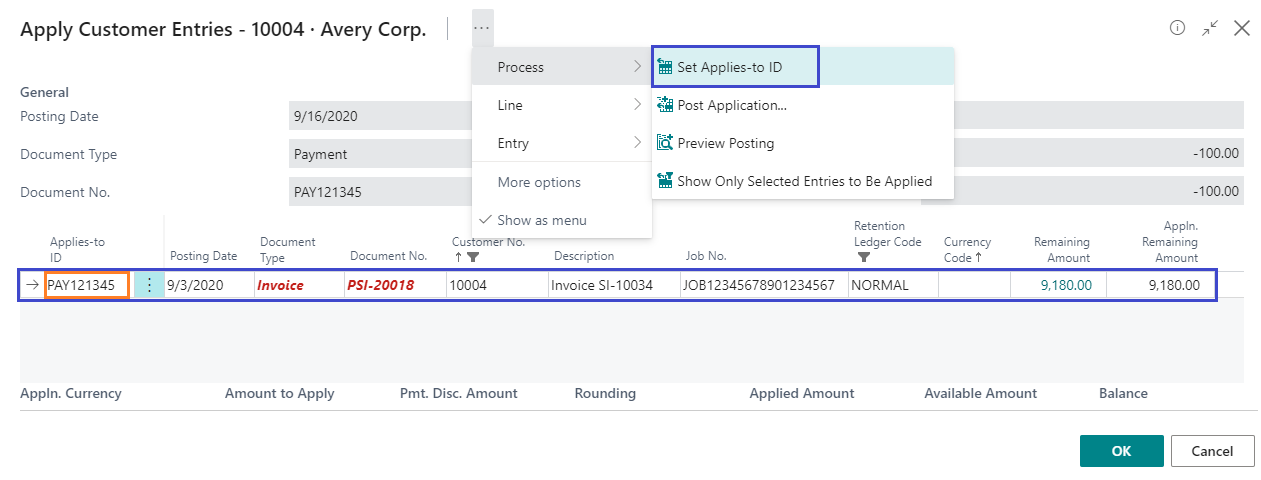
- Select the invoice you wish to post the deposit for and click Set Applies-to ID button.
- This will update the document no. of the selected deposit line on the invoice entry (see below).
- One can also select multiple invoices, if necessary and then click on Set Applies-to ID.
- Click on OK to save and get out of the screen.
Note: In order for deposits to be applied against the Job card, the Job No. must be in the head of the Job Sales Invoice. As indicated in the example below – see Job No. column.
Post the deposit by selecting the Post button under Posting tab of the deposit card.