
APO Link
The purpose of the APO Link is to relate the “Budgeted” Job Planning Lines within a Job Task to the “Billable” Job Planning Lines in the same or another Job Task for calculating the “Suggested Billing %” in the Progress Billing page.
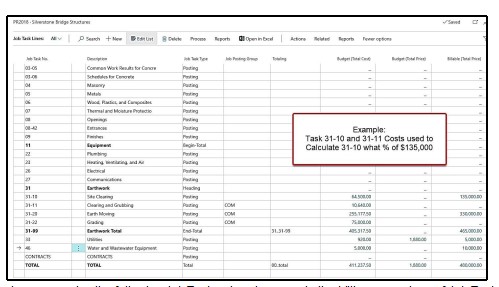
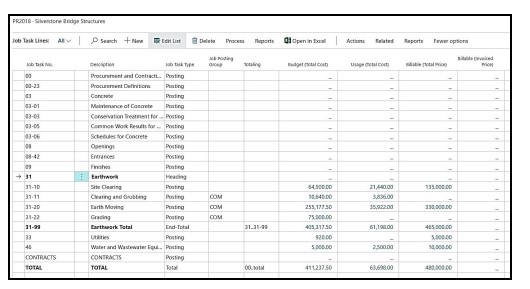
In this example we are using the following Job Task values to compute the billing percentage of Job Tasks:
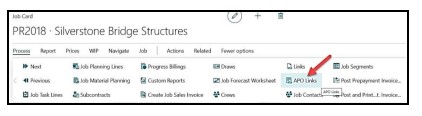
On the Job Card of PR2018, select Process and “APO Links”
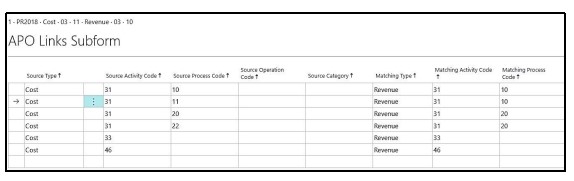
Below is an illustration with samples of “Actual Costs” used to calculate the Suggested Billing Percentages:
|
Job Task |
Line Type |
Cost Values |
Revenue Values |
Actual Costs |
Sugg. % |
Suggest Revenue |
|
|
31-10 |
Budget |
$64,500 |
|
$21,440 |
|
|
|
|
31-10 |
Billable |
Site Clearing |
$80,000 |
|
33.64% |
$26,912 |
|
|
31-10 |
Billable |
Clear and Grub |
$55,000 |
|
33.64% |
$18,502 |
|
|
31-11 |
Budget |
$10,640 |
|
|
$3,836 |
|
|
|
Total |
|
$75,140 |
$135,000 |
|
$25,276 |
|
$45,414 |
|
|
|
|
|
|
|
|
|
|
31-20 |
Budget |
$255,177.50 |
|
|
$35,922 |
|
|
|
31-20 |
Billable |
Earth Moving |
$240,000 |
|
|
10.88% |
$26,112 |
|
31-20 |
Billable |
Grading |
$90,000 |
|
|
10.88% |
$9,792 |
|
31-22 |
Budget |
$75,000 |
|
|
|
|
|
|
Total |
|
$330,177.50 |
$330,000 |
|
$35,922 |
|
$35,904 |
|
|
|
|
|
|
|
|
|
|
33 |
Budget |
$920 |
|
|
$0 |
|
|
|
33 |
Billable |
Utilities |
$5,000 |
|
|
|
|
|
Total |
|
$920 |
$5,000 |
|
$0 |
0% |
No Revenue |
|
|
|
|
|
|
|
|
|
|
46 |
Budget |
$5,000 |
|
|
$2,500 |
|
|
|
46 |
Billable |
Water Removal |
$10,000 |
|
|
50.00% |
$5,000 |
|
Total |
|
$5,000 |
|
$10,000 |
$2,500 |
|
|
|
Grand Total |
|
$411,237.50 |
$480,000 |
|
$63,698 |
|
$86,318 |
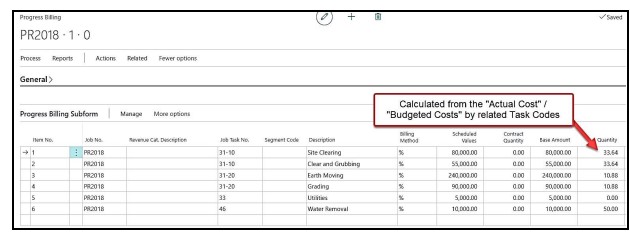
Once the Progress Billing is setup use the “Action” tab and select “Suggest Billing By Tasks”. Enter the “As of Date” for calculating the correct costs relative to your billing period. This if progress billing is for work through 9/30/21, then select as of date through 9/30/21 for costing.
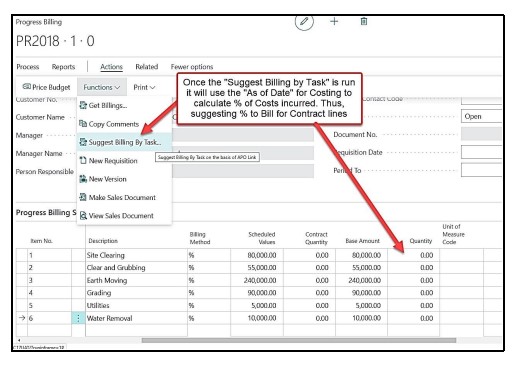
Once the project has incurred cost for April, then we are able to calculate suggested billing percentages.
Suggested Progress Billing explanation:
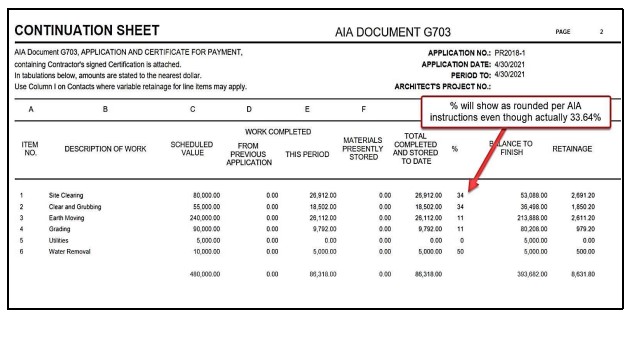
Progress Billings through AIA G703 Documentation:
Activating & De-activating APO Codes
SETUP
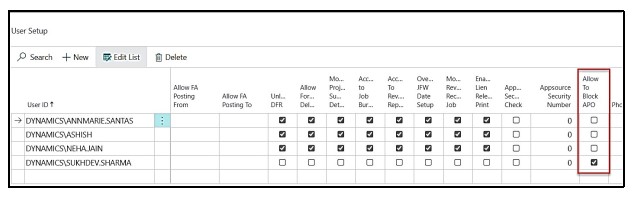
In user Setup, if the Boolean of “Allow to Block APO” is selected for the user, system will allow only then to block the APO codes
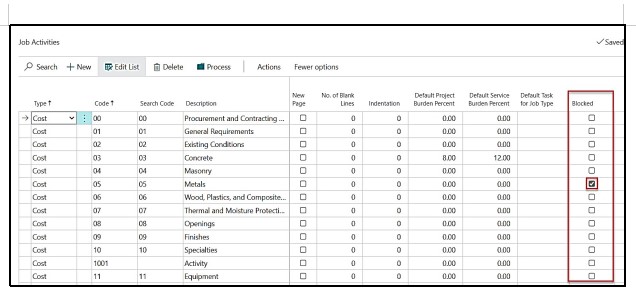
Under the Job Activities page,
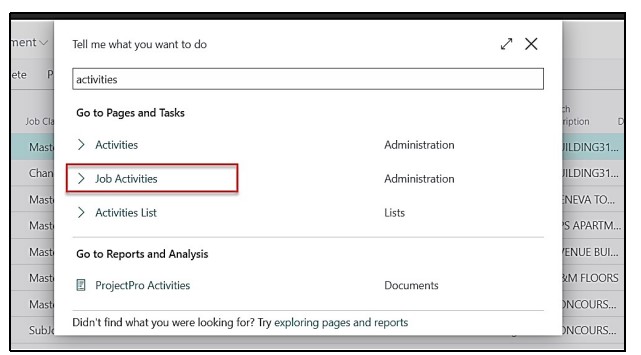
The user can block or un-block the Activity Codes
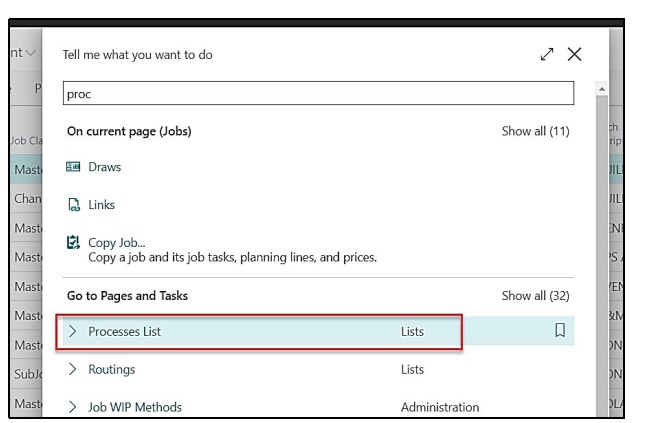
Under the Processes List
The User can Block the Process list also.
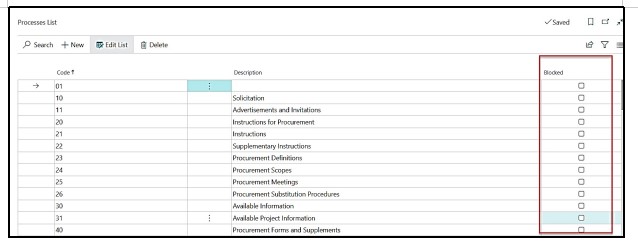
The implication is that if the Process code is also blocked, then the system won’t allow to further select the Operations & Sections in the Job Task List.
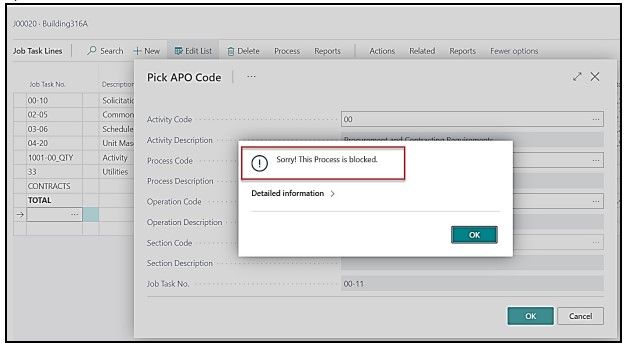
Following above error will come once the user tries to select either the blocked Activity code or the process Code.
USE TAX ON JOBS
We had defined the “Use tax Functionality” by using 7 Scenarios by Changing the “Tax Fields Booleans” on “Customer card”, “Job card”, & “Item Card”, and will observe the changes in the “Tax Fields” in the “Job Planning Lines” in each Scenario.
- On Customer Card we will make the changes in below fields:
- Tax Liable Boolean & Tax Area Code Field.
- On Job card we will make the changes in below fields:
- Tax Liable Boolean, Tax Group Code Field & Tax Area Code Field.
- On Item Card we will make the changes in below fields:
- Tax Group Code Field.
- Point of observation will be the Planning Lines of that Job on below fields:
- Tax Liable Field Boolean, Tax Group Code Field, Tax Area Code Field, Use Tax Boolean, Use Tax % Field, Use Tax Amount Field.
- We will be focusing the changes on above said fields on Job Planning Lines, how these fields react after the changes in Tax Boolean & Tax Fields on Customer Card, Job Card and on Item/ Resource card.