
Job Resource Cost/Price
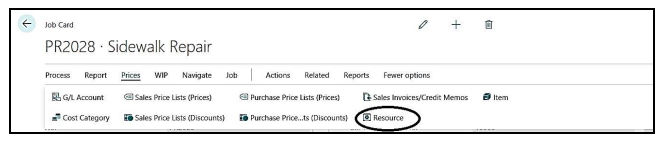
Resources used in Jobs have costs and prices. Unit prices are how much you charge customers for the resources. Dynamics-BC lets you not only set up the resource’s unit price on the resource card, but also allows you to set up alternative prices through the Resources option on the Job card.
For example, if you want to set up a specific hourly rate for a resource for a particular Job, you can set up a price for that resource and Job. The price you set up will override the price on the resource card when you use the resource for an entry in the Job journal. The following section provides instructions on how to set up alternative prices.
On the job card from ribbon, Prices?Resource

|
FIELD |
COMMENTS |
|
Job No.: |
This field contains the number of the job to which this resource price applies. The program fills in the number automatically. |
|
Job Task No.: |
If the resource price should only apply to a specific job task, you can enter the number of that job task in this field. To see the available job tasks on the job, click the AssistButton to the right. |
|
PP Skill Class Code: |
Enter the PP skill class code if any |
|
Type: |
In this field you choose whether the price you are setting up for the job should apply to a resource, to a resource group, or to all resources and resource groups. |
|
Code: |
This field contains the description of the resource, or resource group, you have entered in the Code field. |
|
Description: |
This field contains the description of the resource, or resource group, you have entered in the Code field. |
|
Work Type Code: |
If the price you are setting up applies to a specific work type, select the work type code in this field. Click the Assist Button in the field to see the available Work Type Codes. |
|
PP Unit Cost: |
It defines the cost of the resource that is auto picked in case defined at the resource card |
|
PP Mark Up %: |
Defines the mark up % in comparison to the cost defined at the PP unit cost |
|
Unit Price: |
This field contains the sales price that applies to this line. This price is in the currency represented by the code in the Currency Code field on this line. Note: If the unit price is zero and you want the unit price of zero to apply for this resource, or resource group, you must place a check mark in the Apply Job Price field. |
|
Unit Cost Factor: |
If you have agreed with you customer that he should pay for certain resource usage by cost value plus a certain percent value to cover your overhead expenses, you can set up a unit cost factor in this field. Example: If you have agreed with your customer that usage of a resource, or a resource group, should be paid by cost plus 25%, enter the unit cost factor 1.25 in this field. |
|
Unit Cost: |
This field contains the unit cost that applies to this line. This cost is in the currency represented by the code in the Currency Code field on this line. |
|
Cost Type: |
Fixed, % Extra, LCY Extra |
|
Cost Burden Multiplier: |
Increase the unit cost by this multiplier – 1.80 Then 80% added to the unit cost amount. |
Repeat these steps as many times as you need to set up all applicable resource prices.