Locking Job Budget
The purpose for Locking a job budget is to save what the original job’s budget was at the start of a project. Because the users can technically add additional entries after the project has started or make corrections and adjustments may alter what the value of the budget was from the start of project.
ProjectPro has added the ability to Lock a Job’s Budget in to another separate table for comparison to the active or “Current” job’s budget that may be changed due to different resources being scheduled on the job or adjustments to anticipated cost changes.
These are not change order adjustments but identifiable changes due to errors or anticipated adjustments that can affect the overall expected profitability of the job.
To use the “Locked Budget” feature, user must have this feature turned on at the Job Setup
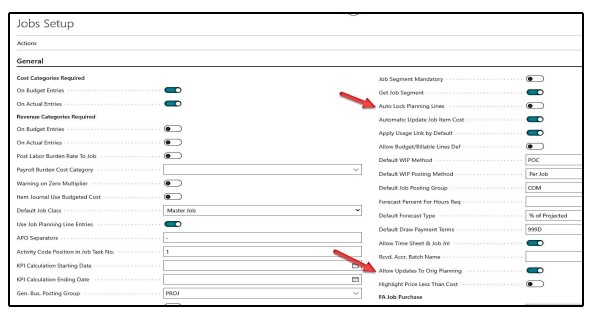
Turn on the “Auto Lock Planning Lines” if user wants the ability to Lock Budgets on a job.
Turn on the “Allow Updates to Orig Planning” if user wishes to be able to edit the “Original Locked Job Budget”. The user will require permission to the Job Setup Page to enable updating the original job budget that has been locked. As this provides full access to all job locked budgets. This is a temporary process and requires turning off upon completion of any necessary edits to the original budget values.
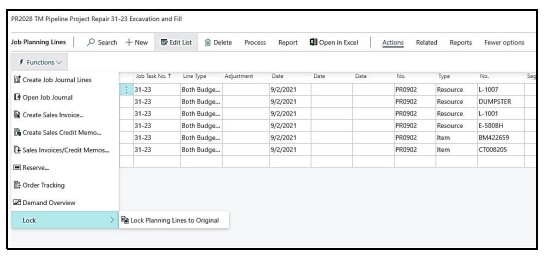
In order to Lock Go to the Job Card and select “Related”, then select “Job”, then “Job Planning Lines” and then select “Action” and “Functions” for “Lock” – “Lock Planning Lines to Original