
ProjectPro Accrued Job Costing
1. Purchase Receipt Interim Entries Over-view with user story
A construction company wishes to capture cost of material with every receipt and load it on job as usage. This done for big projects which have high inventory & Project Manager wishes to capture job expense with every material receipt. This function is optional & is kept at company level. The functionality is used to capture interim cost for material receipt only & is not applicable for services (G/L) & resources.
In the below process, user is trying to create Purchase Order from Job planning lines & while doing purchase Receipt Job Ledger Entries are created (Interim entries). These entries are reversed when actual Purchase Invoice is booked against purchase Receipt lines.
2. Tickets covered.
| Issue key | Summary |
|---|---|
| PE-7 | The process of Rec. Not Invoiced functionality use -Accrual (From Purchase Invoice using Posted Purchase Receipt) |
| PE-36 | The process of Rec. Not Invoiced functionality use -Accrual (from PO) |
3. Setup for Purchase Receipt Interim Entries
This is optional and for setting the “Purchase Receipt Interim Entries” search “Purchase & Payable setup”.
“Purchase Receipt Interim Entries” = True
4. Purchase & Payables Setup
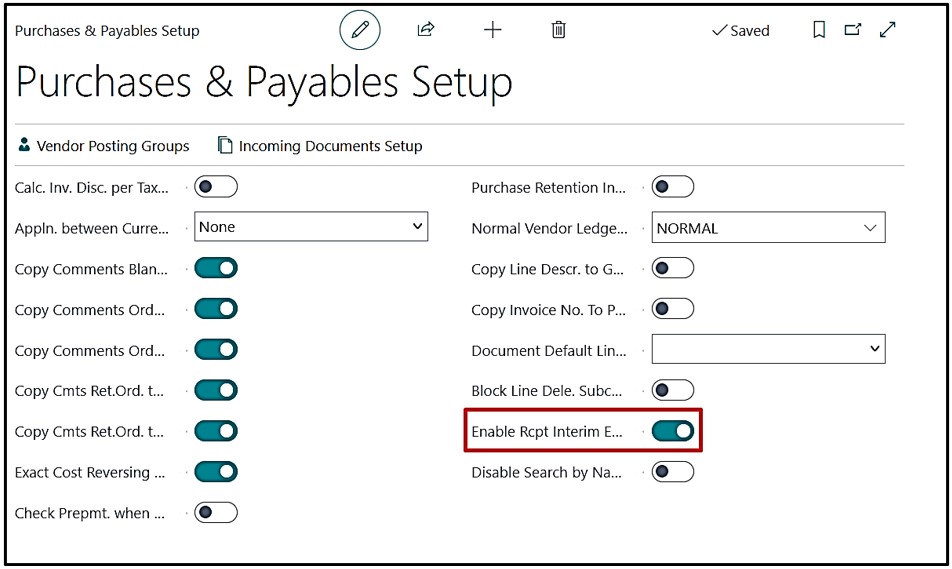
On “Purchase & Payables Setup” Field “Enable Rcpt Interim Entries in JLE” requires to be made Boolean “True”.
This feature is optional & if made true, system will start creating “Interim Entry” in “Job Ledger Entry” with each Purchase receipt posted against an Item.
Note. This setup of “Interim Entries” is only applicable for Item & shall not work for “Resource” or “G/L”.
5. Creating Purchase Order
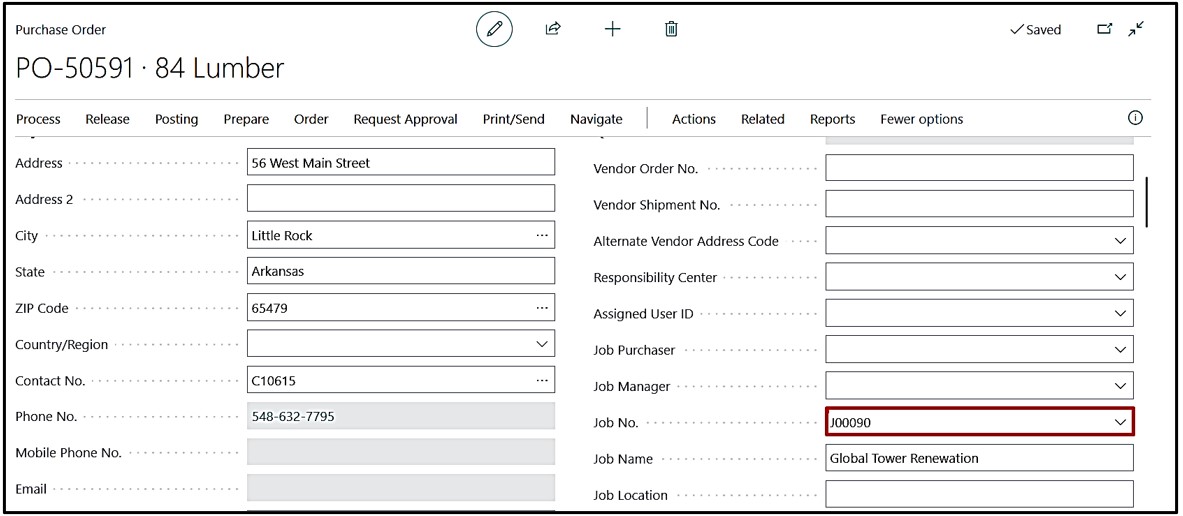
Create “Purchase Order” and select the Job No. on the Header of the Purchase Order.
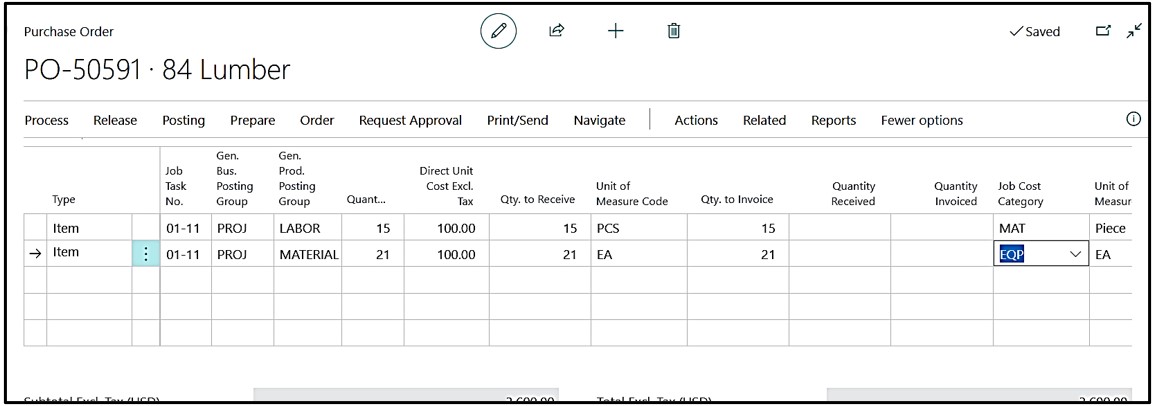
Select “Line Type” as “Item” and select items with quantity and update “Direct unit Cost” with Unit of Measurement code,
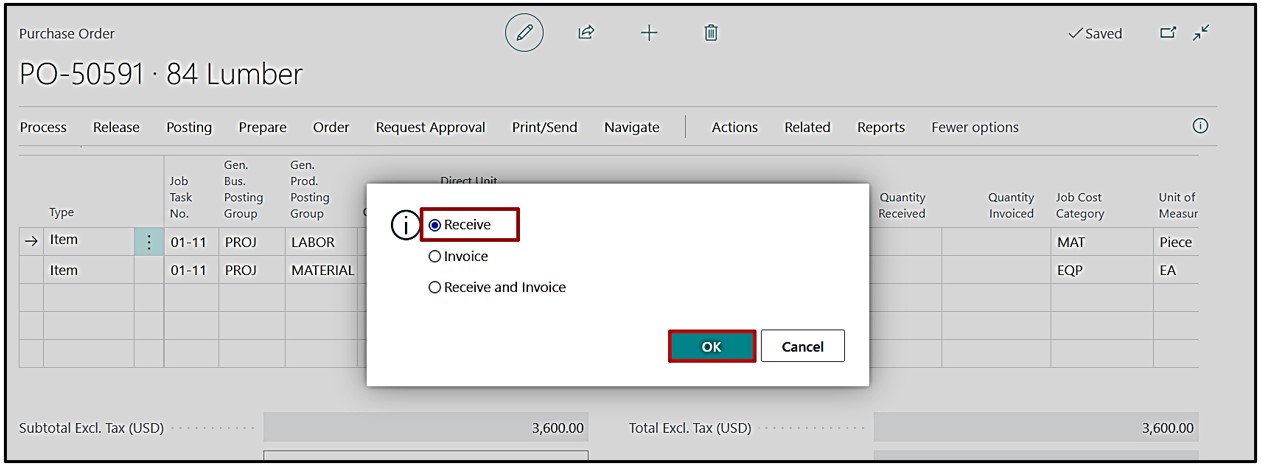
Purchase Receipt against an PO can be posted i.e. Posting→Post
Click on Post & select ‘Receive’ option and Post the Receipt.
Navigate Posted Receipt from Purchase Order using click navigate→Receipt.
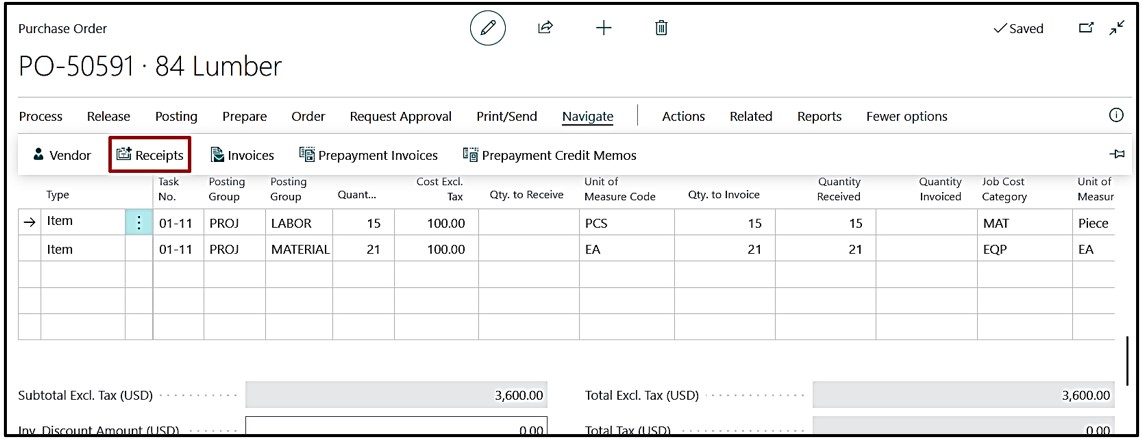
Now on the Receipt Page, click ‘Find Entries’.
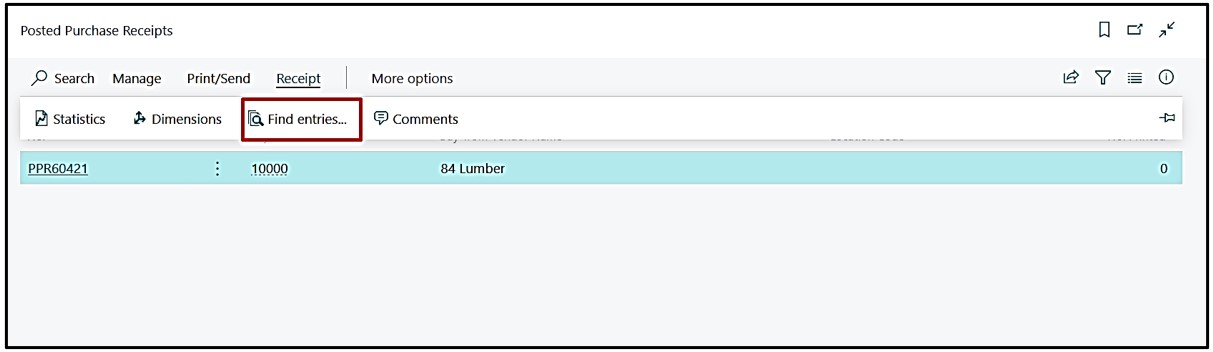
Job Ledger entries shall be created for number of lines with Item.
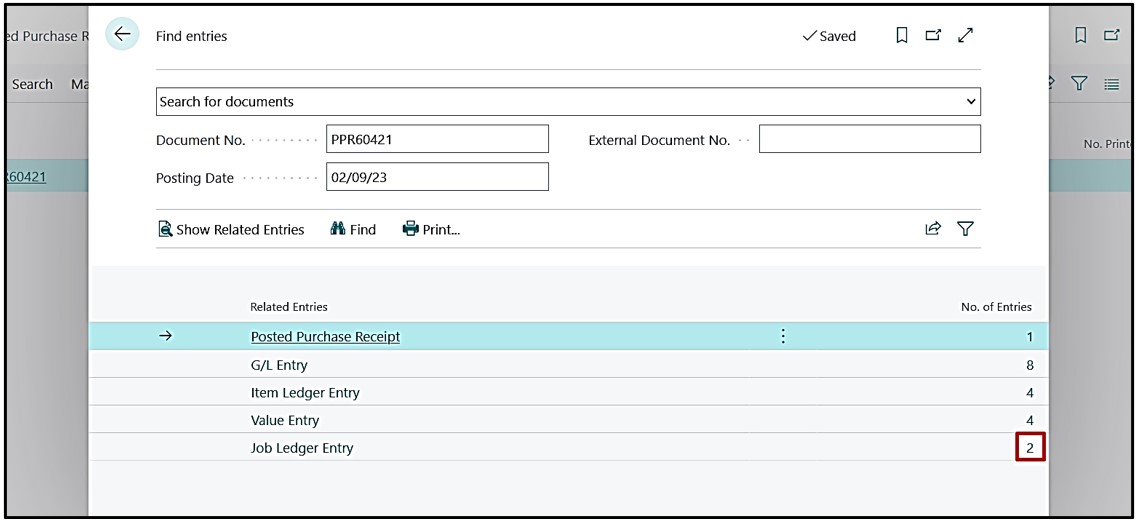
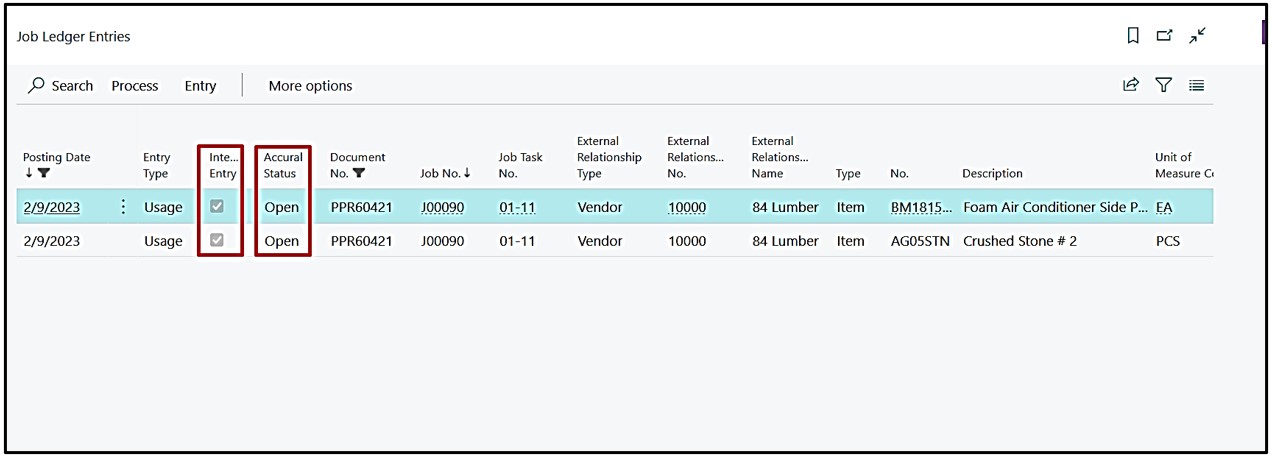
When we drill Down these Job Ledger entries then entries can be reviewed with the “Interim Entry” check mark as “True” and the “Accrual Status” as “Open”.
Option 1.
Create the Purchase Invoice, & opt ‘Get Purchase Receipt Line’ from Line Header. This way user can post the Invoice by getting these receipt Lines on “Purchase Invoice”.
Create Purchase Invoice and select vendor same as of purchase Order with same Job no. on Purchase Invoice Header.
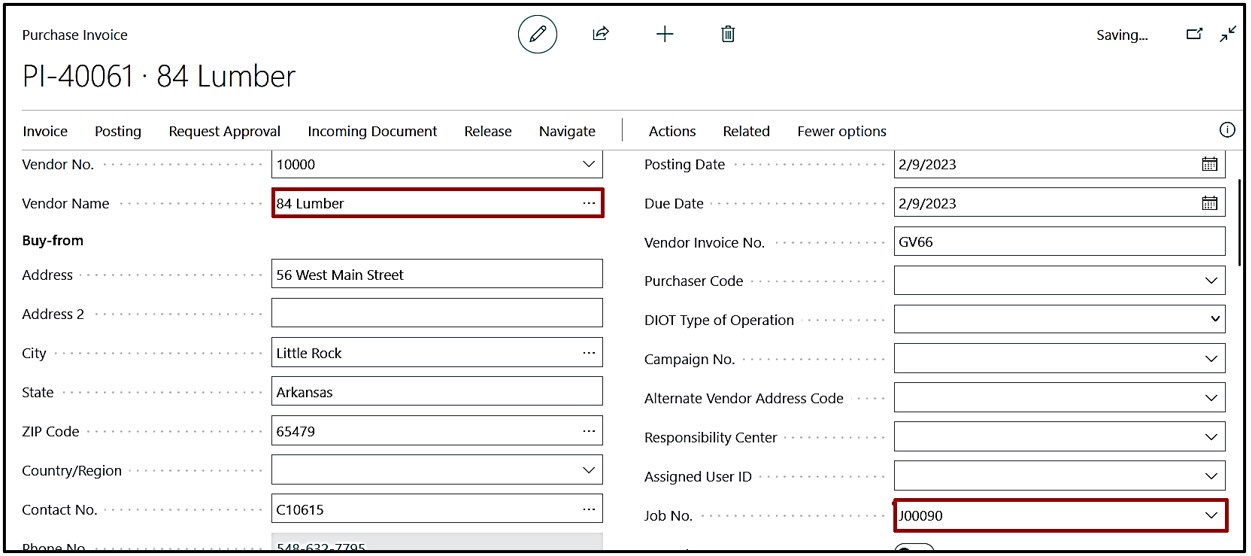
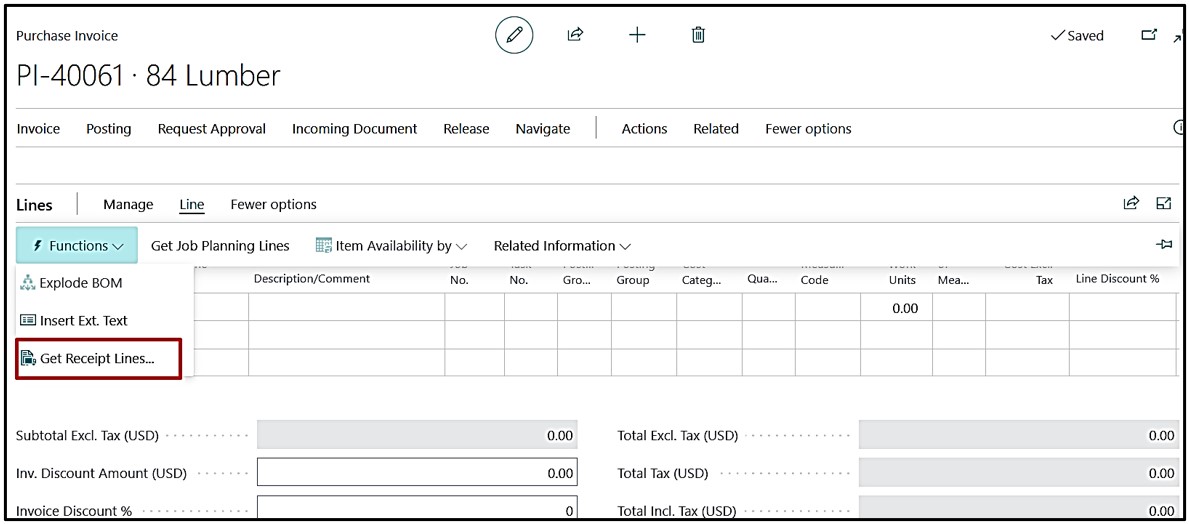
On Line part select→Function→Get Receipt Lines
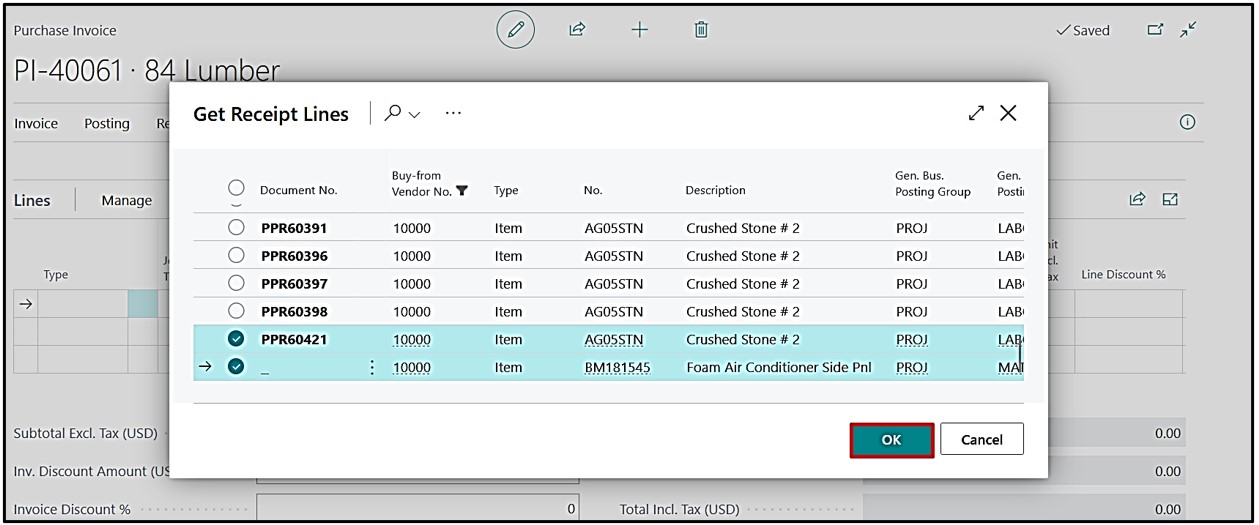
Click on Get receipt Line the receipt lines page will open and select Receipt lines and click ‘Ok’
6. Creating Invoice Posting
On Purchase Invoice two option available
1. Post full receipt quantity.
2. Post partial receipt quantity.
For full receipt quantity, system will behave as standard with reversal of interim line marking line status equal to close.
Below is example where first line is fully invoiced & second line is partially invoiced. For partial quantity, line part the receipt lines will come and we will Invoice the same as partial.
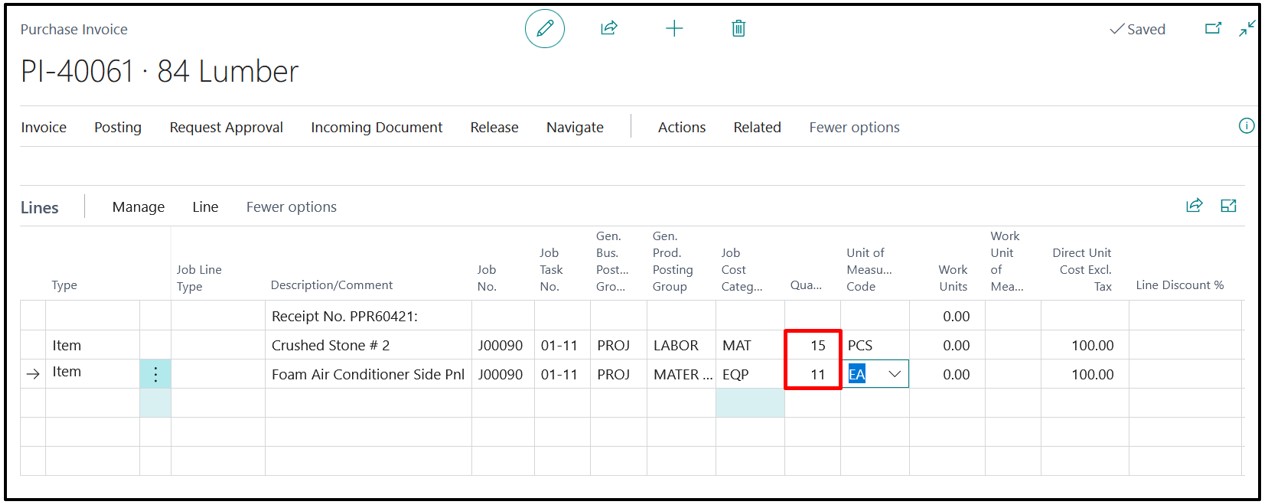
Post the Invoice and click on Posting→Post.
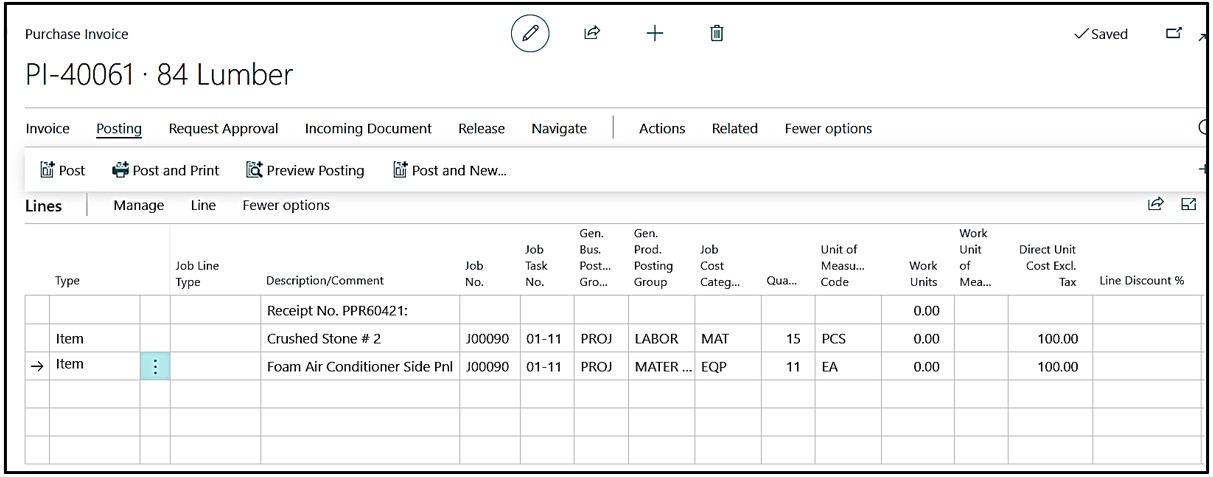
Once the Invoice got Posted go back to Purchase Order and Navigate the receipt
On Purchase Order click Navigate→Receipts
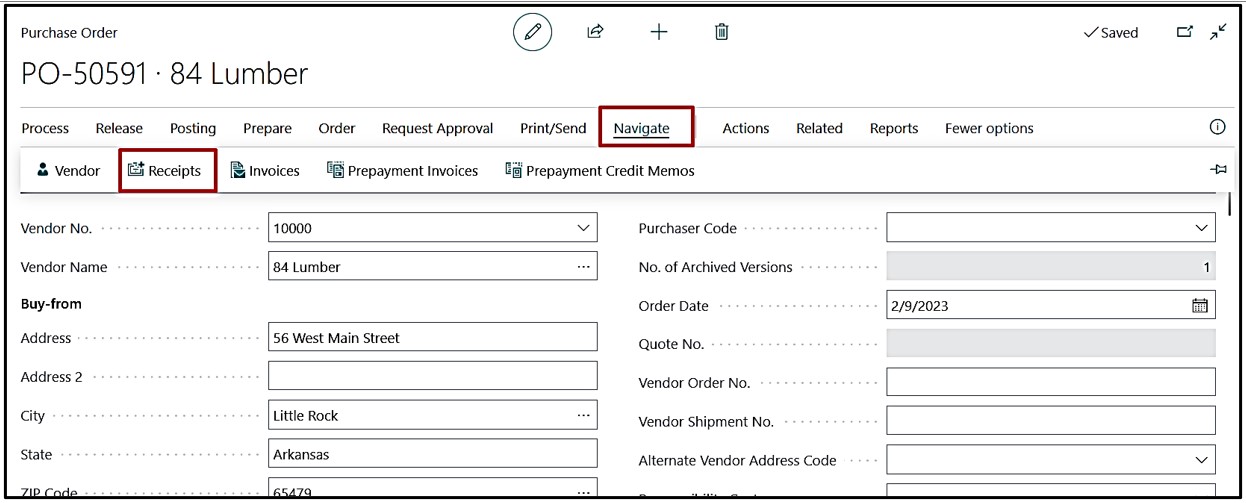
On posted Purchase Receipt click Receipt→Find Entries.
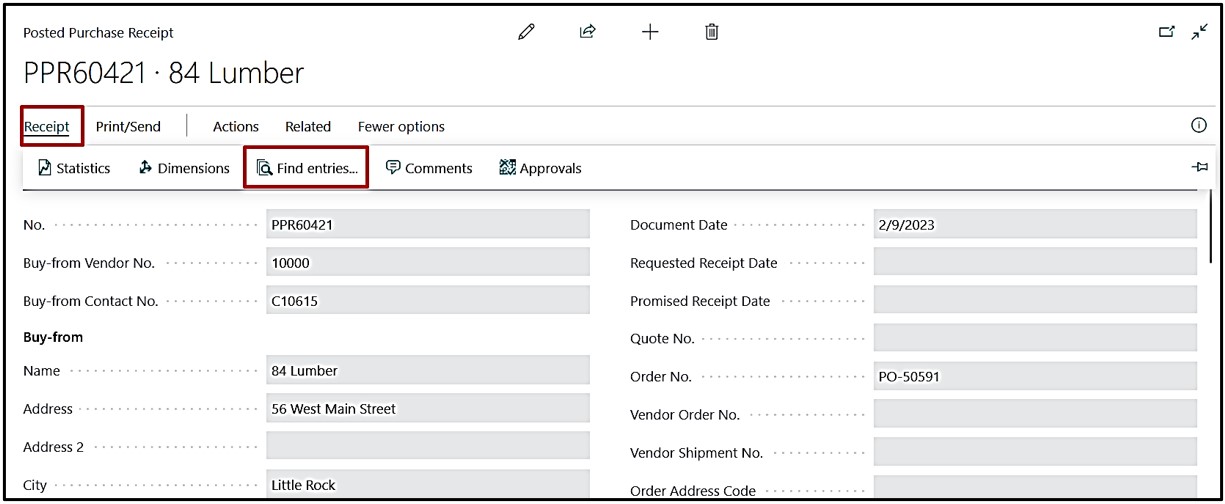
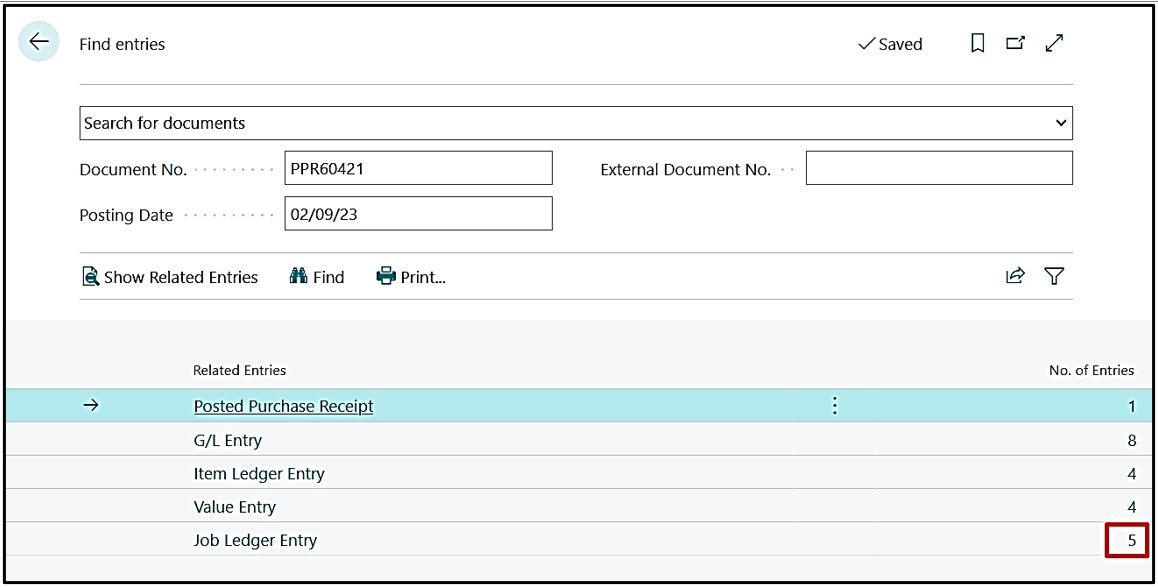
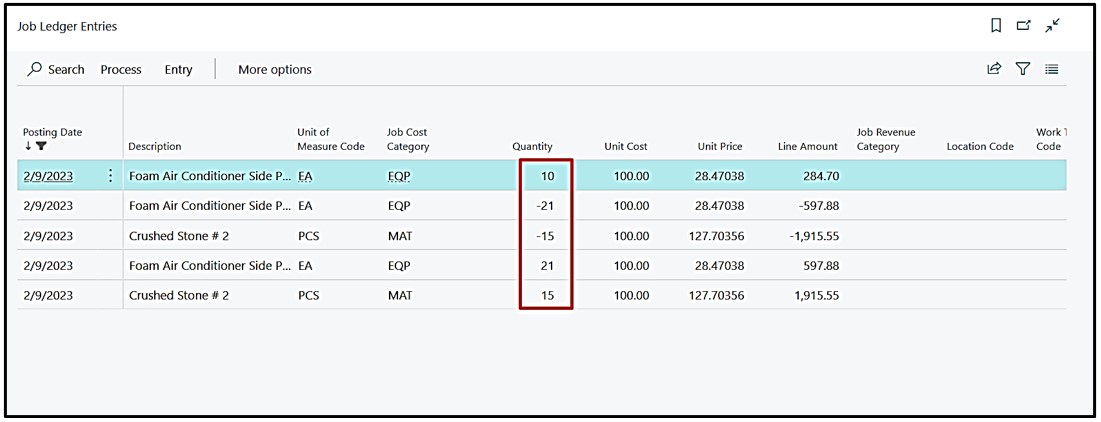
Job Ledger entries created with total of 5 entries. Each Interim entries is reversed with complete quantity replacing with standard Job Ledger entry. Last interim line of partial quantity is created with status open. This shall be used for upcoming Purchase Invoice against same PO.
On drill down the Job Ledger entries we find that, the status of the knocked off entries changed to closed and one open Interim entry is created as we invoiced the receipts as partial in one case.
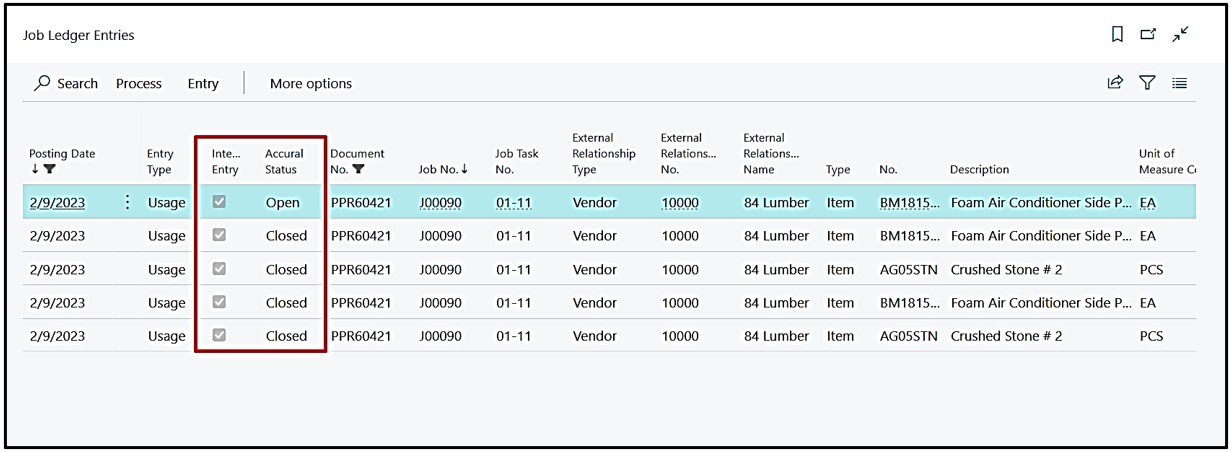
On comparing the Qty see below that 4 Entries have been entirely Knocked off and one additional Interim Entry of remaining quantity had been created i.e., 10.
7. Undo Receipt Functionality (Optional)
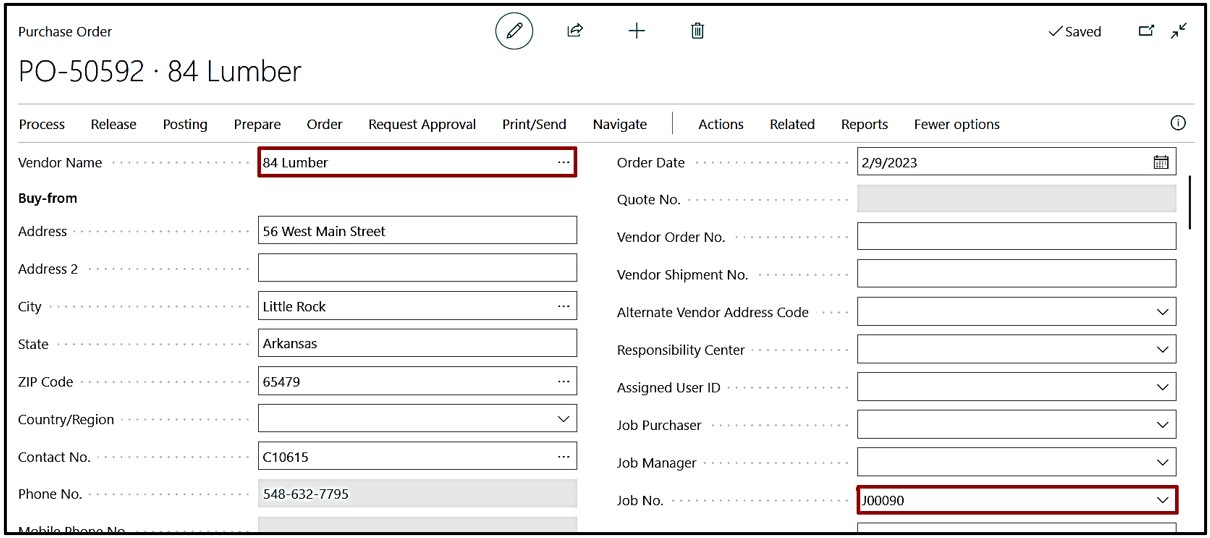
If required, start the process to “Undo Receipt” and create separate i.e. new “Purchase Order” with “Vendor” and “Job No.” on the header part.
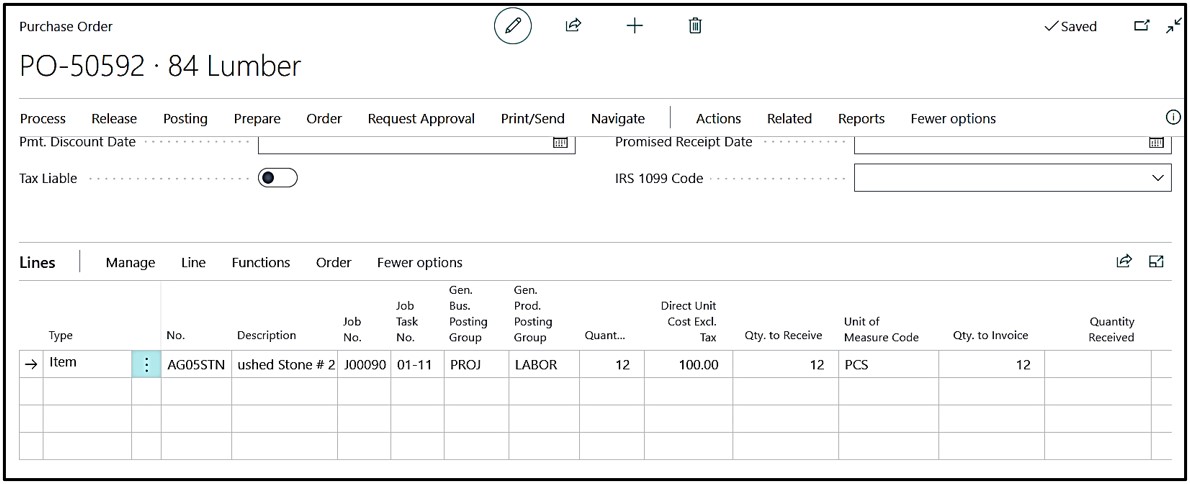
On Purchase Order Line, take Item with “Quantity” and “Direct Unit Cost”.
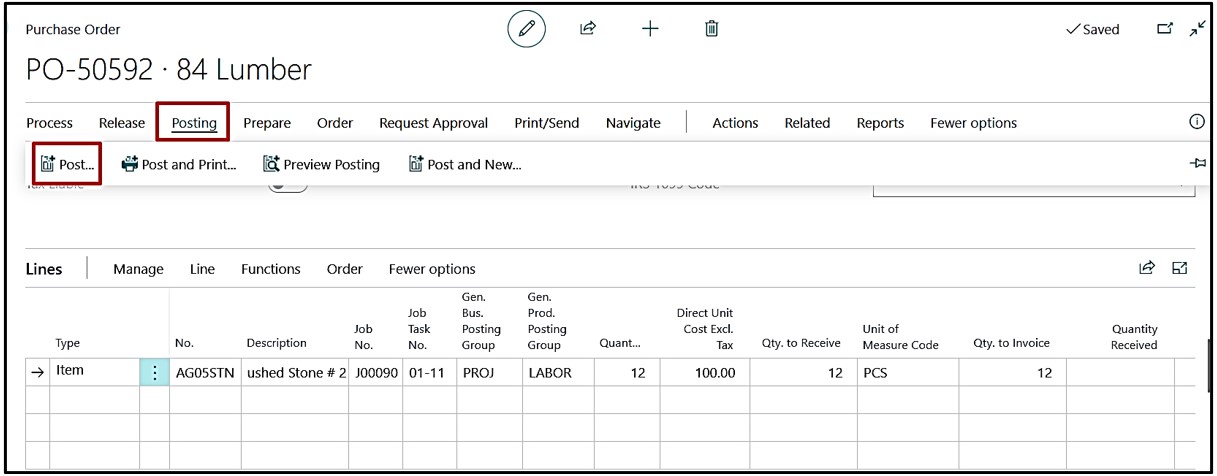
Post the Purchase Receipt by clicking on Posting→Post.
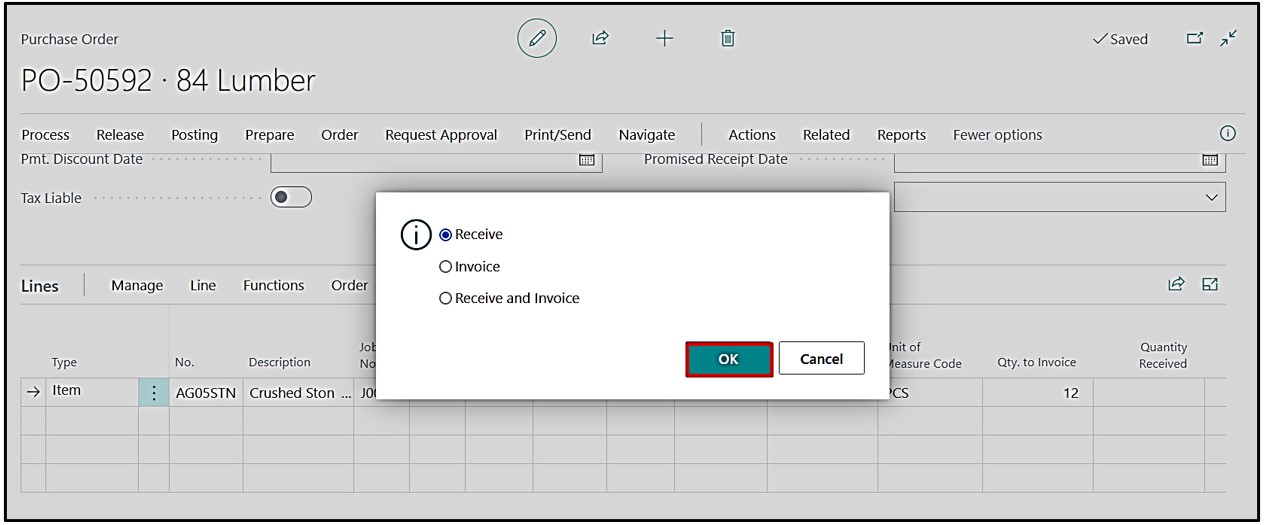
Select “Receive” option and press “Ok”.
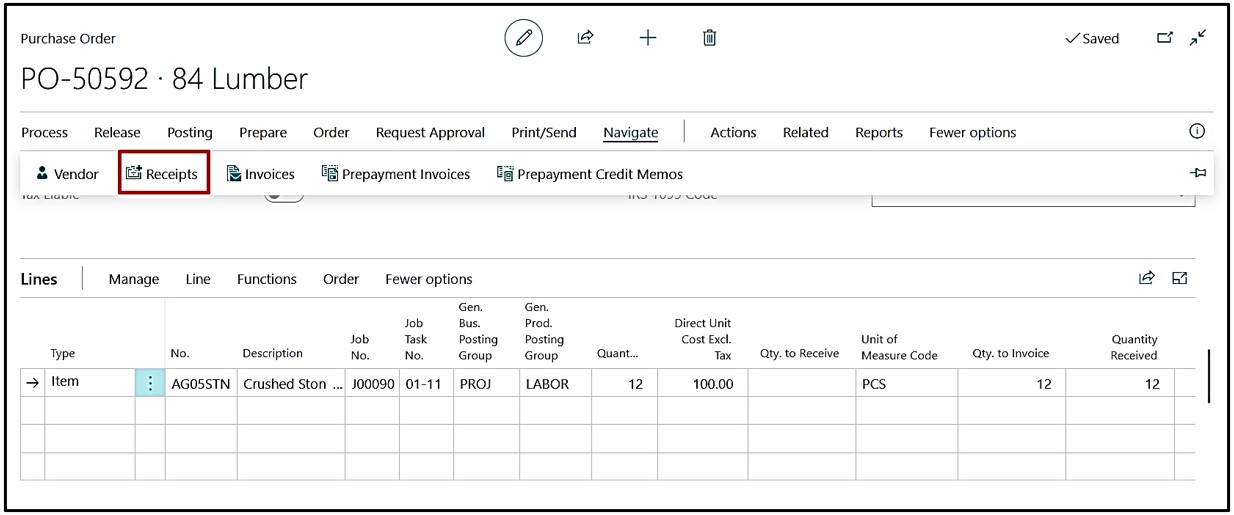
After receiving now Navigate the Receipt and click on Navigate→Receipts.
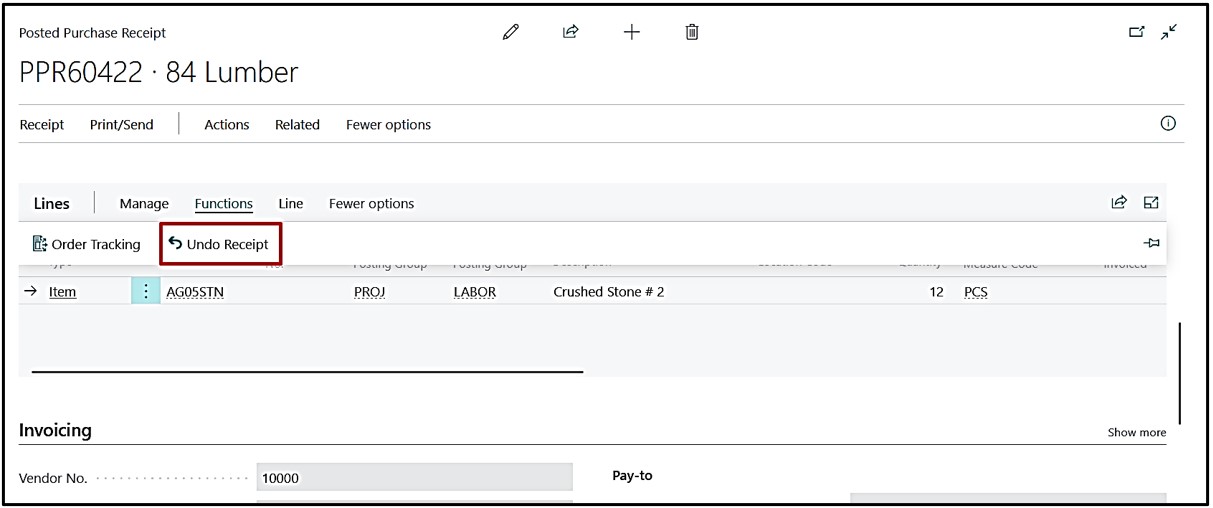
To undo receipt open Posted Purchase receipt and select Line & click on Function→Undo receipt.
After undoing the receipt, check entries by clicking on Receipt→Find Entries
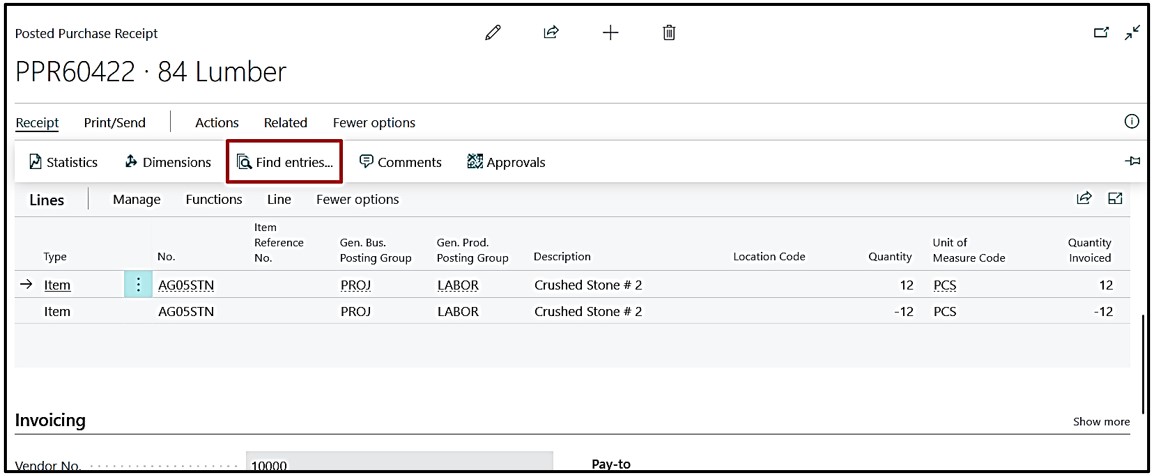
Now drill Job Ledger Entries & check another entry been created with Negative Quantity which means Receipt got undo.
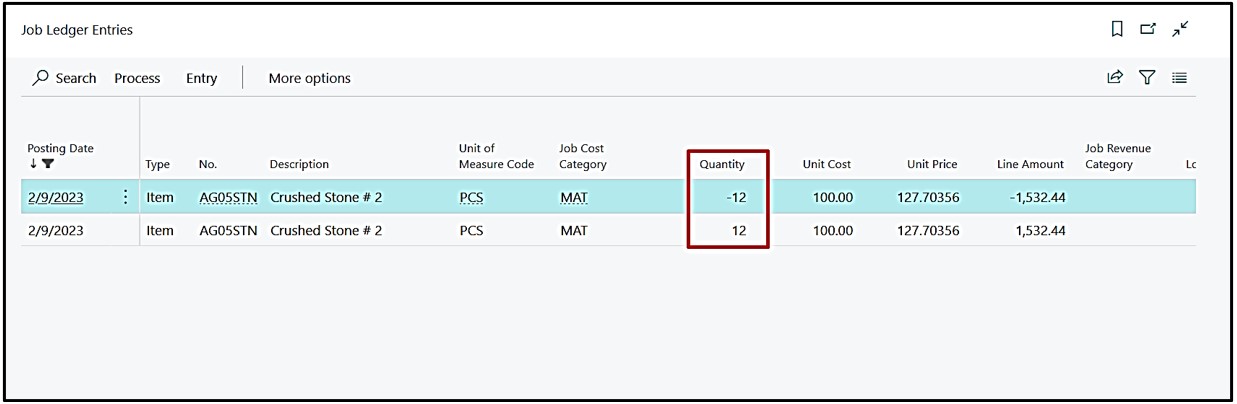
And if we check the Accrual Status it is now closed it means both the entries got closed and knocked off.
8. Partial Receipt & Invoicing from Purchase Order
Scenario 2.
Now user can also opt to post Purchase receipt from Purchase Order single or multiple times. Further, from Purchase Order, user can opt to post Purchase Invoice for complete or partial quantity. If complete quantity, system will reverse interim entries & post Job ledger entries as per standard process. If partial quantity, system shall pick posted receipt on FIFO basis & last line of partial quantity shall be created. Same partial quantity line shall be considered for upcoming Purchase Invoice. User can notice process of knocking off the Interim Entries and creation of the new interim Entries for partial quantity.
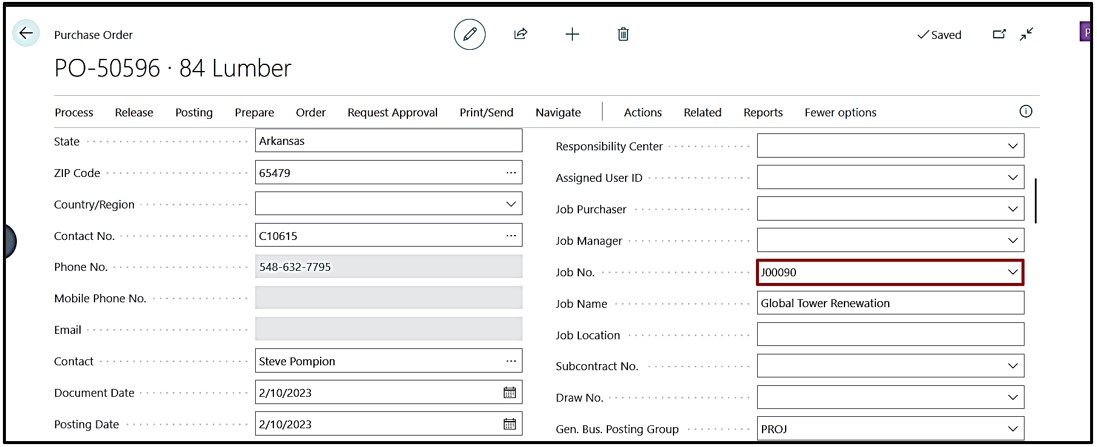
Create separate new Purchase Order with Job No. on header and Post Purchase receipt multiple times with different quantities.
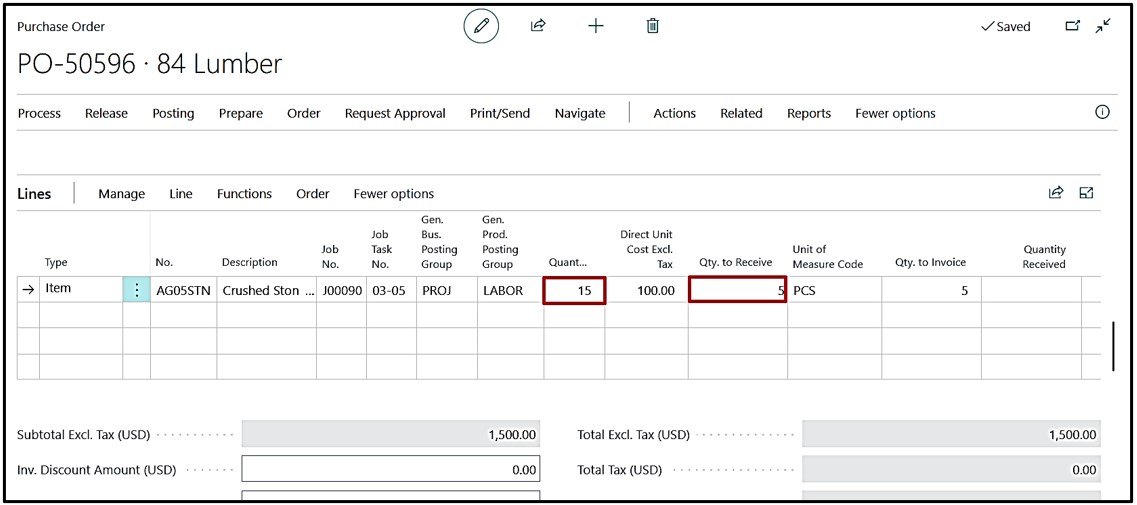
To create scenario, take Item with Quantity as 15 & will pass Partially Purchase receipt by taking the Qty to receive as 5 for the First time.
Post Purchase Receive by clicking on Posting→Post→choosing the Receive optionOK.
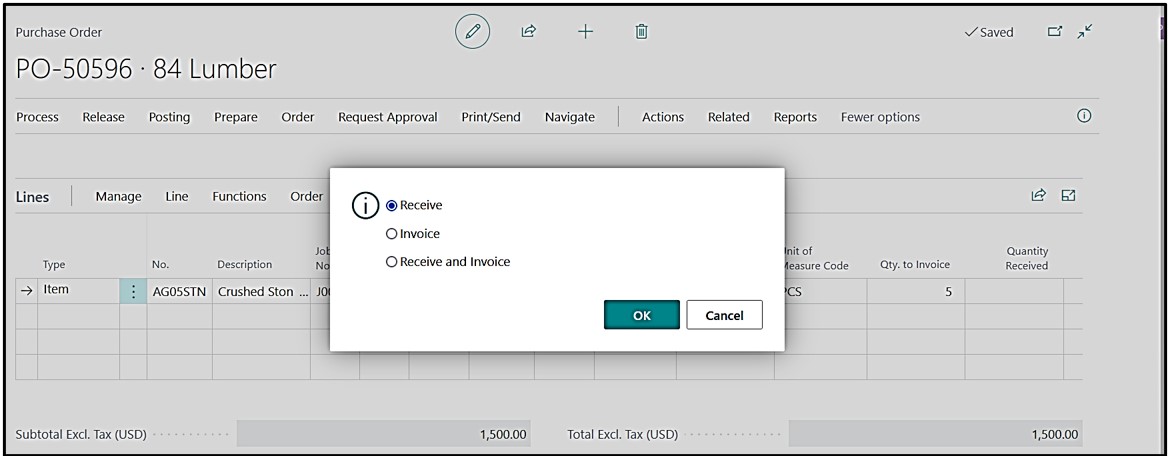
Once posting is done user can navigate from Purchase Order and Navigate the Job Ledger Entries created.
Check JLE, click on Navigate→Receipt →Find Entries
on Entry Page click on posted Job Ledger Entries.
The Interim Entries for Partial invoice quantity been created with “Interim Entry” as True & “Accrual Status” as Open for Quantity as 5 which is partially received.

Now we will post the receipts on the same Purchase order in a pattern displayed below.
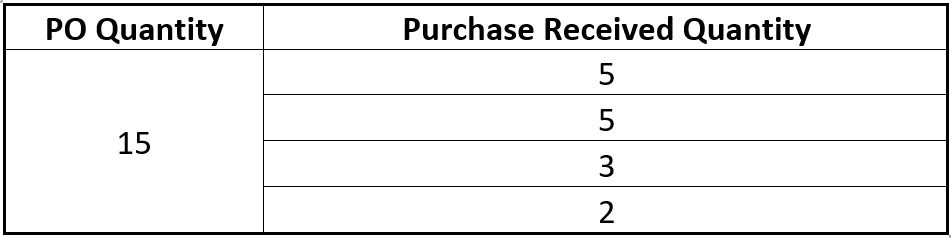
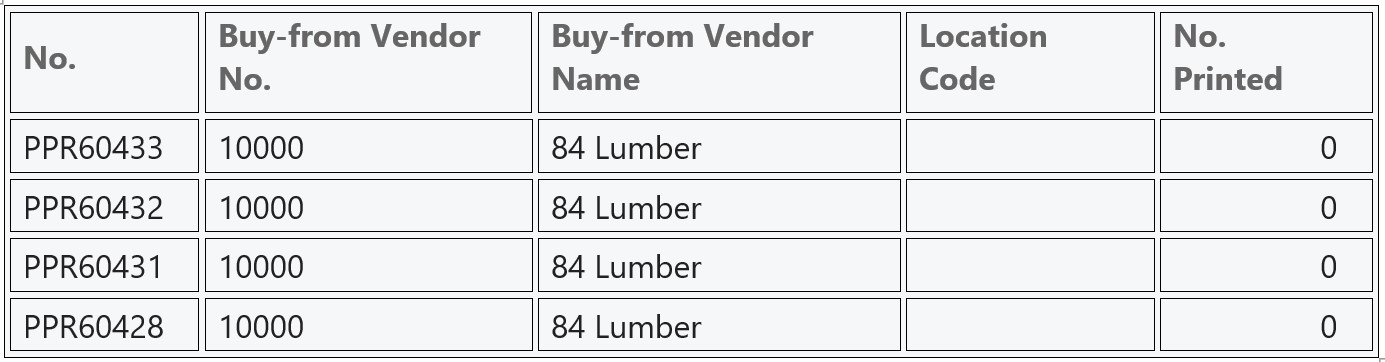
Once we received the Quantity according to the above pattern then the total Receipts posted will be 4 as showcased below.
Now we will invoice the quantity, which is Received, and we will receive the quantity partially in below mentioned manner.
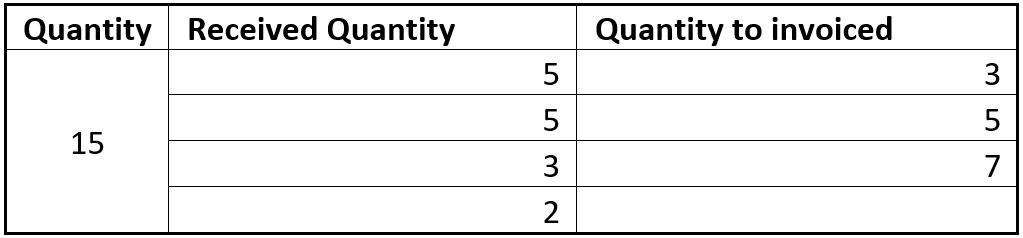
Note: When user start Invoicing the received Qty then system is made to work on the FIFO basis, Example – If received 5 Quantities on first go then system will Knock off the 5 entries and create 2 interim Entries because we have received 3 out of 5. The remaining 2 will be showcased as Interim Entry
Now invoice 3 quantities and for that we need to click on the Qty to Invoice and mention 3 quantity there and post the invoice.
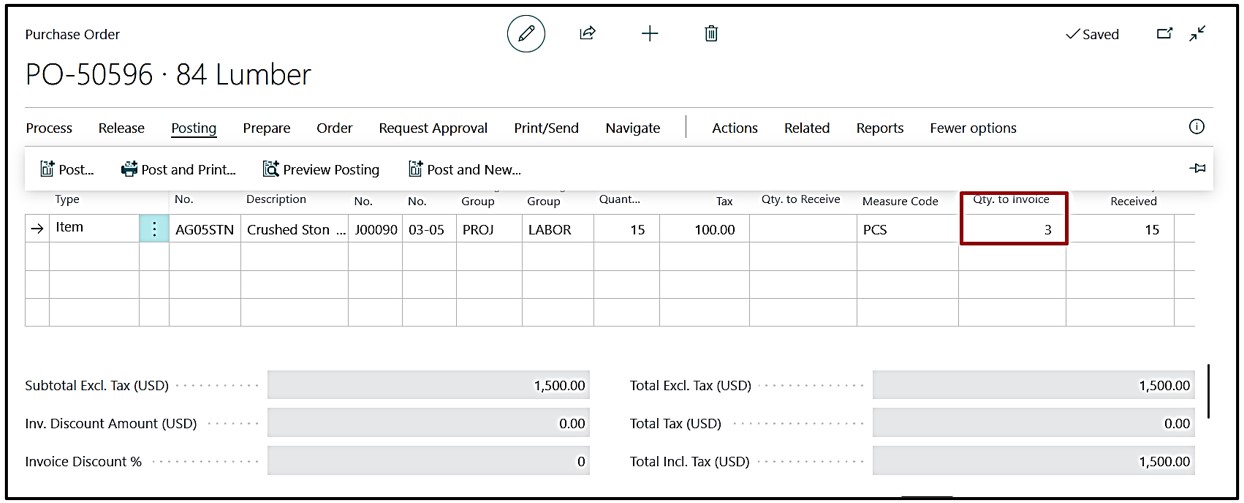
Once Invoice is posted then go back to Purchase order and navigate the 1st Posted Purchase Receipt,
And for that we need to click on Navigate→Receipt→and by selecting the 1st Posted Purchase Receipt we need to click on Receipt→Find Entry.
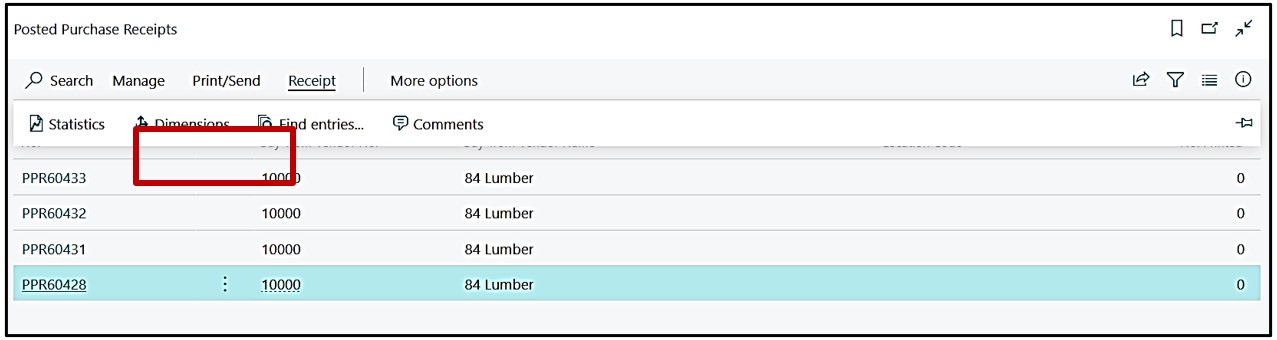
On Find Entry page we now open the Job Ledger Entry and there we can see that the system has knocked off the Actual entry which was 5 and created the Interim Entry which is 2 because we have invoiced 3 Qty. against 5 and system is working here on FIFO basis.

Now we will again Invoice 5 Quantity as decided earlier and for that we will take Qty. to Invoice as 5, and post the Invoice.
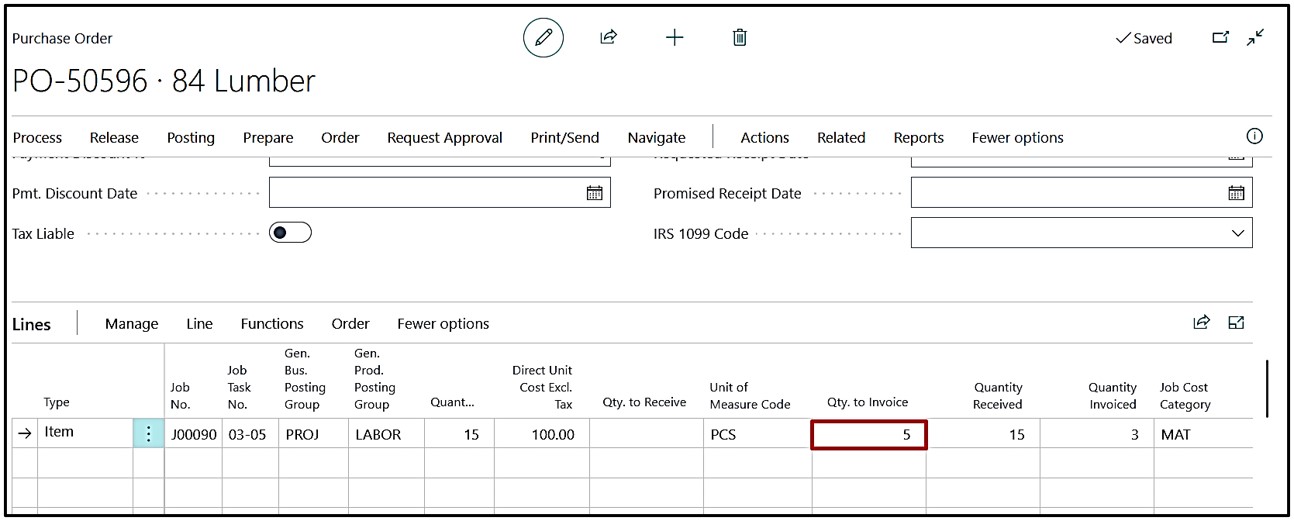
After posting the Invoice we will again check the Job Ledger Entries on the Posted Purchase invoice by selecting the first Posted Purchase receipt line.
In this case we can see that the system has Knocked off the interim Entries as well because we have invoiced 5 quantity in 2 times so the quantity of Item which was Five has now been completely Knocked off and the Accrual Status is closed for all the entries as showcased below.

To check that the system is working on FIFO basis we will navigate the 2nd entry and on Job Ledger Entry are showcased below which clearly proved that system have Knocked off the Actual entries showcased by red color and created the Interim Entry as 2 showcased in below screen shot by green color.

Now we will invoice the remaining 7 quantities and navigate the Entries
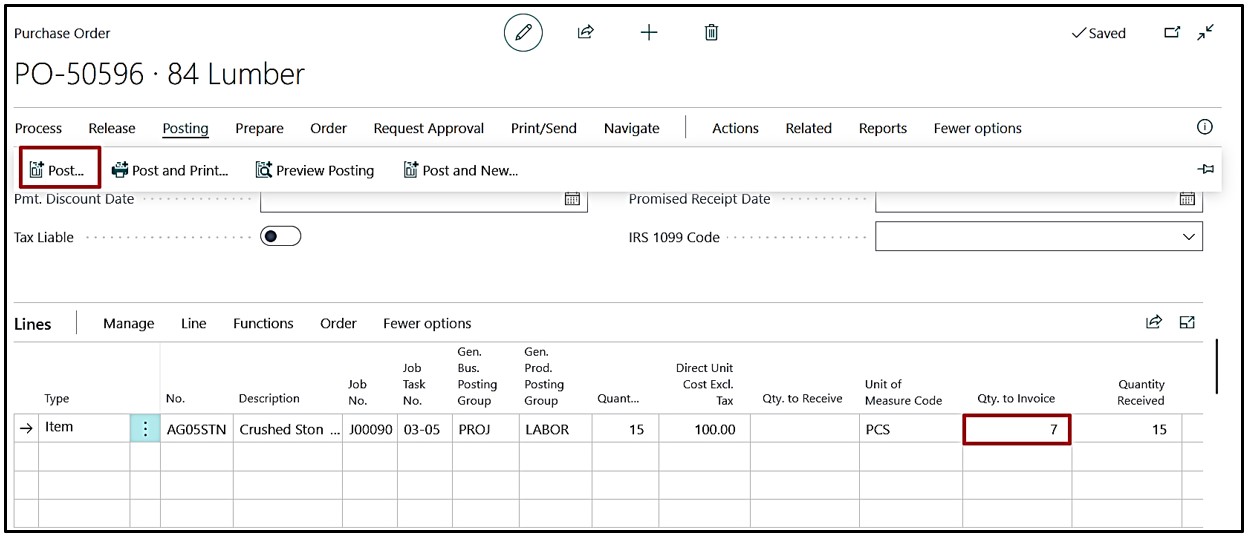
It will knock off the remaining quantities and the accrual status will get closed for all the Entries.