Creating Purchase Order/Purchase Invoice From Subcontract
Progress Payments for your subcontractors is a method for tracking and approving what portion has been completed and a progress report for internal purposes or to send to your subcontract showing what has been approved for processing as a vendor invoice from the Subcontract Purchase Order.
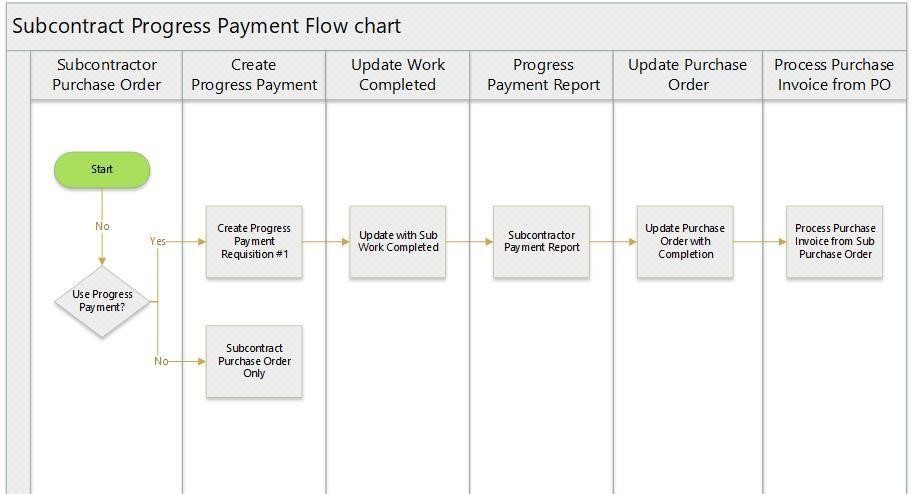
3.1 CREATING PROGRESS PAYMENT FROM SUBCONTRACT PO
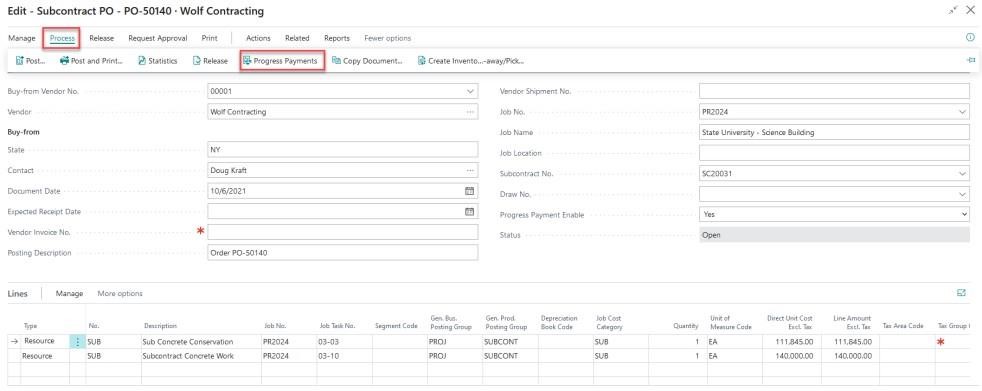
To use Progress Payments for your subcontractors, open the Purchase Document by selecting the option from the ribbon
From the Subcontract PO ribbon, select “Process” then “Progress Payments”
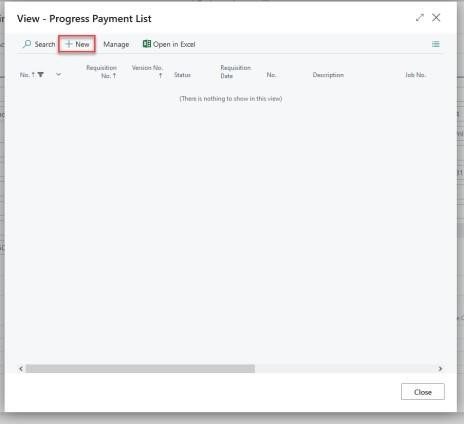
For your first Progress Payment, Select “New” from the Progress payment List window
You’ll notice many of the General tab fields have been automatically filled in based on information from your Purchase Order. You will need to enter the Requisition Date & Period To date.
To populate the Progress Payment lines, select “Process” and then “Get PO”
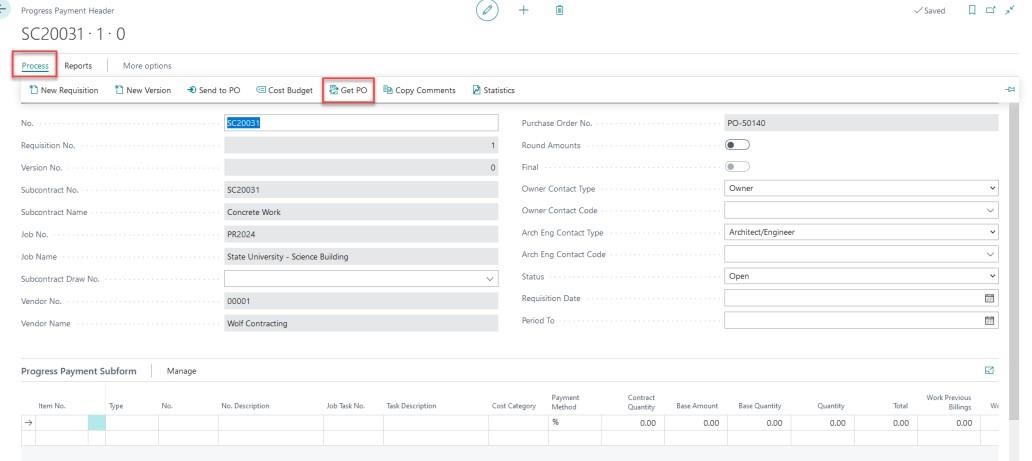
You will notice the lines from your Purchase Order have been added to the Progress Payment.
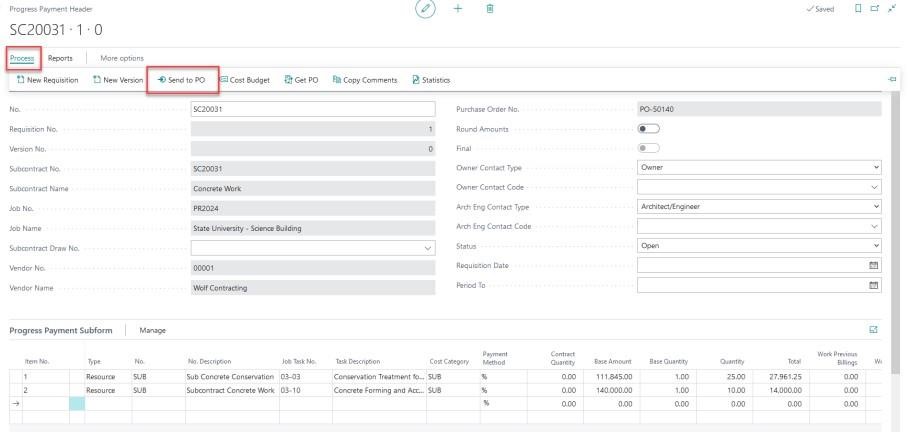
In the “Quantity” field, enter the percentage that you will be paying for each line.
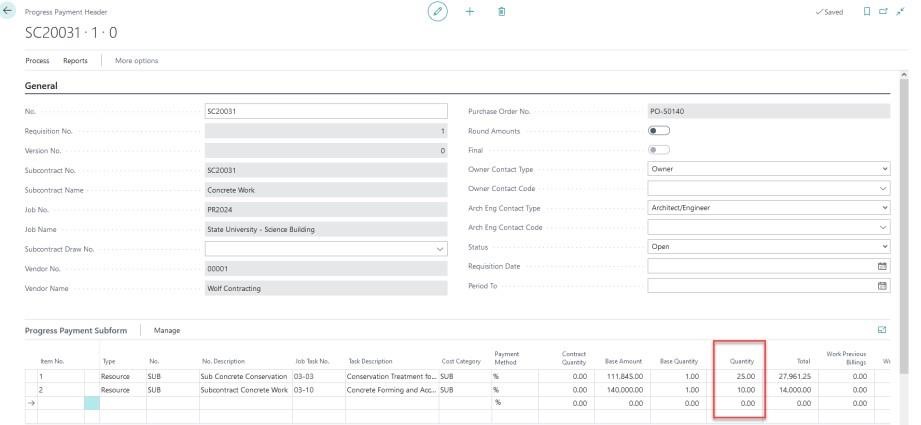
In our example above, we will invoice 25% of line 1 and 10% of line 2.
From the ribbon, you can select “Reports” and then “Progress Payment”
You will receive a prompt to confirm the information related to your Progress Payment Report. Select “Preview and Close” to view the report.
A two-page progress payment will be generated that you can print and send along with your vendors payment if you would like.
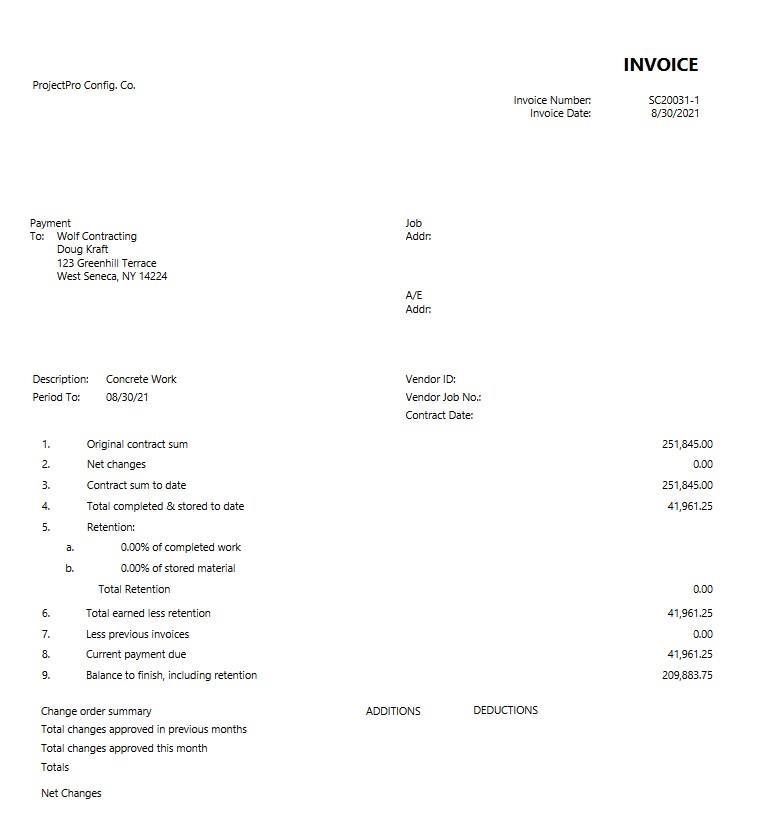
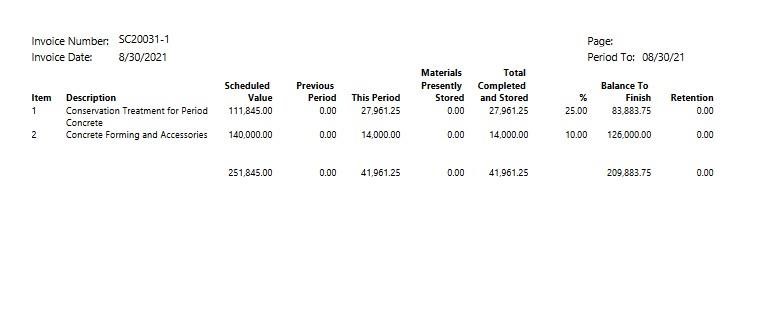
When you have completed your progress payment, return to the ribbon, and select “Process” and then “Send to PO”
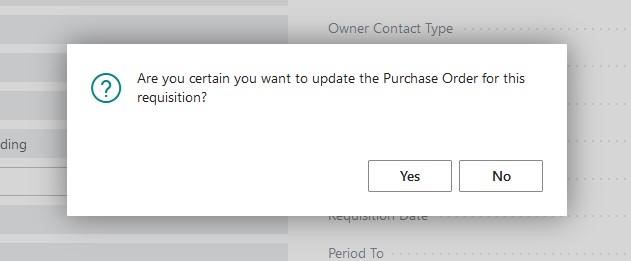
You will be prompted for confirmation that you would like to update the Purchase Order. Select “Yes
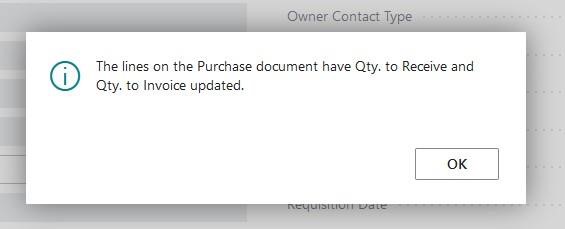
Once completed, you will receive confirmation of the update. You can select “OK” for this.
Close the Progress Payment screen and return to the Purchase Order.
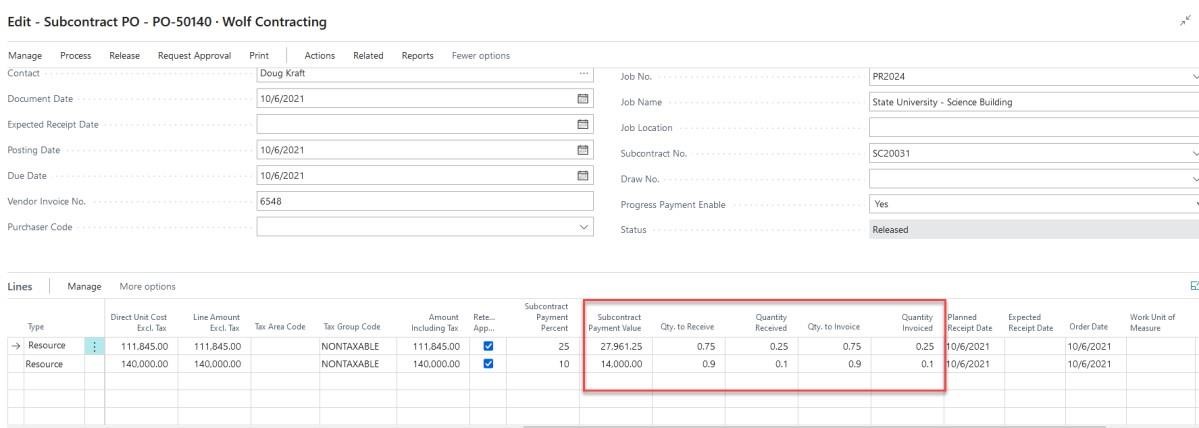
From the Purchase Order Lines, you will see the column “subcontract payment percentage” contains the percentage of each line we paid on our progress payment
Also, notice the Qty to receive and Qty to Invoice have also been filled in to reflect the same information
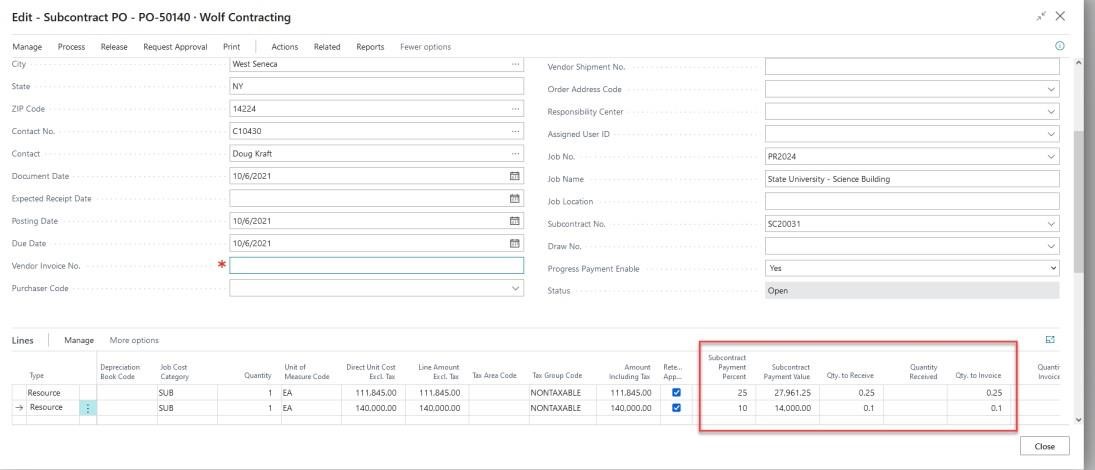
To post, make sure you enter a Vendor Invoice No. and Posting date.
From the ribbon, select “Process” and then “Post”

You will be prompted to select whether you would like to “receive” “Invoice” or “Receive and Invoice”. Select the option that aligns with your business processes.
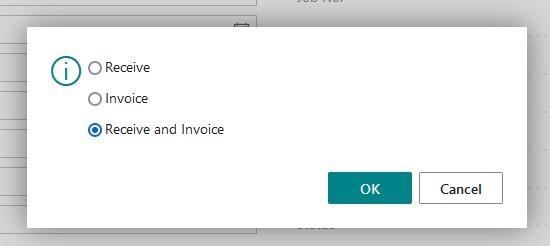
Select “OK” and you will be returned to your Purchase Order.
In our example, I selected the Receive and Invoice option.
From the Purchase Order, you will now notice the “Qty. Received and “Qty Invoiced” fields reflect our posted Purchase Invoice
3. CREATING SUBCONTRACT CHANGE ORDER
From the Subcontract card ribbon, select “Action” and then Functions. Now select “Create Change Order”
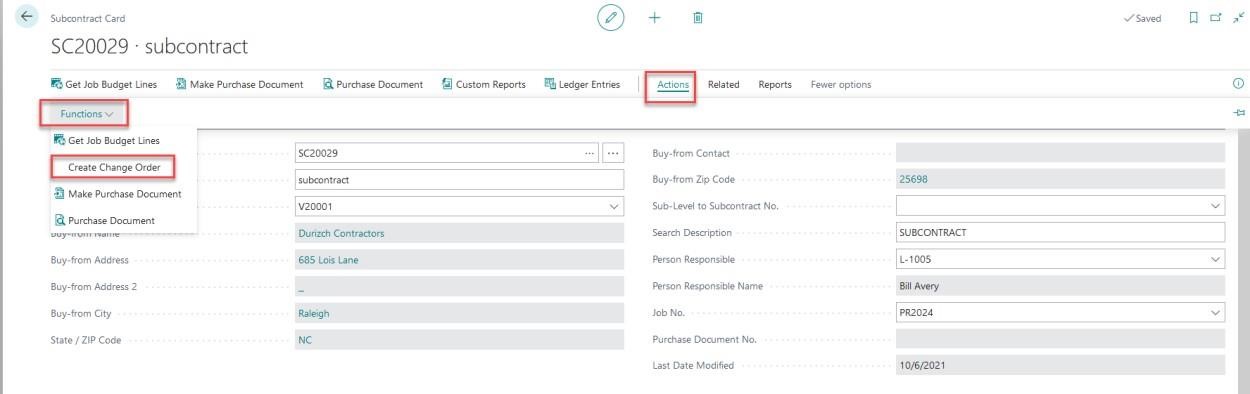
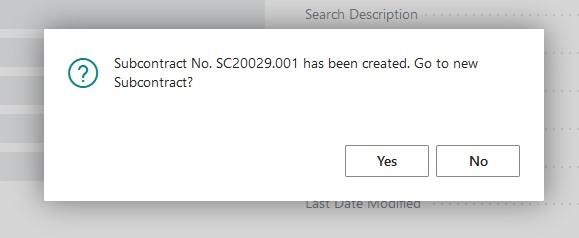
You will be promoted with a confirmation that the subcontract has been created, information about the number assigned, and you are given the option to view the newly created change order card if you wish.