Maintaining Subcontract Information
SUBCONTRACT MANAGEMENT
1. MAINTAINING SUBCONTRACT INFORMATION
The purpose of the Subcontract module is to manage your subcontractor’s contracts, change orders and work performed. This information can be setup and managed from the Subcontract Cards.
From a job card, you can access the Subcontracts list for the specific job you are in.
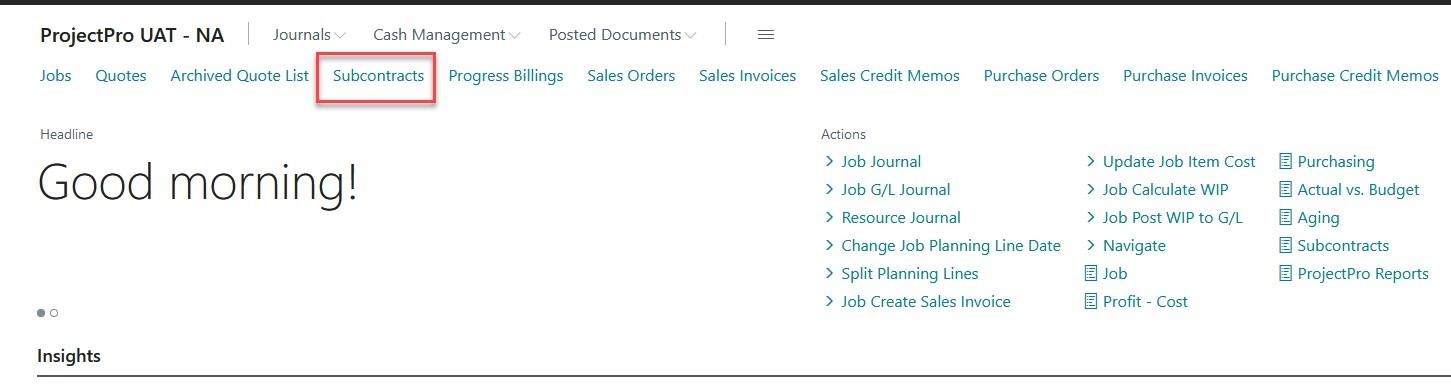
For a complete list of your subcontract, you can search “Subcontracts” from the search Icon. Alternatively, if your role type is ProjectPro Manager, you can select the Subcontracts option from your role centre

Once selected, you will find a list of your subcontracts as we have shown below.
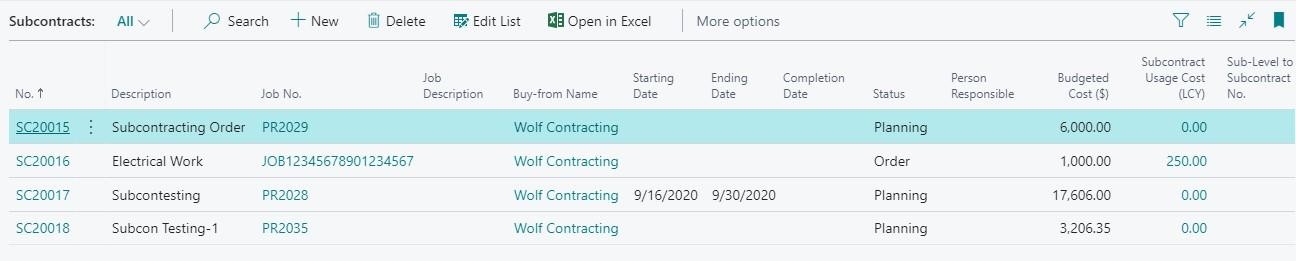
Select an existing subcontract to edit or create a new one.
A Subcontract Card is similar to a Job Card. Below we will detail each field and it’s use.
1.1 General Fast Tab:
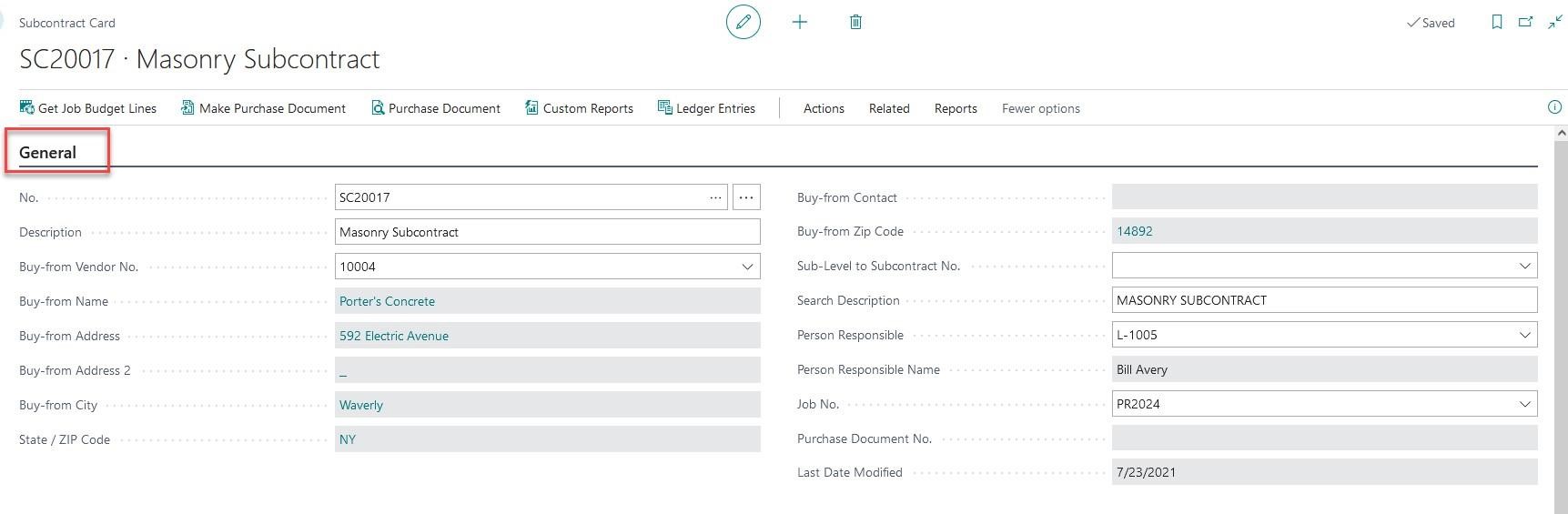
| FIELD | COMMENTS: |
|---|---|
| No. | Subcontract number – manual or automatic. To automatically assign the next available No. in your No. Series, tab off this field. |
| Description | Enter Subcontract description. |
| Buy-From Vendor No. | Enter vendor for the Subcontract |
| Buy-From Name | Vendor name defaults from Vendor no. selected |
| Buy-From Address | Vendor address defaults from Vendor no. selected |
| Buy-From Address 2 | Vendor address defaults from Vendor no. selected |
| Buy-From City | Vendor city defaults from Vendor no. selected |
| State | Vendor State defaults from Vendor no. selected |
| Buy-from Zip Code | Zip Code defaults from Vendor no. selected |
| Buy-from Contact | Vendor contact defaults from Vendor no. selected |
| Sub-Level to Subcontract No. | If this Subcontract is a subordinate to another Subcontract, then indicate what Subcontract |
| Search Description | The Subcontract Description becomes the Search Description unless it is changed. |
| Person Responsible | This field contains the code of the person responsible for the Subcontract. You can click the Assist Button in the field to see a list of resources. |
| Job No. | The Job no for which this Subcontract is made |
| Last Date Modified | This field shows when the job card was last modified. When you change information on the Subcontract card, the program automatically updates the Last Date Modified field to show the current system date. |
1.2 Subcontract Lines Fast Tab
You can assign Job Planning Lines to a subcontract by selecting “Get Job Budget Lines” from the ribbon. Your Job Planning Lines will be displayed on a new page for you to select from.
Choose the lines associated with this Subcontract and select “OK” to add them to the subcontract card.
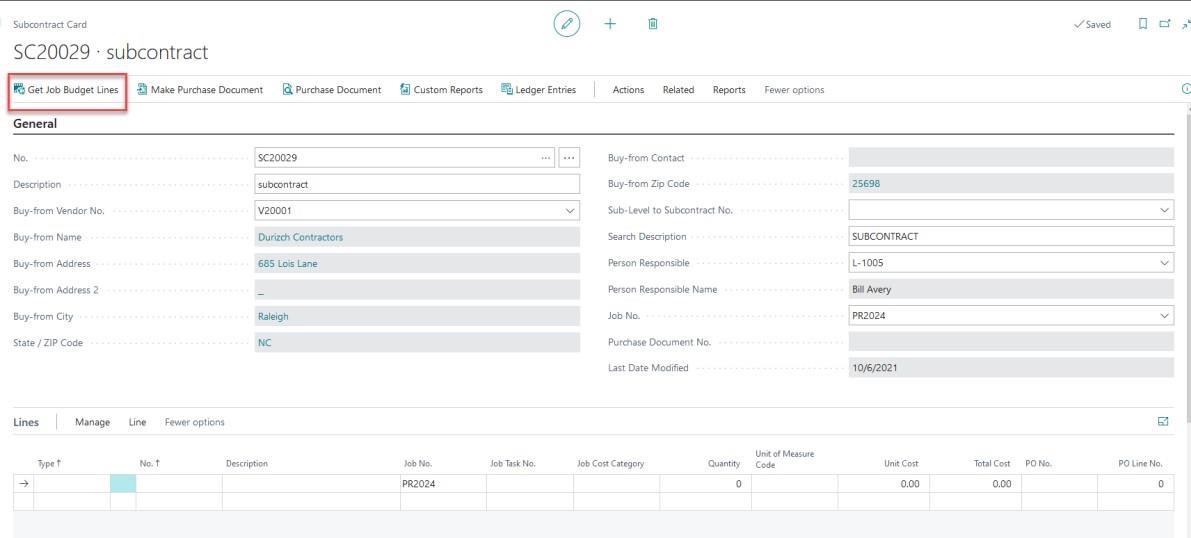
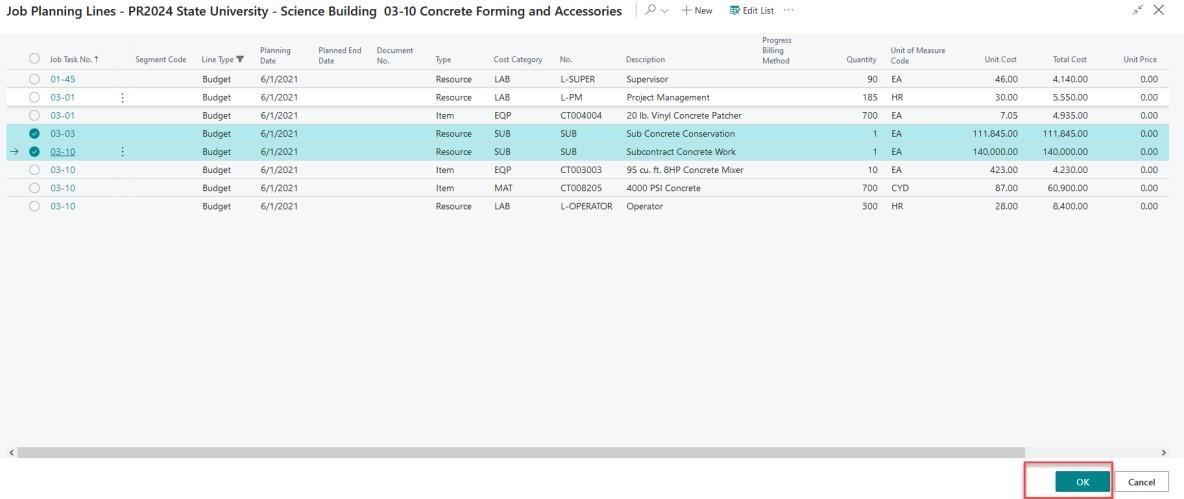
You will notice the lines that were selected above are now available on the subcontract card in the “lines” section.
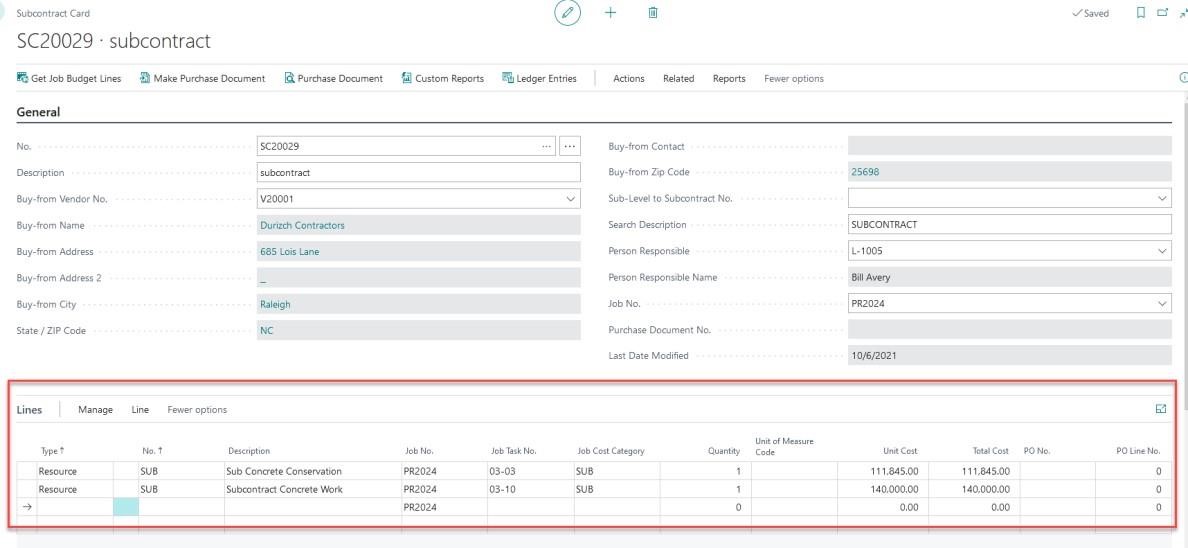
If you need to manually add a line to the subcontract card, you can do so from the “Lines” section.
Note: Manually added lines will affect only the subcontract card. These lines will not be updated on the Job Planning Lines and will not adjust the job budget.
Below we have detailed each column you will need to enter if you choose to enter a line manually. Note: depending on your personalized view, you may not see all of the fields below.
| FIELD | COMMENTS: |
|---|---|
| Job No. | Select the Job No. the Subcontract is for |
| Job Task No. | Select the Job Task No. associated with the Subcontract |
| Task Description | Description related to the Job Task No. |
| Job Cost Category | Select the subcontract Cost Category |
| Starting Date | Enter the Subcontract starting date for the associated line. |
| Type | This field contains the type of account to which the subcontract line relates. The options are: Blank, Item, G/L Account |
| No. | This field contains the number of the account to which the Item Or G/L Account is posted, depending on the selection in the Type field. You can see the numbers available by clicking the Assist Button in the field. |
| Description | The application automatically displays the name of the item or G/L account to which this entry applies. You can change the description, a maximum of 50 characters, both numbers and letters, are allowed. |
| Quantity | You can enter the number of units of the No., that is, the item or G/L account number, that should be specified on the line. |
| Direct Unit Cost | Direct Unit Cost only shows if “Items” are being used. |
| Unit Cost | This field contains the unit cost for the selected Type and No. on the line. Unit Cost is automatically retrieved of the selected Type and No. if the type is Item. If the type is G/L Account, unit cost is automatically retrieved if you have setup Unit Cost in the Job G/L account Prices window. |
| Total Cost | This field is the calculated total of Quantity*Unit Cost |
| Work Units | Optional – enter the Work Units being tracked |
| Work Unit of Measure | Optional – enter the Unit of Measure for Work Units |
| Unit of Measure Code | Unit of Measure for the Subcontract amount |
1.3 Constants Fast Tab:

| FIELD | COMMENTS: |
|---|---|
| Vendor’s Job No | Job no of the vendor if applicable |
| Creation Date | Enter Subcontract creation date |
| Starting Date | Enter Subcontract Start date |
| Ending Date | Enter Subcontract End date |
| Completion Date | When finished enter Subcontract Completion date |
| Retention Percent | Enter Subcontract Retention Percentage |
| Status | Select status of the Subcontract. Options are: Planning, Quote, Order, Completed |
| Subcontract Class | Specifies whether the subcontract card is a Master or a Change order |
1.4 Manager Tab:

| FIELD | COMMENTS: |
|---|---|
| Reporting Status | This status is like the Manager Job Status on our Job Card. This is for informational purposes only and can be adjusted as needed |
| Status Date | This date will automatically update when the Reporting Status is changed |
| Estimated Start Date | Estimated start date for this subcontract |
| Starting Date | Starting date for this subcontract |
| Estimated Ending Date | Estimated End date for this subcontract |
| Ending Date | Estimated End date for this subcontract |
1.4 Budget Fast Tab:
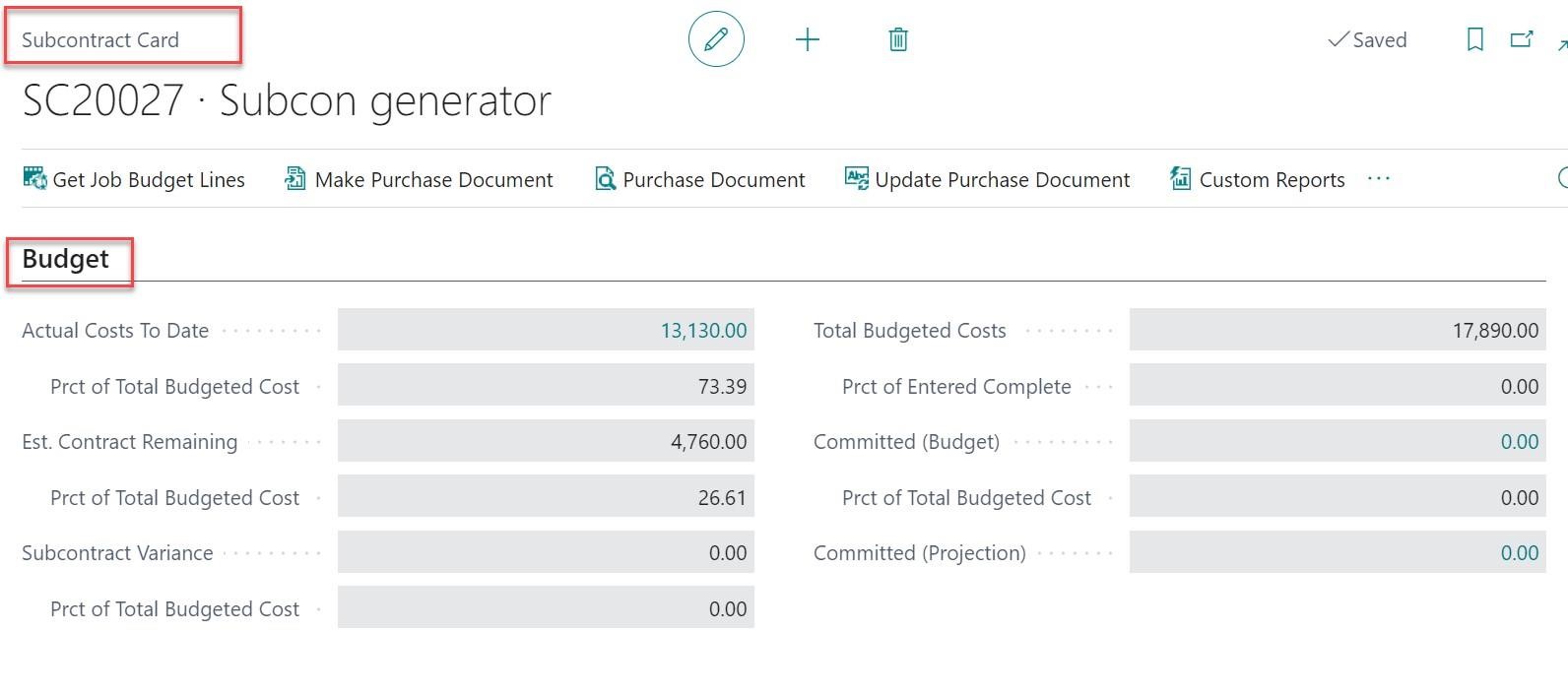
There were some changes in the Budget Tab on the Subcontract card and the changes are as follows:
If the “Actual Cost to Date” is Less than or equals to the “Total Budgeted Cost” then “Subcontract Variance” will not be calculated.
In the above pointer it is said that if the Actual Cost to Date is Less than or equals to the Total Budgeted Cost Then Subcontract Variance will not be calculated, as for the example in the below screenshot it is mentioned that the Actual Cost to Date is Equals to the Total Budgeted Cost then the Subcontract Variance is not Calculated.
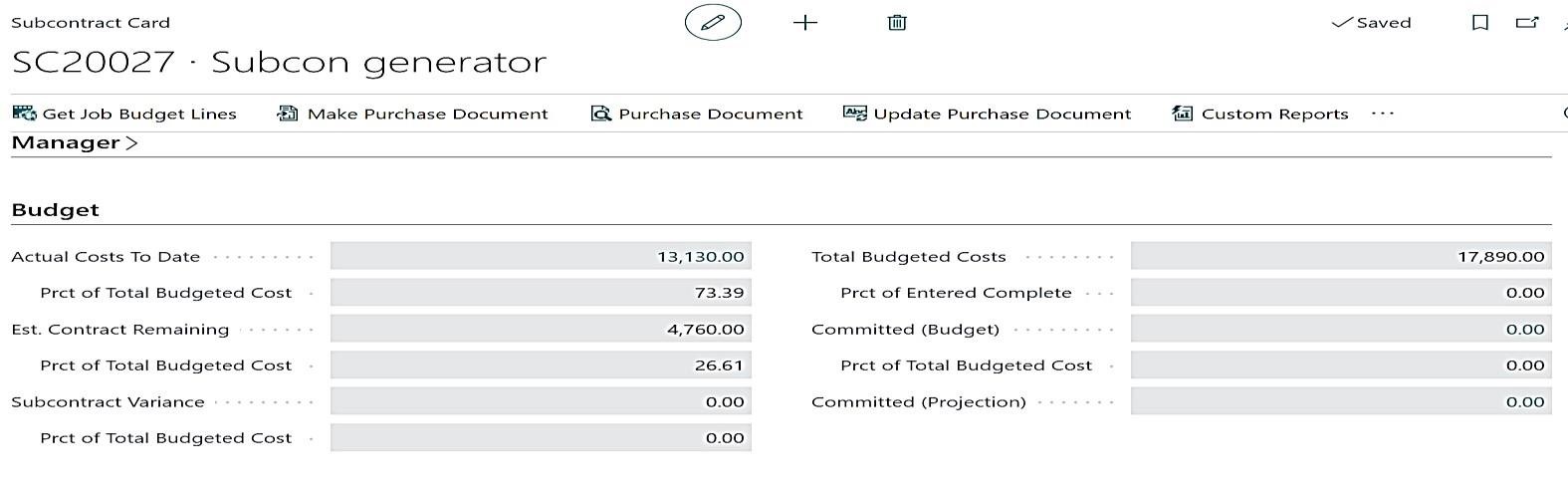
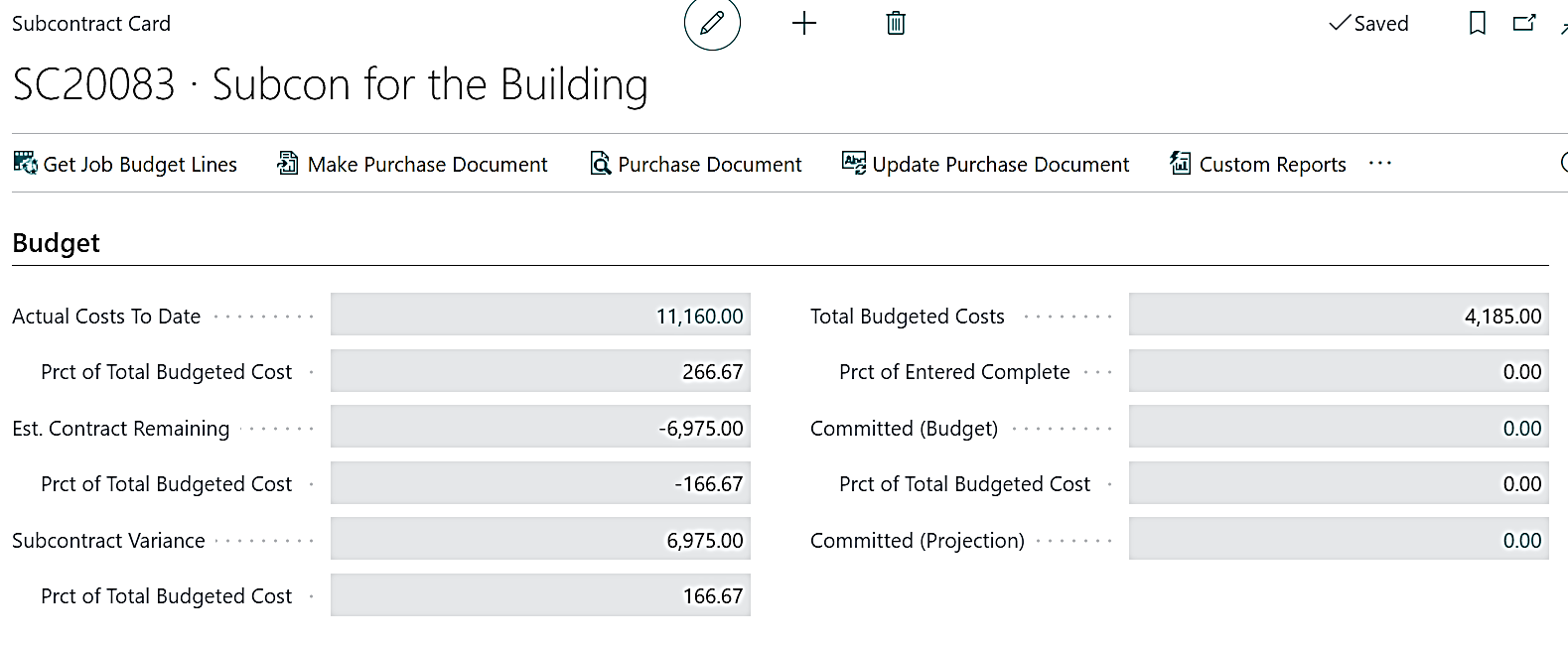
If Actual Cost to Date is Greater than the Total Budget Cost then only the Subcontract Variance has been calculated.
But in the below case the Subcontract Variance has been calculated as the Actual Cost to Date is Greater than the Total Budget Cost, Subcontract Variance= (Actual Cost To date – Total budgeted Cost)
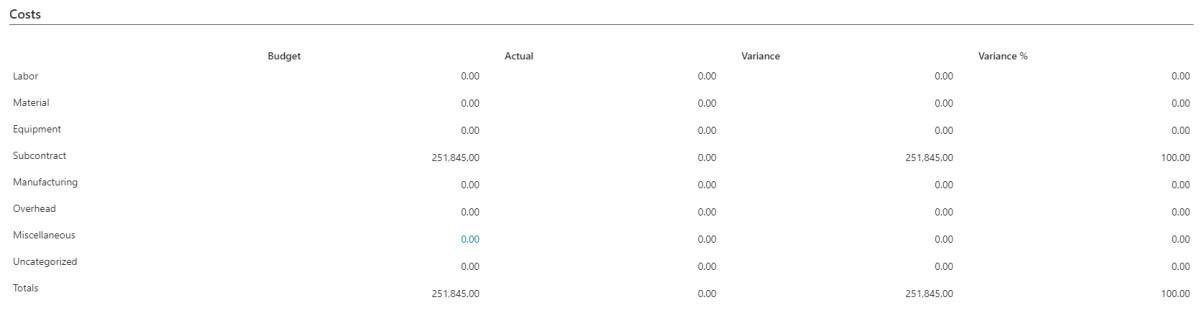
1.5 Costs Fast Tab:
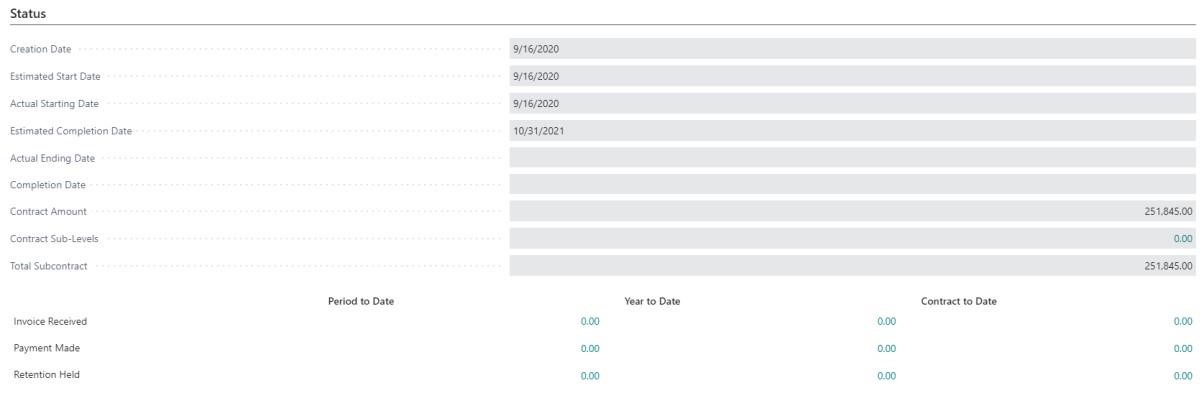
1.6 Status Fast Tab: