Ch 09 – Project Analysis and Reporting
Contents
1. Aged A/R with Retention Report
Aged A/R with Retention Report is a valuable tool for tracking and managing unpaid customer invoices while accounting for any held or retained funds as part of the overall accounts receivable process.
You can access this report via your Role Center (ProjectPro Manager), as demonstrated below:
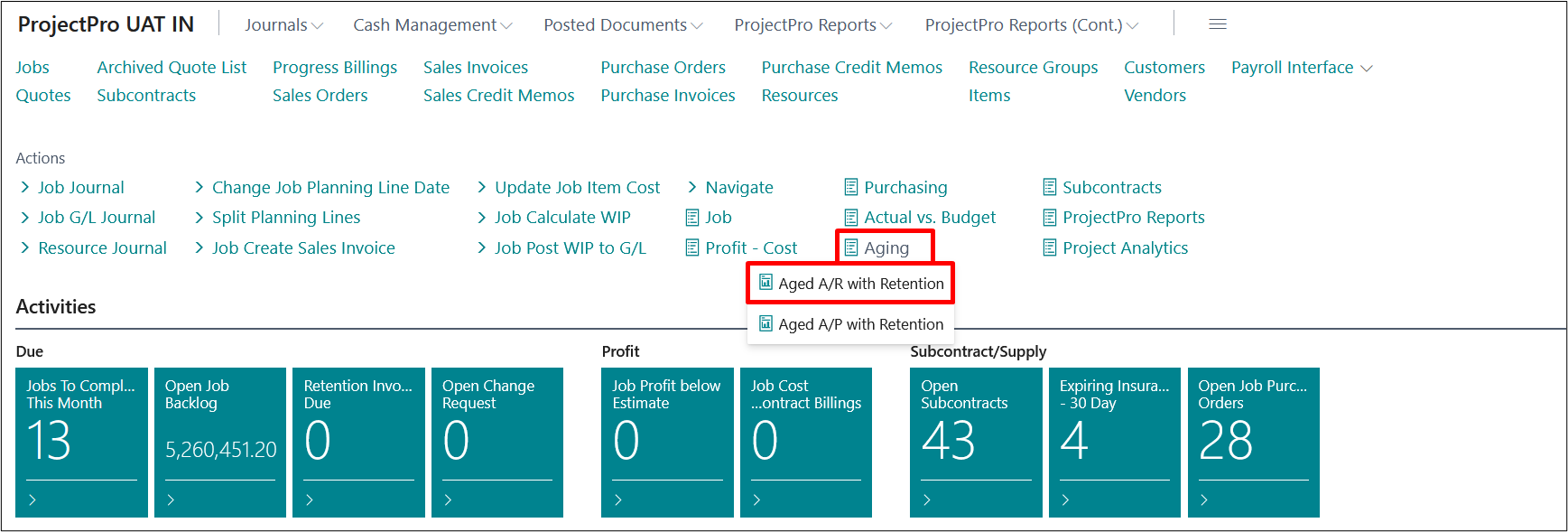
When you click on the “Aged A/R with Retention,” the given dialogue box will appear.
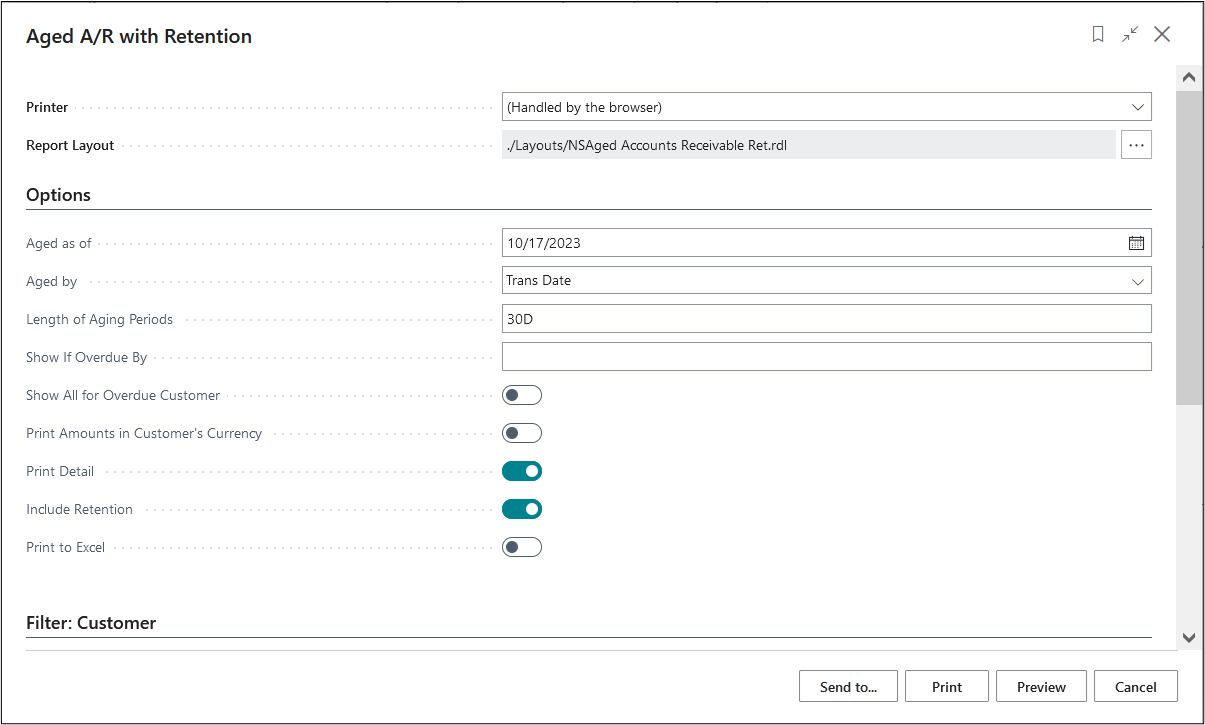
You should complete the details based on your specific requirements to initiate the report..
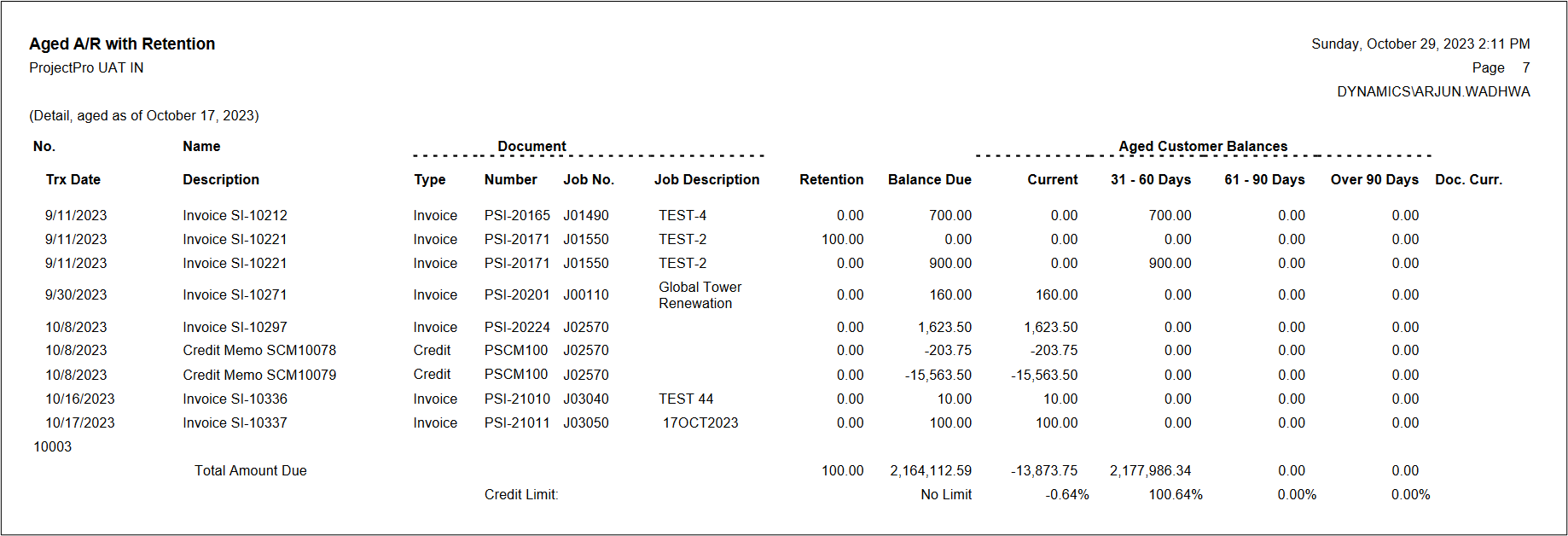
Then the report will be generated based on the provided details.
2. Aged A/P with Retention Report
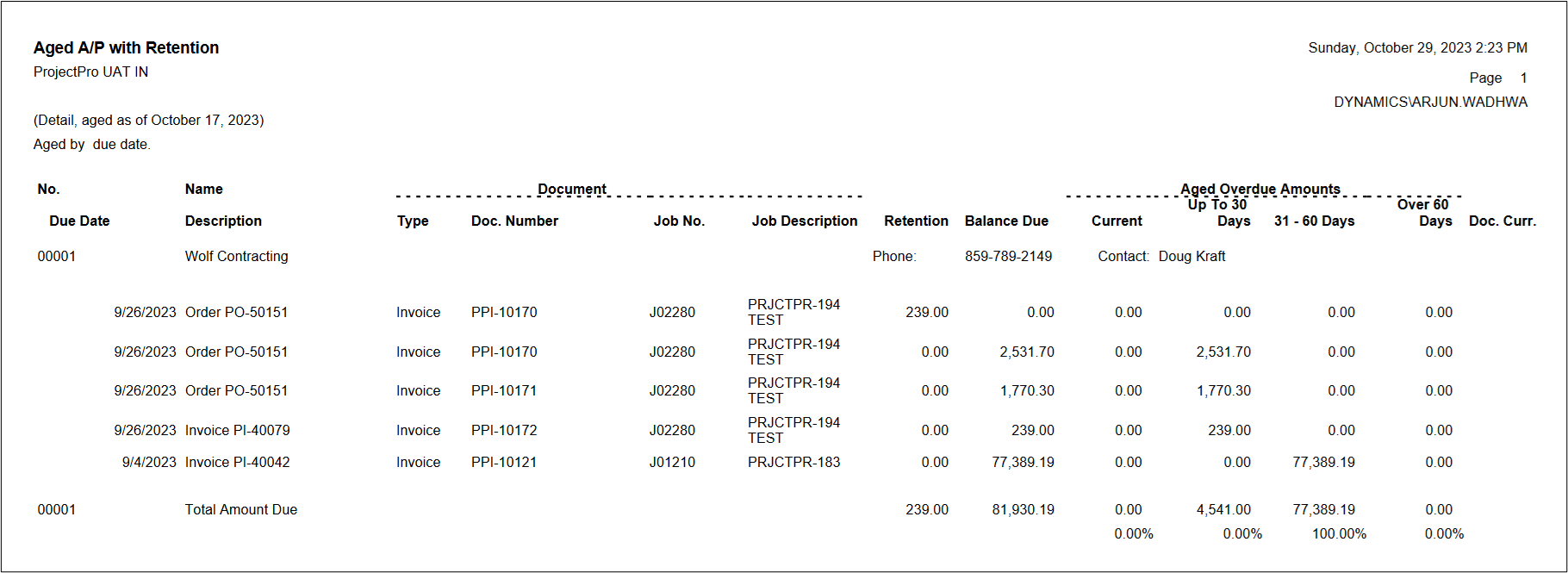
An “Aged A/P with Retention Report” typically refers to a financial report that provides an overview of accounts payable (A/P) balances while considering any retention amounts that are being withheld.
The Accounts Payable (A/P) Aging Report shows you how much you owe your vendors at any point in time. The report is broken down by aging periods.
You can access this report through your Role Center in ProjectPro Manager.
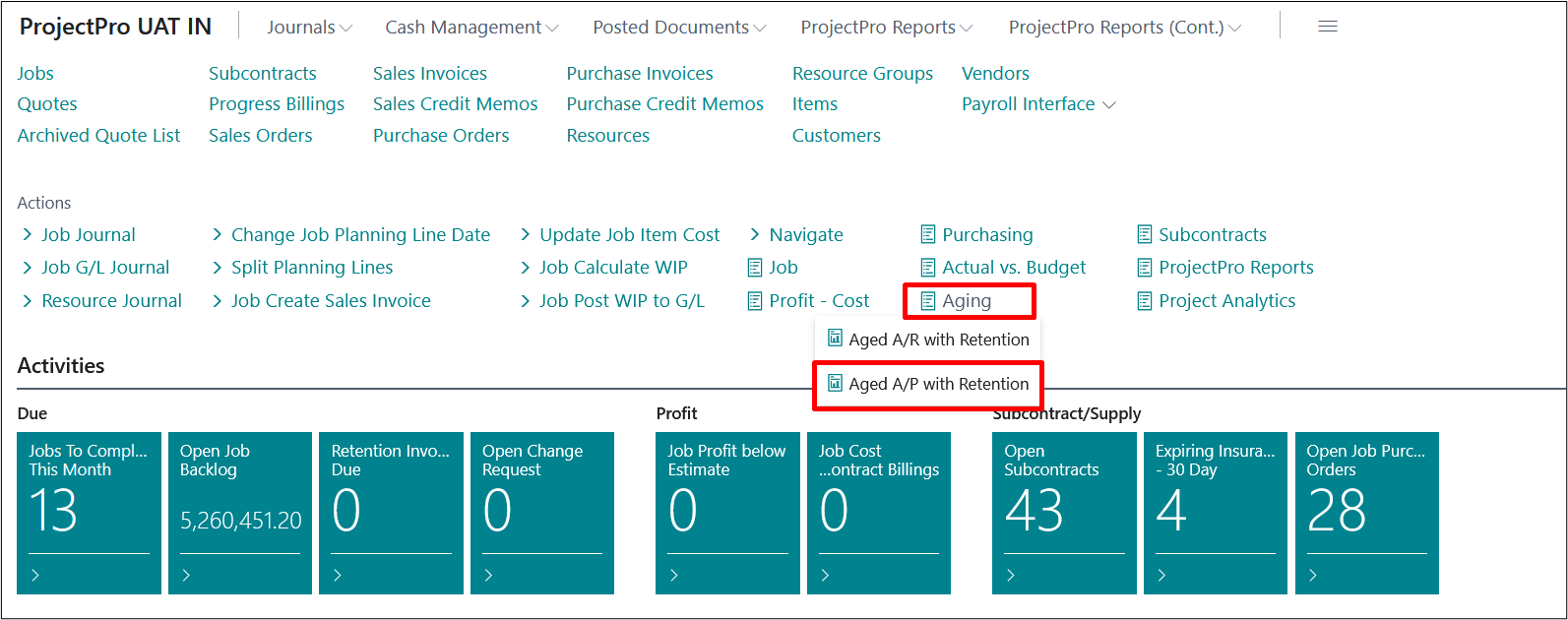
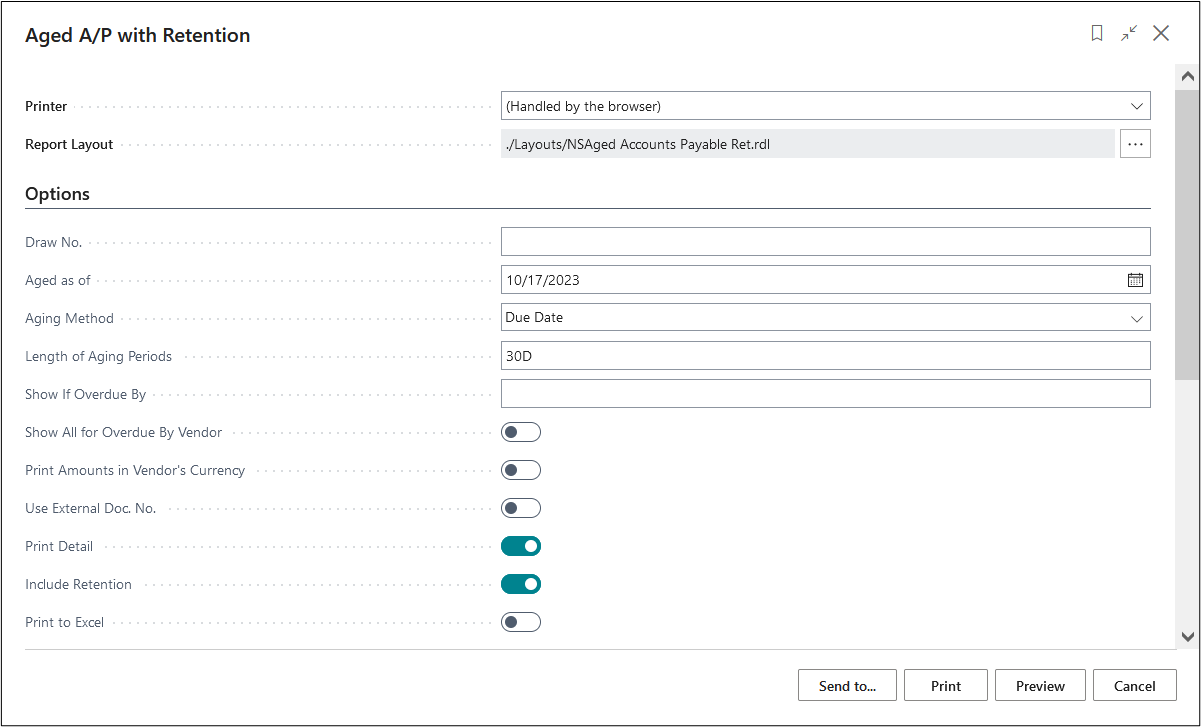
When you click on the “Aged A/P with Retention,” the given dialogue box will appear.
You need to fill in the details as per your requirement to publish the report.
Then, the following report will be generated based on the details filled in.
3. Project Material List
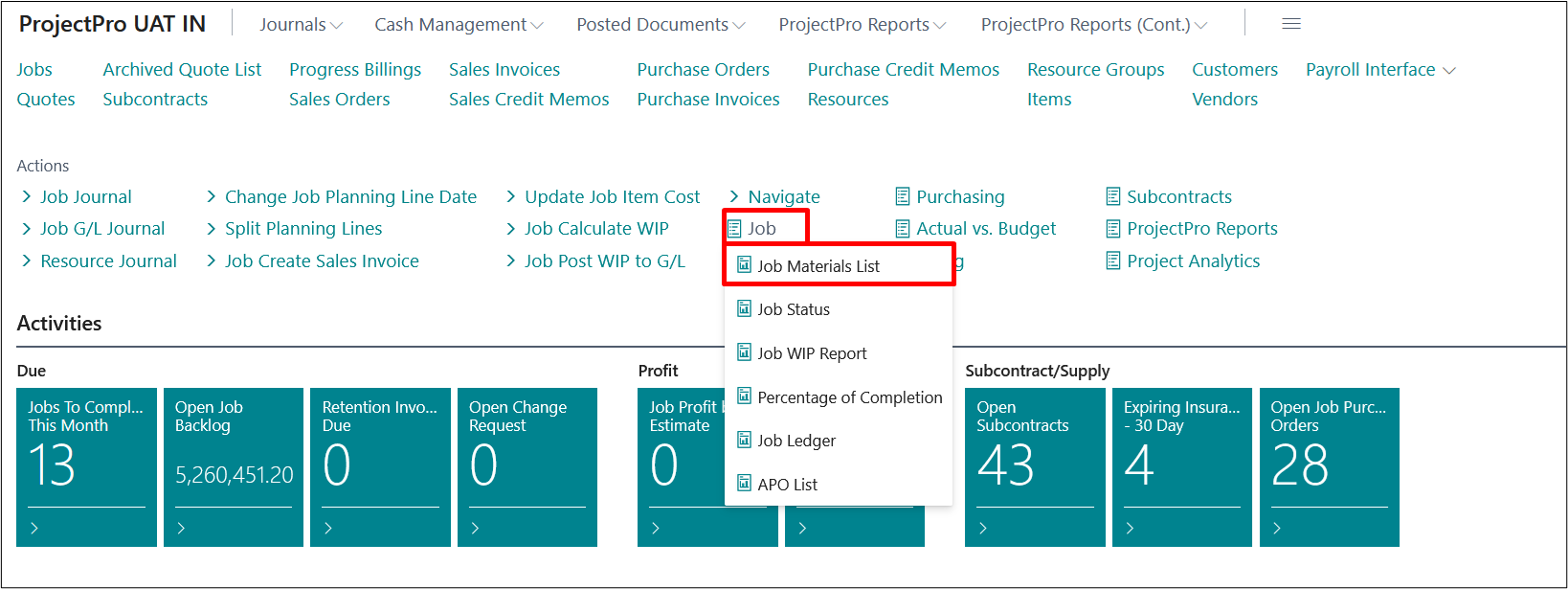
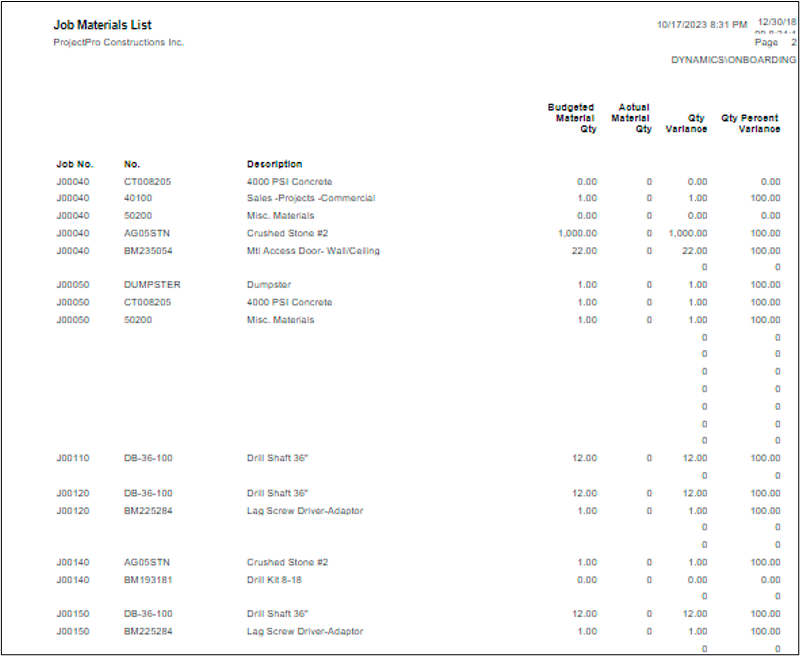
This report is a detailed Actual Material Qty. vs Budgeted Material Qty. On the Role Centre (ProjectPro Manager) you can find this report.
When you click on the “Project Material List” the following screen will appear.
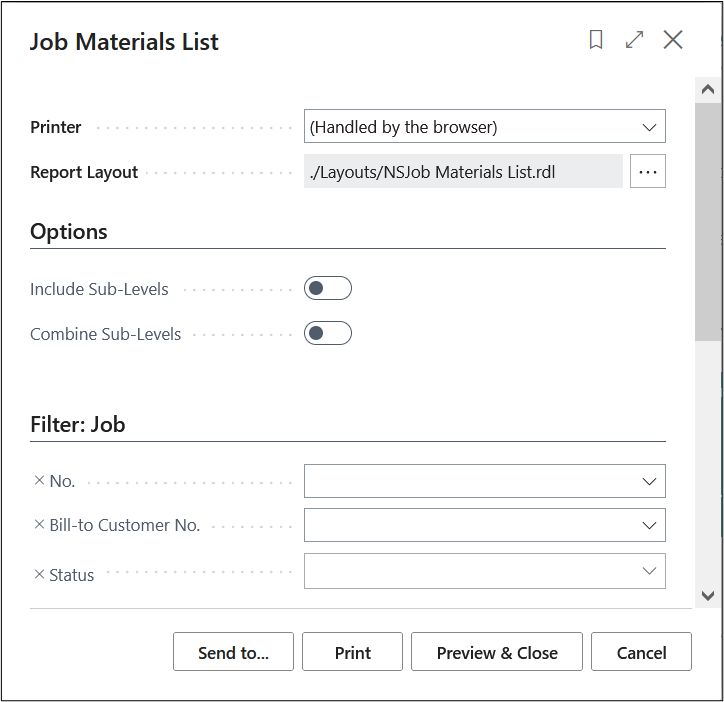
Fill the requirements to run the report.
4. Actual vs Budget Cost by Task
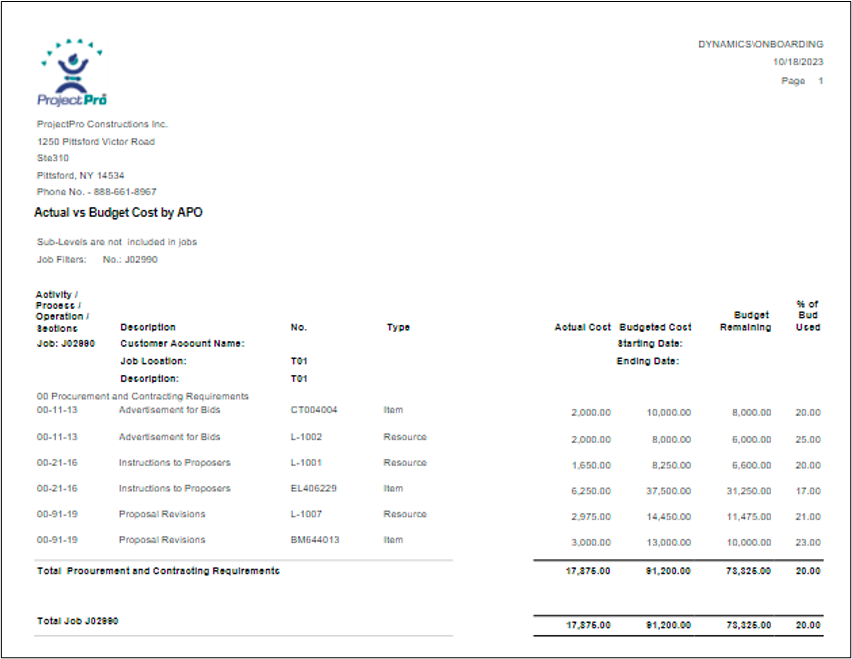
This report provides a comprehensive analysis of the budget versus actual costs, offering insights into the remaining budget and the percentage of the budget already utilized. For enhanced customization, you can explore the OPTION TAB, allowing you to delve deeper into specifics like Process or Operation Level, and you can also choose to incorporate any Project changes you would like to track.
You can find this report on your Role Centre.
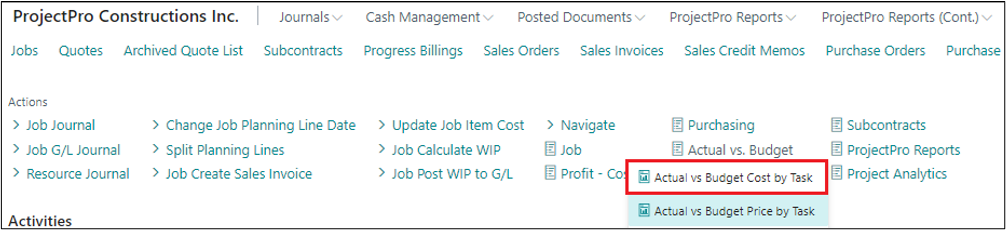
Fill in the Project no. and other details to run the report.
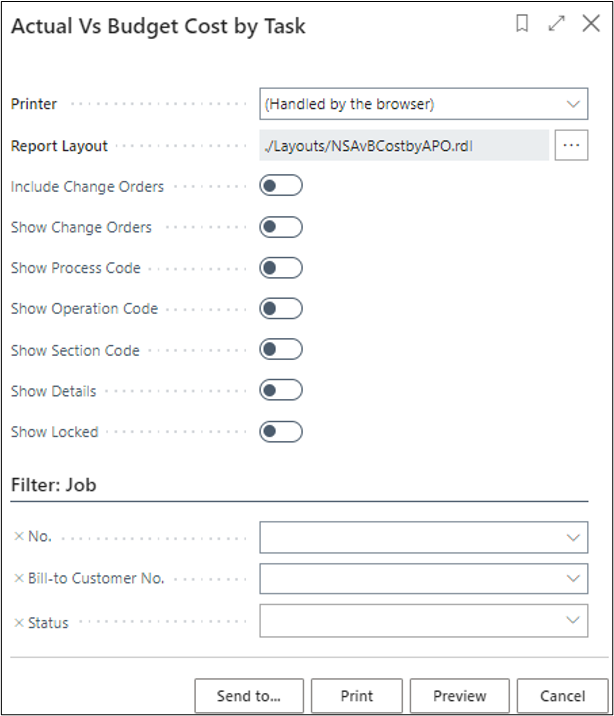
Click on the “Preview.”
5. Actual vs Budget Price by Task
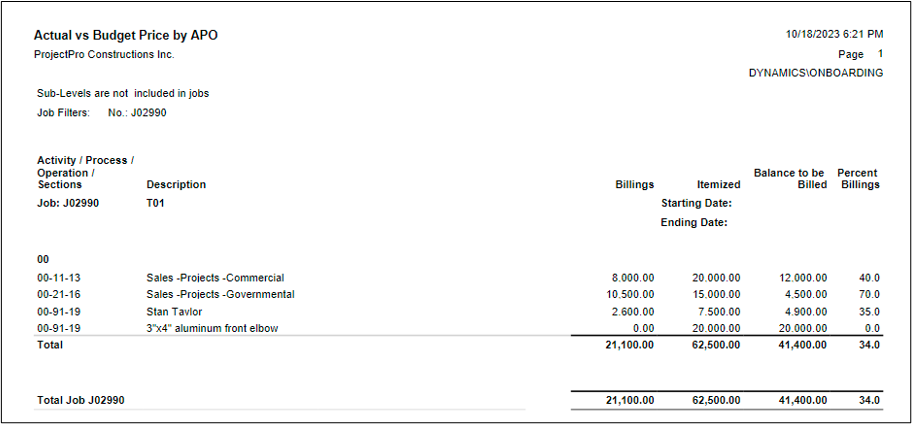
This report delves into the budgeted contract prices, actual billing, the pending balance to be billed, and the percentage of billing associated with Project Activity, Process, and Operations Codes.
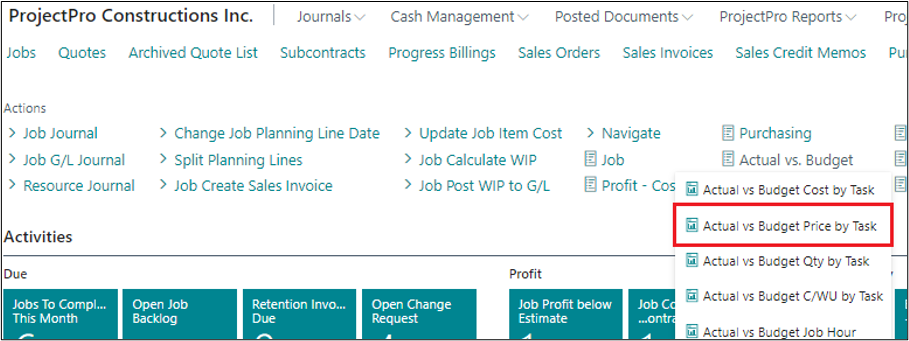
You can find this report on your Role Centre.
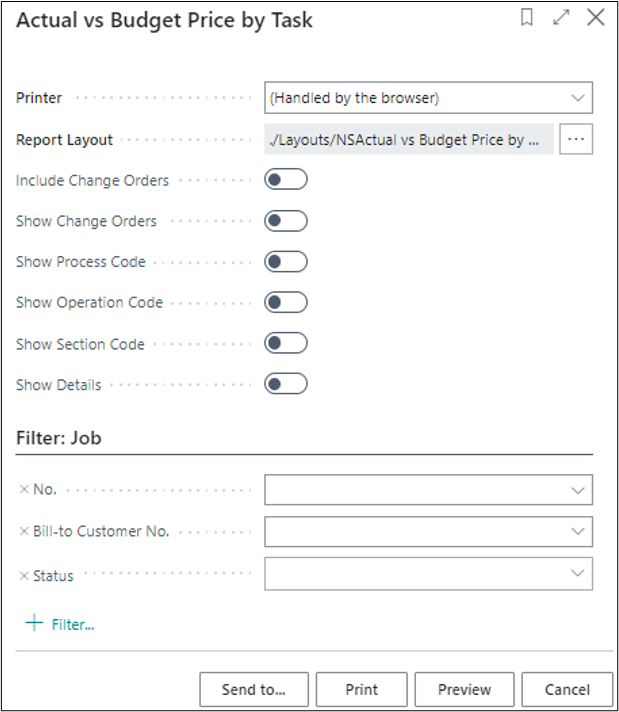
Fill in the Project no. and other details on the screen that runs the report.
Click on the “Preview” to run the report.
6. Projects Gross Profit by APO
This report is showing the gross profitability by Activities, Processes and Operations with profit percentage.
On the Role Center you can find this report.
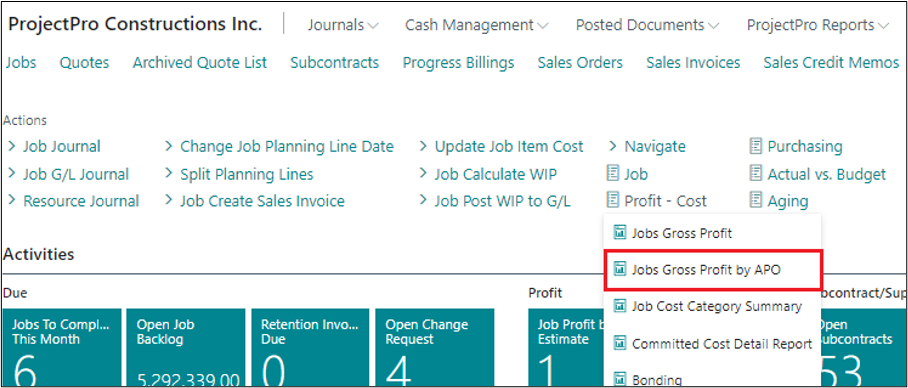
Click on the option and fill in the required details on the screen that appears.
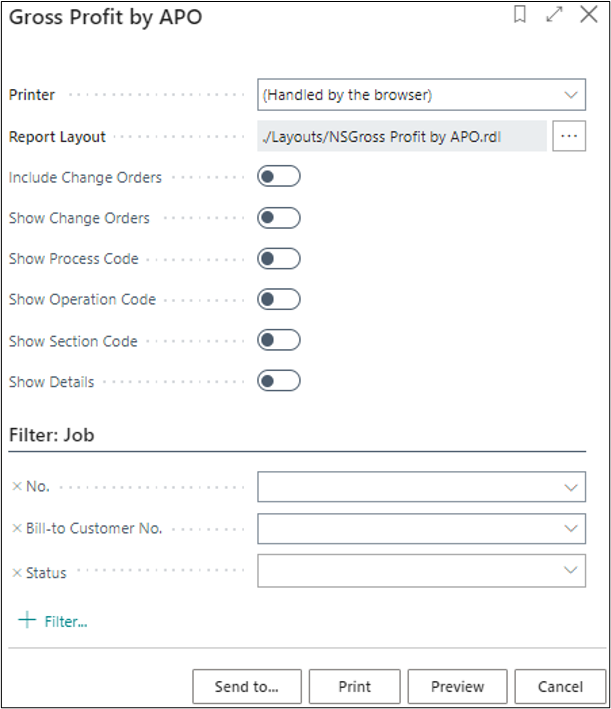
Click on the “Preview” to run the report.
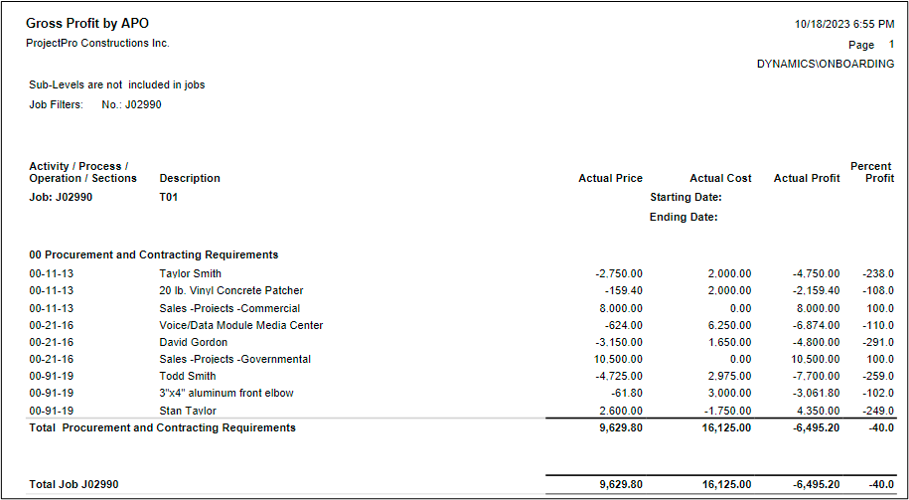
7. Project Cost Category Summary
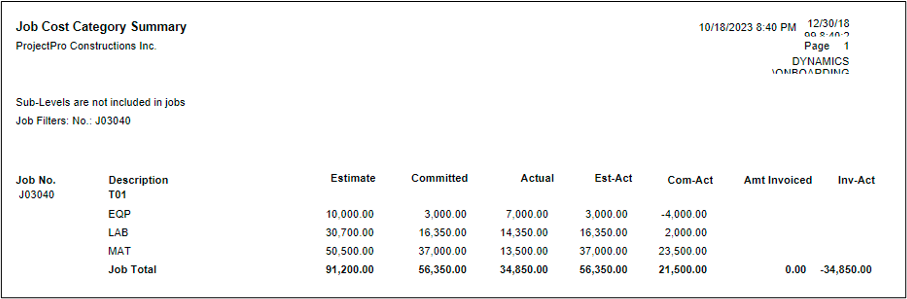
This report is showing the cost categories vertically along with estimates, committed costs and actual costs in summary for each Project.
On the Role Center you can find this report.
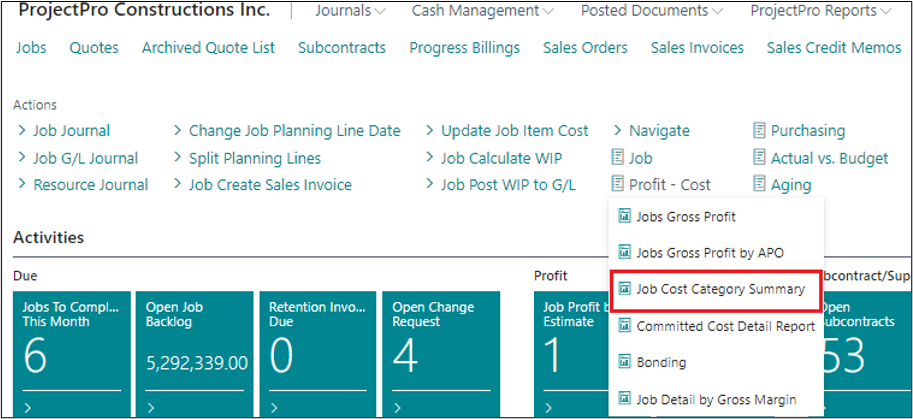
Click on the option and one screen will appear in front of you.
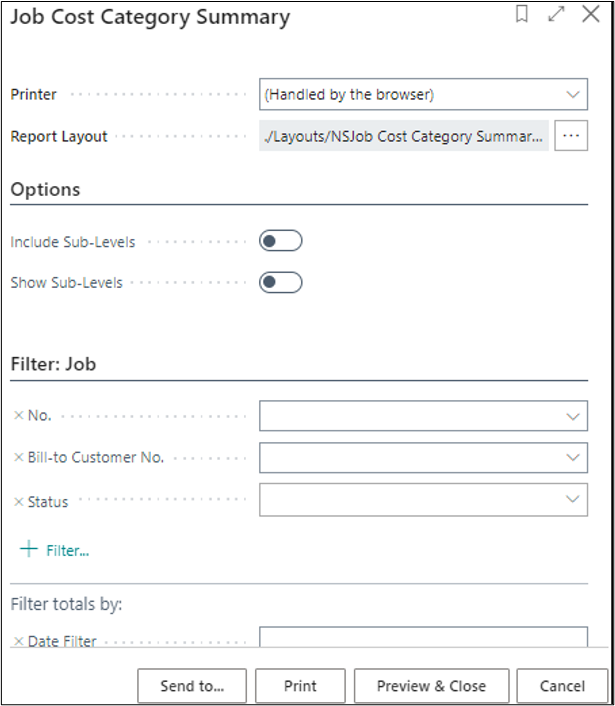
Fill in the required details and then click on the “Preview & Close.”
8. Bonding
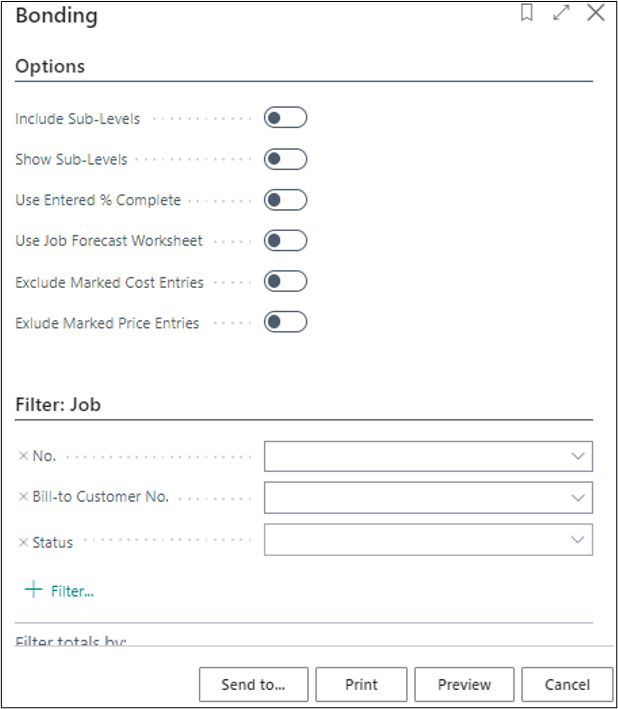
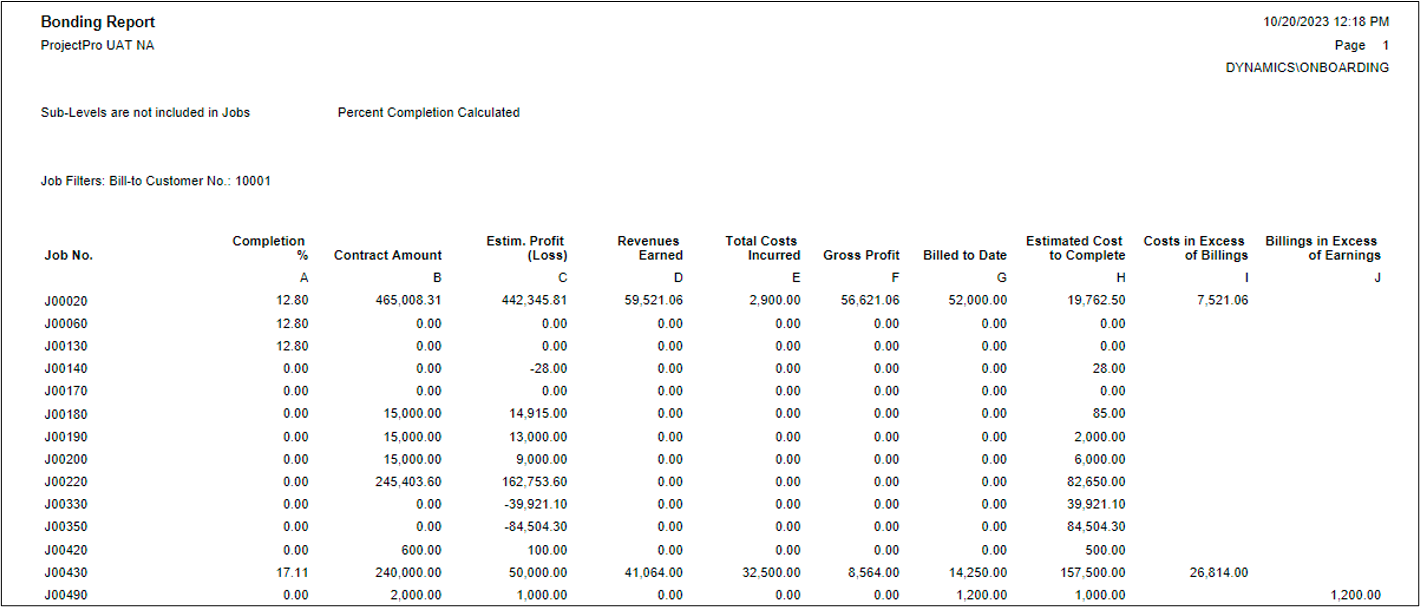
This report is common for bonding and insurance companies that provide special Project insurance coverage or bonding insurances. There are two options for calculating the percentage of completion. The sample shown is the first method which is calculated using actual costs divided by budgeted costs. The second option is calculated using the manually entered percentage of completion in the Project card.
You can find this Report on the Role Center under “Profit – Cost.”
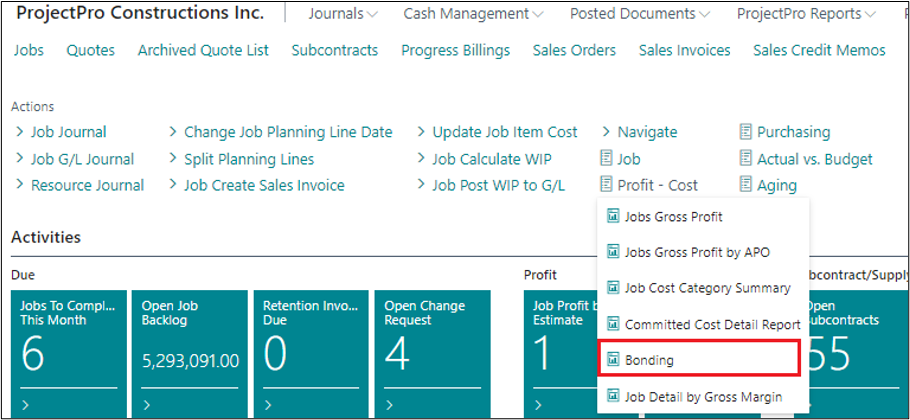
Click on the option and fill in the required details on the screen that appears.
Click on the “Preview.”
9. Committed Cost Detail Report
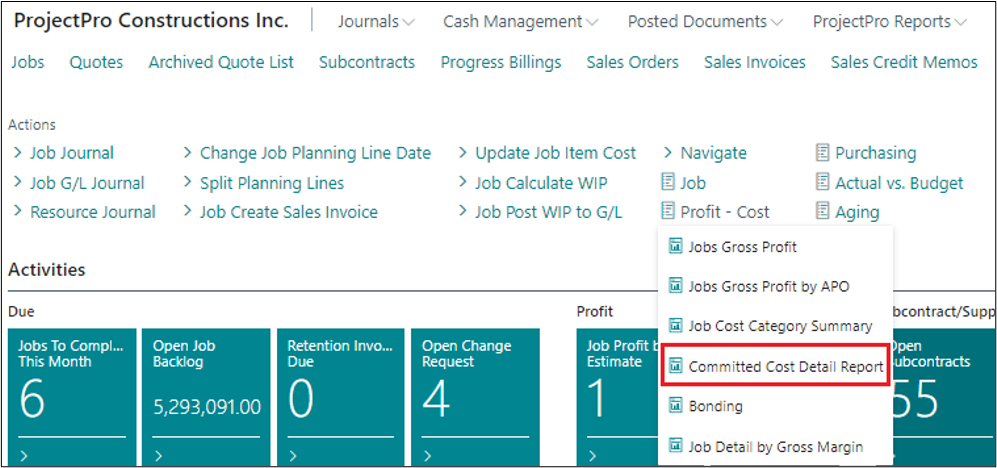
On the Role Center click on the “Committed Cost Detail Report” under Profit-Cost.
The following screen will pop up.
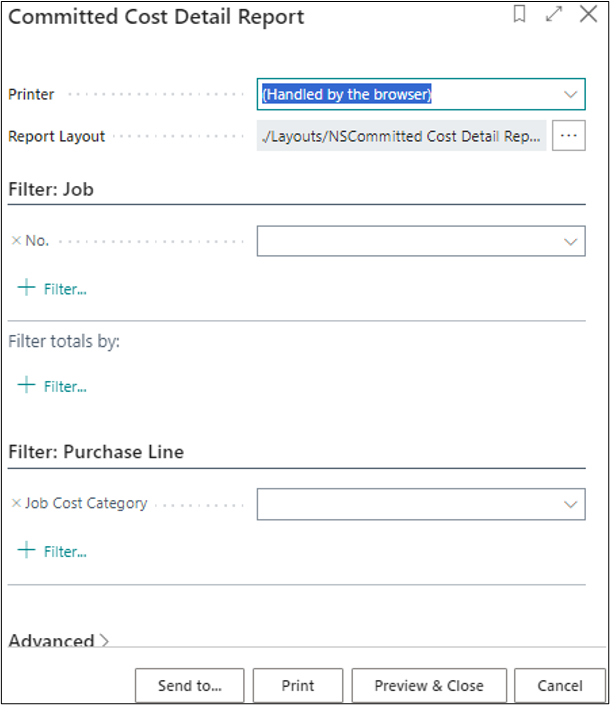
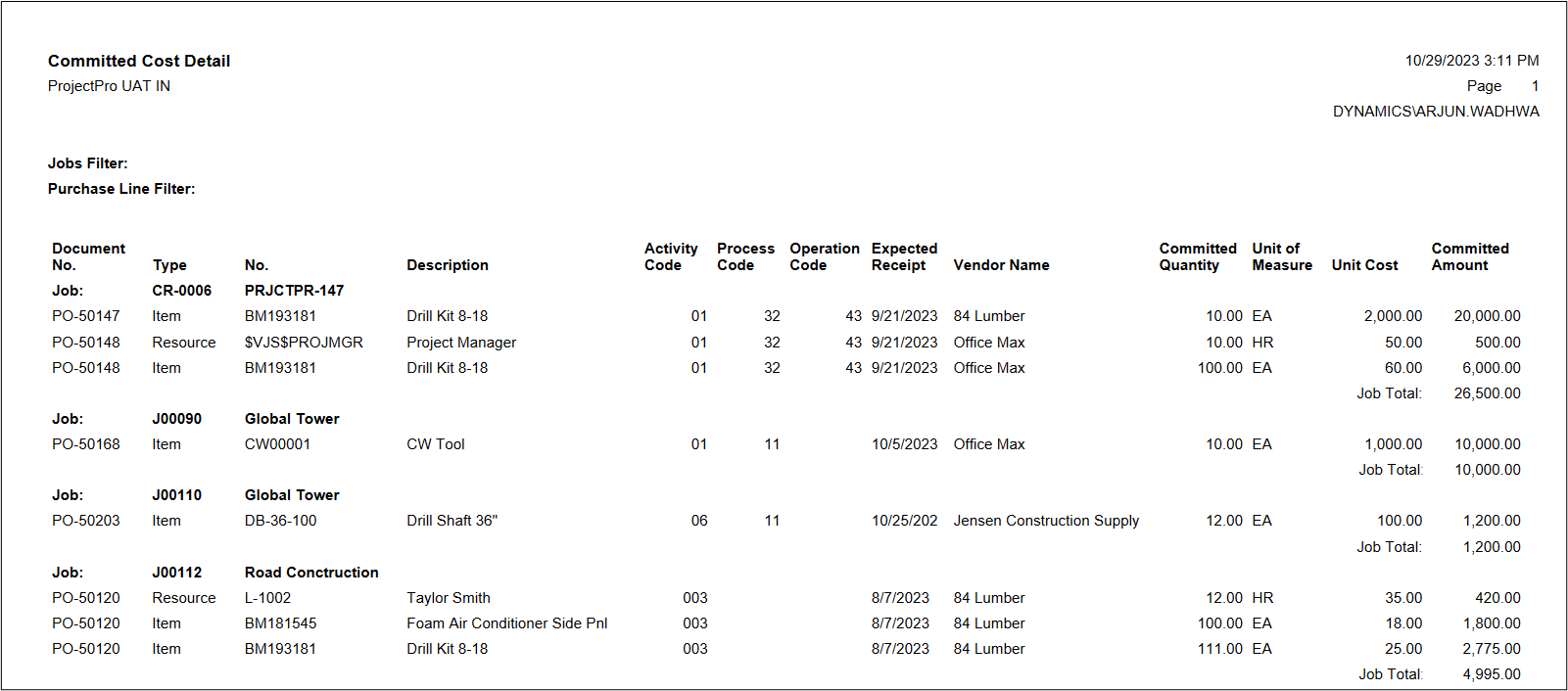
Fill in the required details and click on the “Preview & Close.”
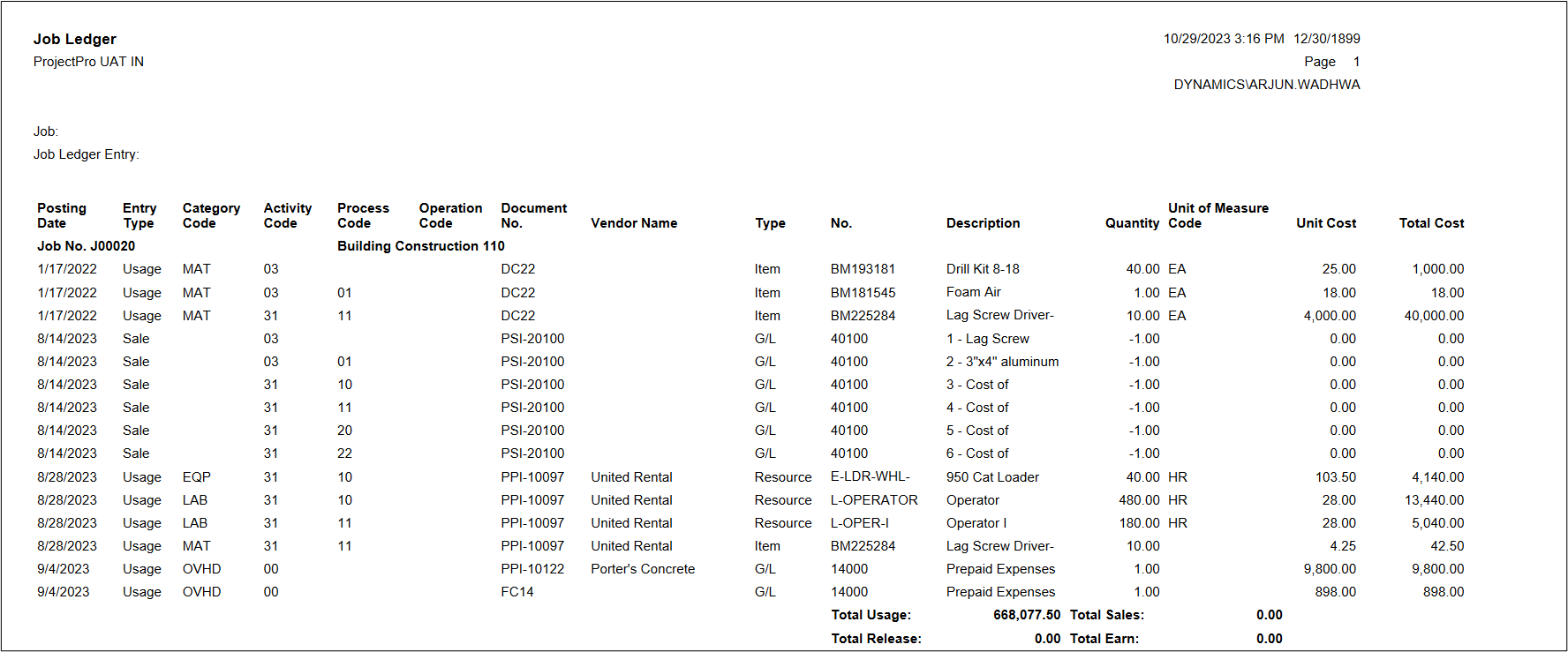
10. Project Ledger
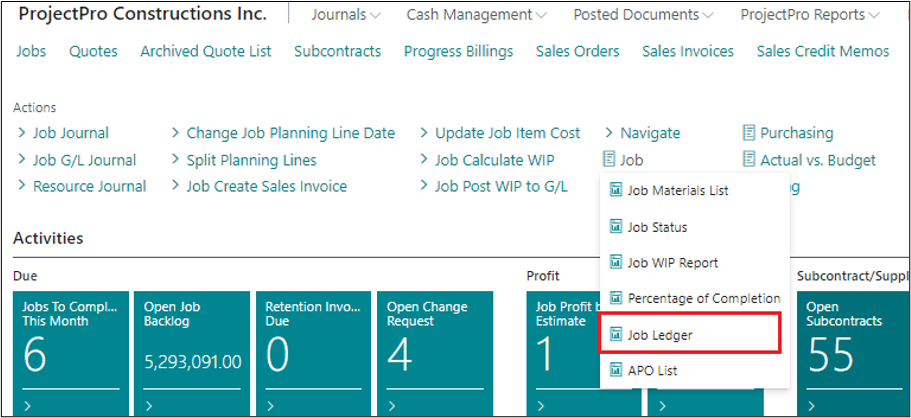
This is a report that shows all types of Project entries such as usage, release, sale and earned transactions.
You can find this report on the Role Center under “Project.”
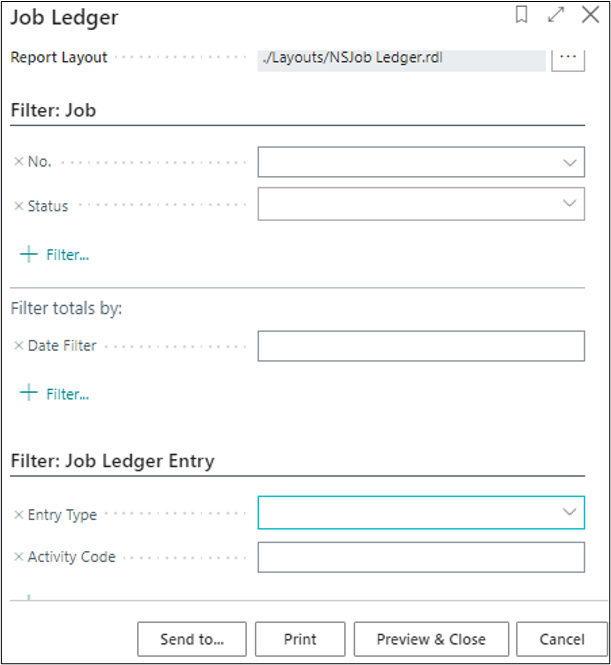
A screen will appear on which you have to fill in the required details.
Click on the “Preview.”
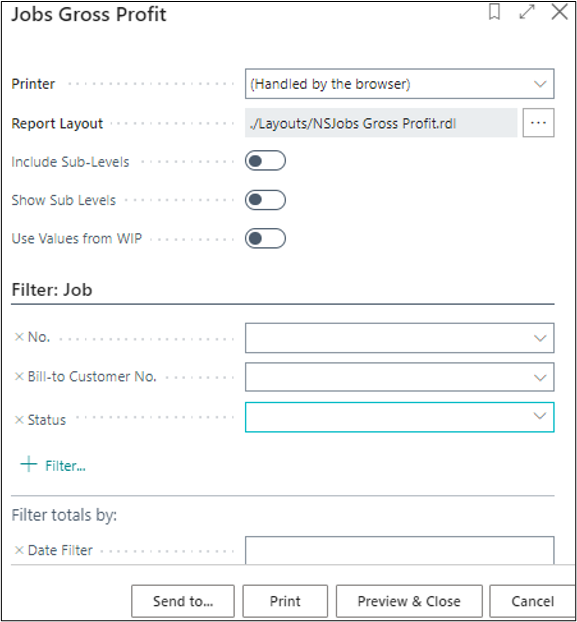
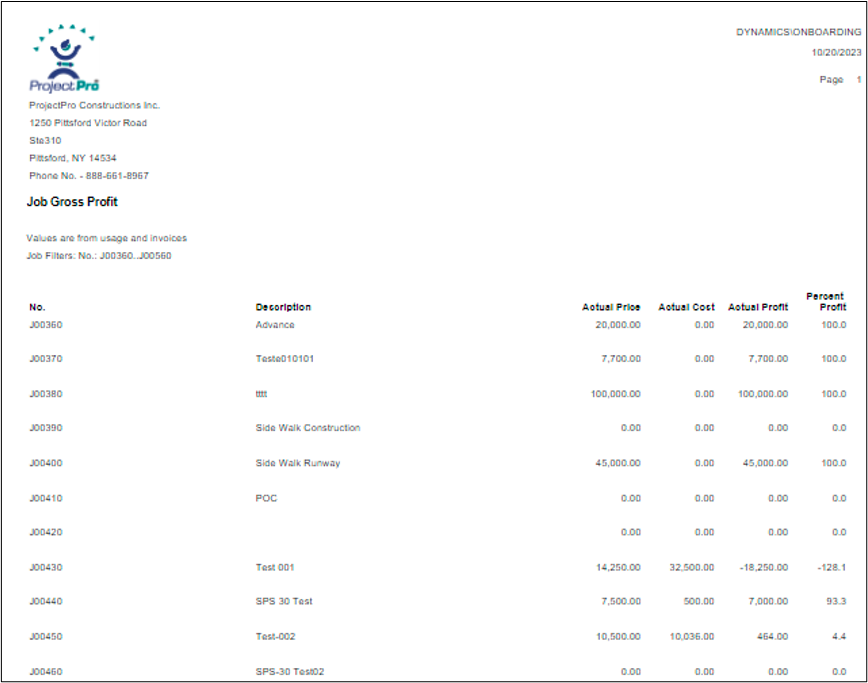
11. Project Gross Profit
This report presents the Gross Profit in Amount and % form as well which is difference between Usage Cost and Invoiced price.
You will find this report on the Role Centre under “Profit-Cost.”
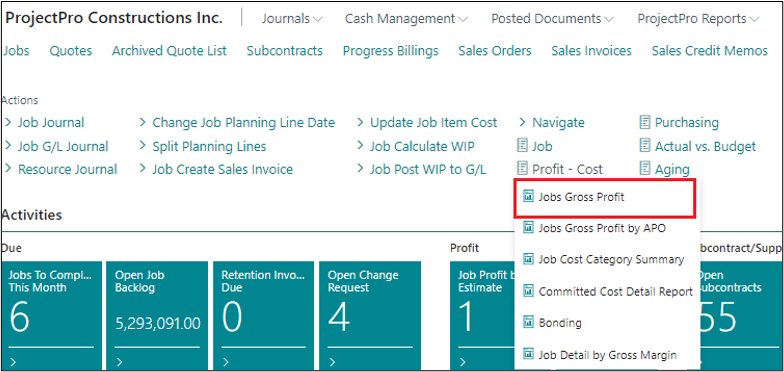
When you click on the option the following screen will pop up.
Click on the “Preview & Close.”
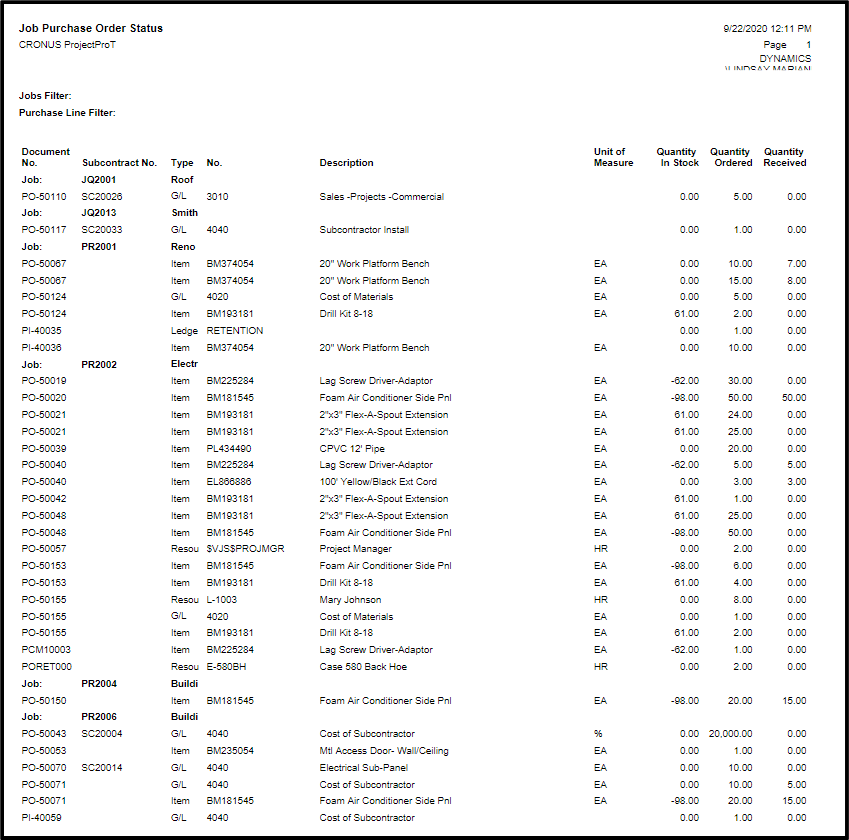
12. Project Purchase Order Status
This is the report for showing each open purchase order by Project with item status: Quantity in Stock, Quantity Ordered and Quantity Received
You will find this report on the Role Center under “Purchasing.”
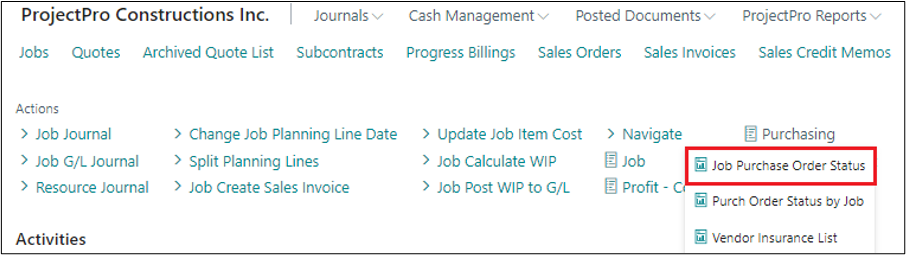
Click on the option and fill the required details on the following screen that appears.
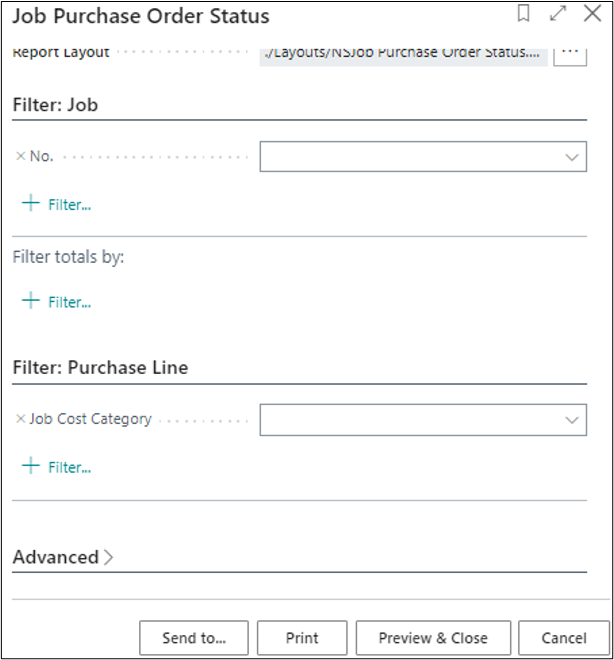
Click on the “Preview & Close.”
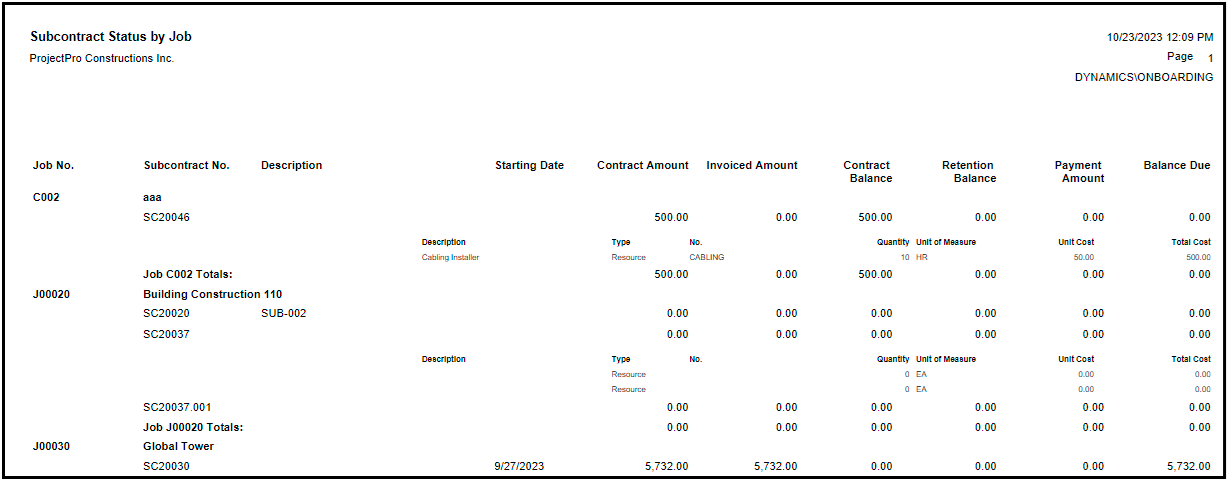
13. Subcontract Status by Project
This report shows the subcontract amount, Subcontract Invoiced amount, Subcontract retention amount and paid Subcontract invoiced amount to vendor based on project no.
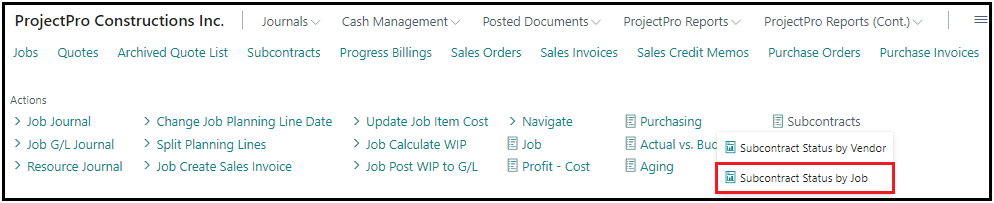
On the Role Center under Subcontracts, click on the “Subcontract Status by Project.”
The following screen will appear, the fill the required details.
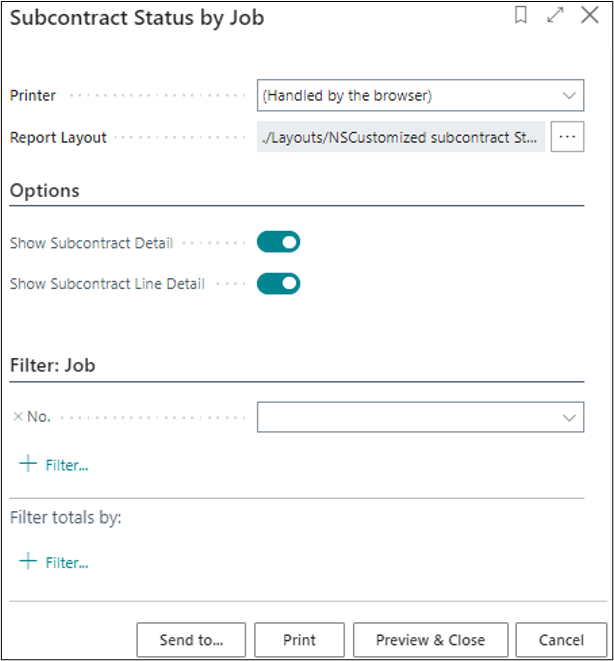
Click on the “Preview & Close.”
Percentage of Completion
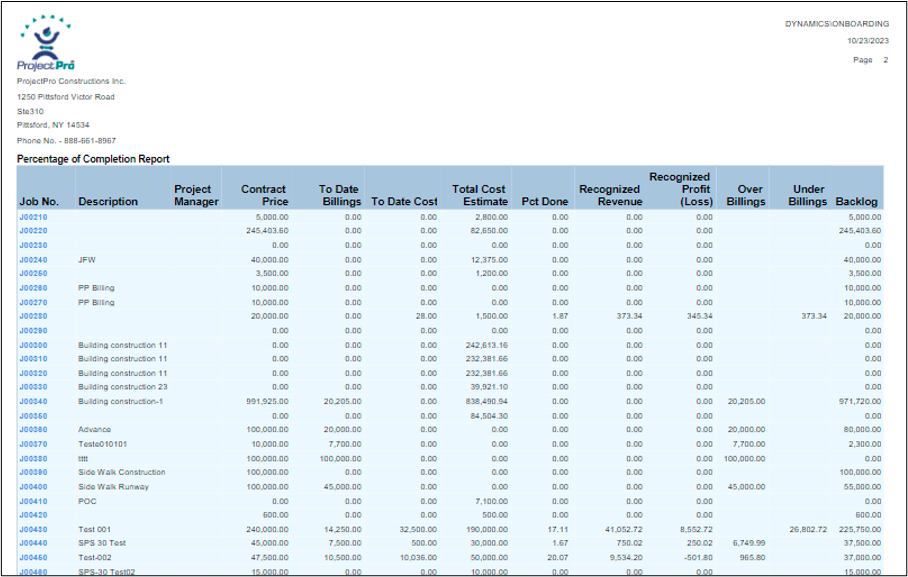
Project managers and accountants use this report to assess the completion of each Project. This report is used to indicate what portion of each contract has been earned.
There are two options for calculating the percentage of completion.
1. The first method is calculated using actual costs divided by budgeted costs.
2. The second option is calculated using the manually entered percentage of completion in the Project card.
You can find this report either on the Role Center under Project, Project List or on Project Card.
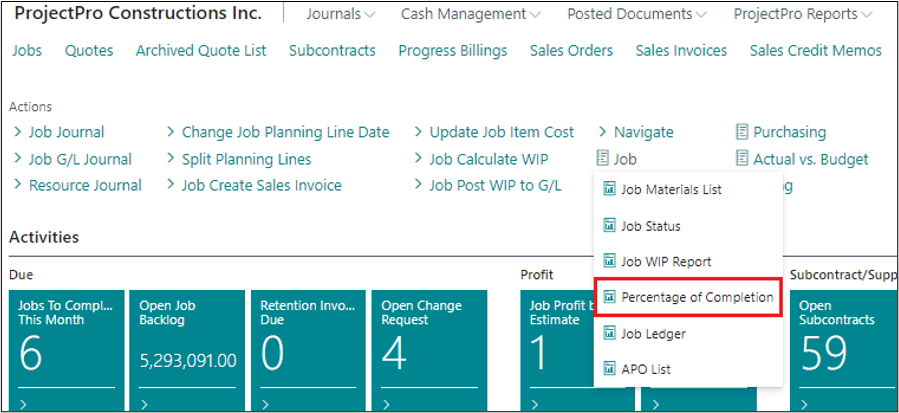

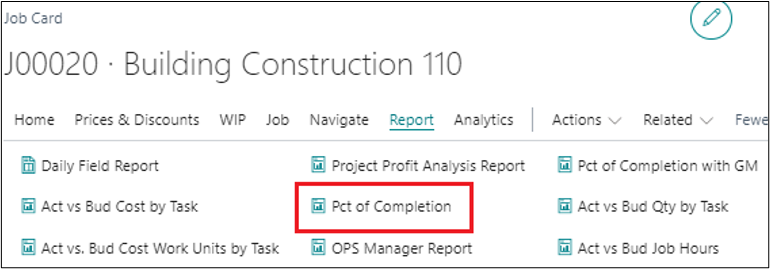
The following screen will pop up.
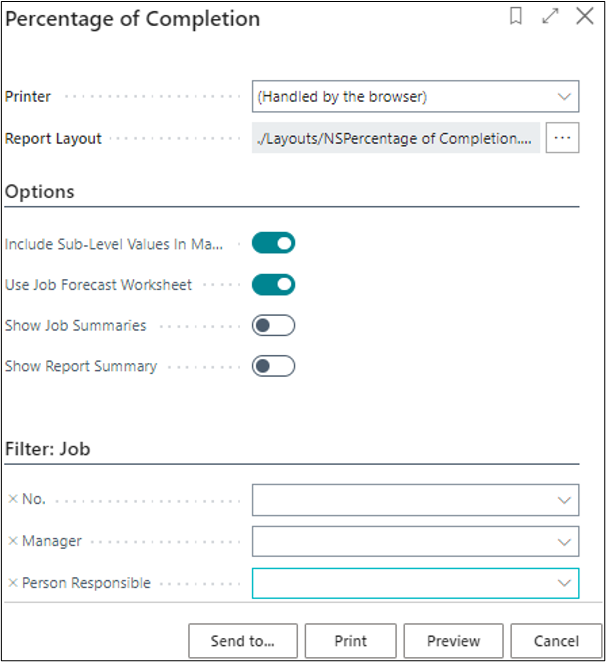
Fill in the required details and click on the “Preview.”
14. Actual vs Budget Projects Hour
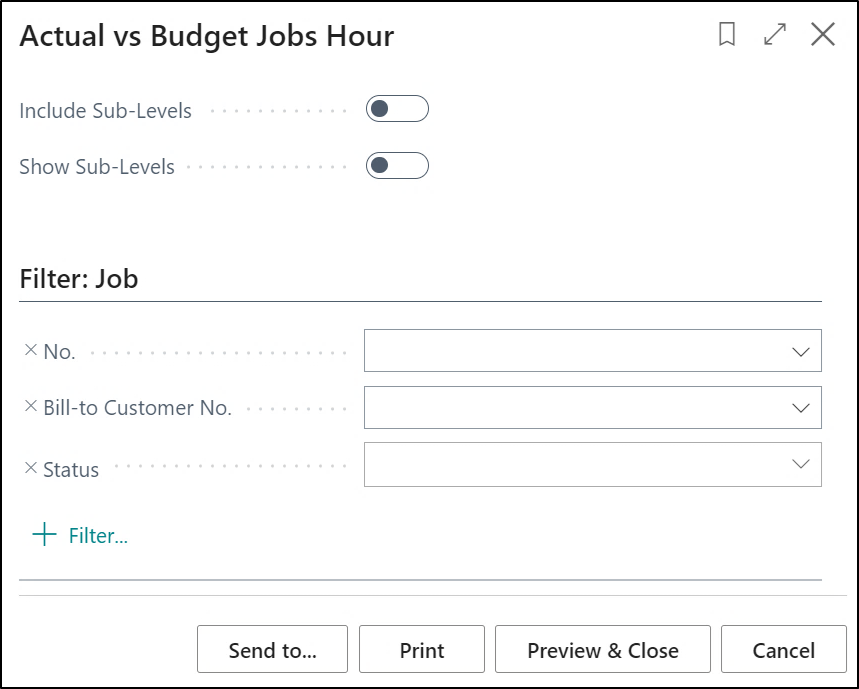
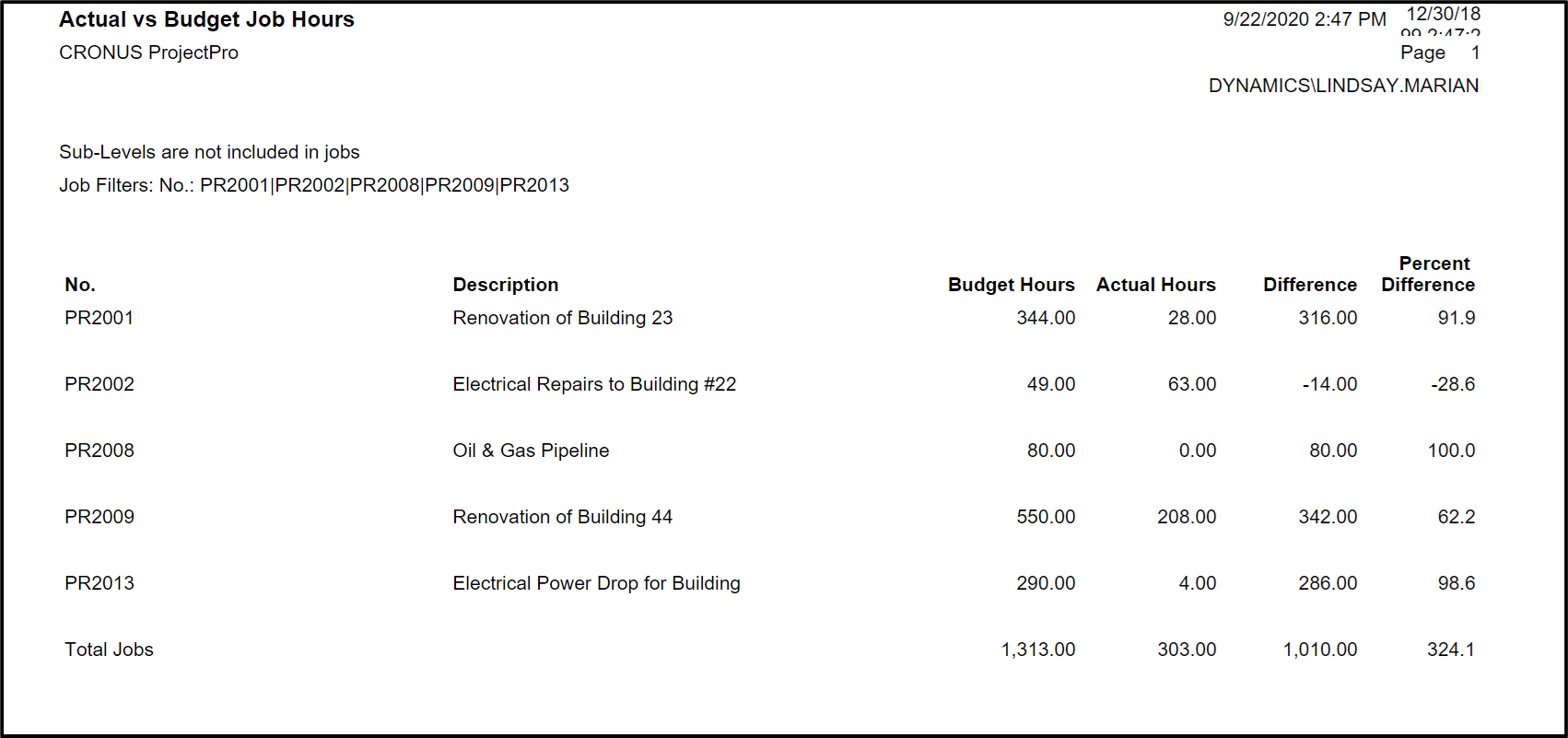
This is report is for comparing budgeted hours verses actual hours for each Project.
You can find this report either on the Role Center or on the Project Card under “Reports.”
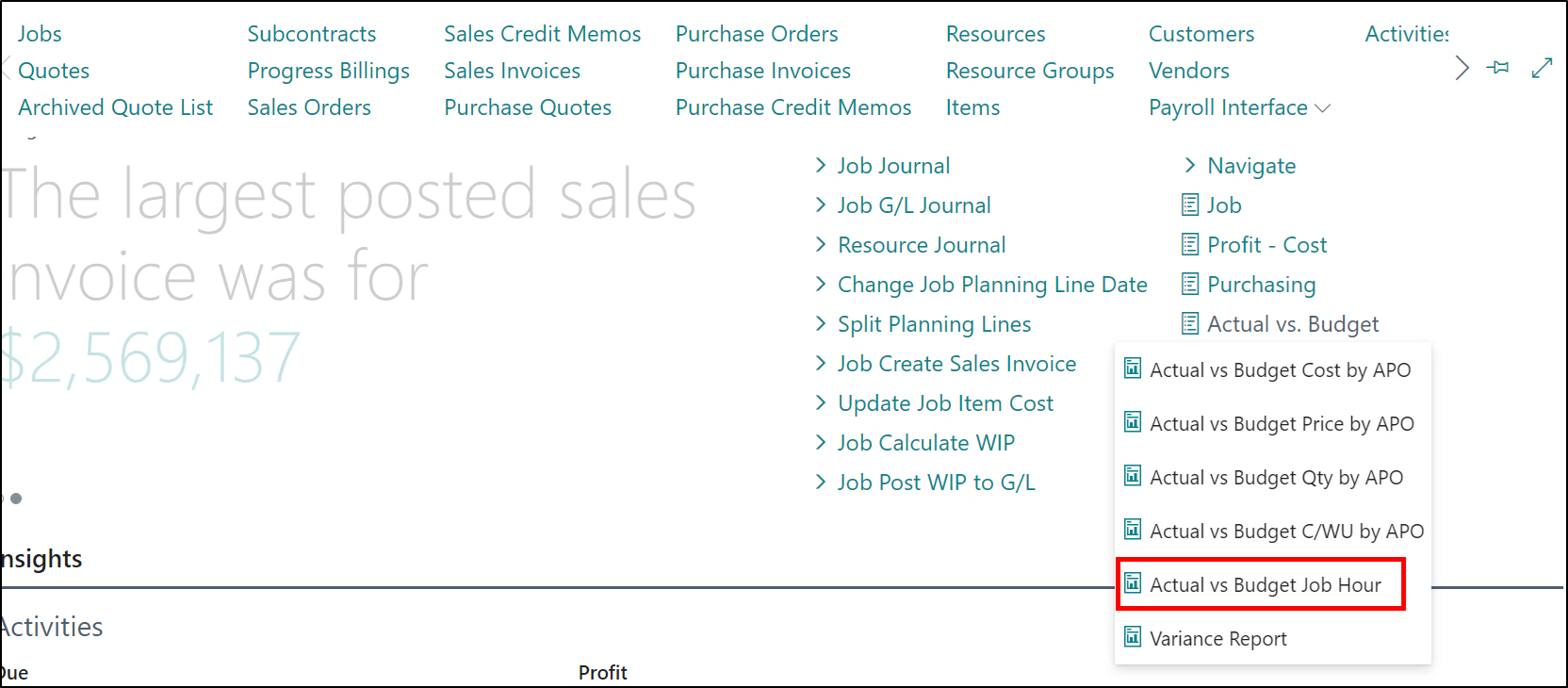

Fill in the required details on the screen that appears.
Click on the “Preview.”
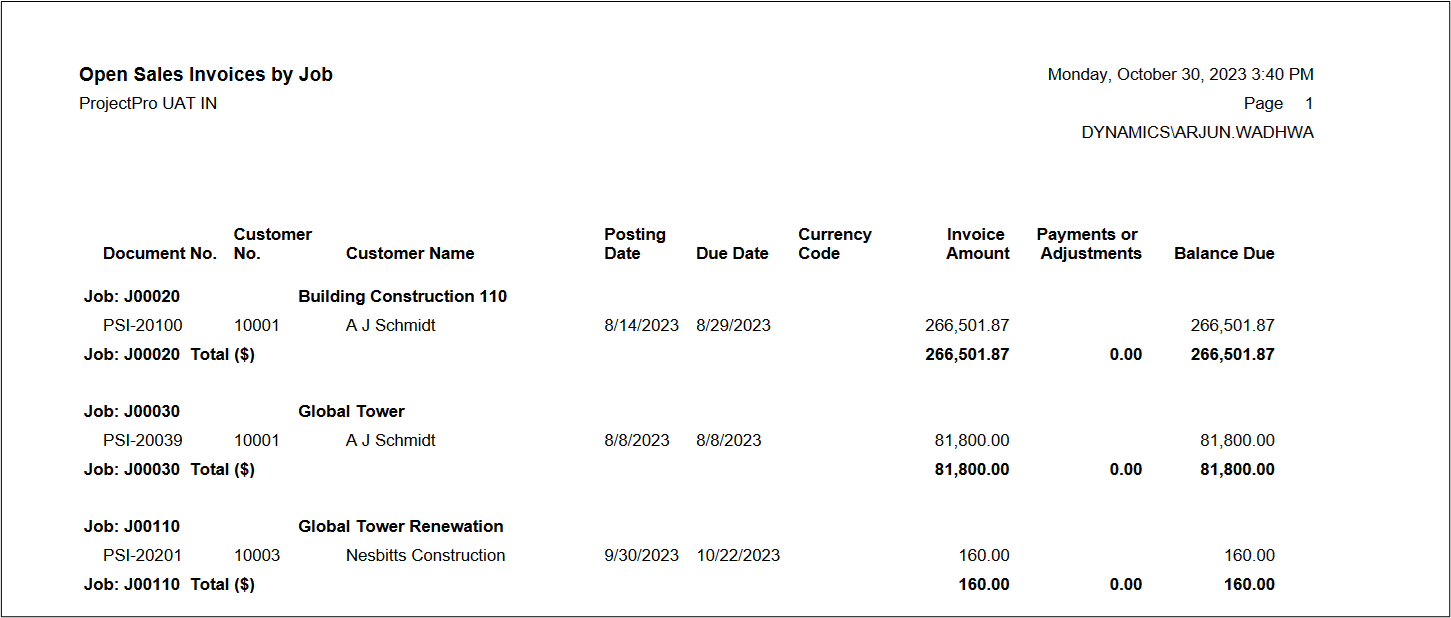
15. Open Sales Invoices by Project
To open this report, click on Search and type “Open Sales Invoice by Project,” the screen will appear in which you have to fill in the details accordingly to run the report.
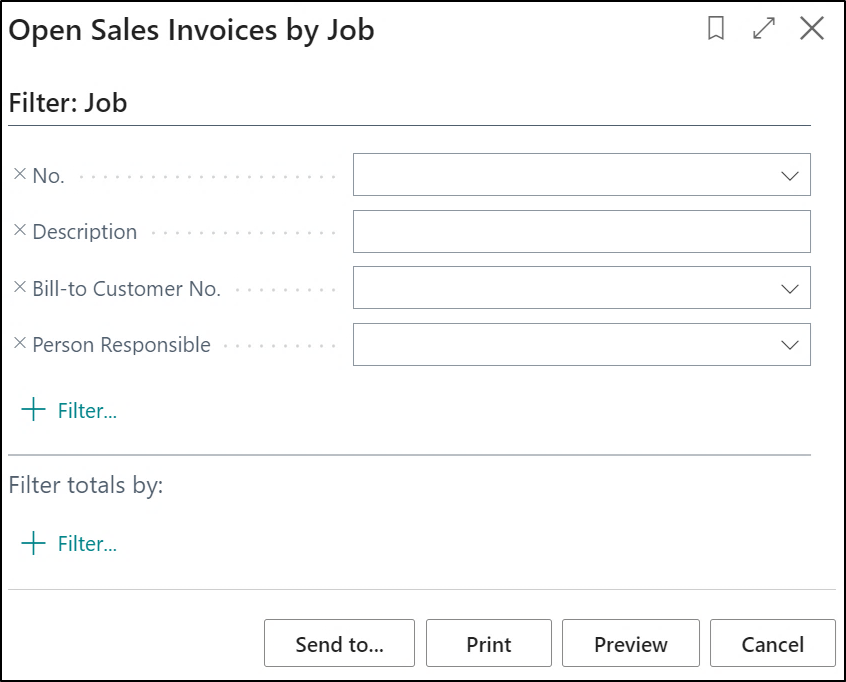
Click on the preview to see the report.
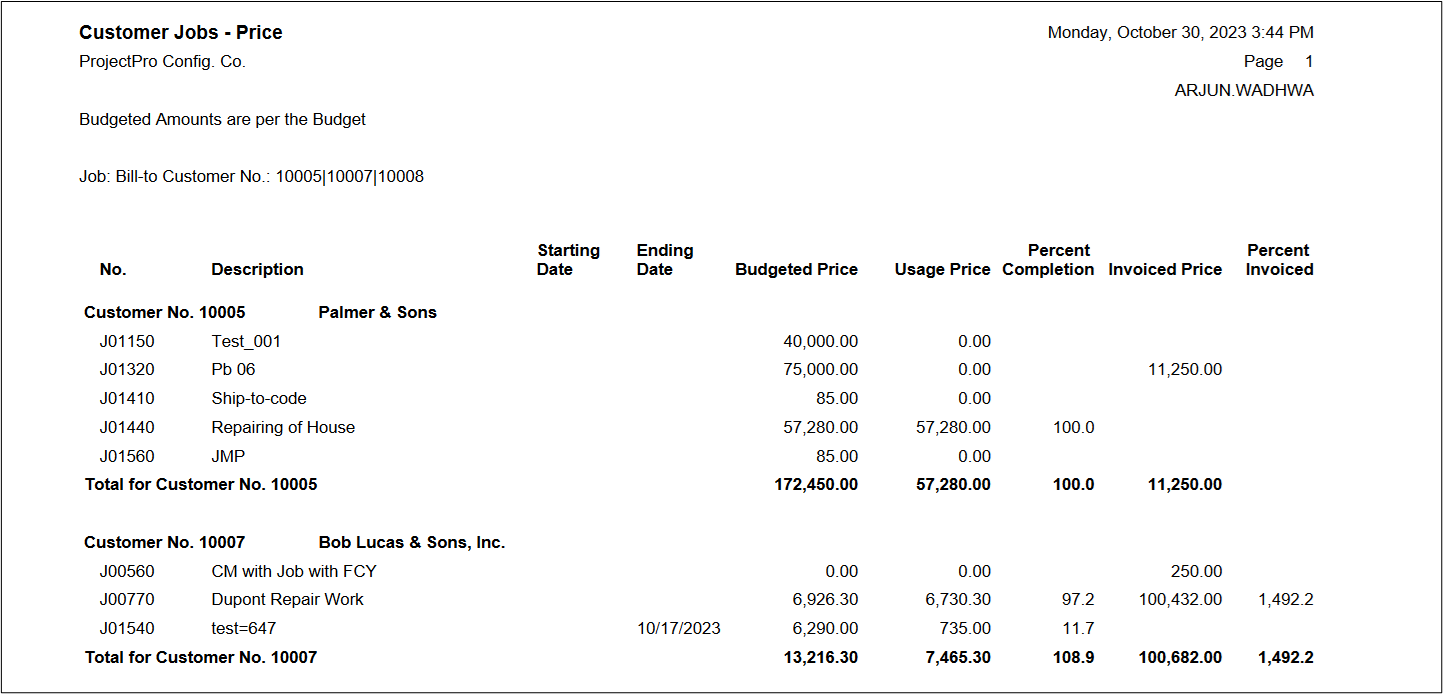
16. Customer Projects (Price)
This report is a customer’s Project report with a summary of budgeted price (contract values) and actual billings along with percent invoiced to customer.
Click on the search to find this report. The following screen will appear.
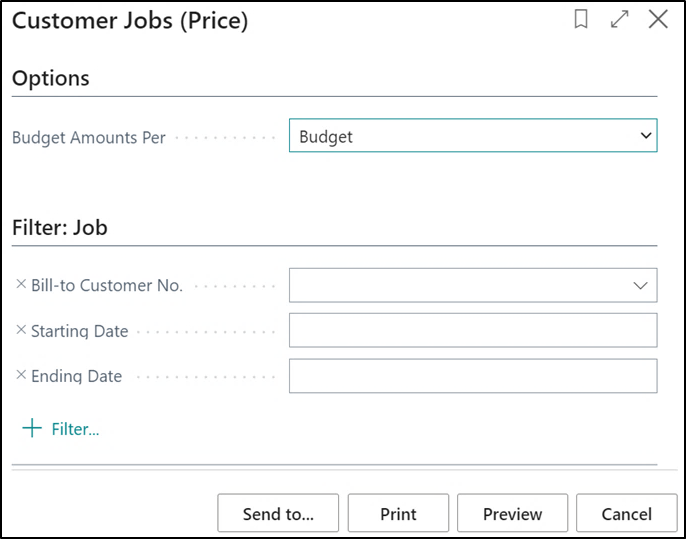
Fill in the required details and run the report.
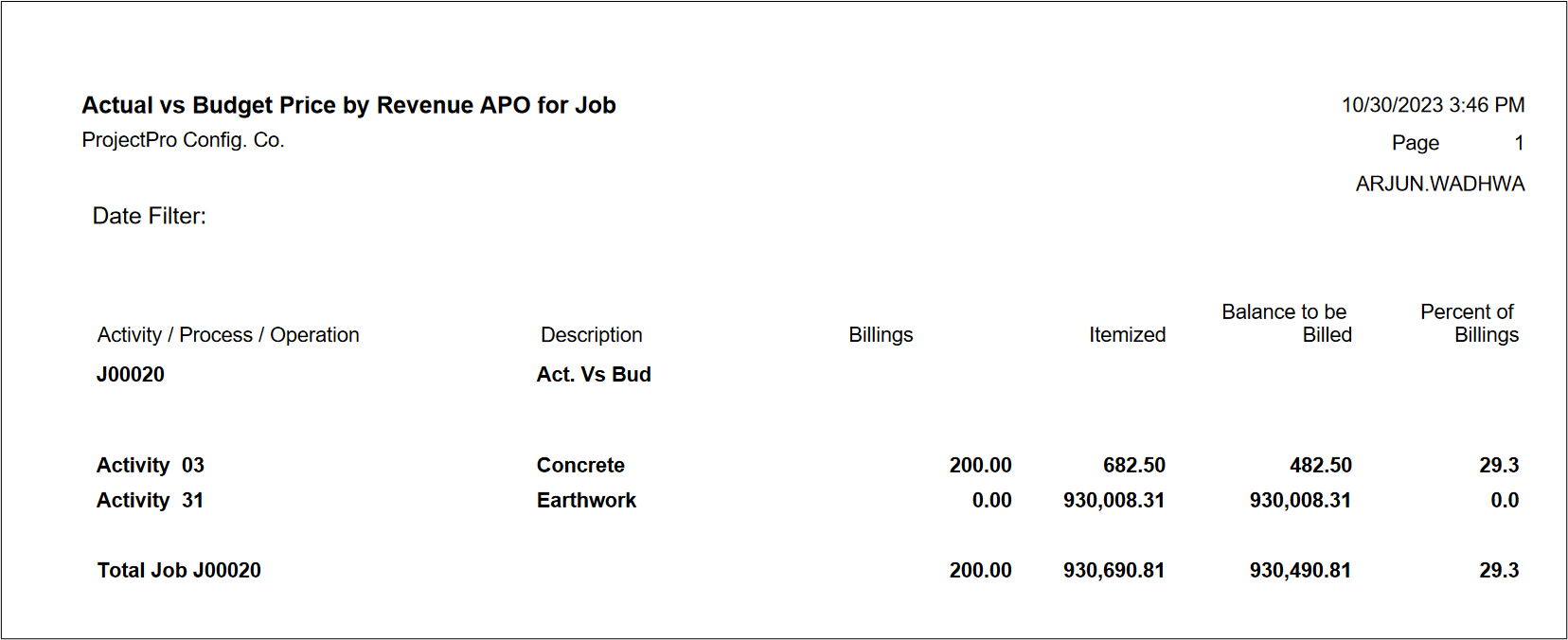
17. Actual vs Budget Price by RAPO
This report is for showing all invoiced Revenue Activities, Processes and Operations along with contract values.
Click on search to find this report and type “Actual vs Budget Price by RAPO.” The following screen will appear in front of you.
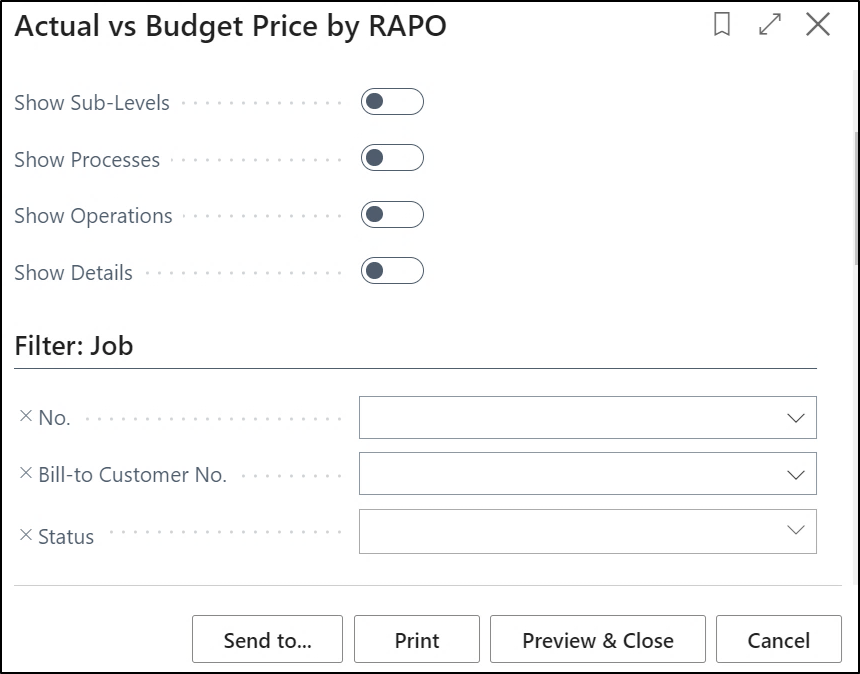
Fill in the required details and click on the preview to run the report.
18. Open Purchase Invoices by Project
Click on Search and type “Open Purchase Invoices by Project” to open this report. A screen will appear on which you have to fill in the details accordingly to run the report.
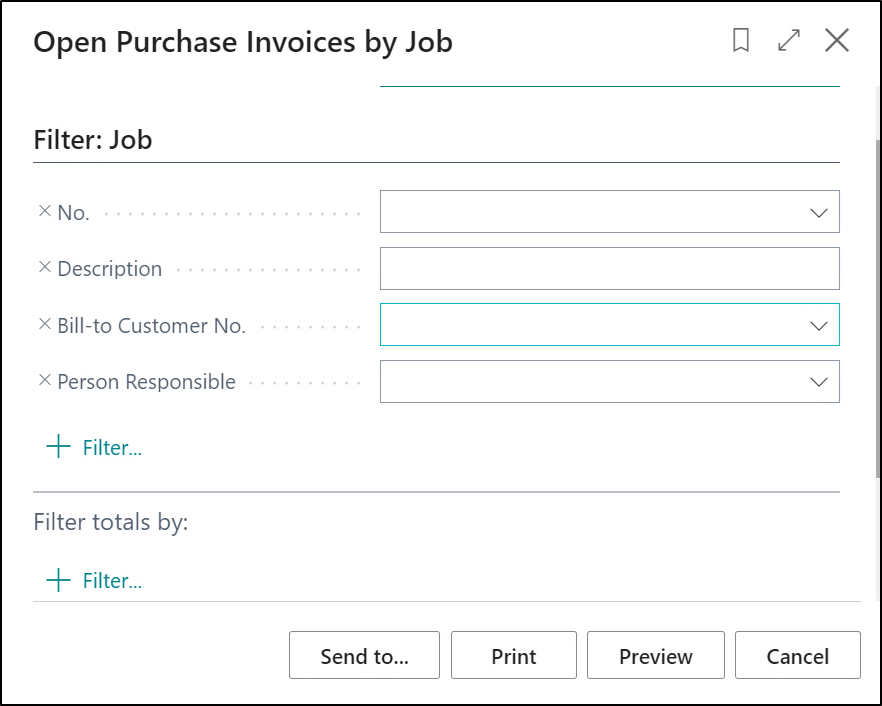
Click on the “Preview” to run the report.