Ch 08 – Open Project Backlog
Contents
| INTRODUCTION |
| OPEN PROJECT BACKLOG |
| 1. Projects Setup |
| 2. Process |
INTRODUCTION
Open Project Backlog indicates the billing value which has not been invoiced till date. This can be calculated by subtracting the Invoiced Price from the Contract Price. The Open Project Backlog can be created by running the batch for all projects or for a certain set of Projects. It can also be created by running the batch individually for each project.
1. Projects Setup
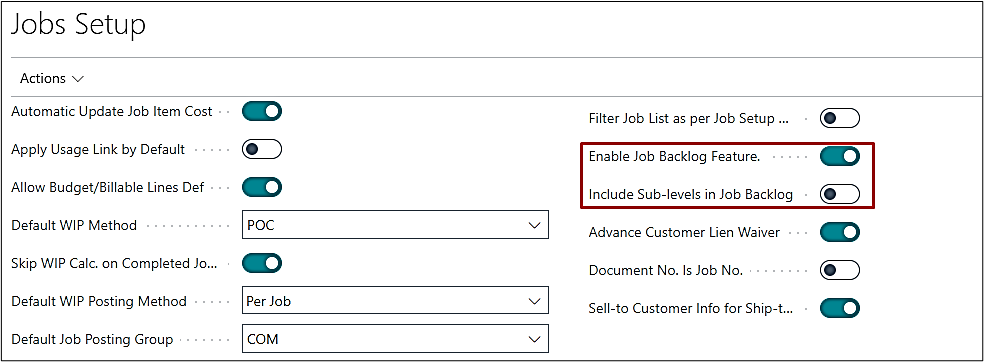
The Project Setup has two setups available for Open Project Backlog feature:
a) Enable Project Backlog Feature – If enabled, the closing of “Parent” or “Master” Projects will be dependent upon whether all its sub-level Projects are closed prior. The user will be alerted if there exists “Open” sub-level Projects, preventing the closing until all sub-level Projects are set to “Completed”.
Note: The “Manager Status” of the project must be set to “Running”, for it to be included in the open project backlog calculations.
b) Include Sub-levels in Project Backlog Calcs – If enabled, the Master Project will show combined value (Master + Sub-Levels) under the “Open Project Backlog” column on the Projects list, while the sub-levels will be shown with their individual Backlog values as well.
Note: The “Manager Status” of the project must be set to “Running”, for it to be included in the open project backlog calculations.
2. Process
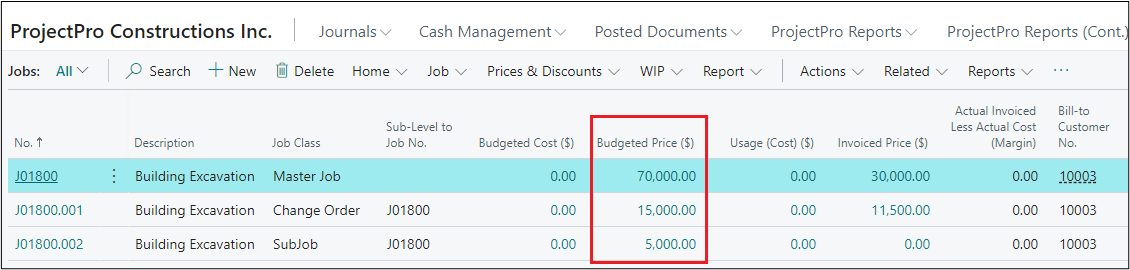
To demonstrate the functionality, a Project, a Change Order, and a Sub-Project is created with value $70,000, $15,000, and $5,000 respectively.
a) Conditions:
For Updating the values under “Open Project Backlog” column, certain conditions must be followed:
1. “Manager Project Status” field must be set to “Running” on the General fast tab of the Project card.
2. “Status” field must be set to “Open” on the Constants/Manager fast tab of the Project card.
3. The Open Project Backlog batch can be from,
a) Project card ribbon, Actions → Run Open Project Backlog → Run Open Project Backlog
b) Search “Calculate Open Project Backlog”.
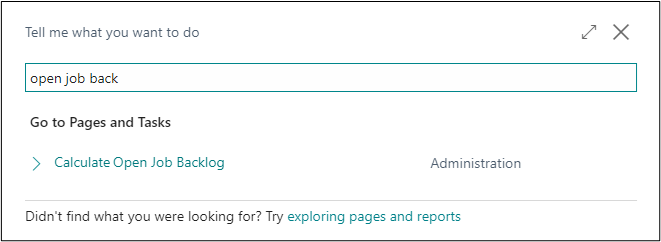
A window will open as below. The user can run the batch wide open for all projects or apply the filter for a specific project to update the values.
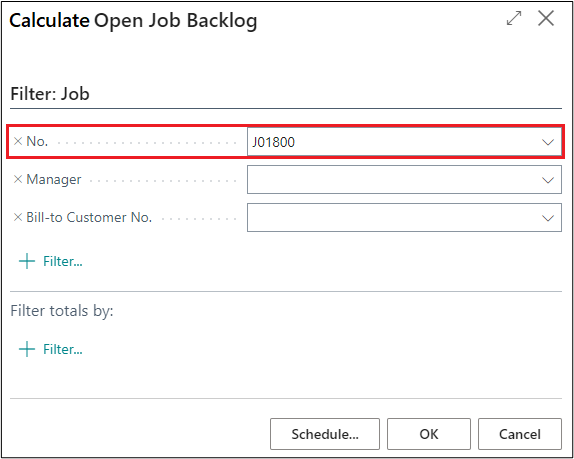
Apply the filters as required and click on OK to run the batch. If all the conditions mentioned above are fulfilled, then it will update the values in the “Open Project Backlog” and column on Projects list.
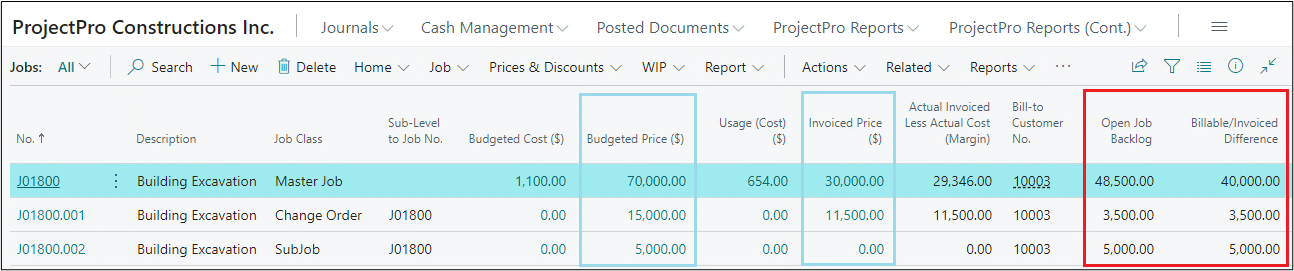
According to the example taken, certain billings were done and as per the formula for calculating the open project backlog (Contract Price – Invoiced Price),
1. Master Project will show the Open Project Backlog value as $48,500, which includes the value of Master Project $40,000, Change Order $3,500, and Sub-Project $5,000.
2. The Open Project Backlog value for Master Project shows the combined value due to the Projects Setup “Include Sub-Levels in Project Backlog”.
3. Along with this, the batch also updates the value in “Billable/Invoiced Difference” column using the same formula. The only difference is that this column will always show the value for each individual project.
The details get updated on the Project card as well, see below highlighted.
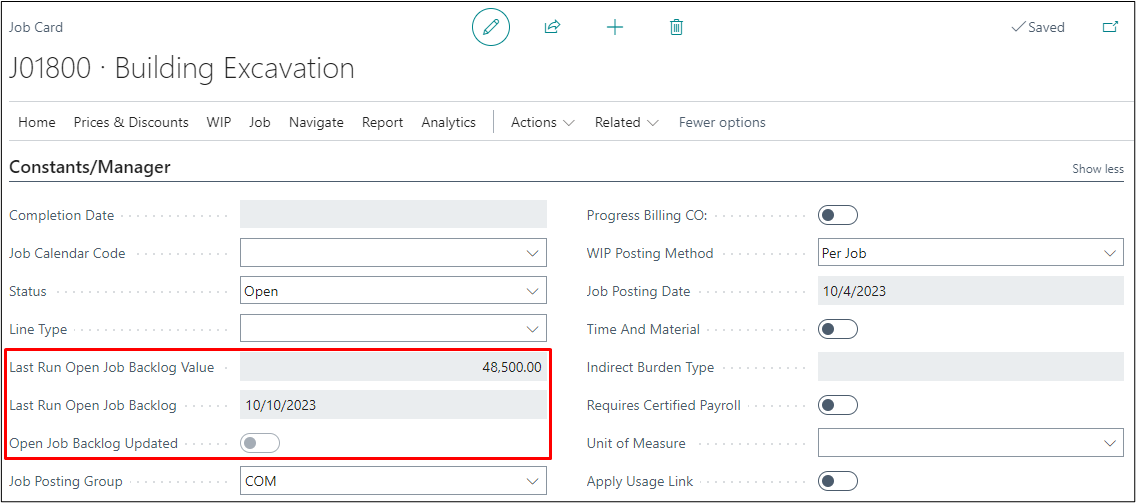
Last Run Open Project Backlog Value – This is the same value that gets updated on the Projects list.
Last Run Open Project Backlog – Specifies the date the Open Project Backlog batch was last run.
Open Project Backlog Updated – Specifies if the open project backlog has been cleared for both the master and sub-level projects. This auto-sets to True, if Last Run Open Project Backlog Value field shows zero value on calculating the open project backlog.
b) Closing a Project:
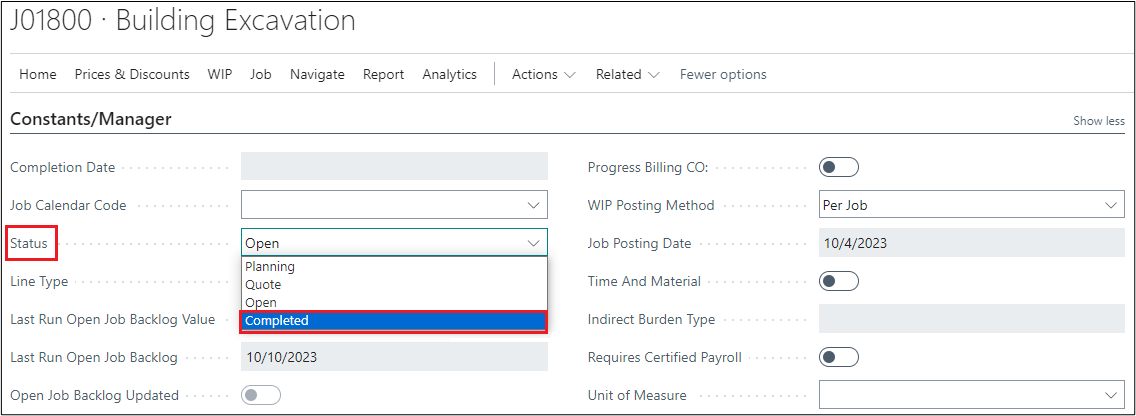
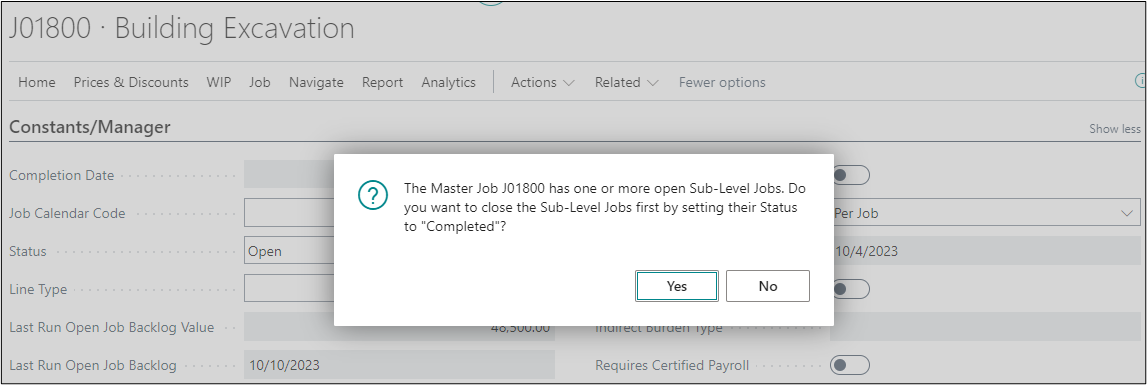
As per the Projects Setup “Enable Project Backlog Feature”, you can close or update the Status to “Completed” on a Master Project only if has no open sub-level projects available which have been run through by Open Project Backlog process.
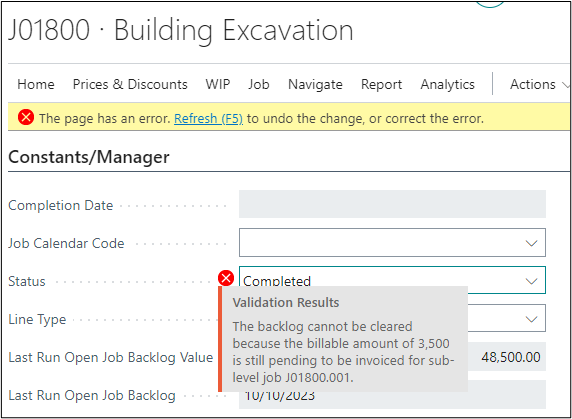
If still the user sets the status to “Completed”, then for the Master Project system will give an error as below and will stop you from closing the project.