Ch 05 – APOS Setup and Structure
Contents
| APOS DEFINITION |
| APOS SETUPS |
| 1. Projects Setup |
| 2. Task Type Setup |
| APOS STRUCTURE – PROJECT ACTIVITIES |
APOS DEFINITION
APOS stands for Activity → Process → Operations → Sections, which means we can categorize the Tasks in a Project by these four levels to create any Project Task No. in the Project Task Lines. Once the Task Code is selected as an Activity Code, you can select the Process Code which is required to accomplish the Activity, you can further choose the Operations Code which are required to accomplish the Process, and once the Operations has been selected you can further choose the Sections Code for the Operation selected.
APOS are basically the different levels for the Task Selected in Terms of Activity, Process, Operations & Sections.
1. Projects Setup
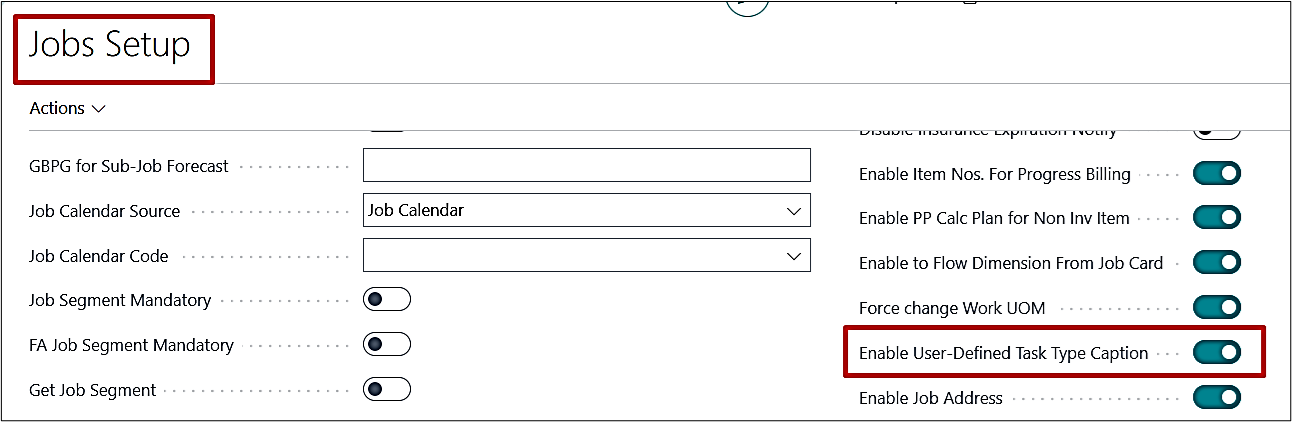
The user can change the naming convention for the Task Types, i.e., Activities, Process, Operation and Section. For this, you can go to Projects Setup and check the Boolean for “Enable User-Defined Task Type Caption” under General fast tab.
2. Task Type Setup
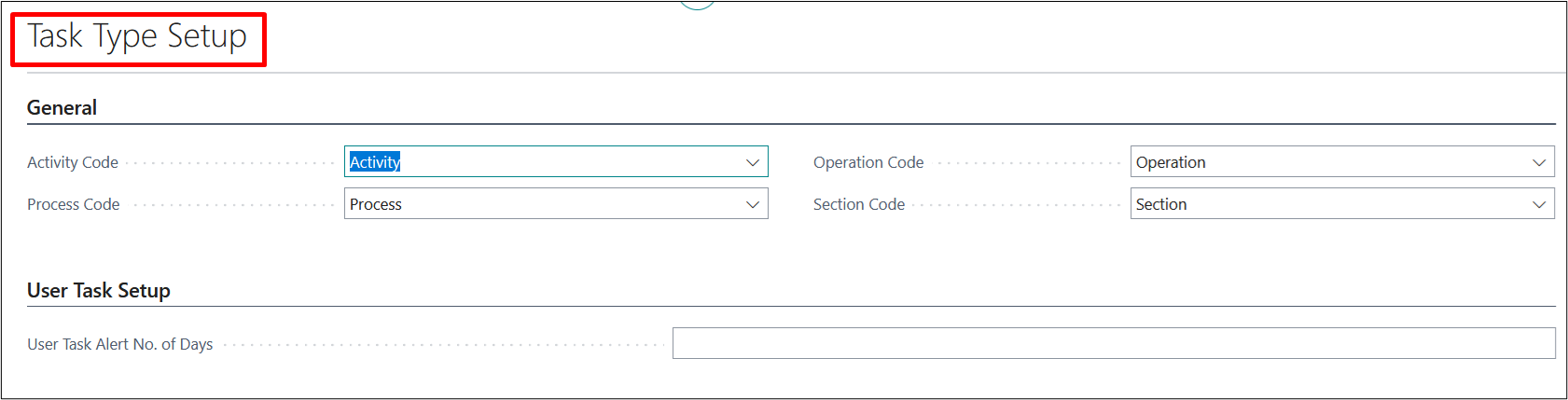
If the Projects Setup defined above is enabled, you need to update the “Task Type Setup” for the naming convention you want to use for the Tasks.

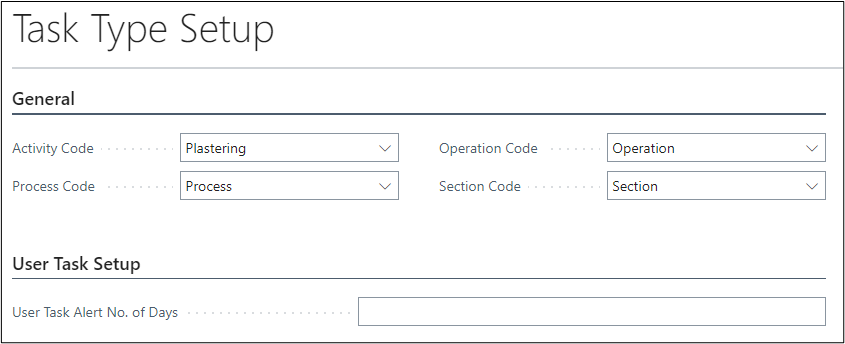
Once we click on the result “Task Type Setup” page will open, where we can customize the APOS as per our requirements.
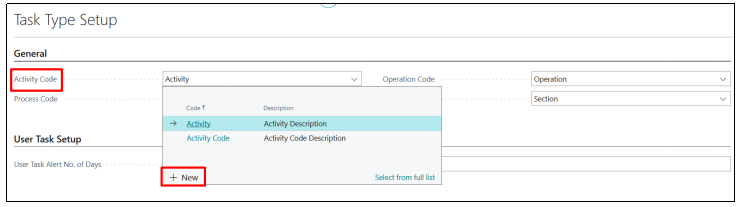
To customize the “APOS” click on the drill down option of the “Activity Code” and select the “NEW” Option.
After clicking on “New”, you will be able to create the “New Activity Code” and to apply that we need to click on “OK”.
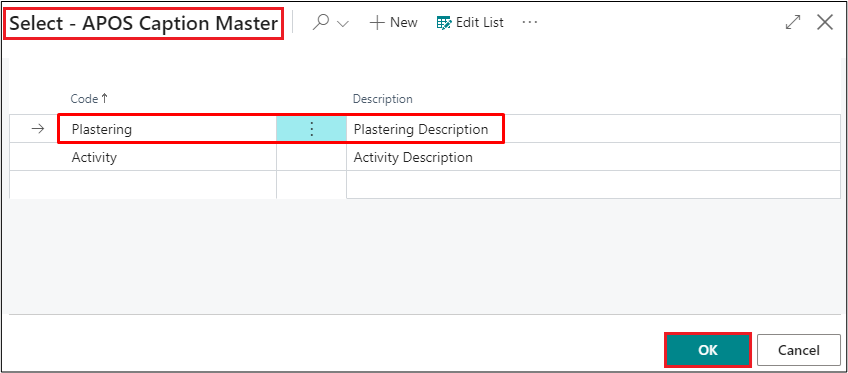
Once clicked on “OK” the newly created Activity Code will be selected as the default, which can be seen everywhere in the system, for example, while creating the New Task Line to select the Task in Activity Code.
To do that, open a Project and click on Process → Project Task Lines. Select a Project Task No. by clicking on the three dots – “(…)” to notice the Activity Code and Description is replaced by the customized name as “Plastering”.
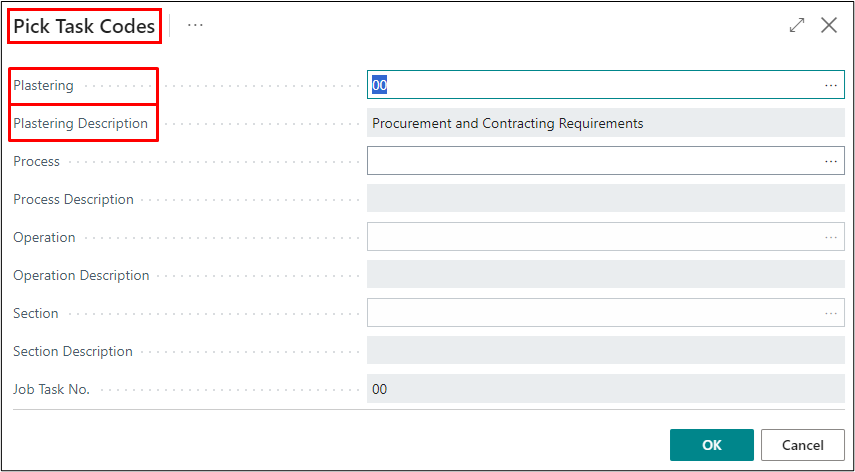
In the above screenshot “Pick Task Codes” has been highlighted because the caption of that was “Pick APOS Codes” earlier which has now been changed to “Pick Task Codes”.
To change the Process, Operation, Section codes, follow the same process as defined above while creating the new Activity Code Name.
APOS STRUCTURE – PROJECT ACTIVITIES
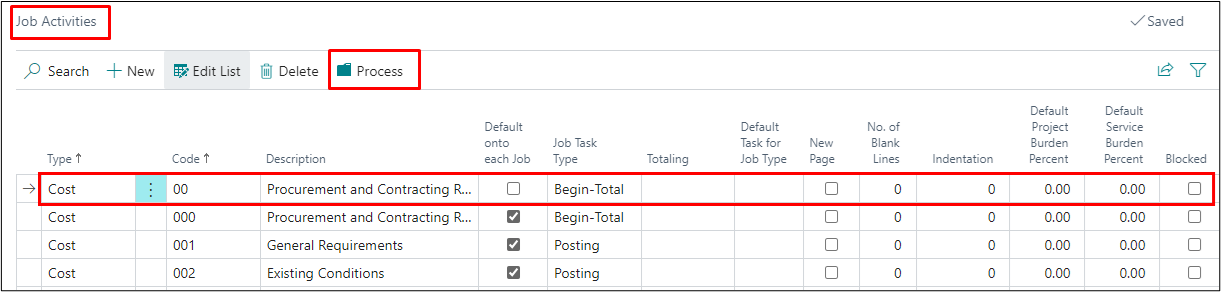
The default set of APOS can be set on the Project Activities page. The codes and structure defined here can be used throughout the company for all projects. To do that search for the page with the same name and below page will open.
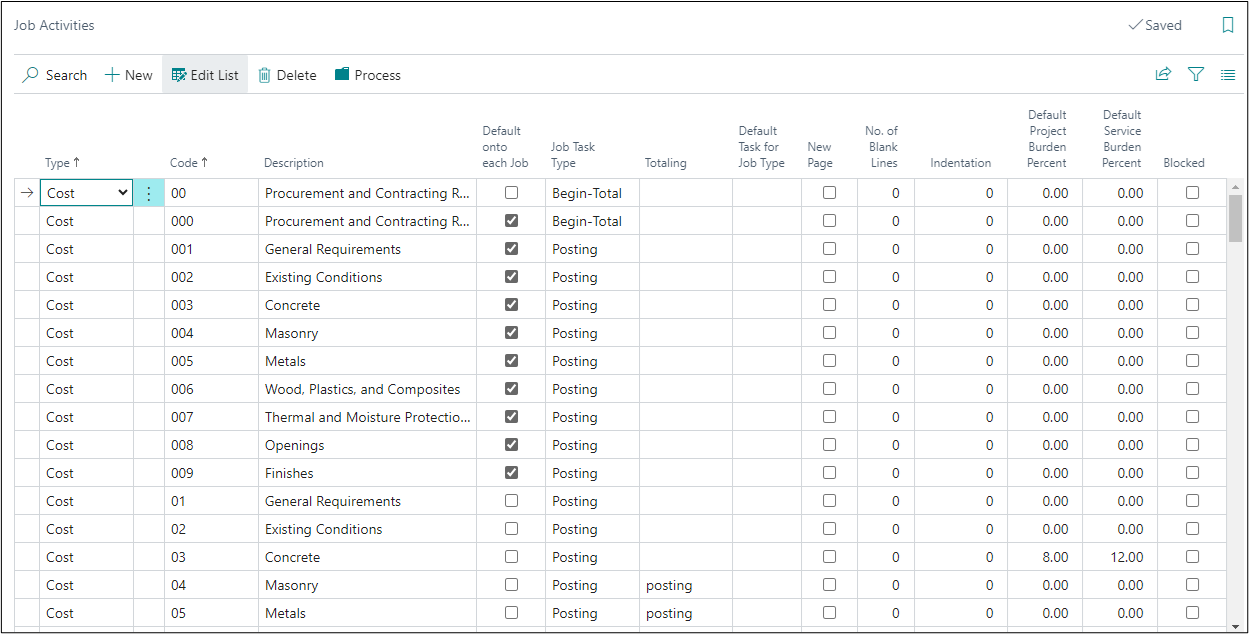
The first page that appears is where you define the Activity Codes. You can set the task to default on each project either by just the code or by the Project Type. Apart from that you can set the default Burden Percentages as well.
Also, if any of the code is not required anymore, then you can block them by checking on “Blocked” Boolean against the required unused code.
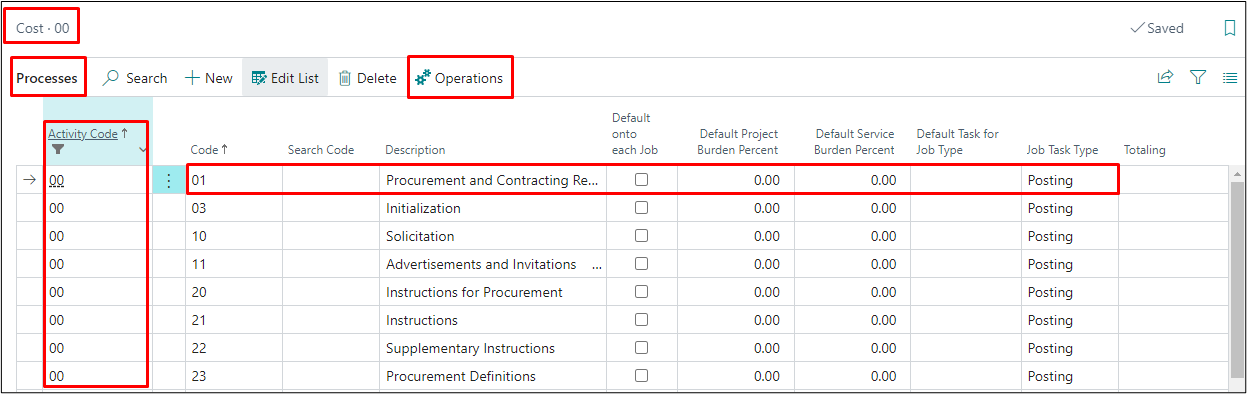
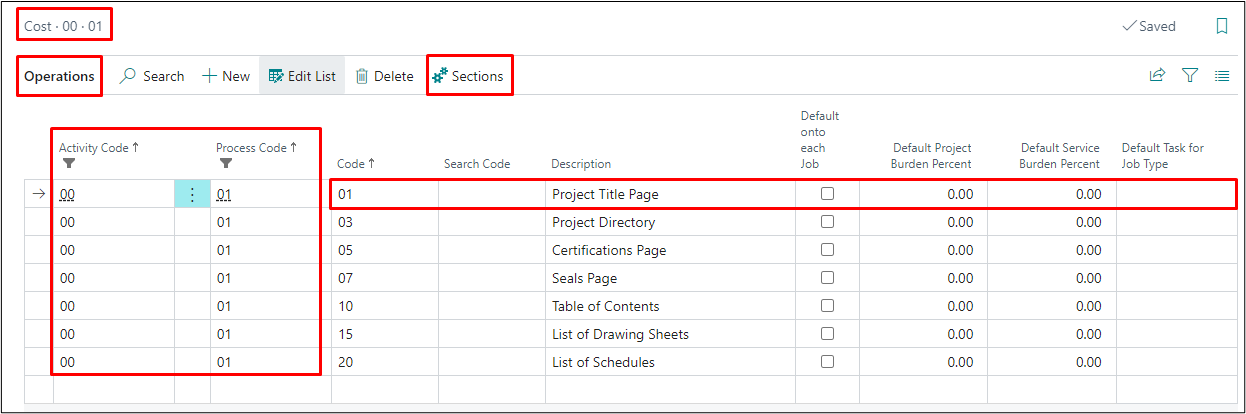
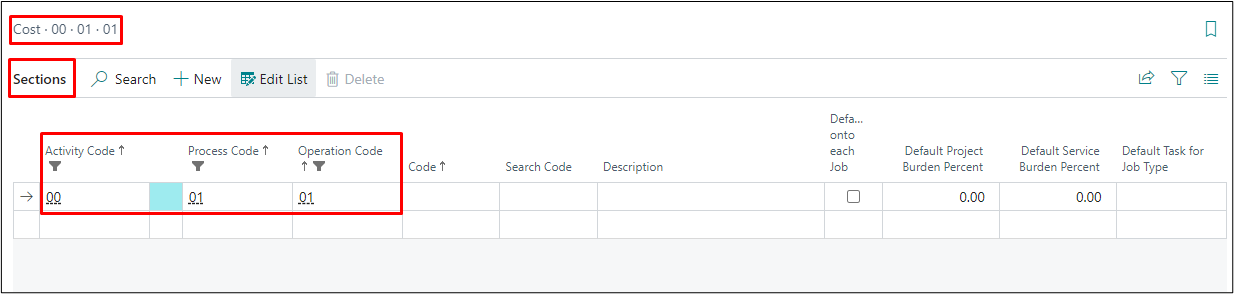
This first page of “Activity” further takes you to the “Process” which takes you to the “Operations” and that takes you to the fourth level called “Sections”, see below.
Note: The levels will be set as per the line selection, i.e., if you click on Process or any other level, then it will be defined for the code you have selected on the previous page. This will be followed by other levels as well.