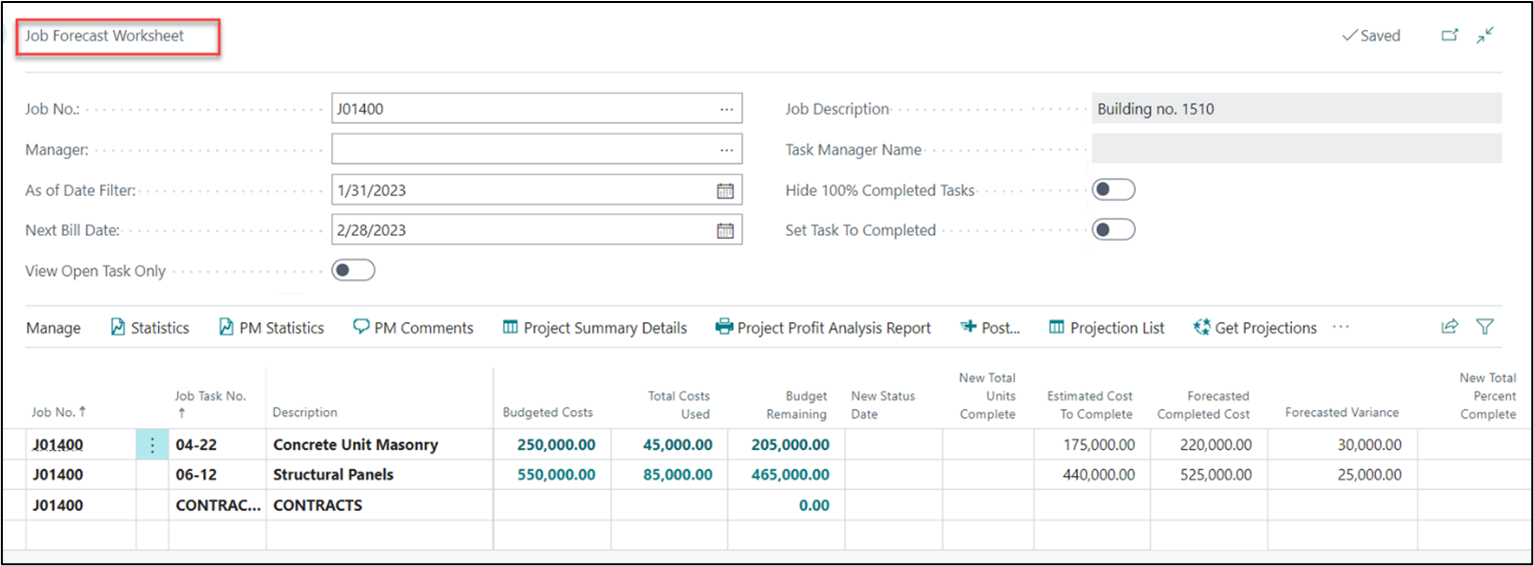
Forecast Worksheet – It is the area in your Project that you can enter Estimated Costs to Complete on Task-by-Task basis. This projects what the “Expected Cost at Completion” will be as compared to the initial Estimate when you started the projects. Some tasks you may anticipate more costs than expected while other tasks you expect less costs therefore a cost savings. The overall “Estimated Cost at Completion” becomes the value that we divide the “Actual Costs to Date” for given month end to determine “Percentage of Completion” to be applied to your contract value for what Project Revenue has been earned.
Estimated Cost to Complete is a detailed analysis of the current, in-progress projects status of an ongoing construction project, combined with a detailed evaluation of the remaining work and budget to complete it. Usually at the Project Task Code Level.
PROJECTS SETUP
On the Projects Setup, under the tab “Project Forecast Worksheet” there are setups related to Project Forecast Worksheet.
FIELDS
DESCRIPTION
GBPG for Sub-Level Project Forecast
This field is recommended to be left blank. Only enter a General Business Posting Group (GBPG) if you wish to require all Sub-Level Projects to have this GBPG code to be included during Project Forecasting.
Allow Posting Date on JFW As of Date Filter
f a date is entered, this date becomes the only “As of Date” for the Project Forecast Worksheet. This will require the Construction Manager to change the date before the next Forecast period. Typically, this is a monthly process. If left blank, there’s no restriction for the PM Forecasting date.
Forecast Amount Rounding
This allows you to identify to what decimal you would like forecasts rounded to. ProjectPro suggests 0.01 as the setting.
Required GM% Var. for JFW Comments
Enter the GM% that will trigger a notification that a comment must be entered to explain the variance in month-to-month GM%
Use Contract Forecast Date
Specifies if you want to use the “Contract Forecast Date” available on the projects planning lines, as a date filter for Project Forecasting. When disabled, the standard “Planning Date” from the projects planning lines is applied. This Contract Forecast Date features become more valuable when you are making additional forecast changed directly in the Master Project’s planning lines. Becomes more important as to what date changes to forecast where made.
Forecast By Task Total
The user can prepare Project Forecast by using summarized Project Task Type ‘End-Total’ instead of Forecasting by each individual Project Task lines that is ‘Posting’.
Budgeted Cost on Projection
Enabling this Boolean will check the Project Planning Lines with Line Type not equal to Billable and picks the Total Cost LCY on Projections fast tab into the field Budget Total Cost under Actual column on Project Card.
Force Forecast Lines to be Completed
Specify if you want to force the forecast worksheet to be set as “Completed”. This feature is used only when an upgrade/implementation is performed along with the import of historical data and there is a case where the Percentage Complete exceeds 100%. If this Boolean is true during the import, the system will auto-set those forecast lines to “Completed”.
PROJECT FORECAST WORKSHEET
To generate the forecast, open the Project card then click on Process à Project Forecast Worksheet
On the Project Forecast Worksheet page, enter the date on field “As of Date Filter”. The system will display the tasks present on the Project card with the calculations as per the date entered in the field “As of Date Filter”.
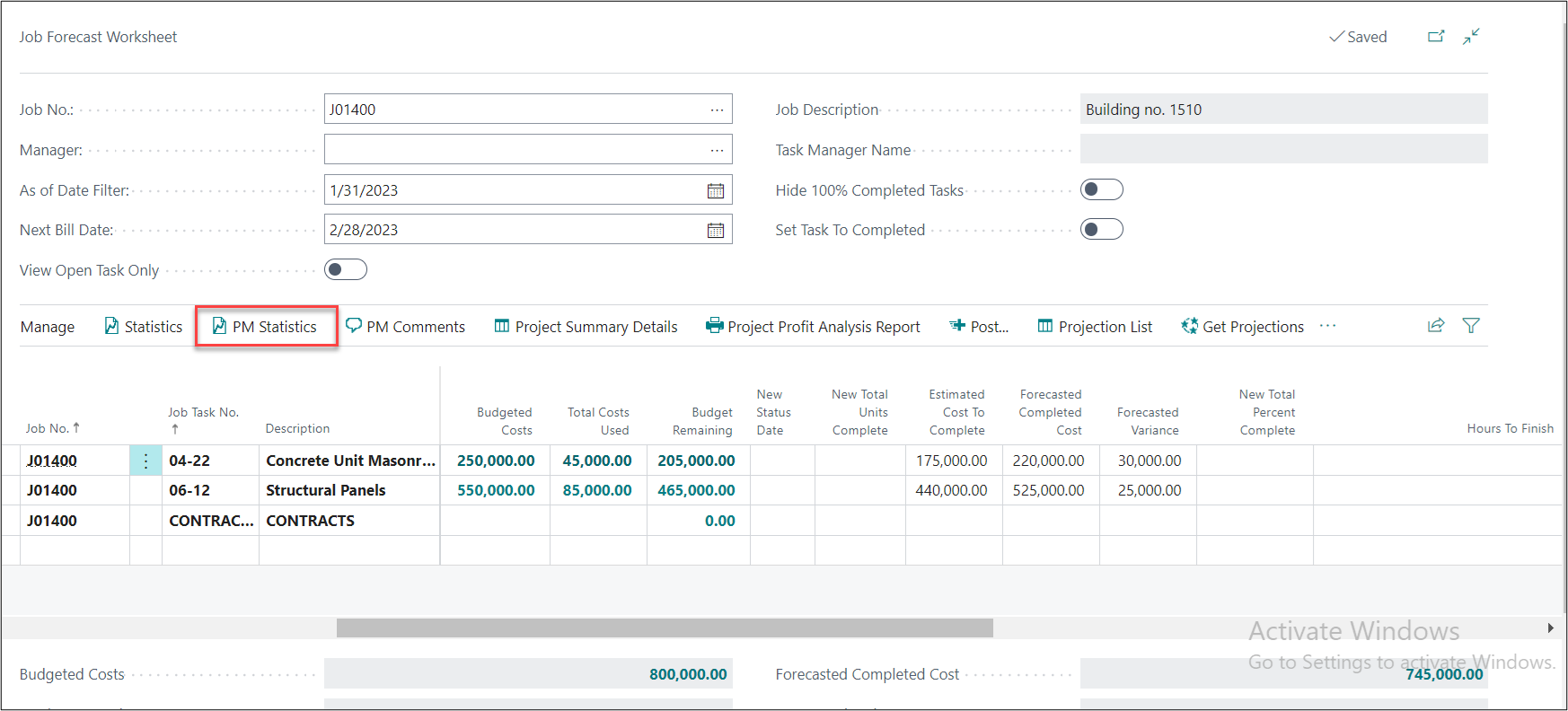
The fields on the header of the Project Forecast Worksheet with their description are mentioned below:
FIELDS
DESCRIPTION
Project No.
This field shows the Project no. for which the forecast is generated
Manager
The available filter can be used to generate values according to the Manager
As of Date Filter
Enter the date till which the forecast values need to be calculated
Next Bill Date
The value on this field is auto generated
View Open Task only
On checking this as True, all the tasks which do not have a budget cost and no estimated cost to complete will be filtered out
Project Description
The Project description mentioned on the Project card will flow on this field
Task Manager Name
This is the Manager Name
Hide 100% Completed Tasks
The tasks which are marked as “Completed” will be filtered out from the Project Forecast Worksheet
Set Task to Completed
Setting enabled this field to make all the “Project Task” to completed and will freeze the values on “Project Forecast lines
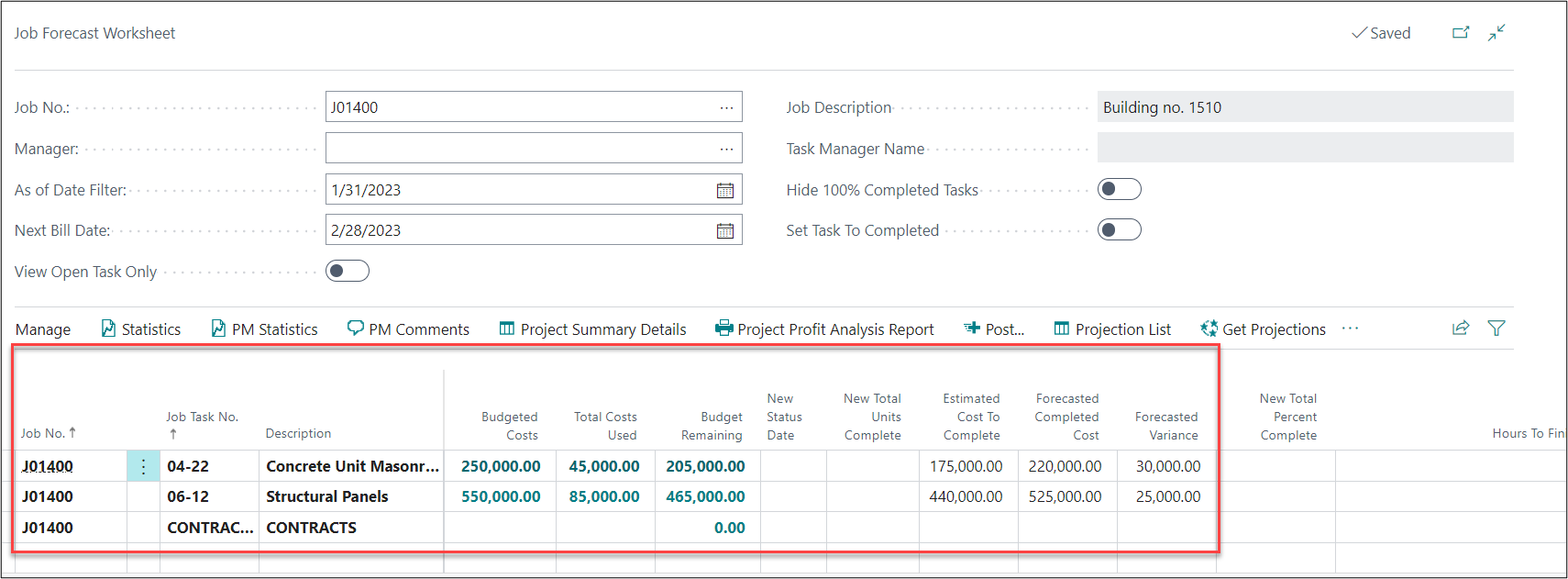
Each column of the Project Forecast Worksheet is explained below:
FIELDS
DESCRIPTION
Budgeted Costs
Budgeted Total Cost for a Task from planning lines (any line type)
Total Costs Used
Total Usage posted to project ledger (Actual Usage Cost)
Budget Remaining
(Budgeted Costs – Total Costs Used)
Budget Percentage Used
(Total Cost Used / Budgeted Cost) *100
New Status Date
As of Date Filter (when new total percent complete is entered)
New Total Units Complete
Manual entry (when no actual work units are posted but no. of units complete for a task is entered)
New Total Percent Complete
Manual Entry (when no actual cost is used but project percent completion is entered)
Estimated Cost to Complete
If Previous Status Date = 0D => Budgeted Cost – Total Costs Used If above value is negative then, it is set to 0
Forecasted Completed Cost
Total Cost Used + Estimated Cost to Complete
Hours To Finish
Budgeted Resource Quantity from JPL
Forecasted Variance
(Budgeted Cost – Forecasted Completed Cost)
Po Expected Receipt Cost
The value of Expected Receipt of items within the “As of Date” of the forecast
Outstanding Orders
Outstanding Pos (Open Purchase Orders line items)
Amt. Rcd. Not Invoiced
POs that have been received but not yet invoiced
Budgeted Hours
Total Quantities for a Task from budget planning lines for Resources with UOM as HOURS/HR
Actual Hours
Total Usage Quantities posted to project ledger for Resources with UOM as HOURS/HR
Remaining Hours
(Budgeted Hours – Actual Hours)
Budgeted Hours Percent Complete
(Actual Hours / Budgeted Hours) *100
Labor Rate
Auto updated from “Labor Rate by Task” List
Work Units
work unit defined on the task line (Work units come from the planning line)
Work Unit of Measure
Work unit of measure selected on the task line. (UOM selected from the planning lines)
Previous Status Date
Previous posting date of forecast worksheet
Previous Units Complete
Previous units posted to worksheet
Previous Percent Complete
Previous task total percent posted to worksheet
Previous Forecasted Completed Cost
Previous forecasted completed cost posted to worksheet
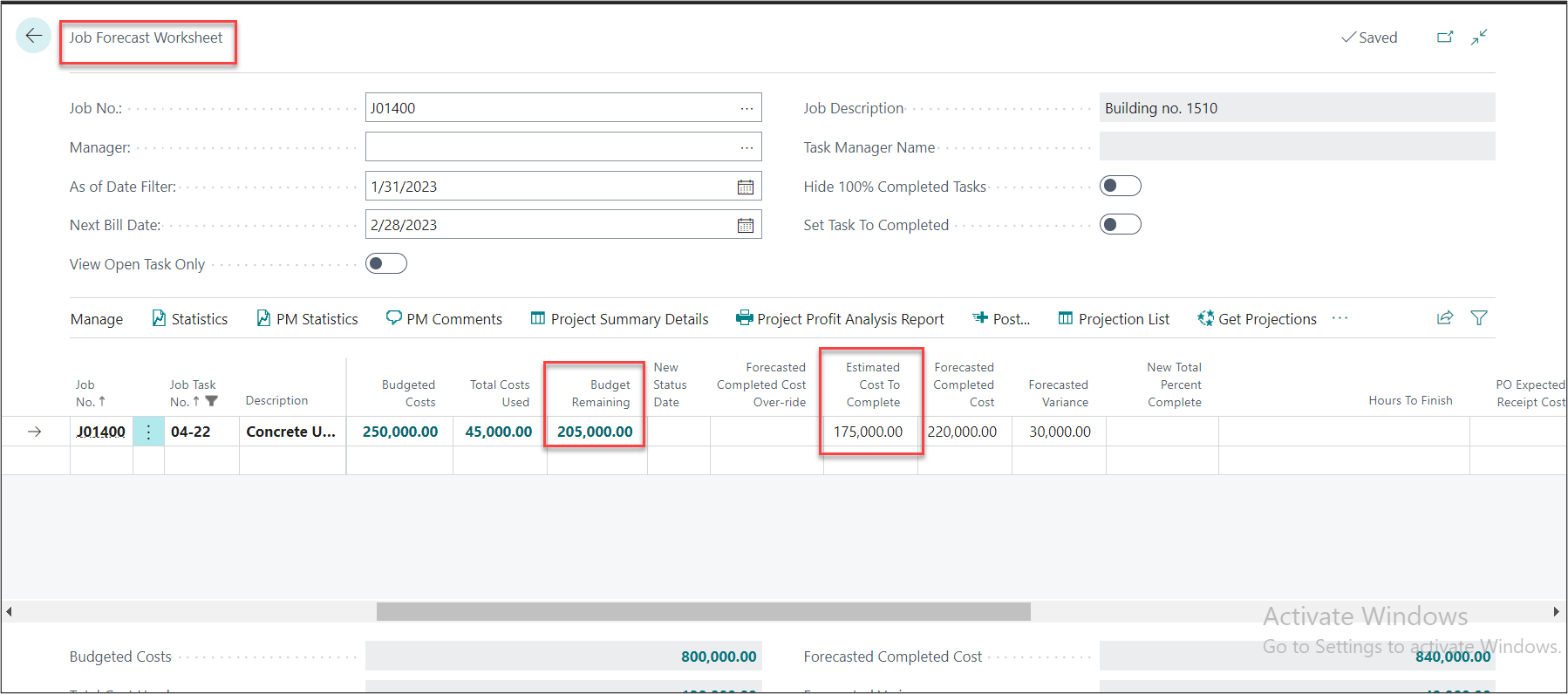
Note1: The “Budget Remaining” will have equal value on field “Estimated Cost to Complete” when the Project Forecast is generated for the first time. When the forecast is generated for the second time the user will have to manually enter the Estimated Cost to Complete for each task.
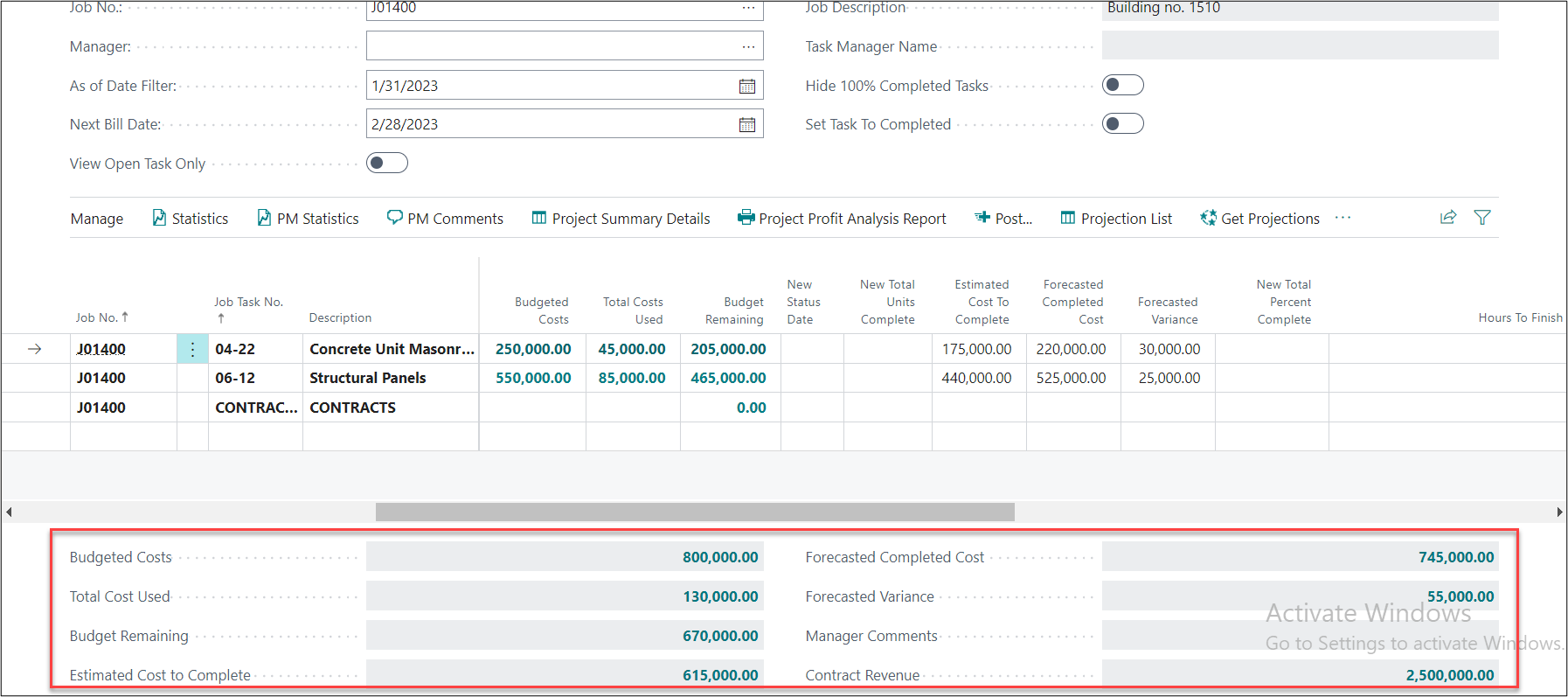
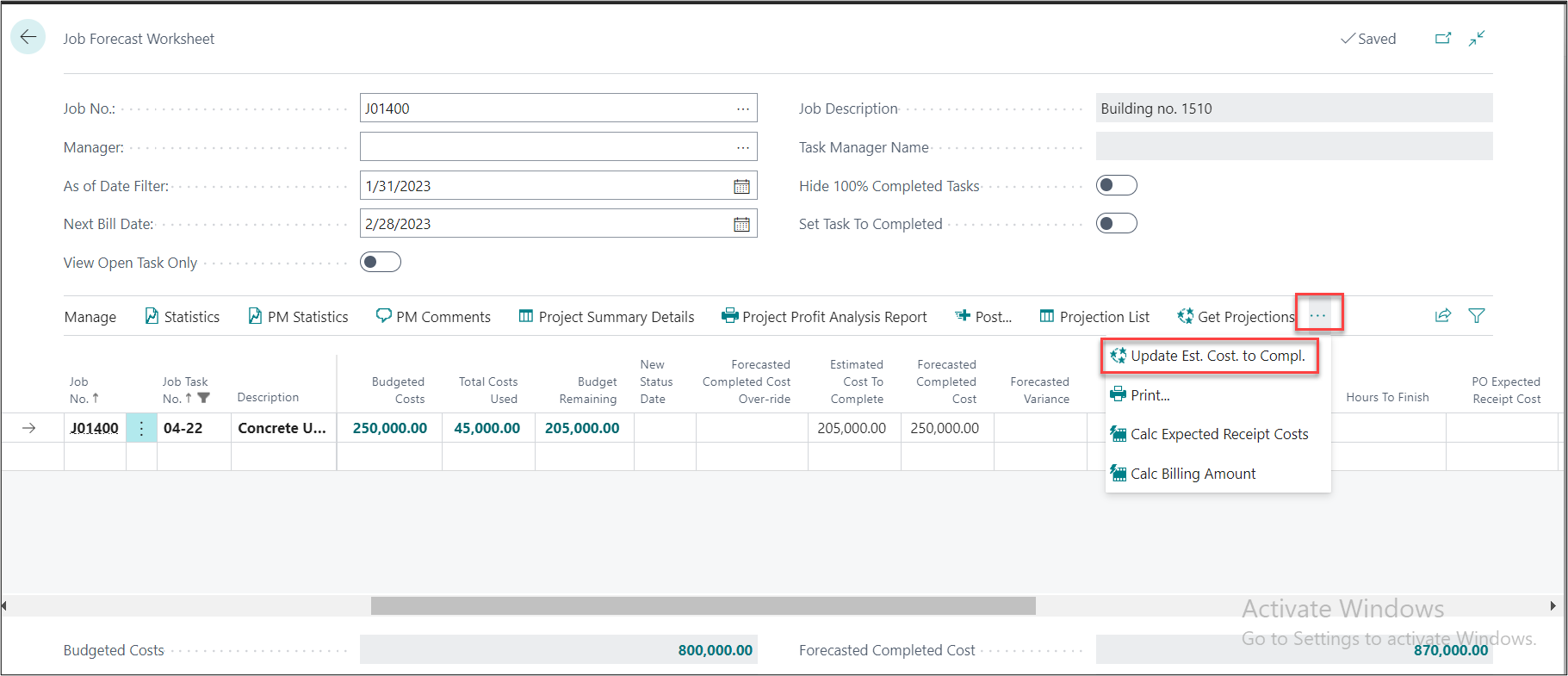
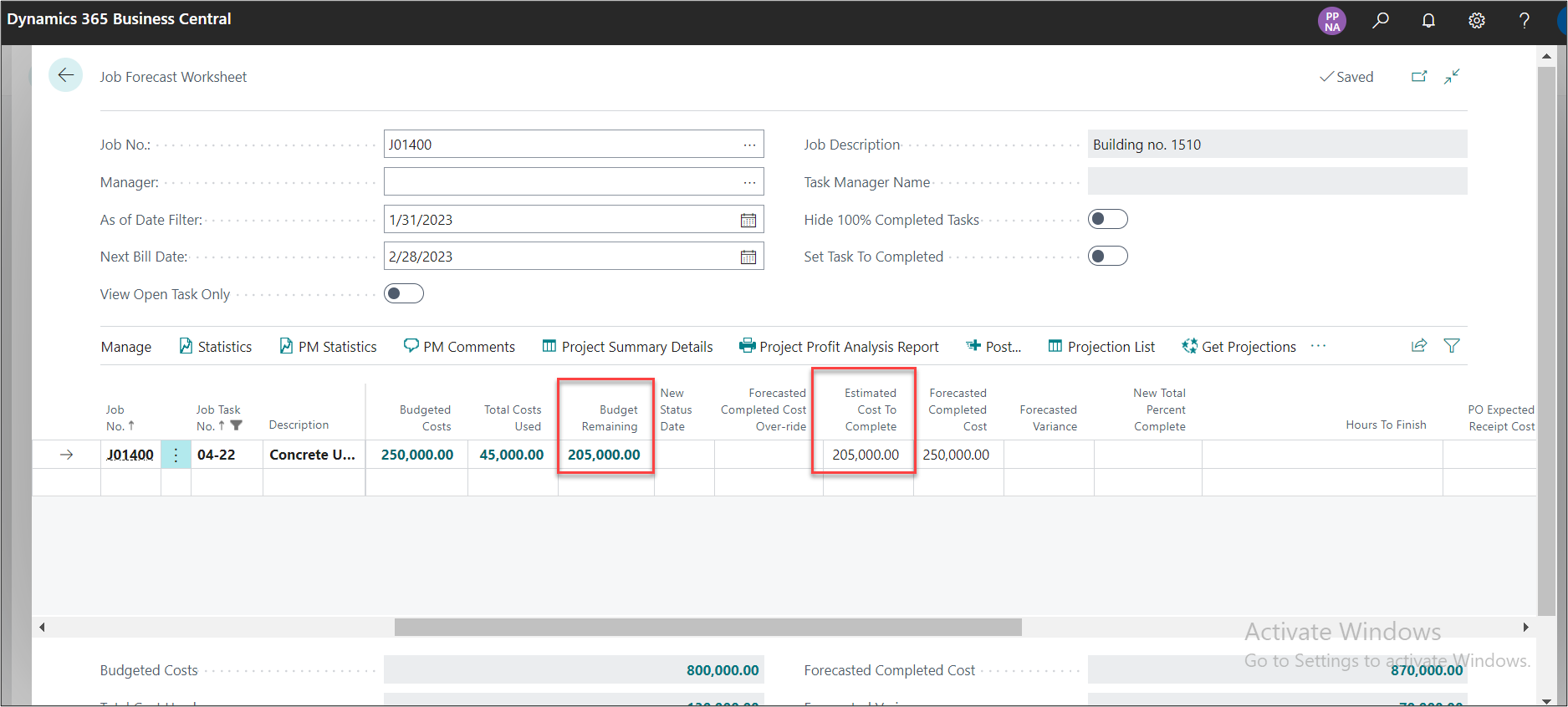
Note 2: If the Budget Remaining is supposed to be equal to Estimated Cost to Complete for all the tasks, then we can run the batch “Update Estimated Cost to Complete”. In the below tab we can see the calculations for the whole project.
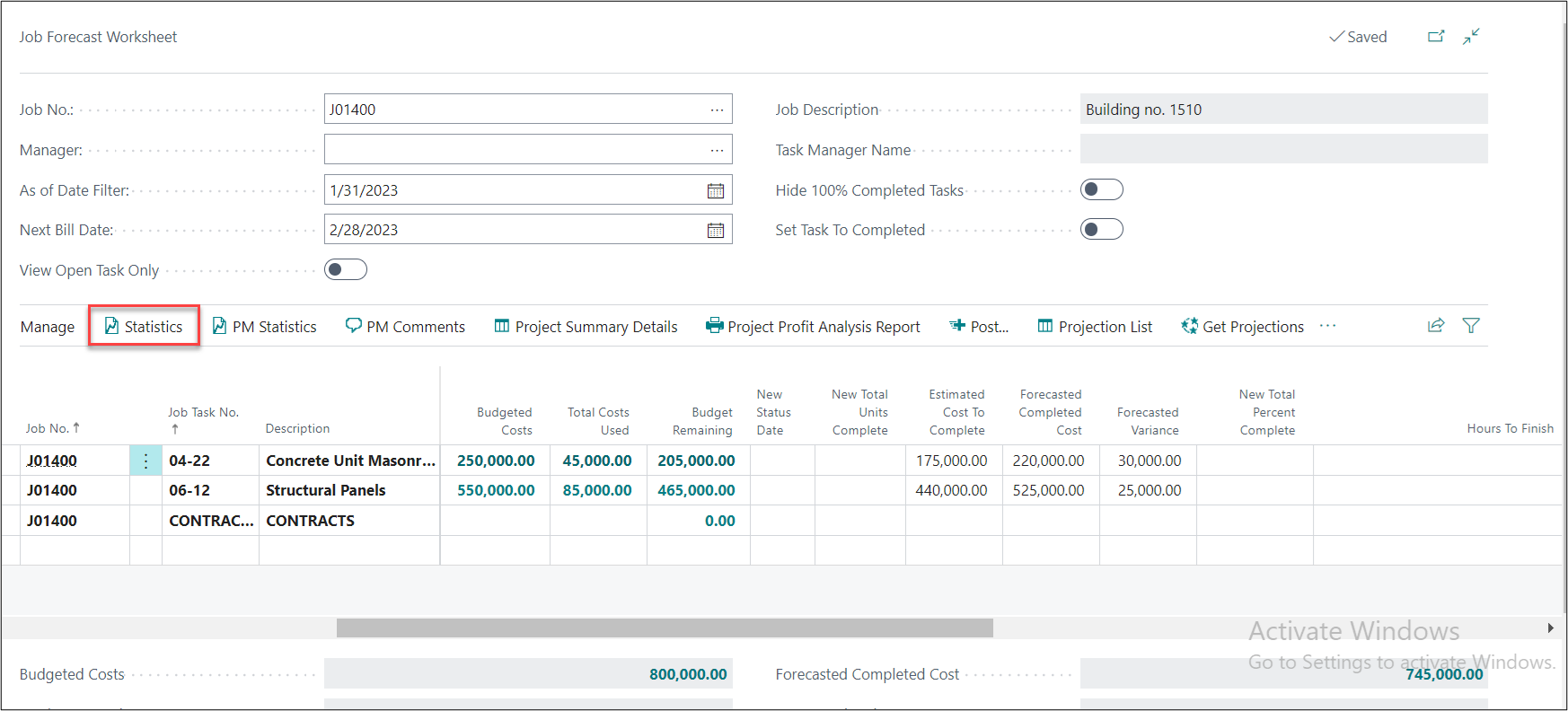
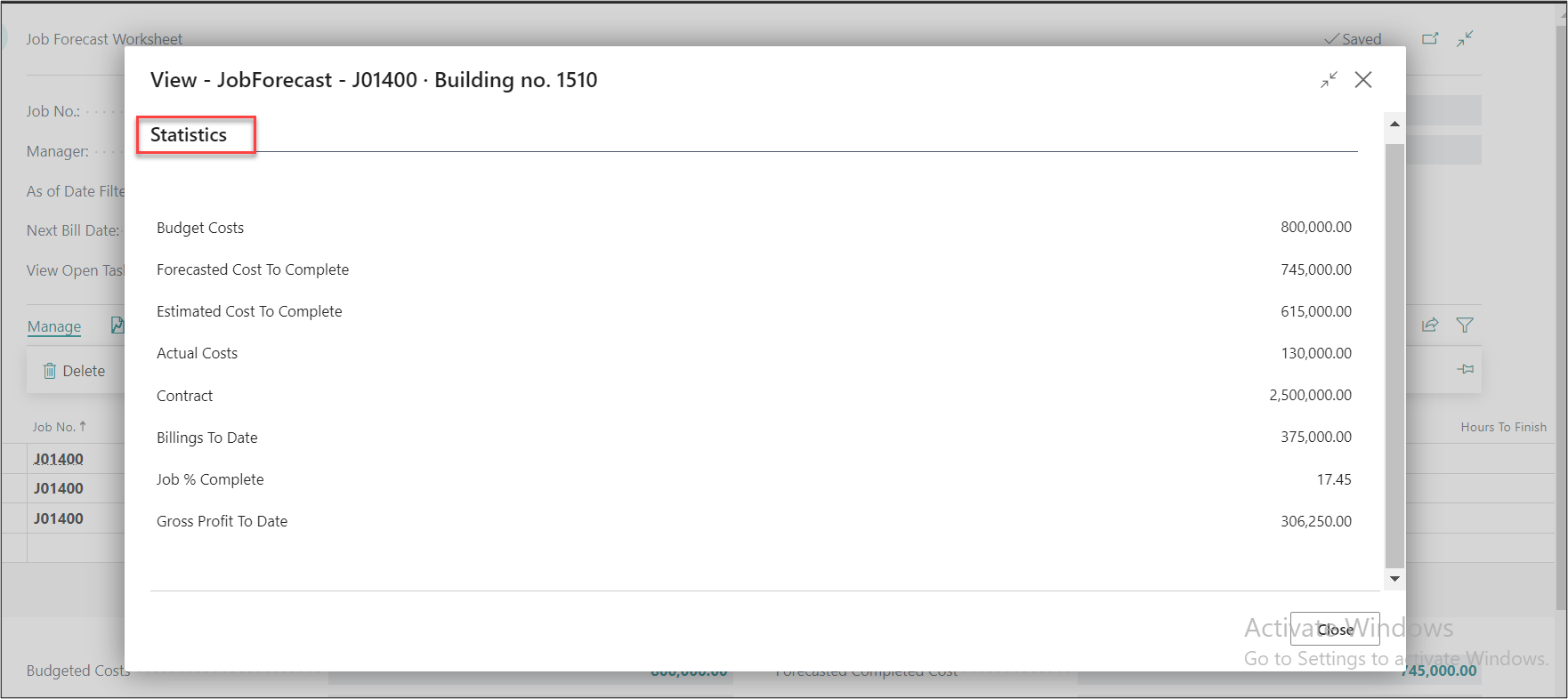
1. Statistics
Clicking on the “Statistics” button we can see the overview of the whole project based on the “As of Date Filter”.
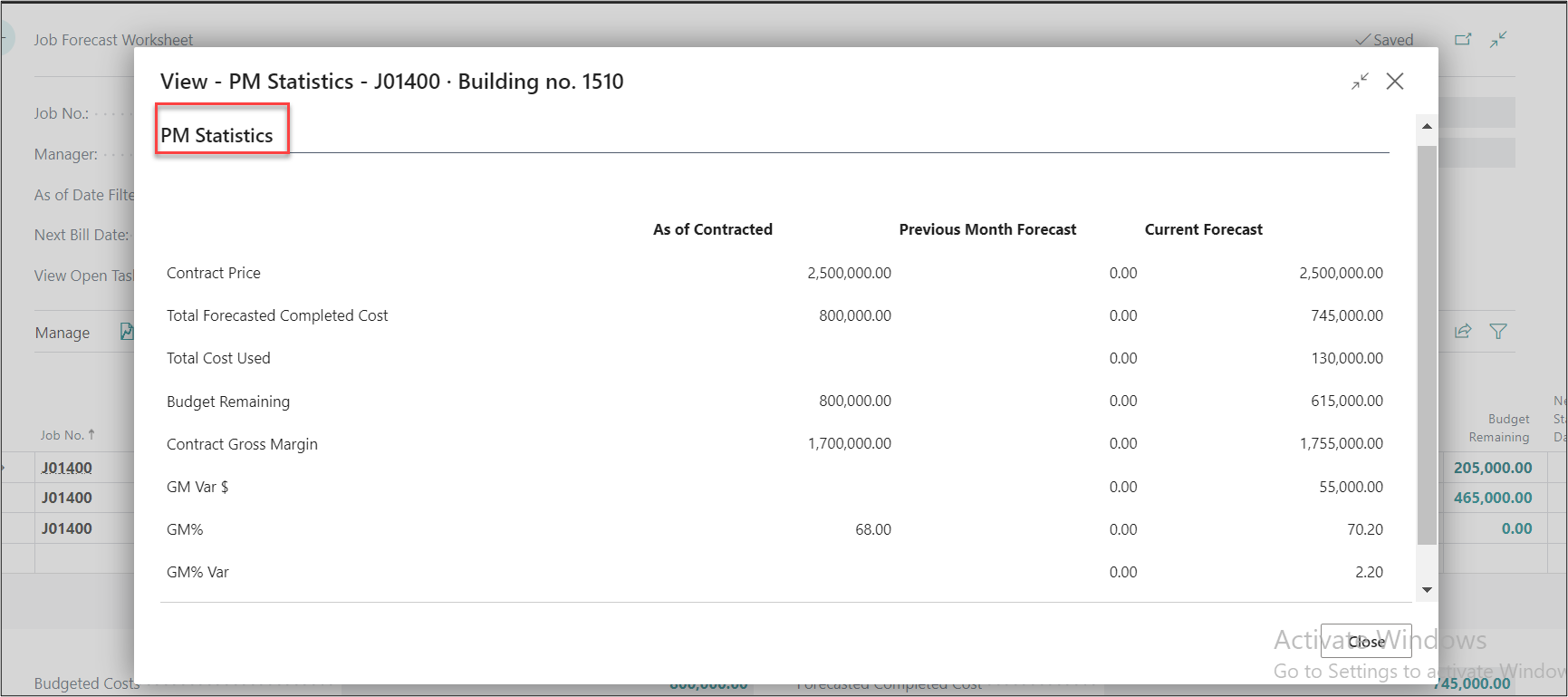
2. PM Statistics
On the Project Forecast Worksheet page click on “PM Statistics”
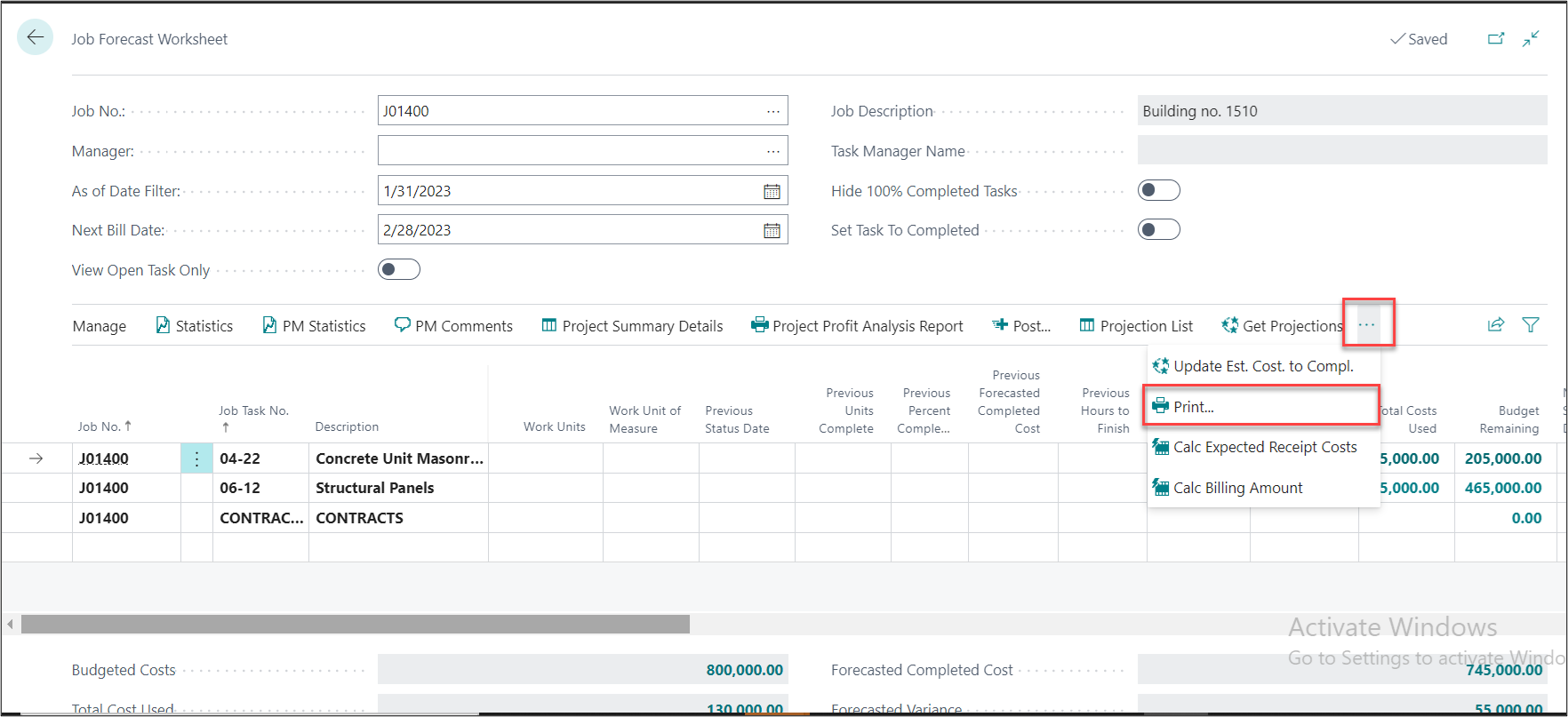
3. Print
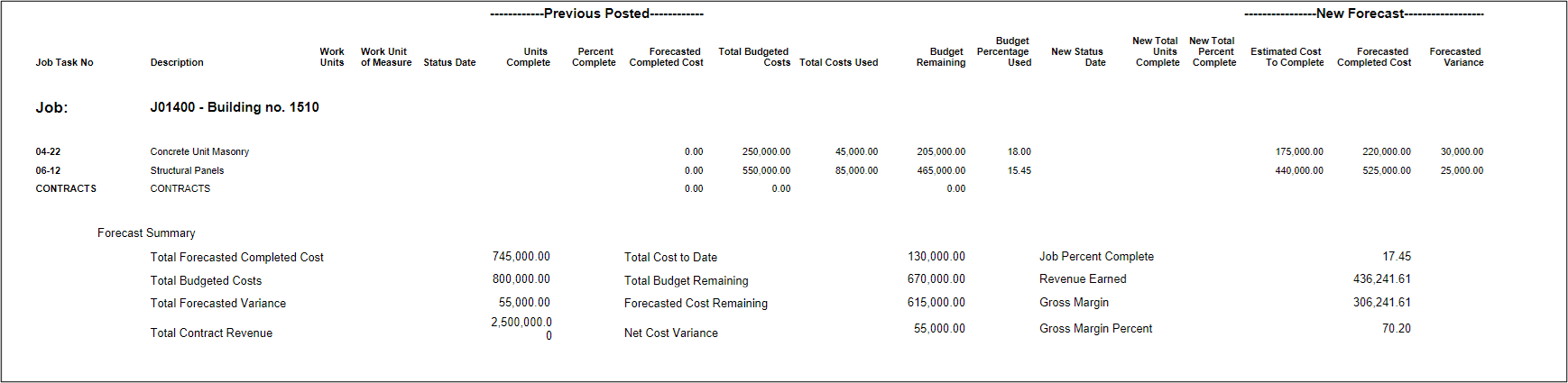
On clicking on Print, it will give provide a preview of overall project calculation that will be recorded when we click on Post. Click on three dots and then click on “Print”. A new window will open, click on “Preview & Close”.
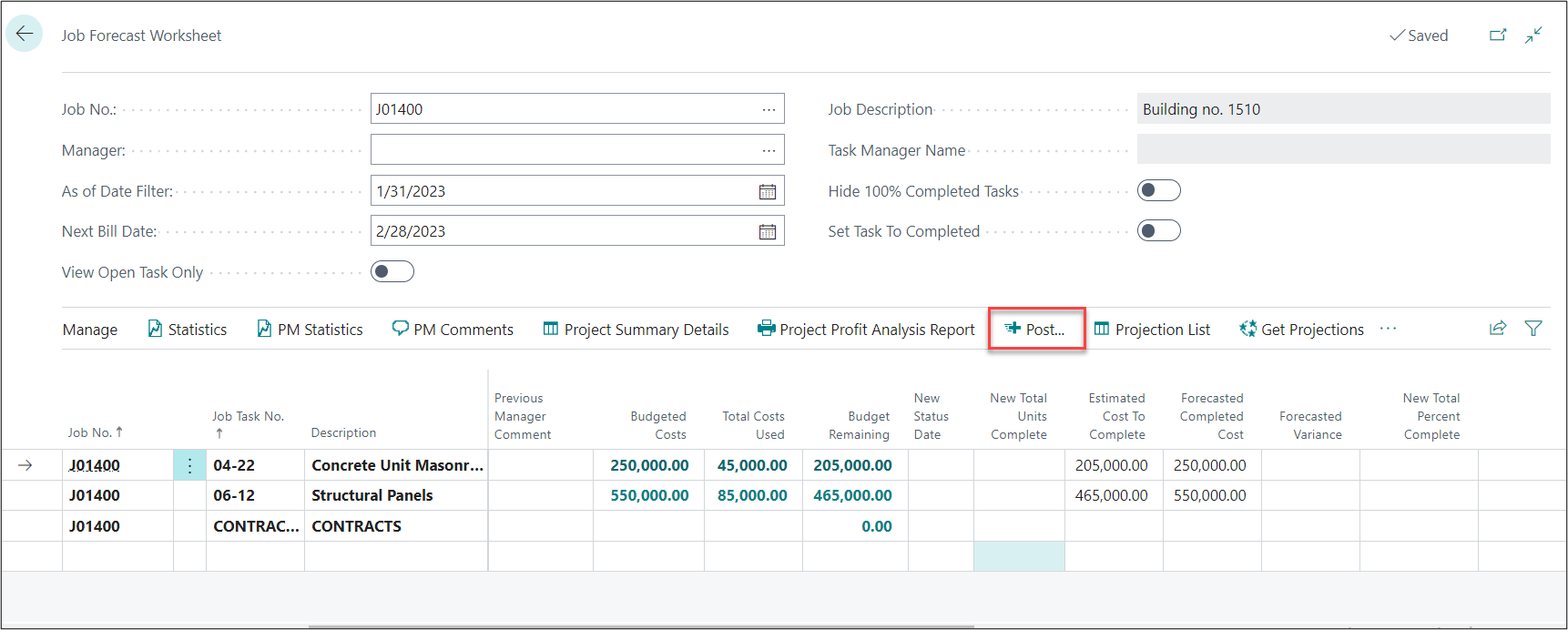
After checking all the details, we can post the forecast. To post the forecast click “Post” as per the below screenshot.
After posting the forecast the values will flow in the other reports like Project Summary Details, Project Profit Analysis Report and Percentage of Completion.
4. Project Summary Details
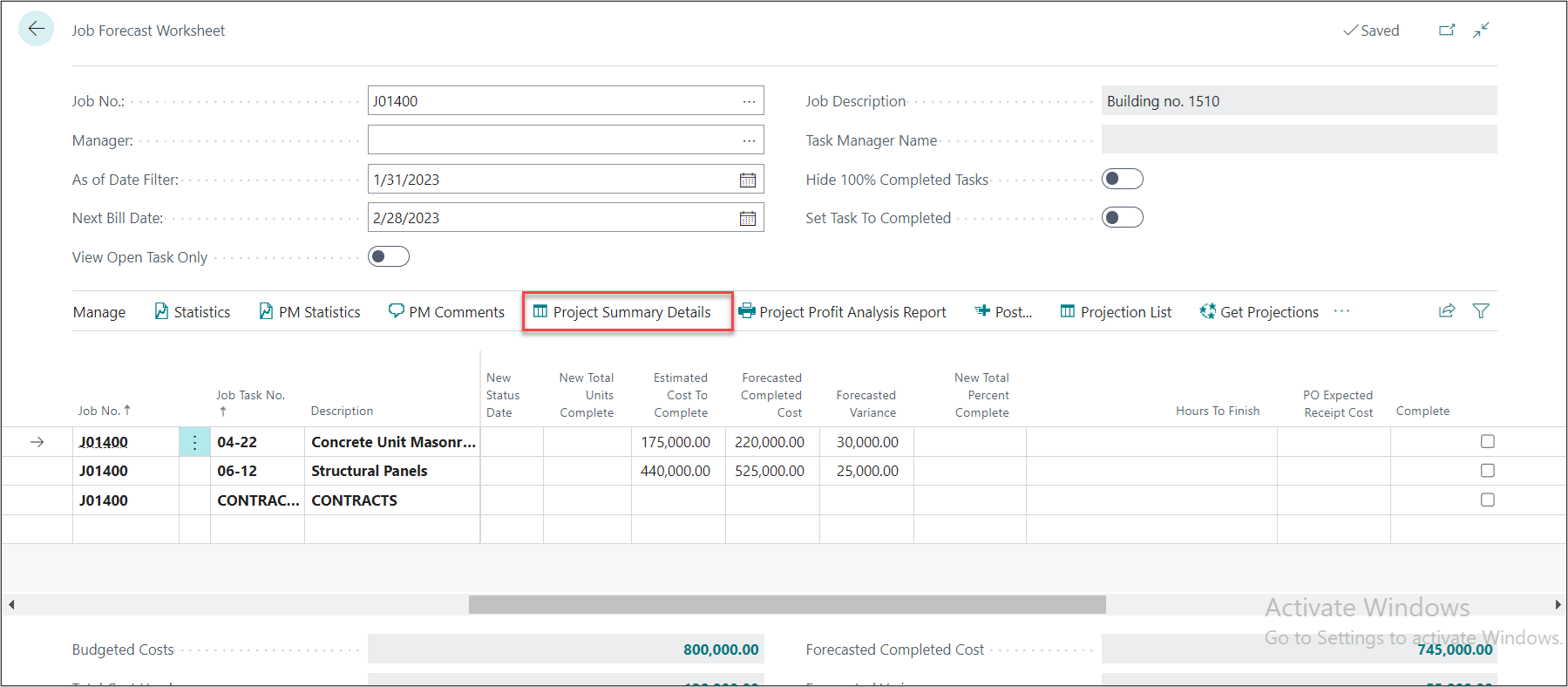
After posting the forecast, the details can be viewed on the “Project Summary Details” page.
To view the report, click on “Project Summary Details” as per the screenshot mentioned below:
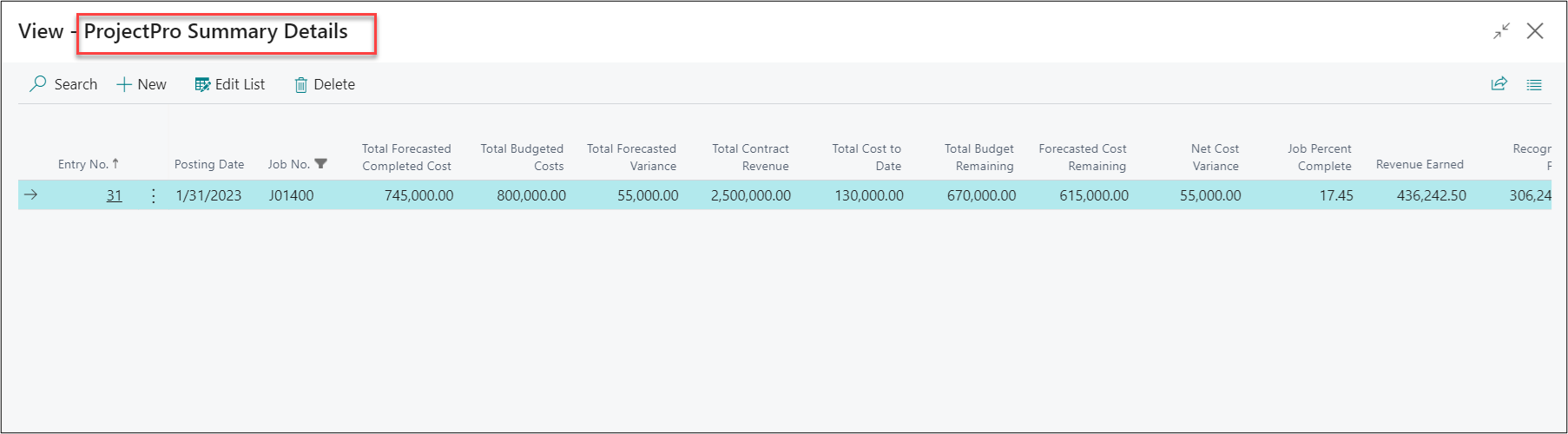
Project Summary Details page will open.
Calculation for Project Summary Details are mentioned below:
FIELDS
DESCRIPTION
Posting Date
The As on date on which the Project Forecast is posted
Total Forecasted Completed Cost
Total of Forecasted Completed Cost (JFW) (Actual cost + Estimated cost to complete) (Of all the tasks)
Total Budgeted Costs
Total of Budgeted Costs
Total Forecasted Variance
Total Budgeted Cost – Total Forecasted Completed Cost
Total Contract Revenue
Total Billable Price
Total Cost to Date
Total Costs Used
Total Budget Remaining
Total Budgeted Cost – Total Cost to Date
Forecasted Cost Remaining
Total of Forecasted Completed Cost – Total Cost to Date
Net Cost Variance
Total Budget Remaining – Forecasted Cost Remaining
Project Percent Complete
(Total Cost to Date / Total Forecasted Completed Cost) * 100
Revenue Earned
(Project Percent Complete * Total Contract Revenue) / 100
Recognized Profit
Revenue Earned – Total Cost to Date
Recognized Profit %
(Recognized Profit / Revenue Earned) *100
5. Project Profit Analysis Report
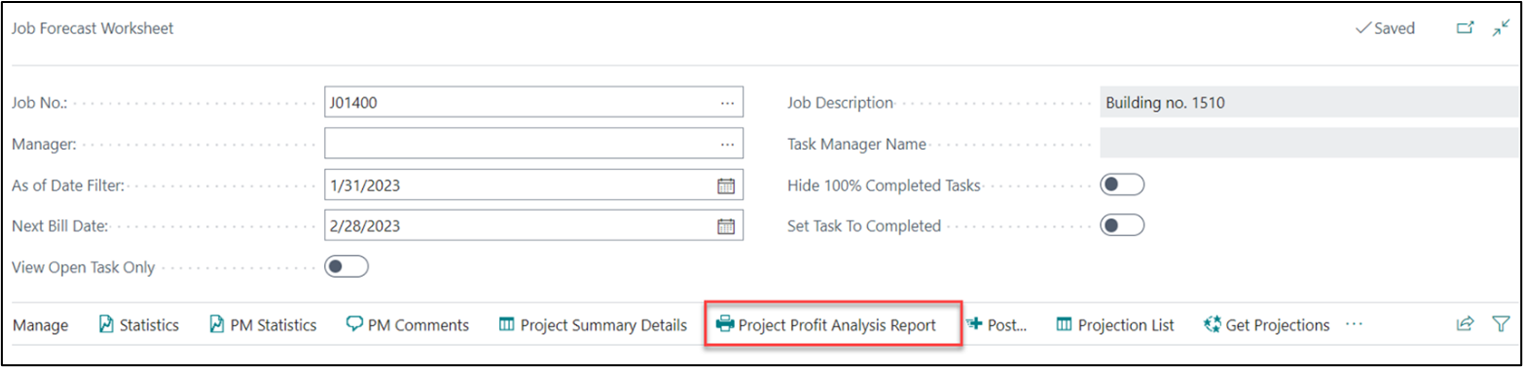
To access the report, click on the three dots then click on “Project Profit Analysis Report”.
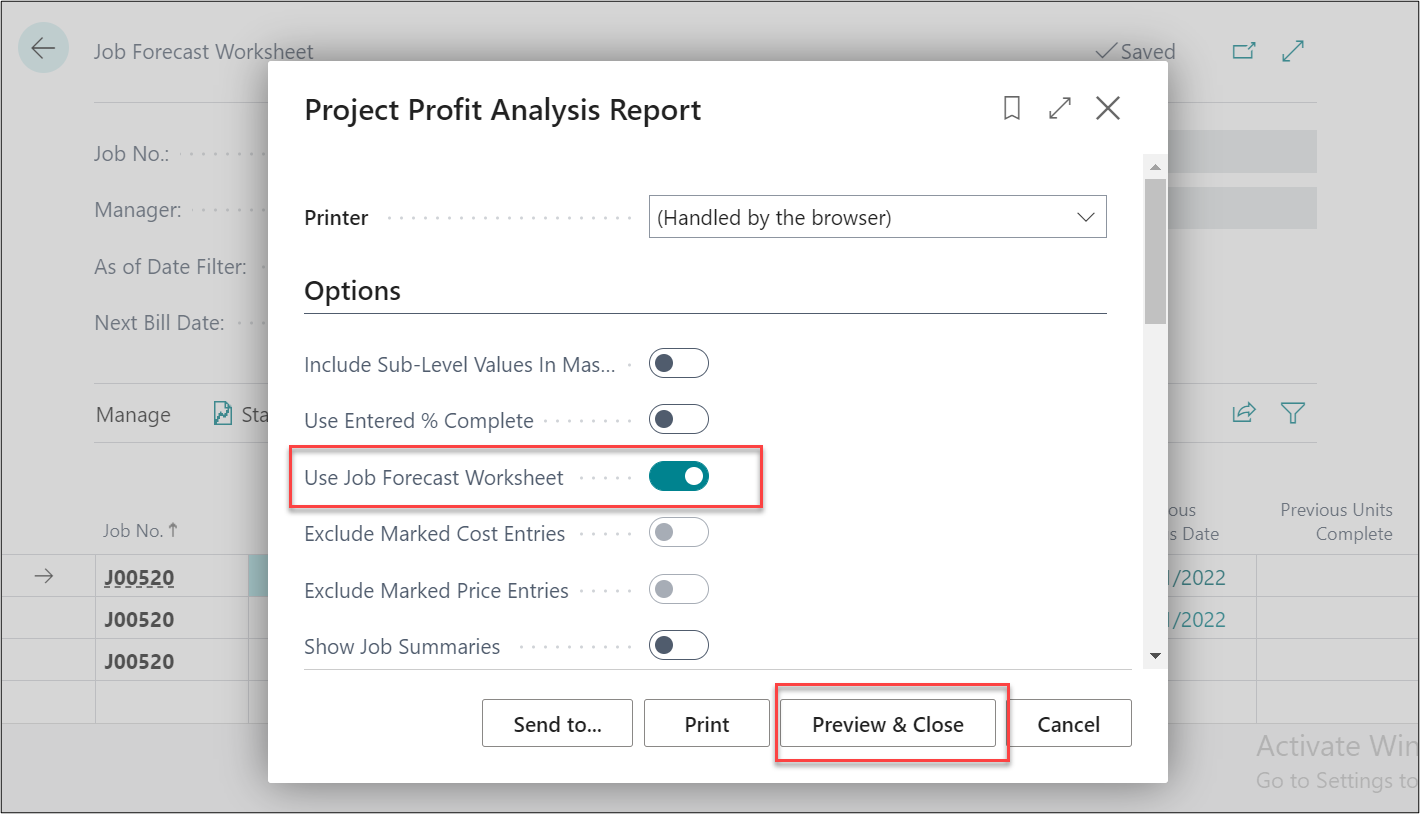
A new window will open check the field “Use Project Forecast Worksheet” then click on “Preview & Close”.
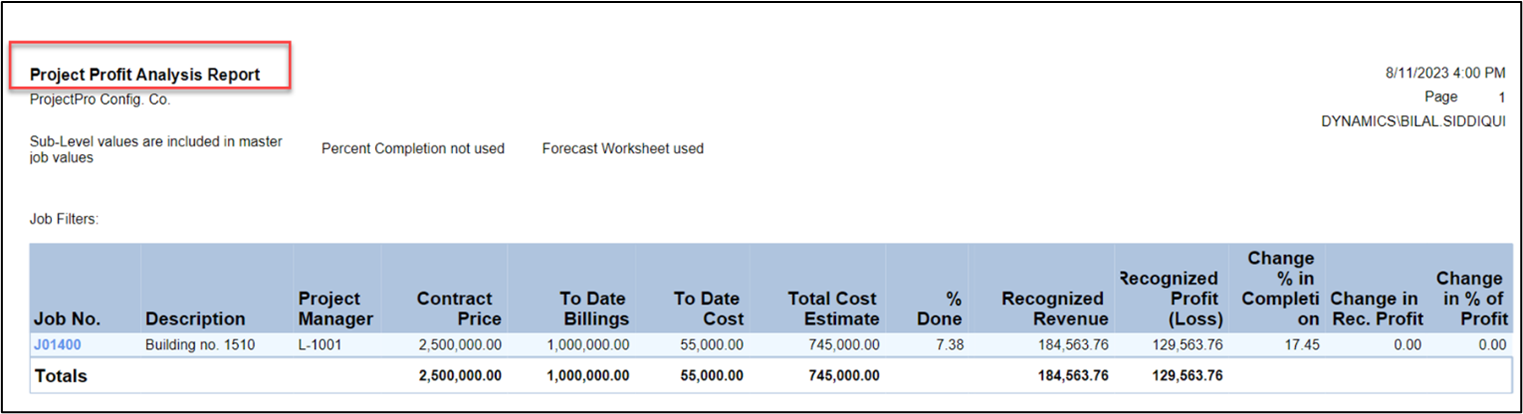
The field details of Project Profit Analysis Report are mentioned below:
FIELDS
DESCRIPTION
Contract Price
Billable (Total Price)
To Date Billings
Total Billable (Invoiced Price)
To Date Costs
Total Costs Used
Total Cost Estimate
On report request page:
Use Project Forecast Worksheet = True
=>Total Forecasted Completed Cost
Use Project Forecast Worksheet = False
=> Total Budgeted Cost
Pct Done
(To Date Costs/ Total Forecasted Completed Cost) *100
Recognized Revenue
(Pct Done* Contract Price) /100
Recognized Profit (Loss)
Recognized Revenue – To Date Cost
Change % In Completion
Delta of Project % Complete from table
Change In Recognized Profit
Delta of Recognized Profit from table
Change In % Of Profit
Delta of Recognized Profit % from table
6. Percentage of Completion
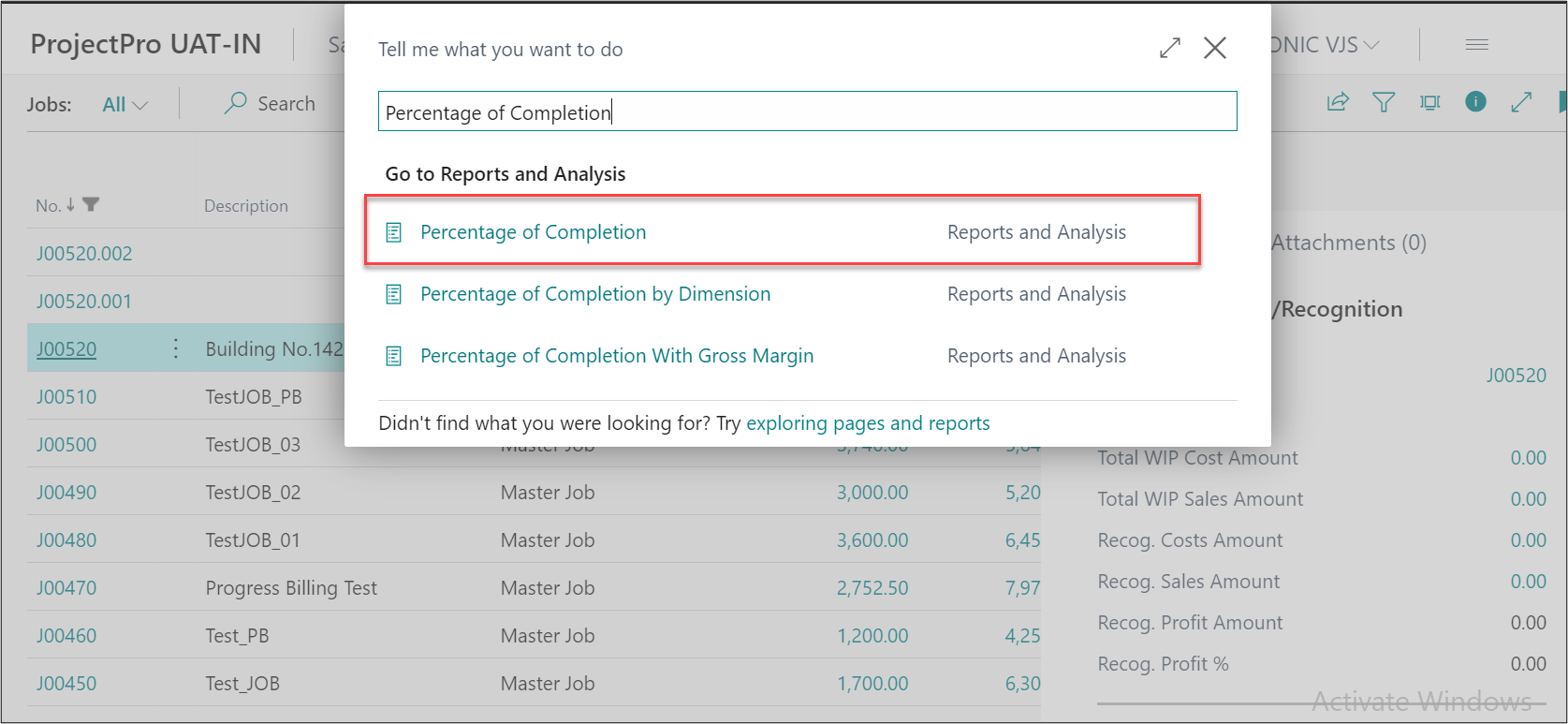
In the search type “Percentage of Completion” and select the highlighted link as per the below screenshot:
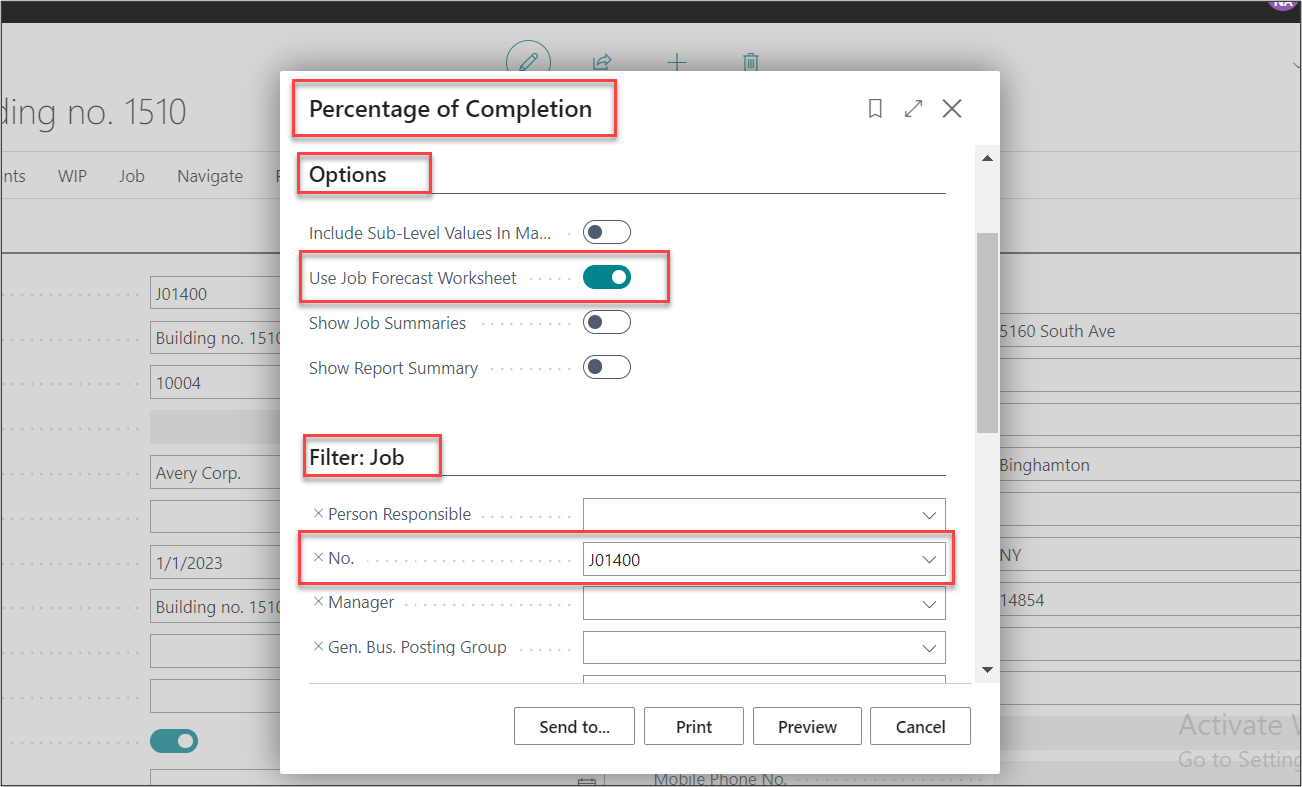
A new window will open, under the “Options” tab enable the Boolean of “Use Project Forecast Worksheet”. Under the Project tab enter the Project no in the “No.” field.
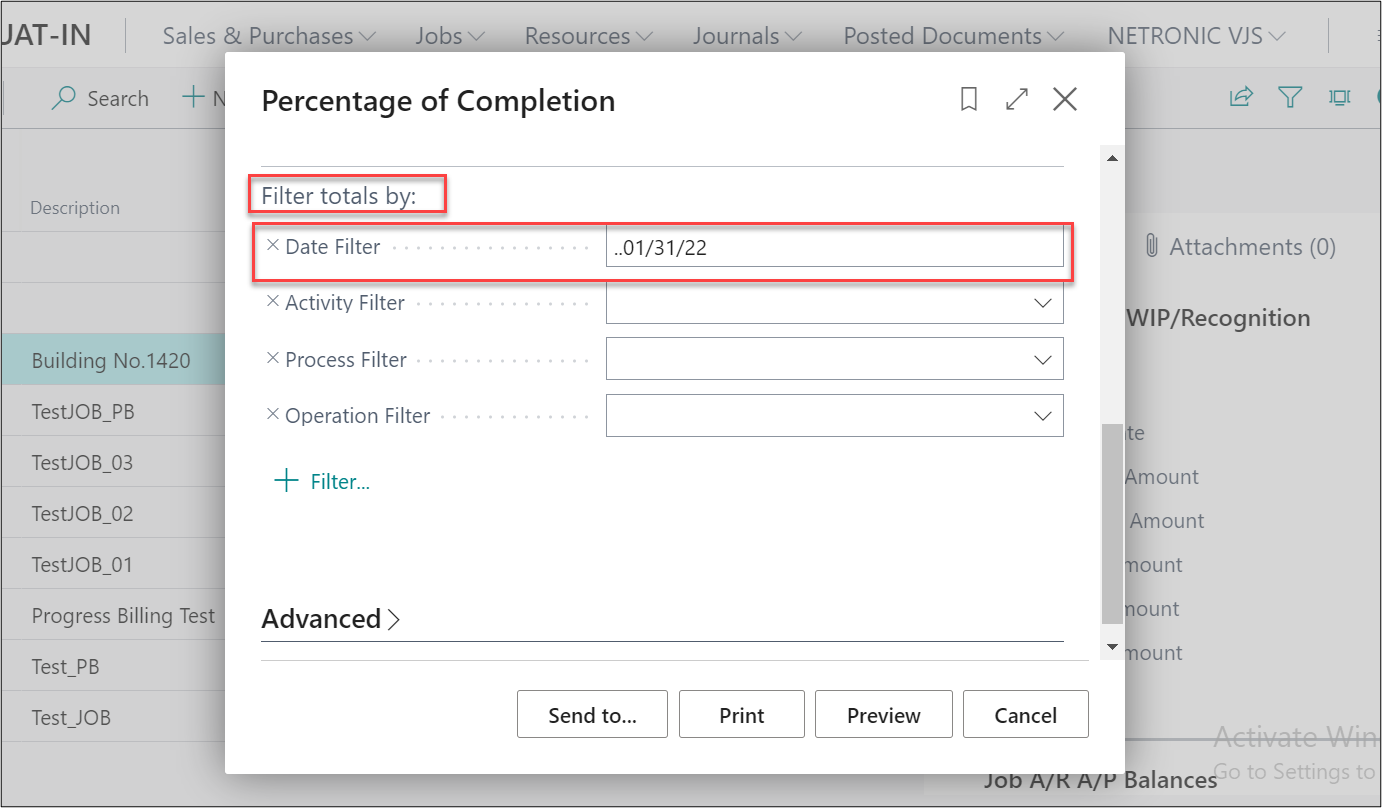
Under the “Filter Total by” tab in the “Date Filter” field enter the date preceded by “..”. After entering all the details click on “Preview”.
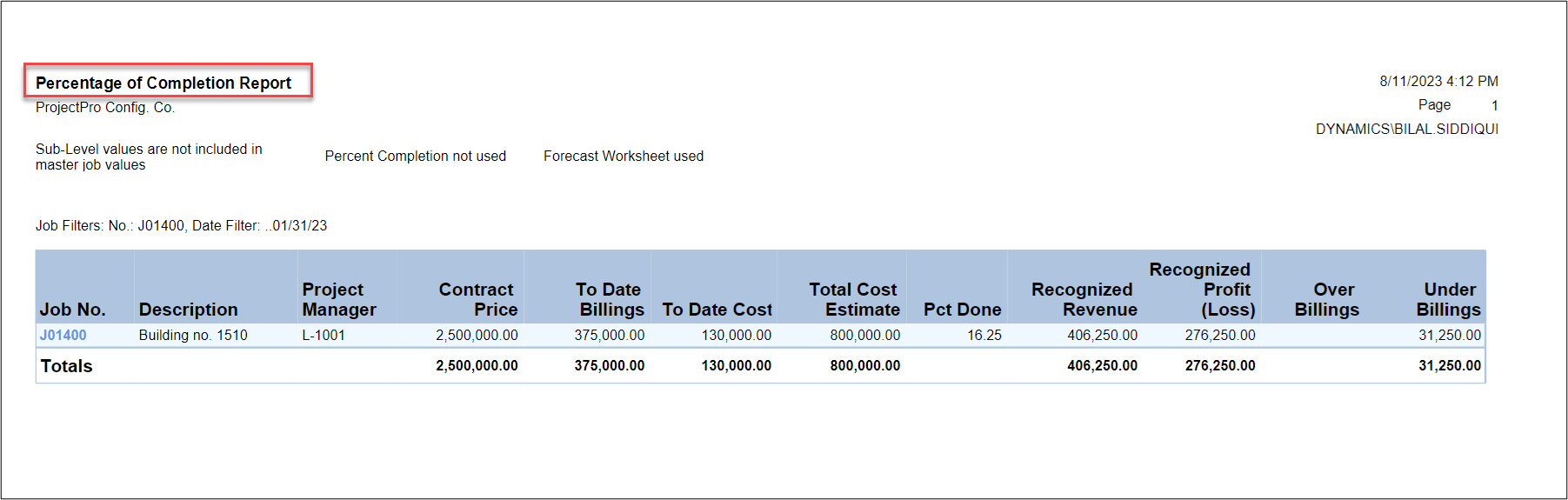
The calculation for Percentage of Completion report is mentioned below:
FIELDS
DESCRIPTION
Contract Price
Billable (Total Price)
To Date Billings
Total Billable (Invoiced Price)
To Date Costs
Total Costs Used
Total Cost Estimate
On report request page:
Use Project Forecast Worksheet = True
=>Total Forecasted Completed Cost
Use Project Forecast Worksheet = False
=> Total Budgeted Cost
Pct Done
(To Date Costs/ Total Forecasted Completed Cost) *100
Recognized Revenue
(Pct Done* Contract Price) /100
Recognized Profit (Loss)
Recognized Revenue – To Date Cost
Change % In Completion
Delta of Project % Complete from table
Change In Recognized Profit
Delta of Recognized Profit from table
Change In % Of Profit
Delta of Recognized Profit % from table
ESTIMATED COST TO COMPLETE AND NEW TOTAL PERCENT COMPLETE
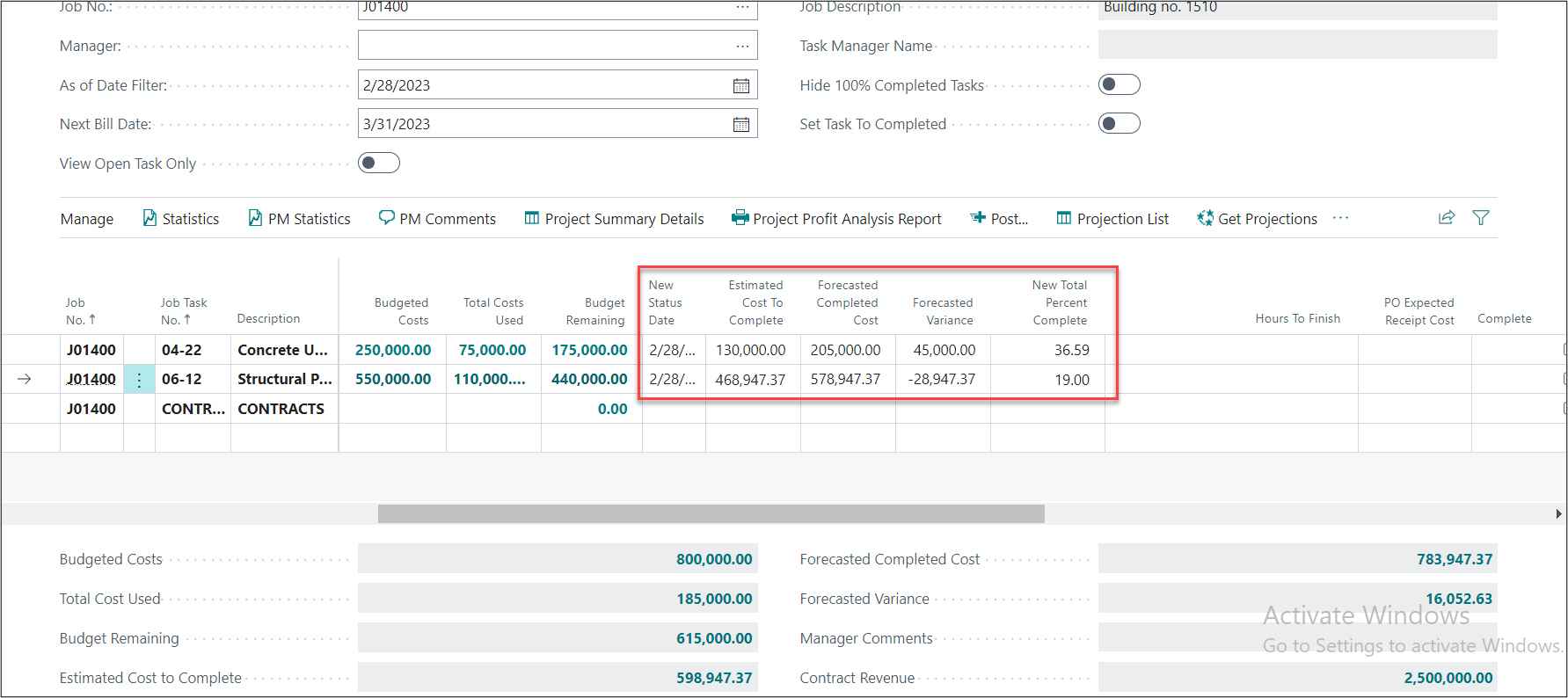
When generating the Project Forecast for the month of February, the user will have to open the Project forecast Worksheet page and enter the date on field “As of Date Filter”.
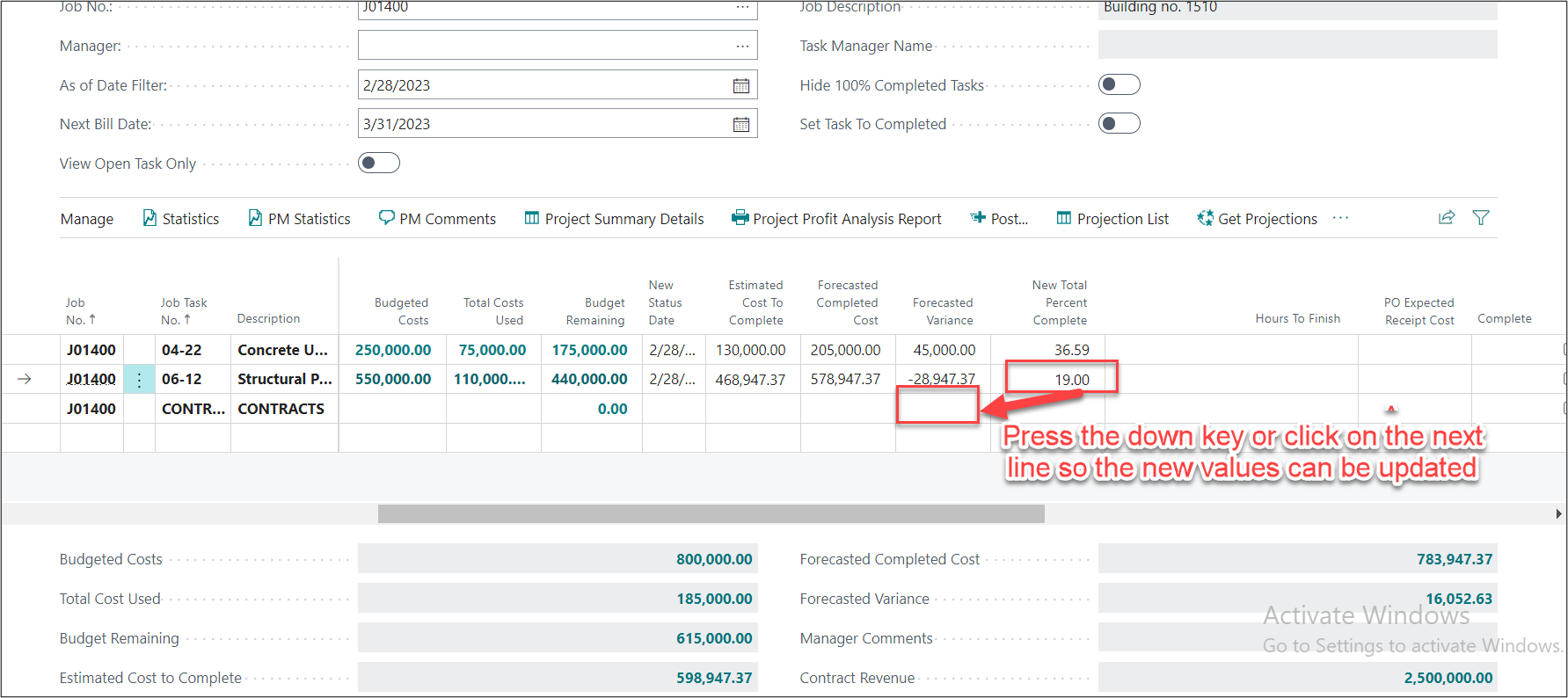
According to PM analysis the value of Concrete task which still needs to be completed for Task “04-22” is $130,000.00 and for Task “06-12” 19% is completed as on July 28th, 2023.
As per the above-mentioned case the user will have to enter $130,000 on field “Estimated Cost to Complete” for task “04-22” and 19 on field “New Total Percent Complete”.
In task 04-22 as per the estimates the Budget Remaining was $175,000 and as per the PM analysis $130,000 would be incurred to complete this task. The user manually entered $175,000 on field “Estimated Cost to Complete” this resulted in a saving of $45,000 which is reflected on field and reduced the “Forecasted Completed Cost” from $250,000 to $205,000. As per these changes the system calculated New Total Percent Complete.
Similarly, when the user enters “New Total Percent Complete” the system auto calculates New Status date, Estimated Cost to Complete, Forecasted Completed Cost, Forecasted Variance.
1) New Status Date: The As of date filter gets updated in this field.
2) Estimated Cost to Complete- Either the user manually enters it or it gets updated based on a value entered by the user on field “New Total Percent Complete”
3) Forecasted Completed Cost: Since the Estimated Cost to Complete changes, it has a direct impact on Forecasted Completed Cost
4) New Total Percent Complete: It gets updated if the user has manually put in percentage or it gets auto updated when user puts a value on field “Estimated Cost to Complete”
5) Forecasted Variance: This value gets updated when there is a change in Estimated Cost to Complete or a new Total percent is put in by the user.
Note: When updating a value in “Estimated Cost to Complete” or “New Total Percent Complete” it is recommended to click on down key or click on another line, so the values are refreshed. Refer the below screenshot for understanding.
There is a positive Forecasted Variance of $16,052.32 (A positive Forecasted Revenue signifies a cost saving) which will increase the Recognized Revenue and Recognized Profit.
Note: When a value is entered on Estimated Cost to Complete or on New Total Percent Complete following fields are also updated after posting the forecast
1) Previous Status Date
2) Previous Forecasted Completed Cost
3) Previous Percent Complete
The values in the above fields remain unchanged when the forecast is generated for the next period.
BATCH POSTING FOR PROJECT FORECAST WORKSHEET
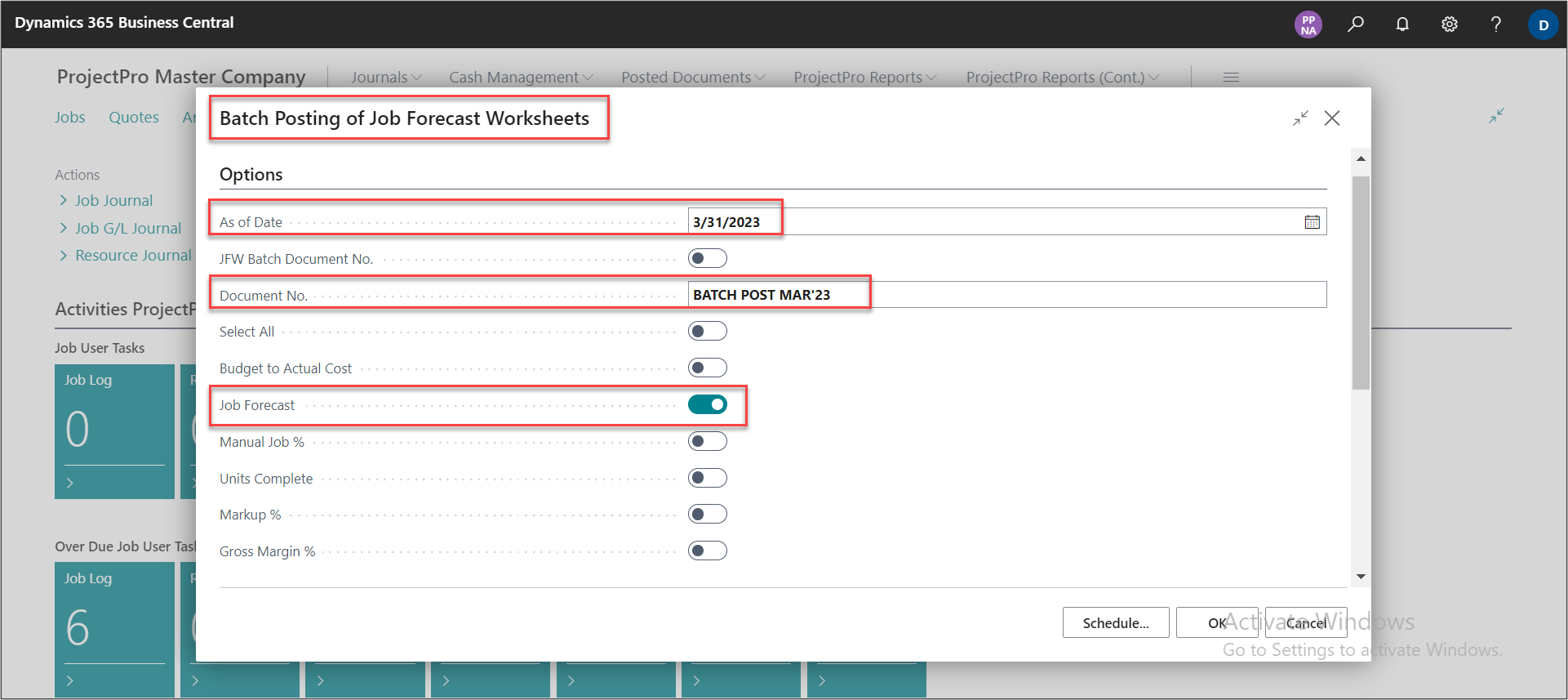
In ProjectPro the user can directly post the Project Forecast for a Project. In the search option type “Batch Posting of Project Forecast Worksheets”
On this window enter the “As of Date”, “Document No.” and enable the method in our case we are selecting the default method which is “Project Forecast”.
Note: If there are multiple methods then user can select them, If all the methods are applicable then user can click on select all.
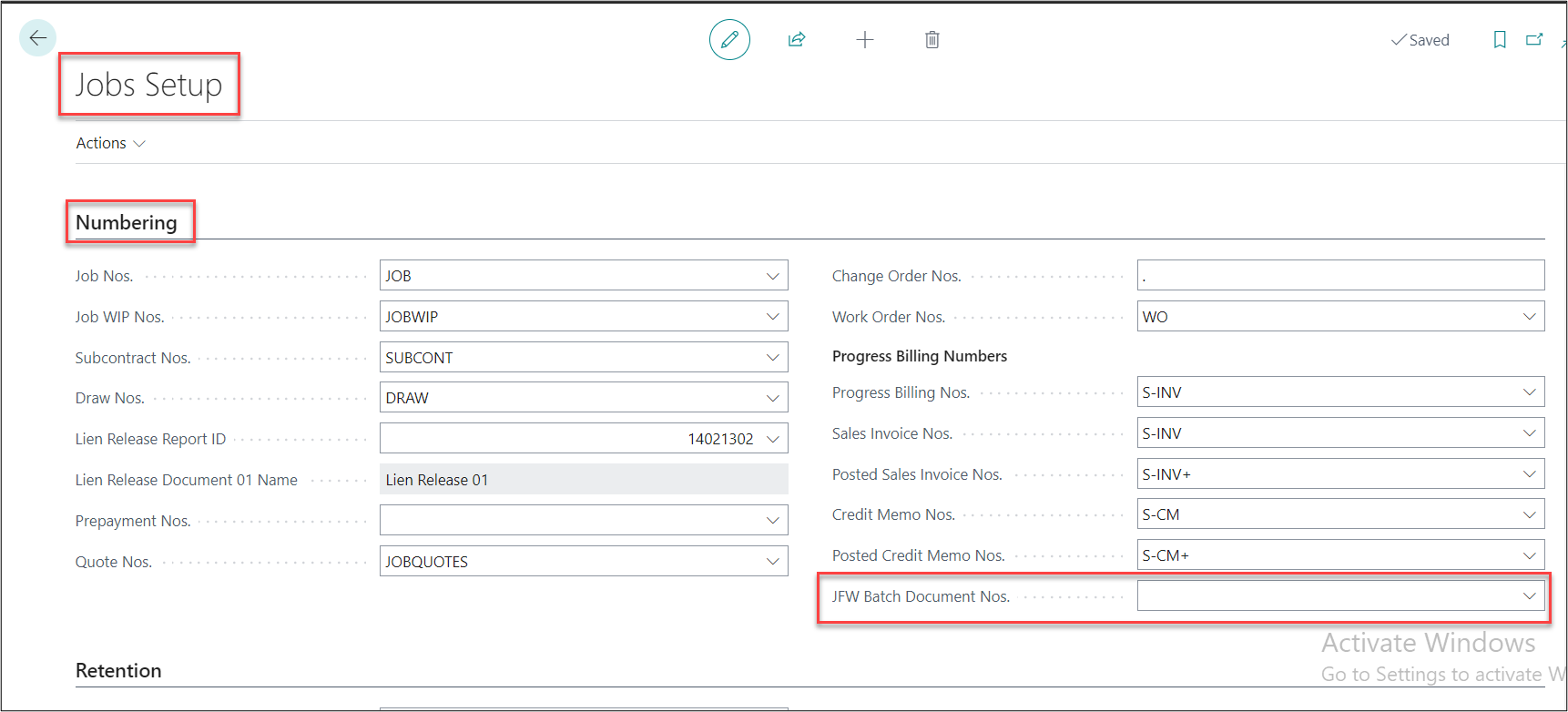
Note 2: In case the user wants to auto-generate the document no. on the Batch posting of Project Forecast Worksheet page the user can check the field of “JFW Batch Document No.” and a number will populate on field “Document No.”. To use this feature the user needs to enter the No. Series under the Numbering tab on the Project Setup.
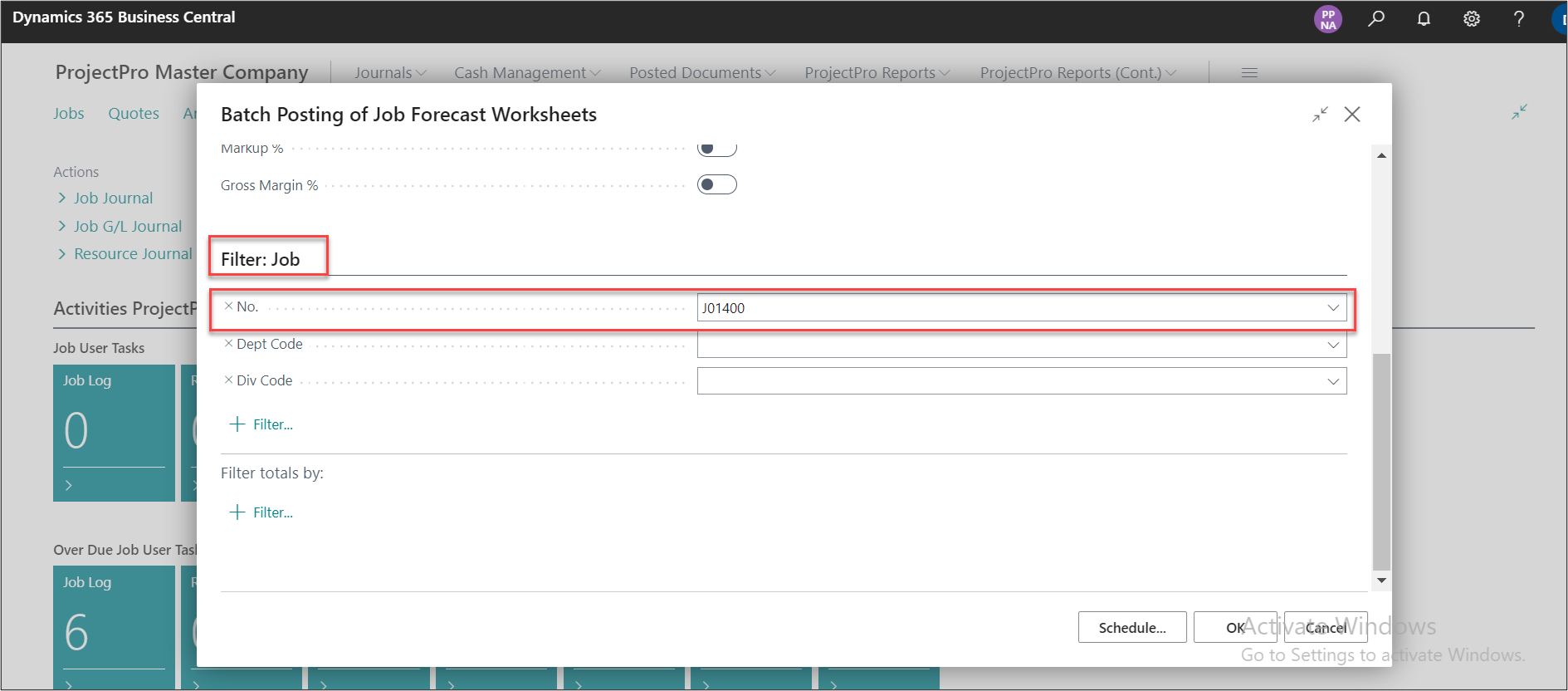
Under the Project filter, on the “No.” field the user can enter the Project no. then click on “ok”.
Note: In case if the batch needs to be run for all the projects, then the user can leave the Project No. field as blank.
PROJECT FORECAST DELETION BATCH
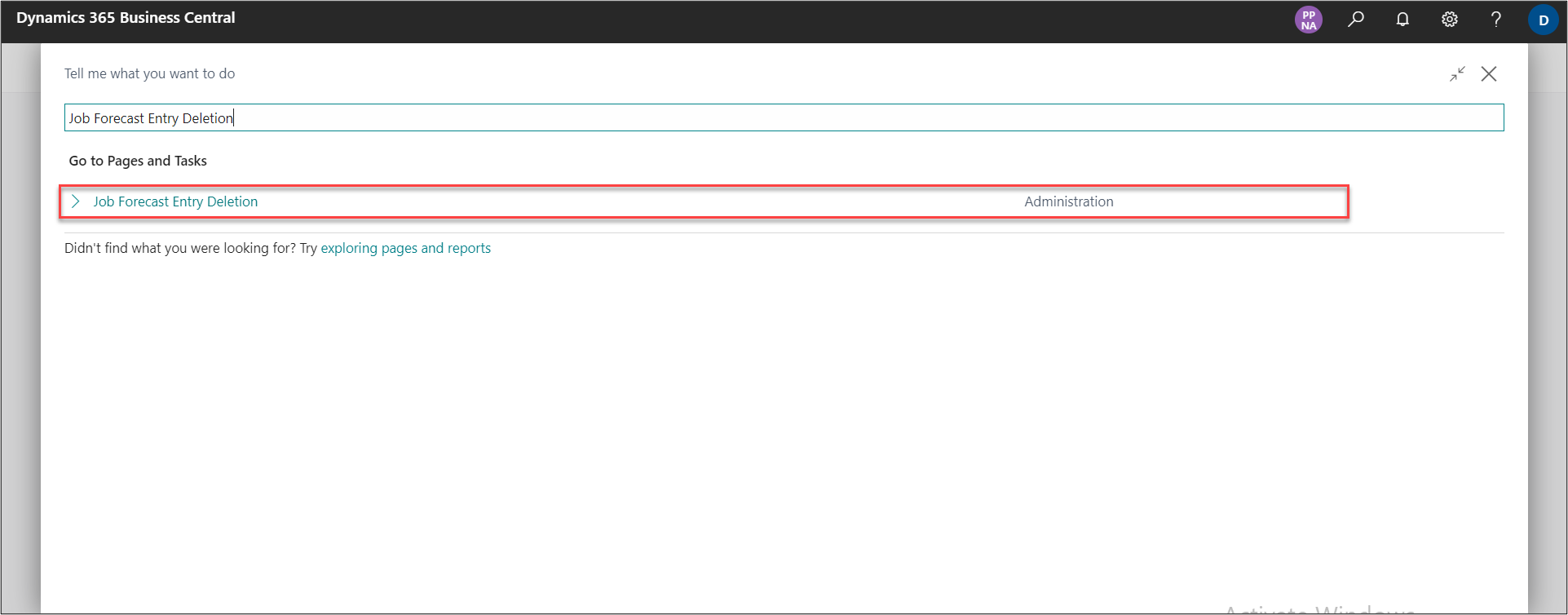
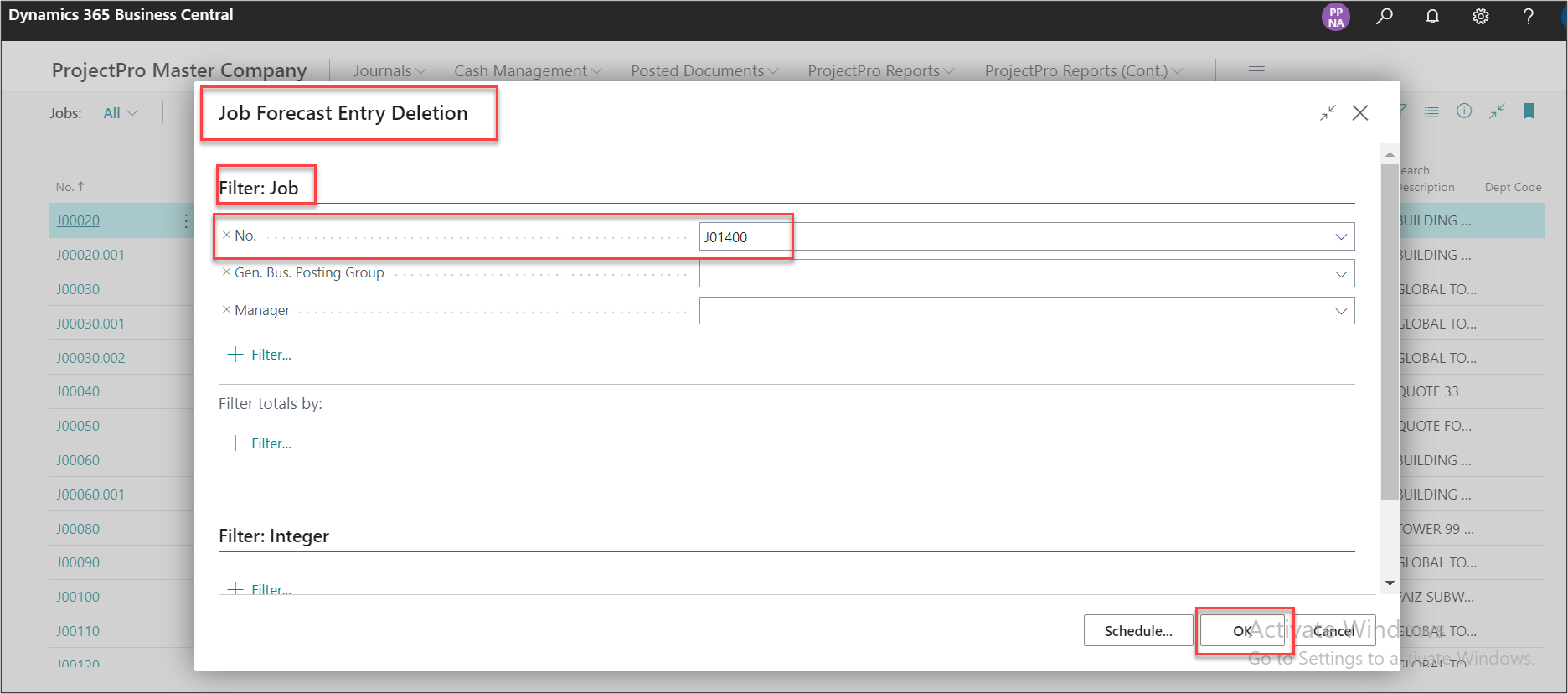
In case the user wants to delete the Project Forecast posted entries the “Project Forecast Entry Deletion” can be used. To run the batch type Project Forecast Entry Deletion on the search and select the highlighted link.
On this page enter Project no. on the “No.” field. Then click on “Ok.”
Note 1: The batch will not delete the entries from the “Revenue Recognition” page.
Note 2: In case Over/Under Billings are posted it will not be reversed when the forecast entries are deleted.
FORECASTED COMPLETED COST OVERRIDE
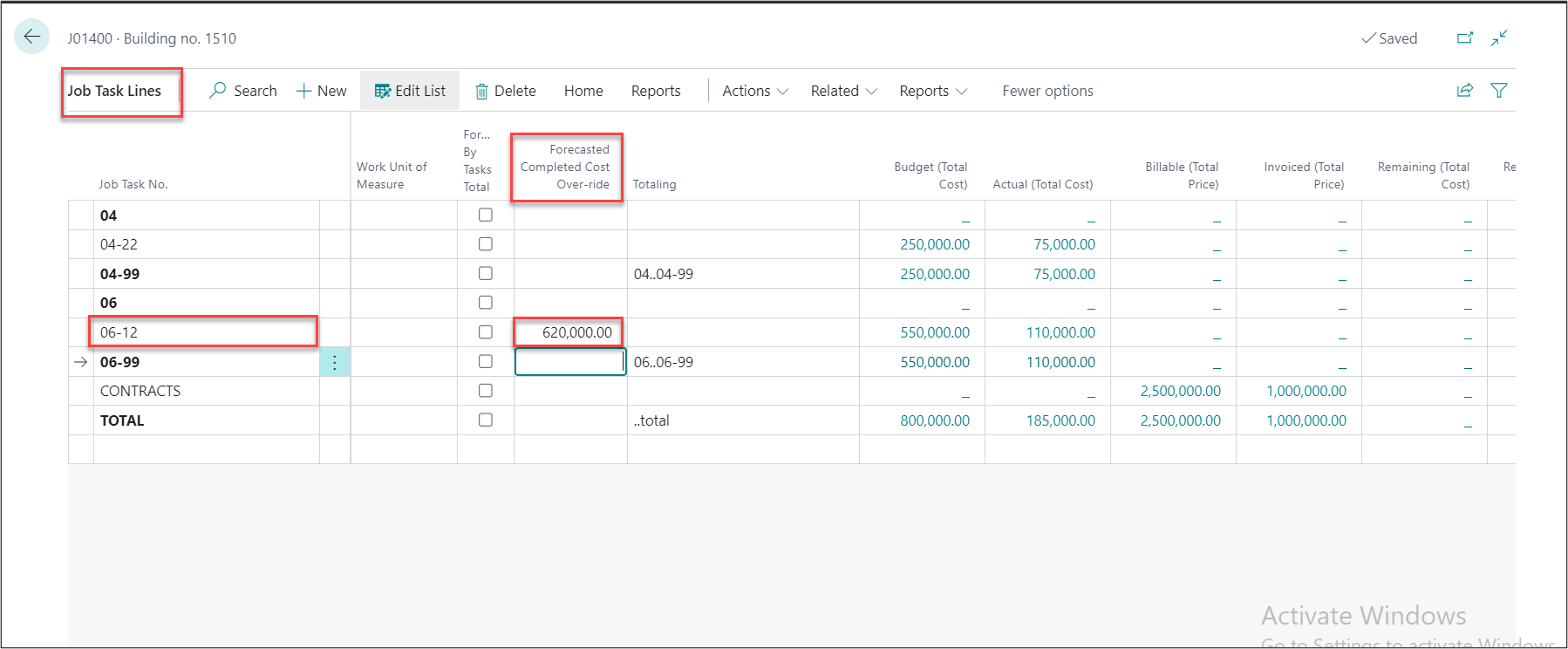
On the Project task page, If the Forecasted Completed cost for a task is fixed the user can enter the Total Cost for a task on field “Forecasted Completed Cost Over- ride.”
In our example mentioned below we have entered a value of $620,000 on field Forecasted Completed Cost Over-ride the total cost $520,000
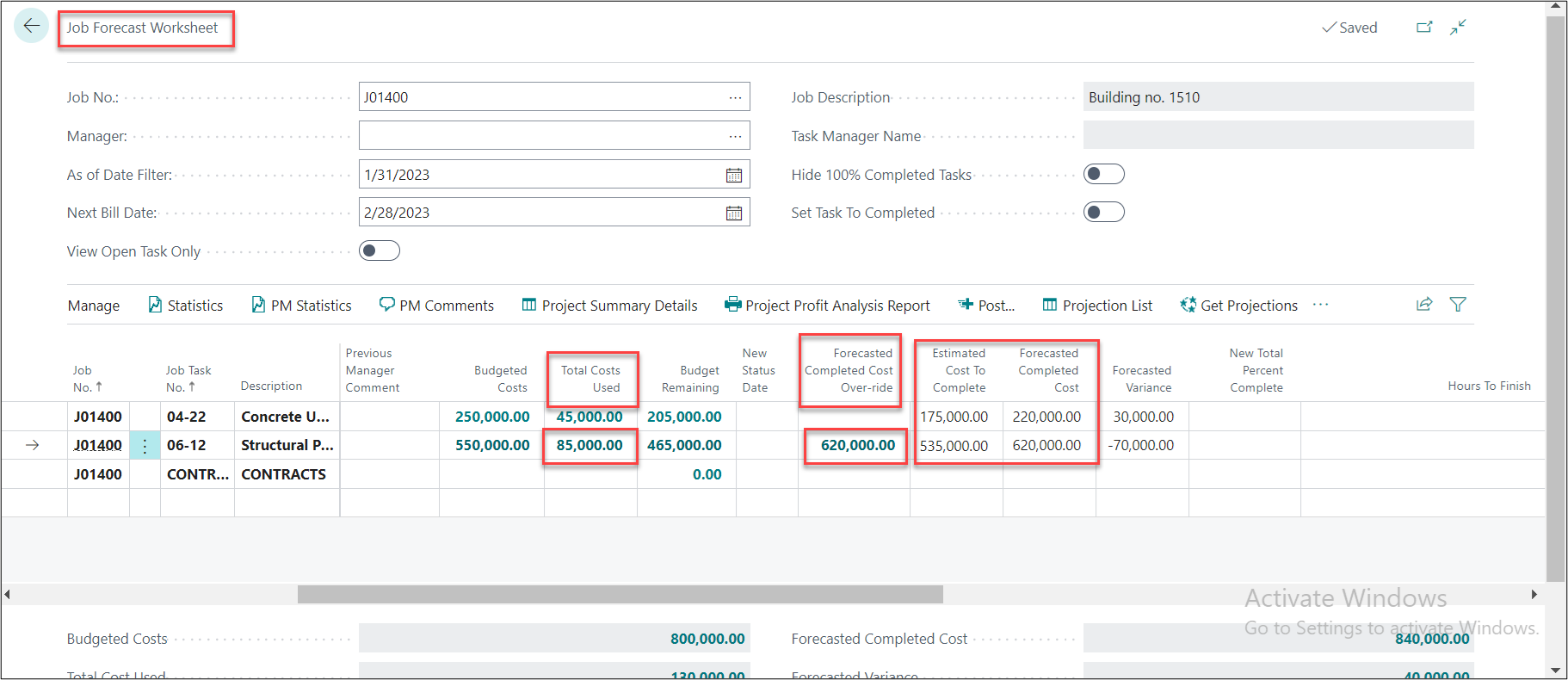
When the Project Forecast Worksheet is generated the value entered on the Forecast Completed Cost Over-ride on Project task page will flow to the Project Forecast Worksheet.
Note 1: The Estimated Cost to Complete will get auto calculated, The value from “Total Cost used” will be deducted from “Forecasted Completed Cost Over-ride” resulting in a value of Estimated Cost to Complete.
Note 2: The Forecasted Completed Cost will remain Fixed for the task against which there is a value in “Forecasted Completed Cost Over-ride”.
Note 3: The Estimated Cost to Complete will not be revised when the batch of “Update Est. cost. To Compl.” Is run.
Note 4: The Forecasted Completed Cost Over-ride cannot be entered on the task page of Sub-Levels.
Update Estimated Cost to Complete Batch
When the “Estimated Cost to Complete” is not equal to “Budget Remaining” the “Update Est. Cost. To Compl.” can be executed used.
To run the batch, click on three dots and then click on “Update Est. Cost to Complete.”
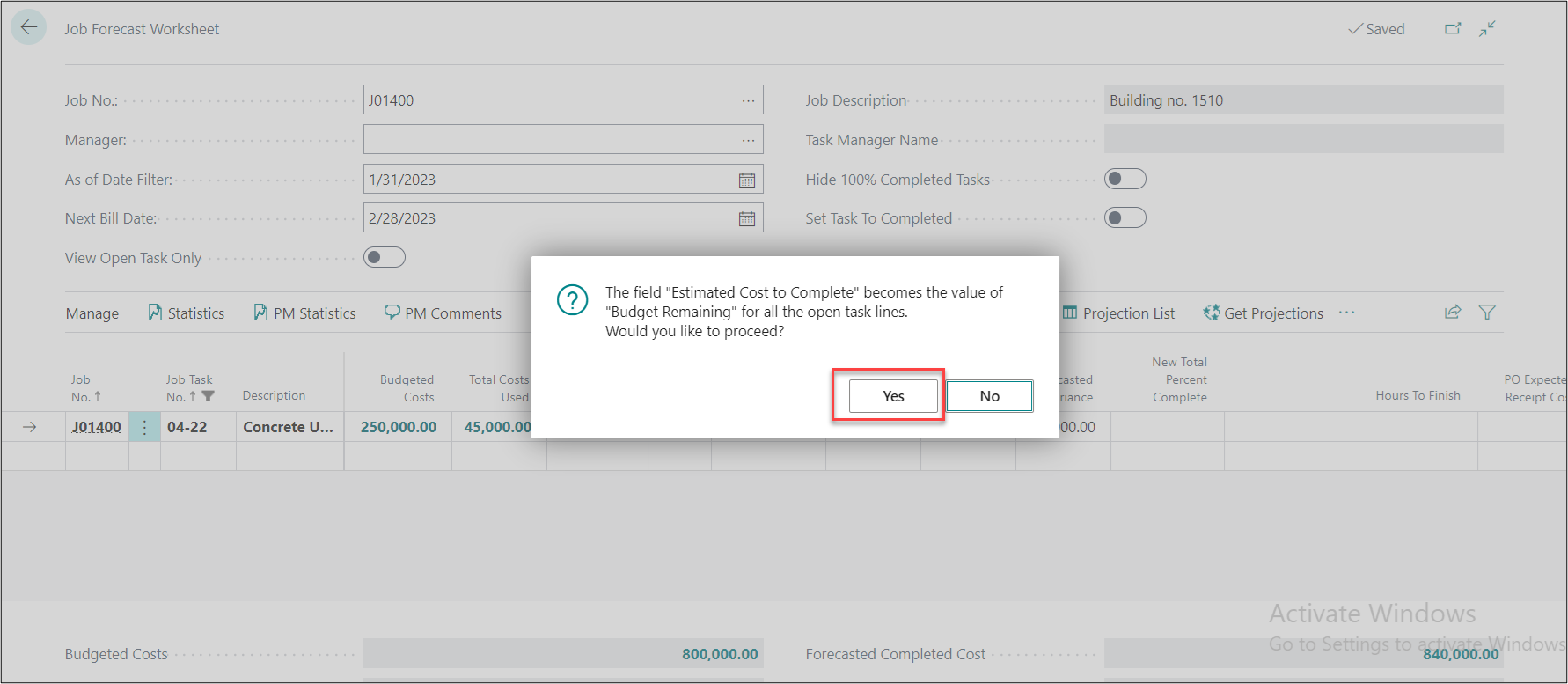
When we click on the option the system will display the message “The field “Estimated Cost to Complete” becomes the value of “Budget Remaining” for all the open task lines. Would you like to proceed?” click on Yes.
The system will equate the Budget Remaining with “Est. Cost to Complete.”