
Ch 07 – Get Project Planning Lines Function
Contents
| GET PROJECT PLANNING LINES |
| 1. Project Setup |
| 2. Progress Billings |
GET PROJECT PLANNING LINES
“Get Project Planning Lines” function helps to avoid copying/duplication of lines which have already been billed unlike “Get Billings” function. Once you have selected certain planning lines for the progress bill, the next time you use Get Project Planning Lines, it will show only those lines which are not a part of any requisition.
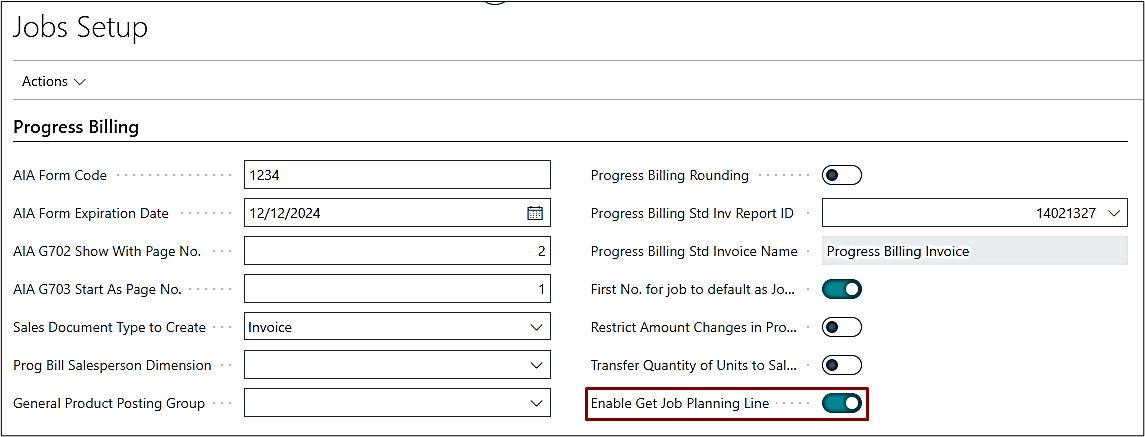
To use this button, we need to toggle it “ON” over project setup page under Progress Billing fast tab.
Attention: If this function is used on an existing requisition, it will show all the planning lines initially. Once you start selecting the lines for the requisition, those lines will get eliminated from the selection and the list.
1. Project Setup
On the Projects Setup turn ON the “Enable Get Project Planning Line” field under Progress Billing fast tab.
This feature will allow a user to select one or more Billable Project Planning Lines for the progress billing. Enabling this feature will disable the standard “Get Billings” function on the progress billing.
2. Progress Billings
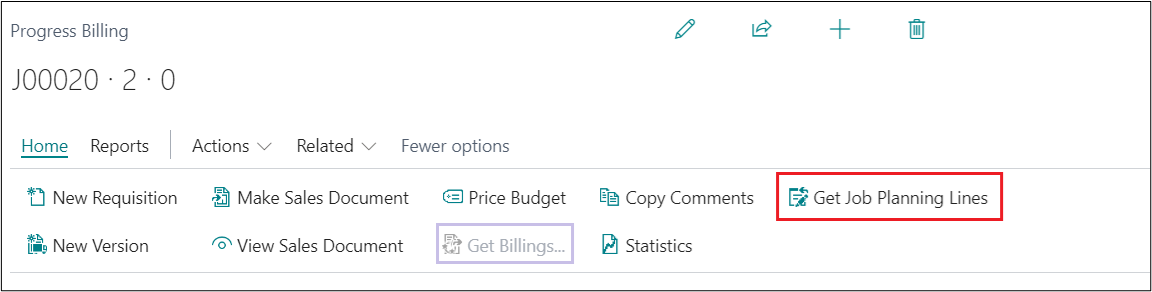
Create a new Progress Billing Requisition. On the ribbon, you will now be able to see/use “Get Project Planning Lines”. Please note that, “Get Billings” option has been disabled.
Upon clicking Get Project Planning Lines, the system will open the window as below.
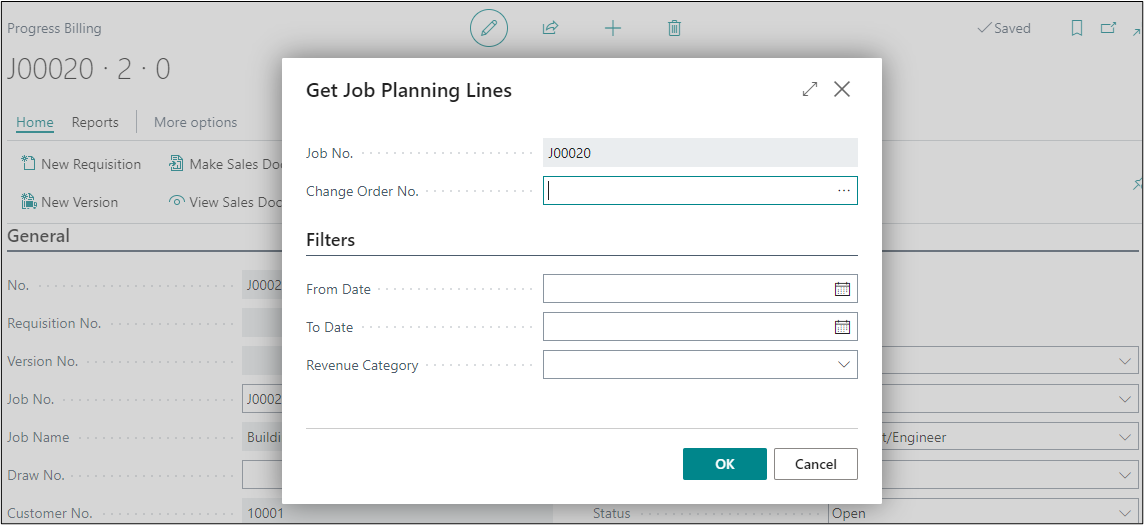
1. The “Project No.” gets auto filled.
2. Enter the “Change Order No.” if there are any change orders to this project that should get added to the requisition.
3. Users can filter the planning lines list by entering the “From Date” from which you want to calculate the billings.
4. User can filter the planning lines list by entering the “To Date” until you want to calculate the billings.
5. User can filter the planning lines with “Revenue Category” if specified.
Once all required details have been entered, click on OK. This will show a list of planning lines with Line Type as “Billable” or “Both Budget & Billable”.
On the next requisition only those Billable/Both Budget & Billable lines will be available on the Get Project Planning Lines page which were not included on the Progress Bill.
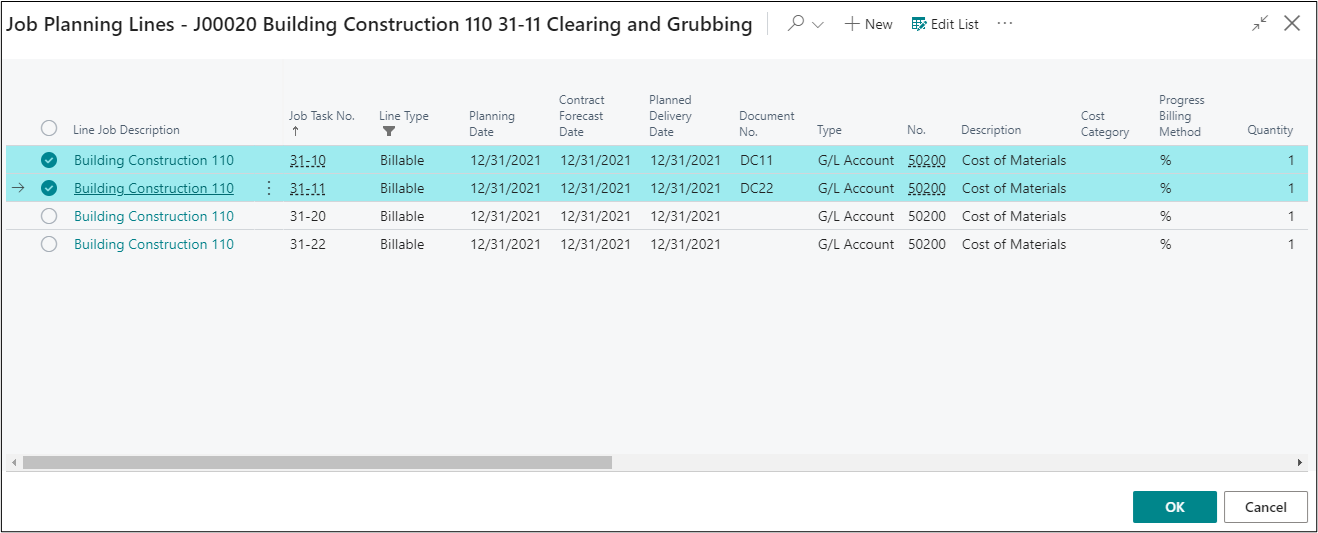
Select the line which you want to add on Progress Billing lines, then select OK.
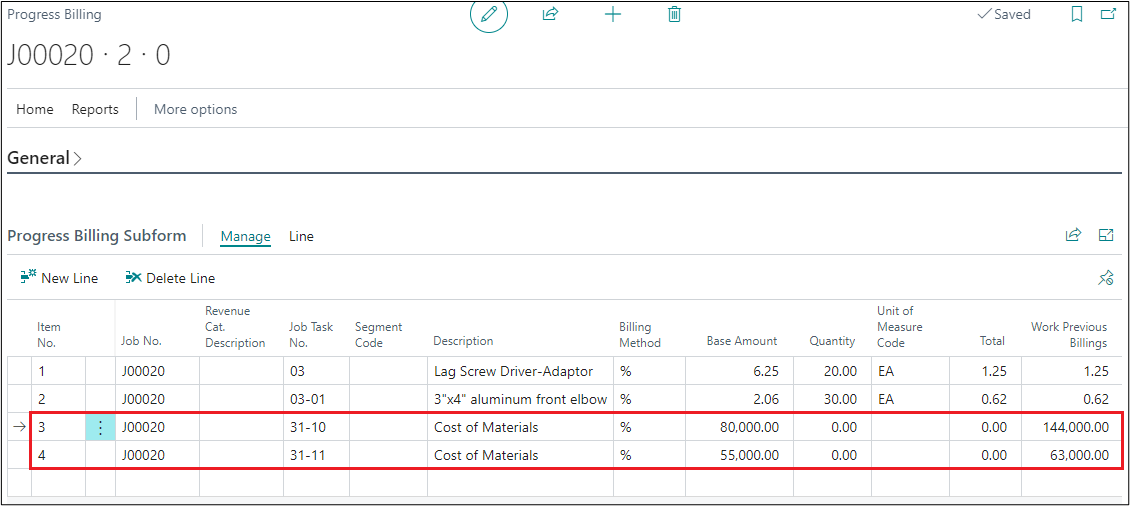
The further process is the same as the normal progress billing you follow.