
Ch 01 – Installation of ProjectPro Application (Cloud/SAAS)
Contents
| INTRODUCTION |
| NEW SANDBOX/CUSTOMER |
| 1. Tenant ID |
| 2. ProjectPro App ID |
| EXISTING SANDBOX/CUSTOMER |
INTRODUCTION
The process for installing the ProjectPro application from the AppSource is the same for all cloud/Saas environments.
NEW SANDBOX/CUSTOMER
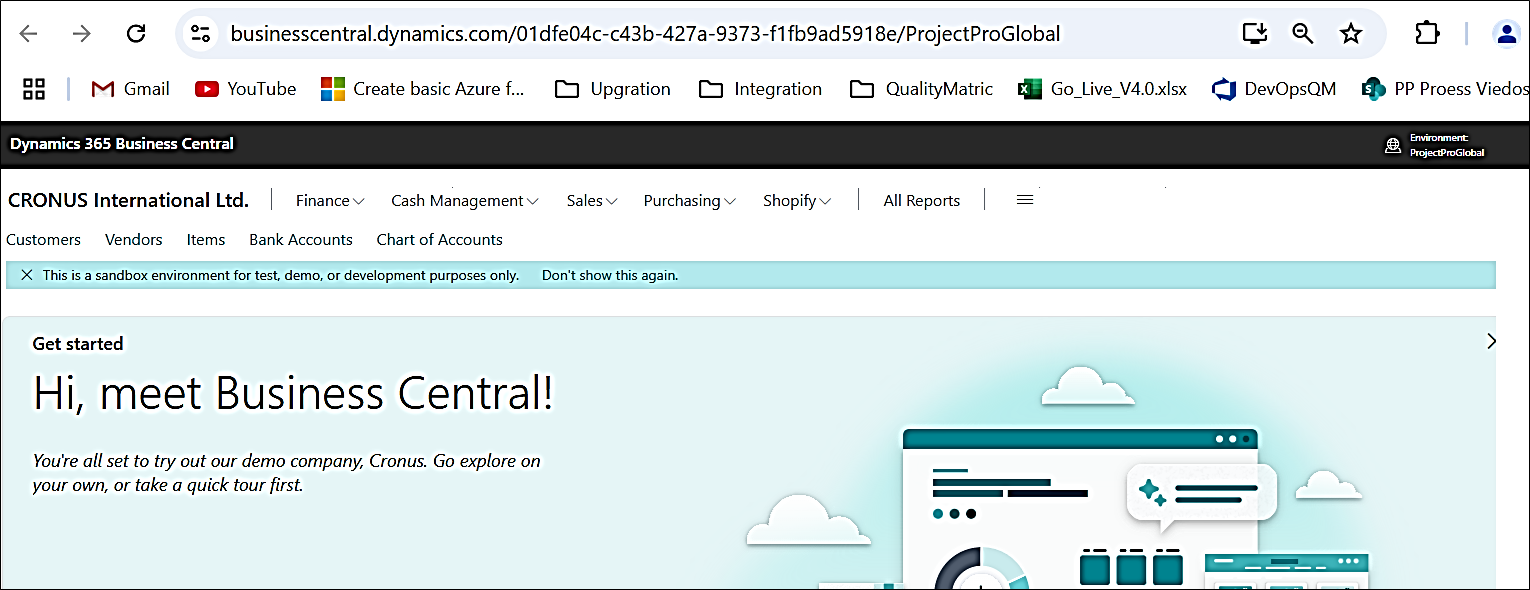
In the new environment, the main/landing screen looks like below:
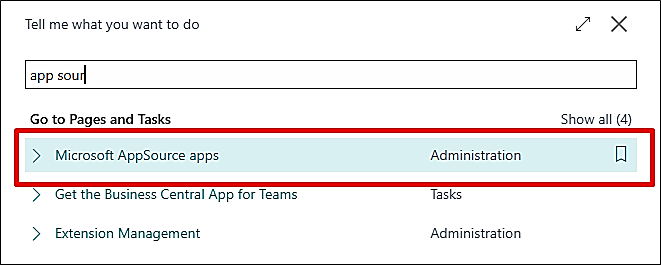
Search for “Microsoft AppSource Apps” from Global Search.
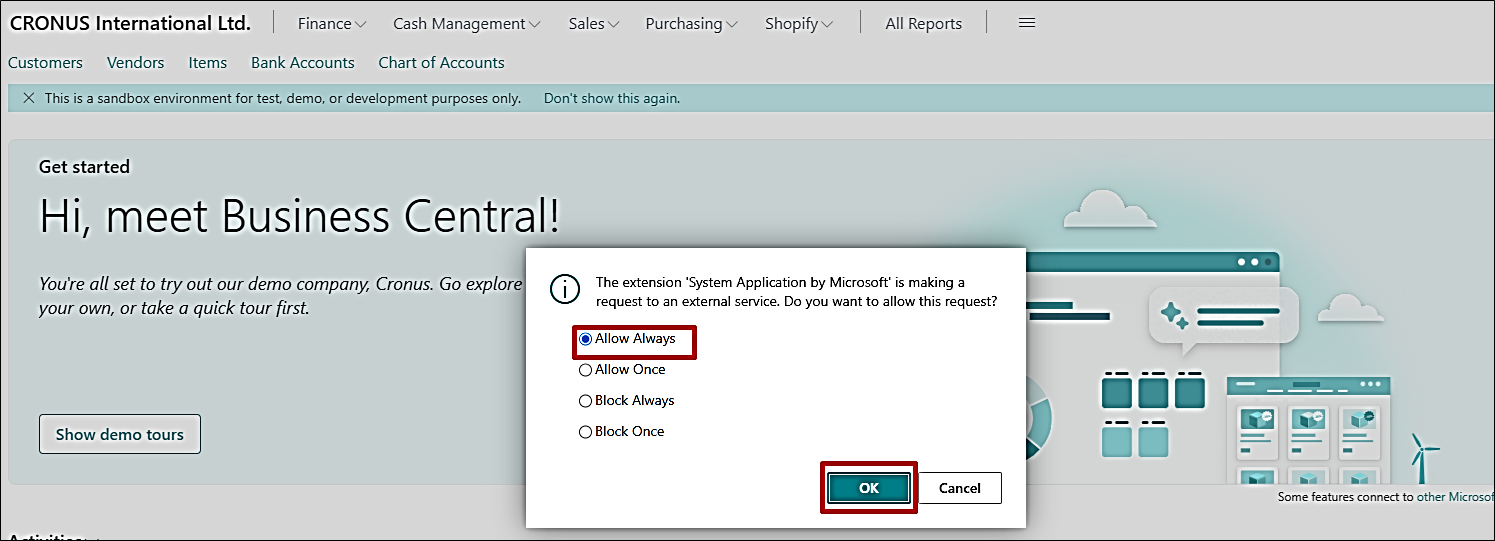
This will display a pop-up message as shown below. Choose the “Always Allow” option and press OK.
A list will appear that shows all the Business Central applications available on Microsoft. Search for ProjectPro as shown below, select “Project – A Construction Vertical (Global)” and click on “View on AppSource” from the ribbon.

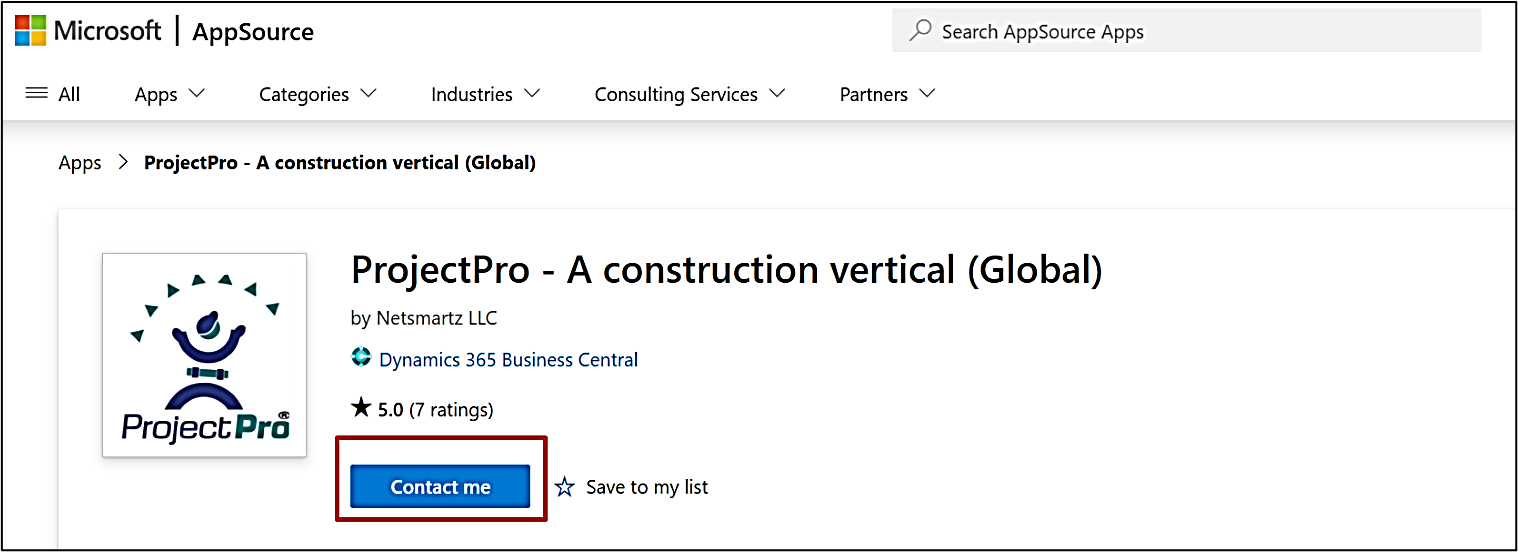
On the Microsoft AppSource page, click “Contact Me” to contact someone from the app’s owner organization.
Enter your professional and contact details in the displayed dialogue box.
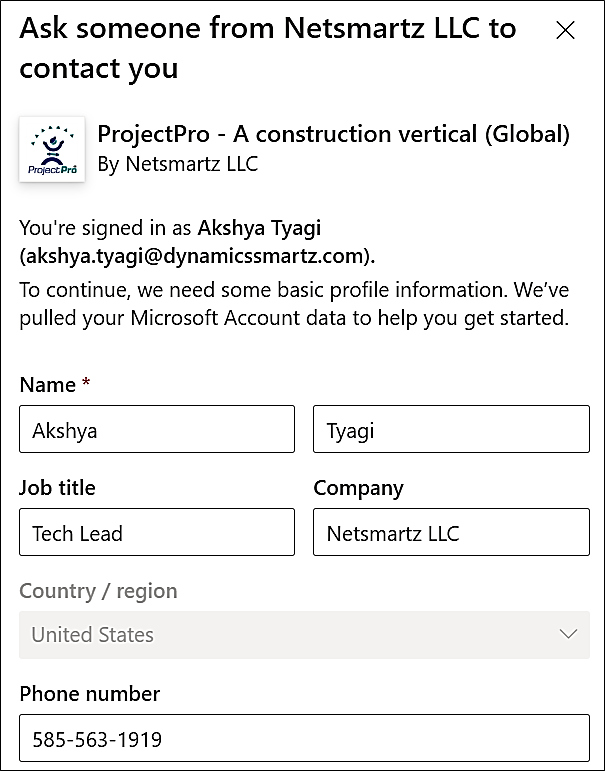
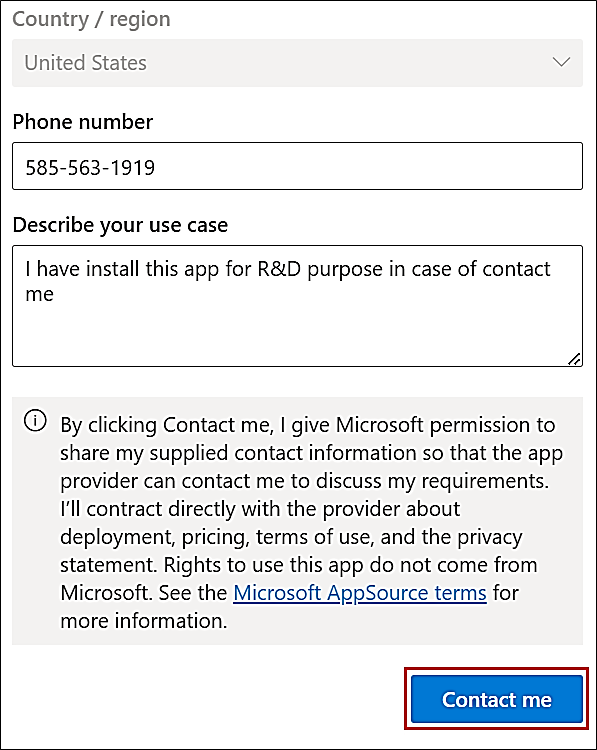
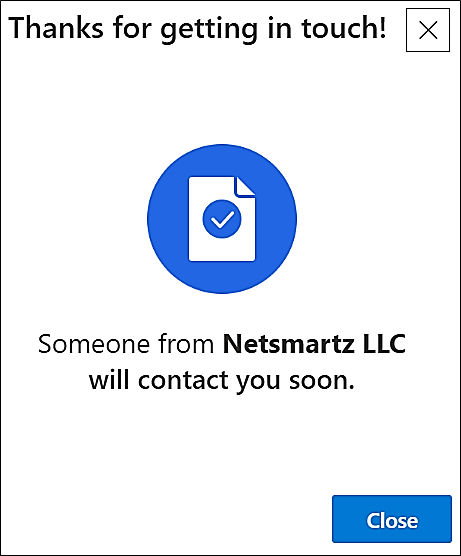
Now, install the application from the browser using the URL which comprises of the “Tenant ID” (for clients or environment) and the “App ID” (for ProjectPro/Product):
https://businesscentral.dynamics.com//?noSignUpCheck=1&filter=’ID’ IS ”&page=2503
1. Tenant ID
The Tenant ID is provided by Microsoft for Cloud/SaaS environments, as highlighted in the screenshot below.

2. ProjectPro App ID
The App IDs are generated region-wise, as provided below:
For example: https://businesscentral.dynamics.com/fc2eee8d-bfdd-4781-be0ed6a9531fbffa/?noSignUpCheck=1&filter=’ID’ IS ‘a3c03ddf-3f59-46a5-9644-a1f4a6b1d289’&page=2503

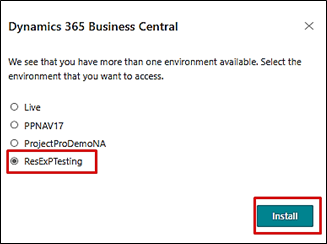
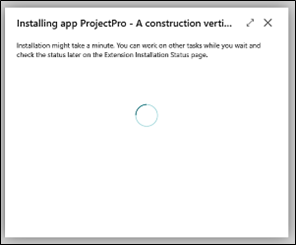
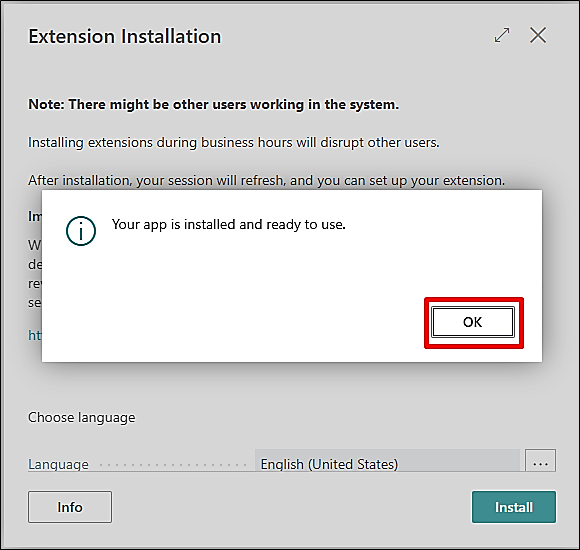

For example: https://businesscentral.dynamics.com/01dfe04c-c43b-427a-9373-
f1fb9ad5918e/?noSignUpCheck=1&filter=’ID’ IS ‘a3b03edf-3f59-46a5-9644-a1f4a6b1d289’&page=2503

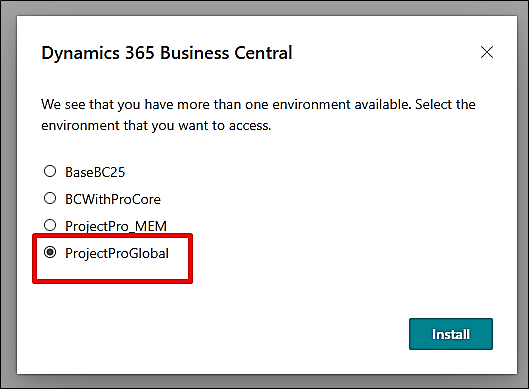
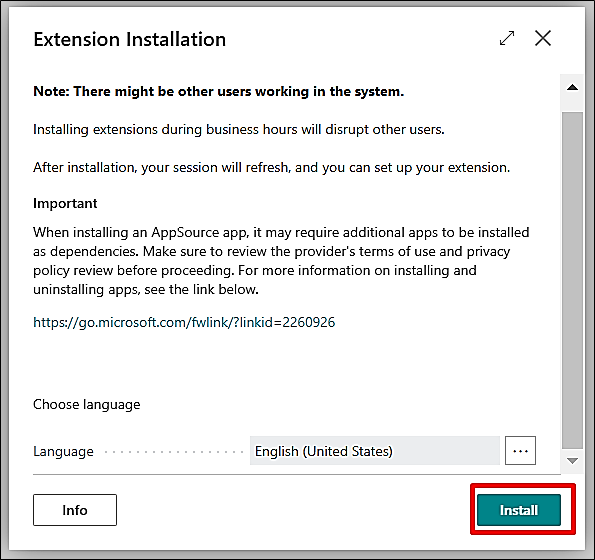
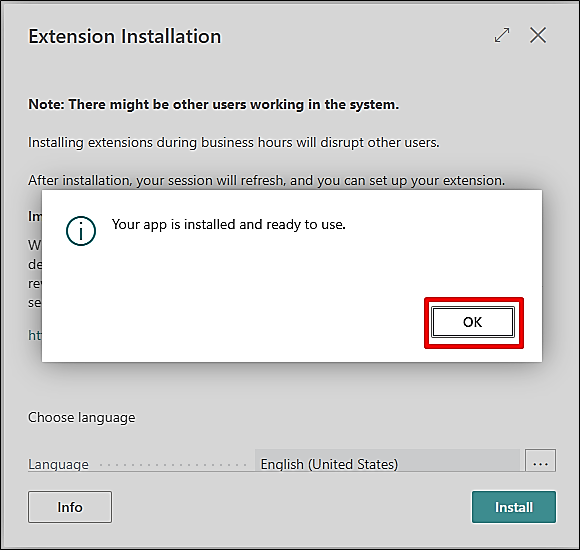
Once done, search for “Extension Management” to check the ProjectPro application being installed.

EXISTING SANDBOX/CUSTOMER
From the “Admin Center”, click on the link of your environment and click on “Apps” from the ribbon to see all the installed apps on the environment.

Scroll down to “ProjectPro” from the Manage Apps page and click on “Install Update”, if any.
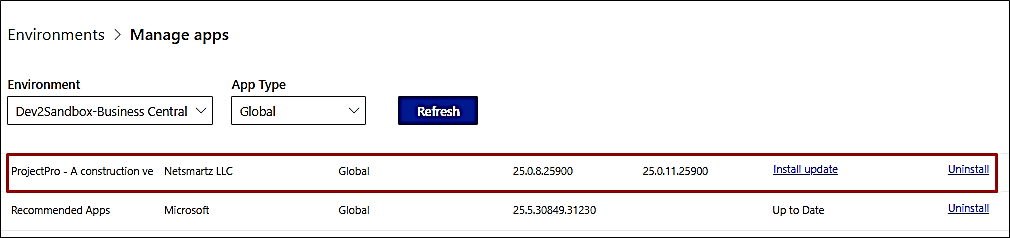
Once the app is up to date, you are good to proceed with your work on the environment.