Ch 02 – Request For Subcontract Change Orders
Contents
| INTRODUCTION |
| PROJECTS SETUP |
| SUBCONTRACT CHANGE REQUEST |
INTRODUCTION
Subcontract Change Request is created when a user receives any additional change request, to avoid hampering the existing scope of work. After the approval of the request, you can turn them to an actual Subcontract Change Order.
PROJECTS SETUP
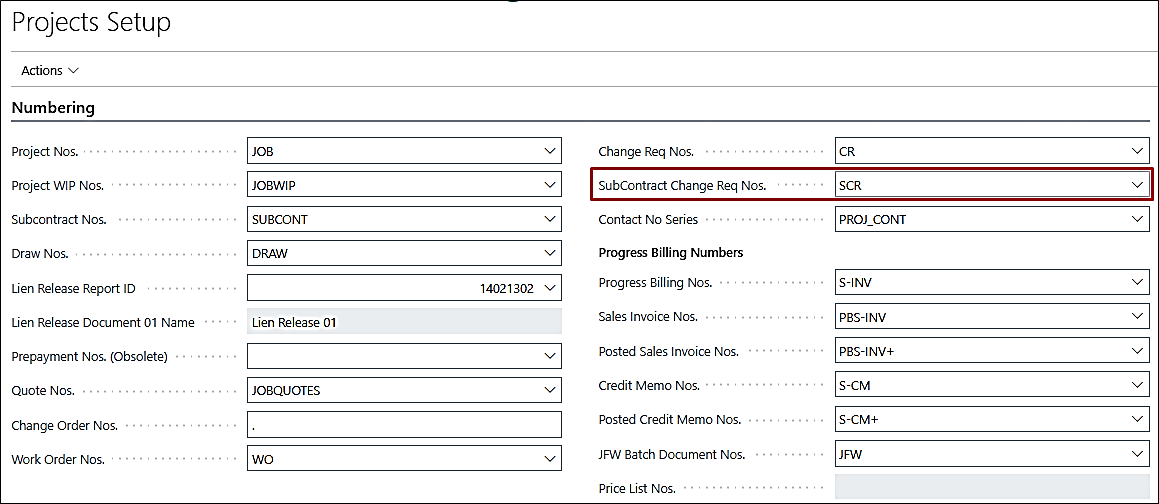
The Projects Setup has the default No. Series for Subcontract Change Request under Numbering fast tab.
SUBCONTRACT CHANGE REQUEST
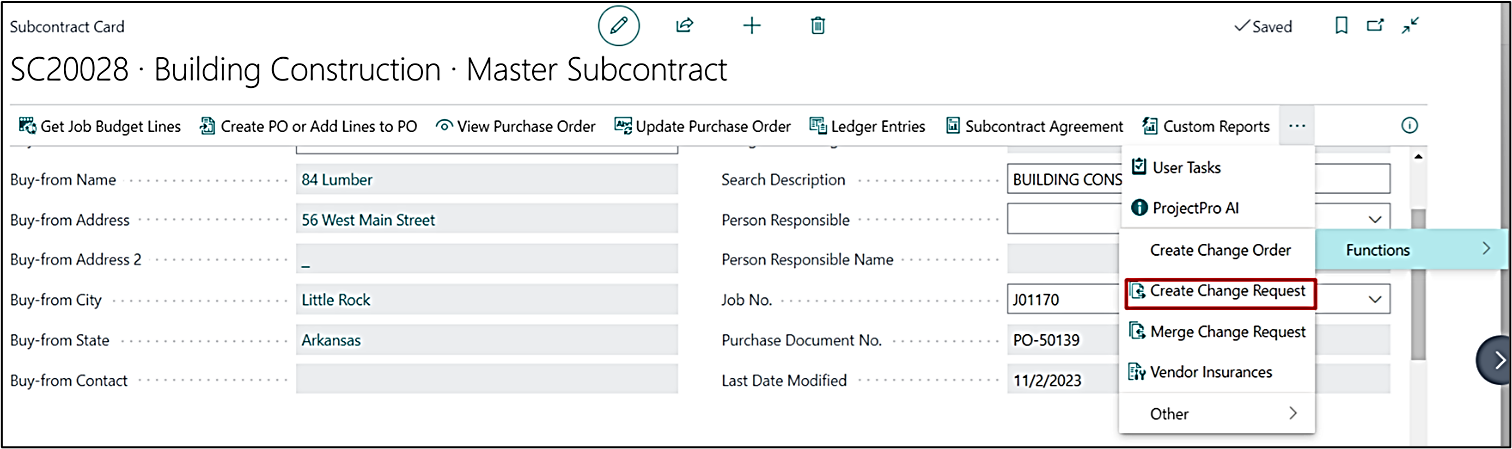
Create a subcontract in the similar manner as per the business requirement and additionally, click on “Create Change Request” from Actions → Functions → Create Change Request on the ribbon.
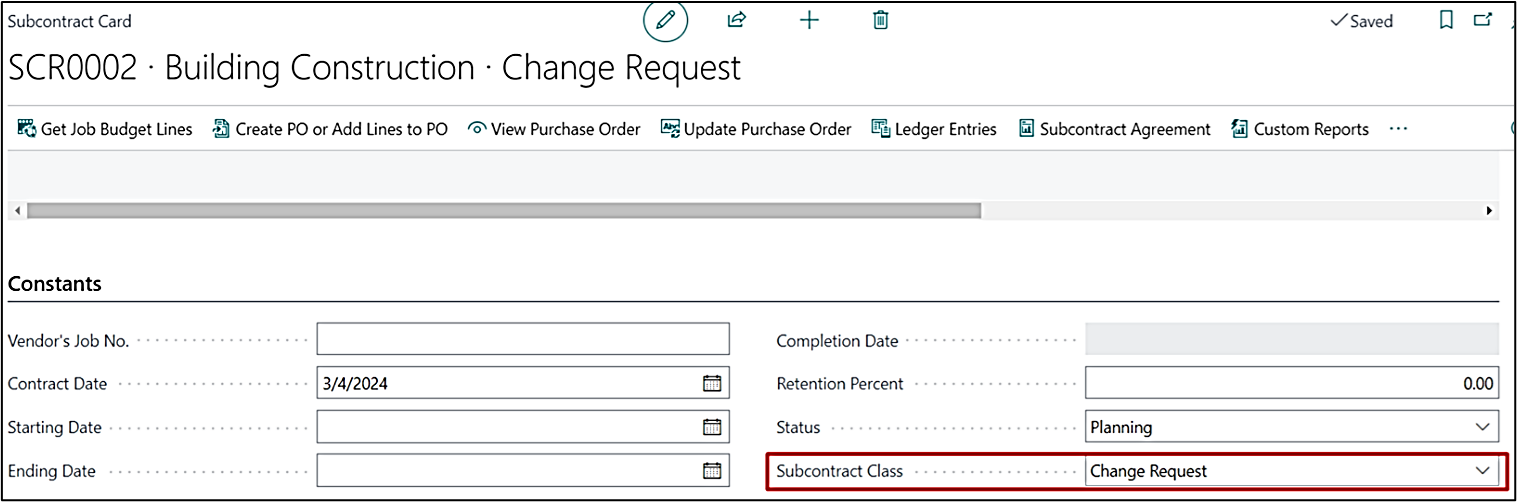
This will open a subcontract card with the Subcontract Class as “Change Request”. You have the option to either copy the master subcontract lines or add new lines to the change request.
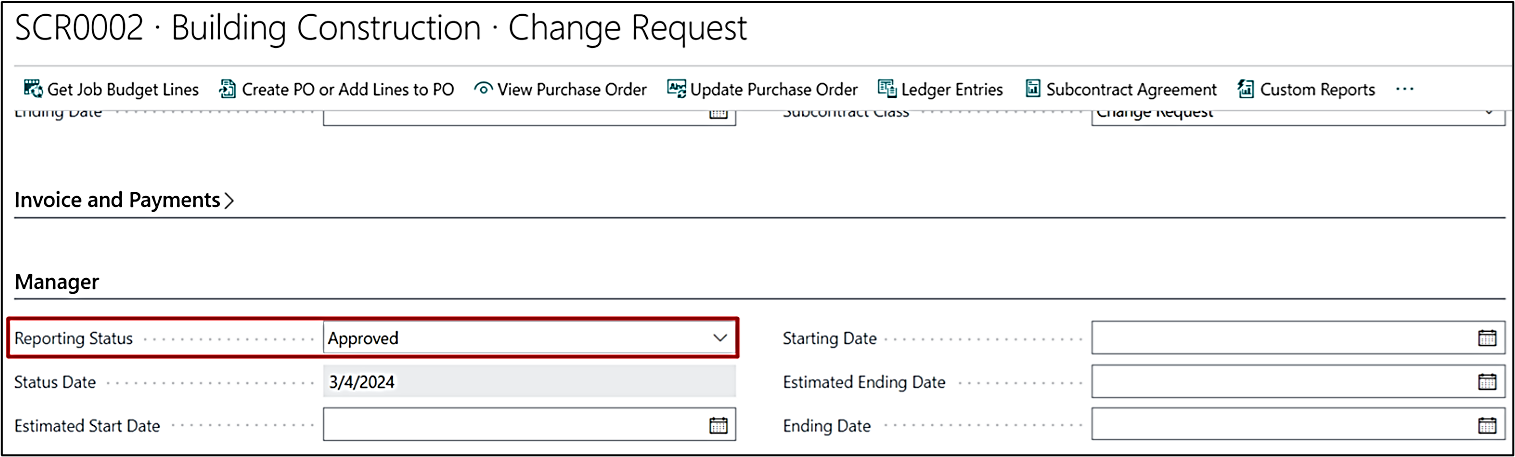
You can have multiple Change Requests as required. To approve the Change Request, the manager must change the status to “Approved” under the Manager fast tab.
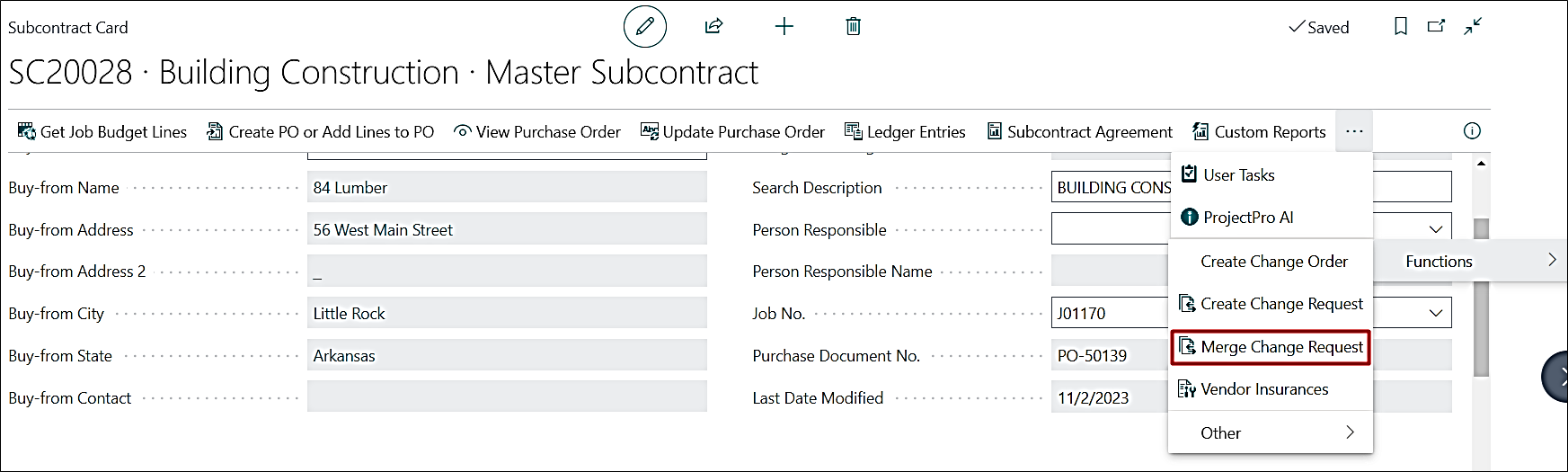
The different change requests then can be merged into one change order. To do that, click on “Actions → Functions → Merge Change Request” from the ribbon.
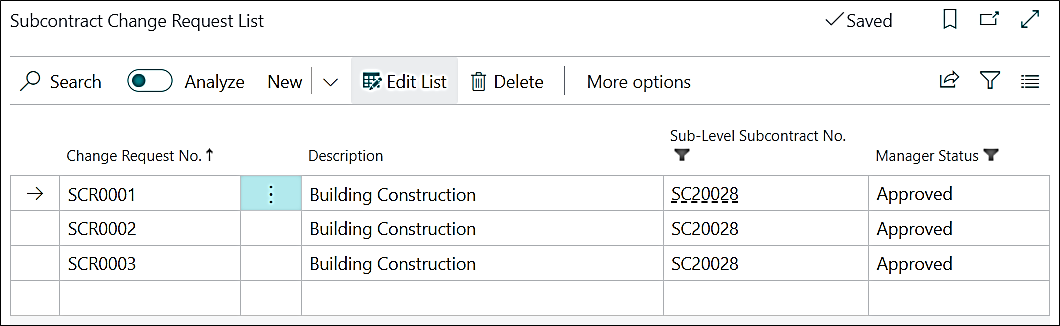
This will open the Subcontract Change Request List, showing all the Approved Change Requests.
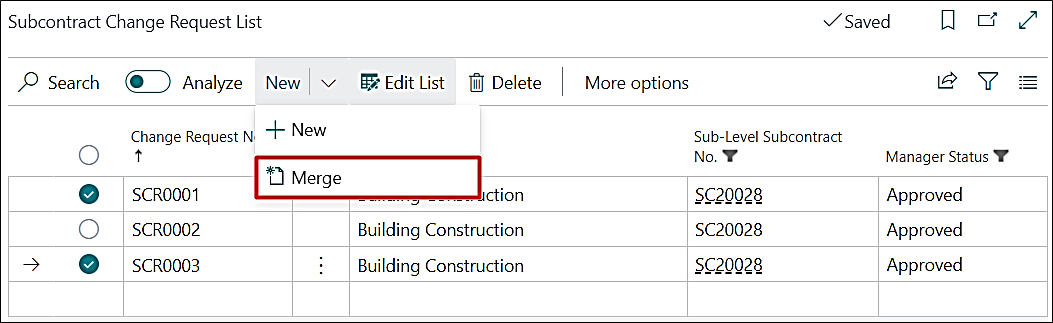
Select the Change Requests that you want to merge and click on “New → Merge” from the ribbon.
The user has the option to either create a new change order or merge it into an existing one.
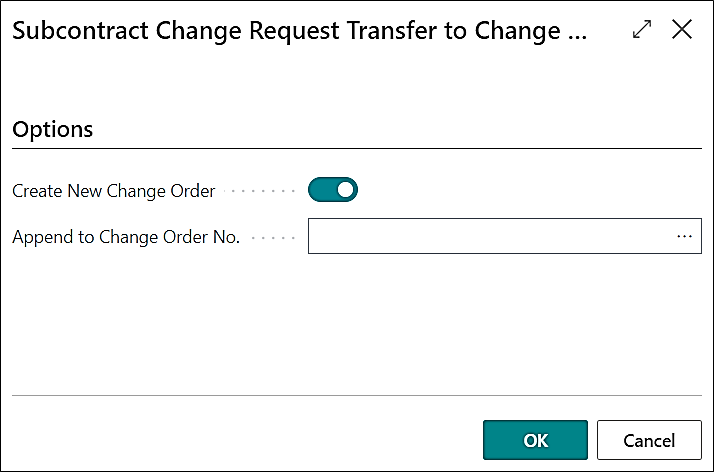
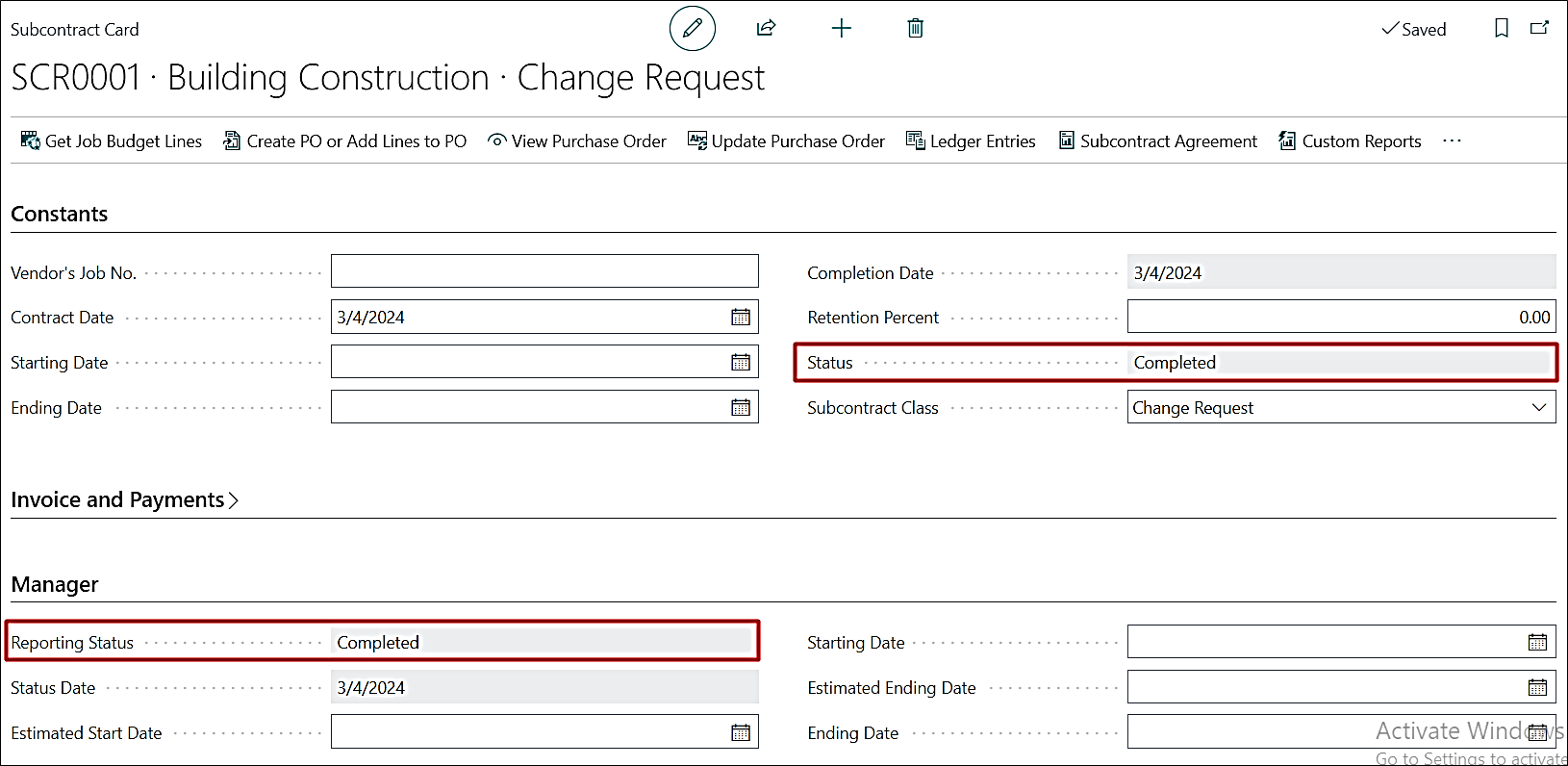
On selecting either of the options, the Change Request gets merged. The Status and the Reporting Status of the Merged Change Request becomes Complete after merging it into a change order.
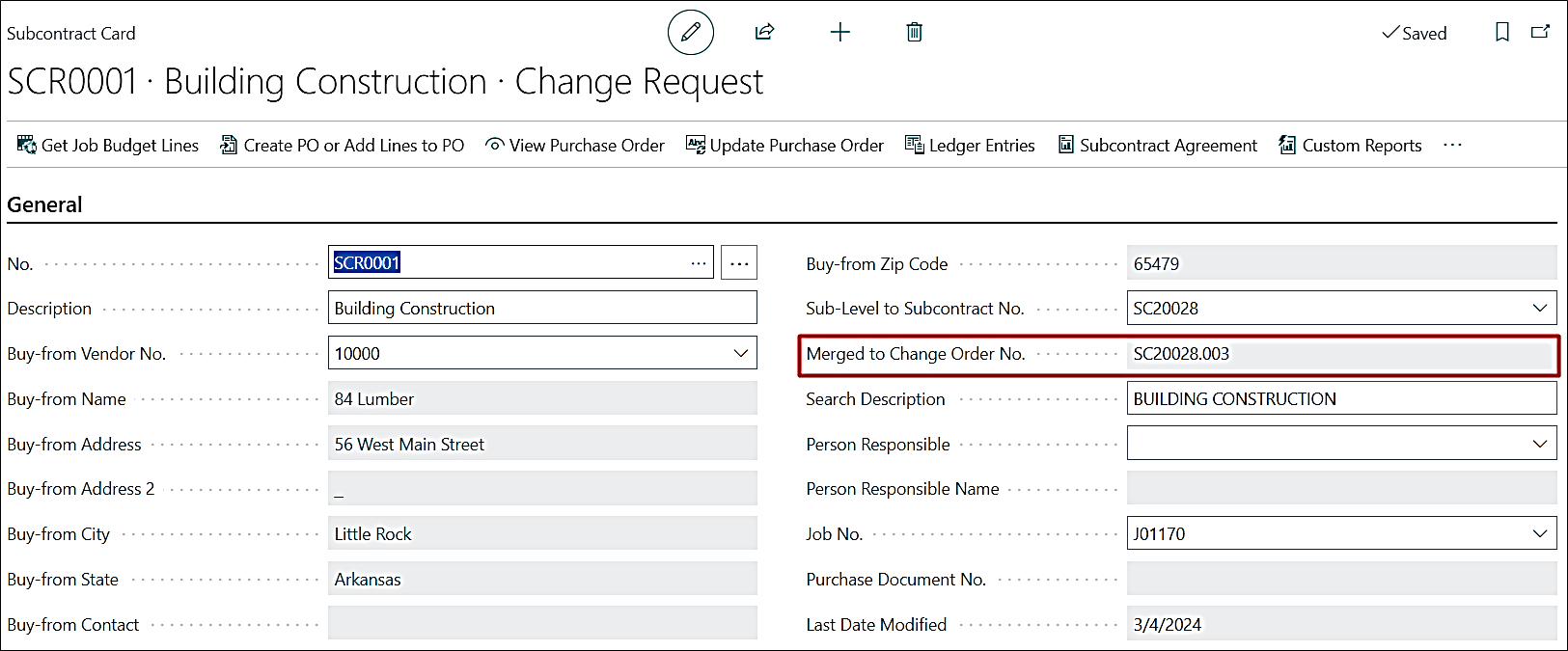
The merged change request also shows the “Merged to Change Order No.” field with the resultant Change Order No.
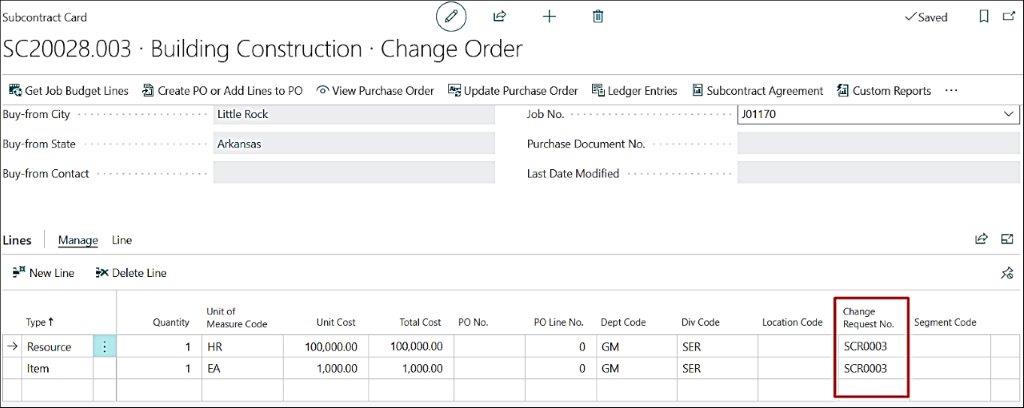
The reference to the Change Request No. can be seen on the subcontract lines from which it came.