
Ch 05 – Multiple Retention Percentages
Contents
| MULTIPLE RETENTION PERCENTAGE |
MULTIPLE RETENTION PERCENTAGE
In a Progress Bill, the user can enter different retention percentages for each line. To use the multiple retention % functionality follow the below steps.
Under the Project card page enter the required details, add tasks and planning lines to it.
Note: On the Project card, it is mandatory to enter the “Contract Date”.
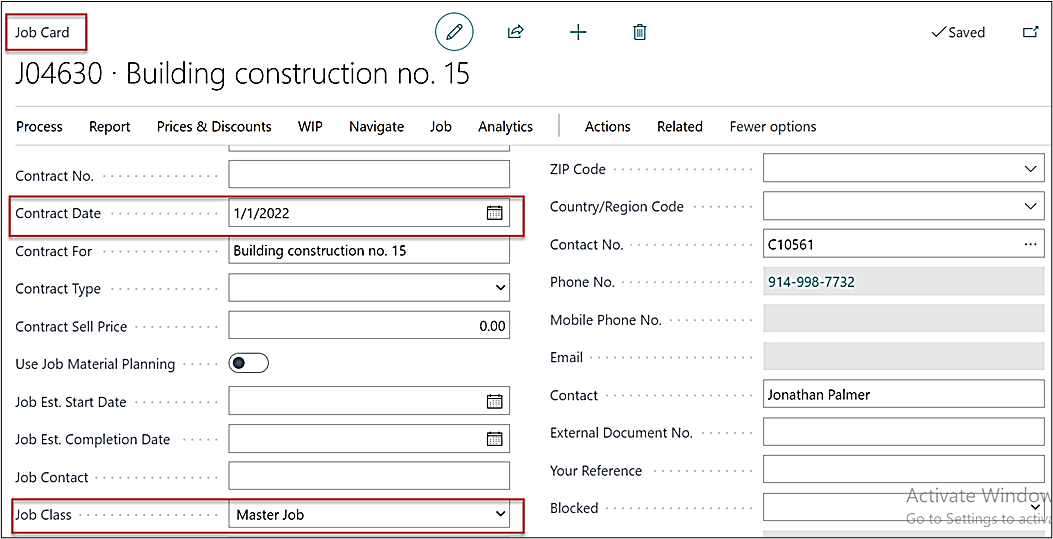
Create a Progress Billing and update the lines using “Get Billings” function.
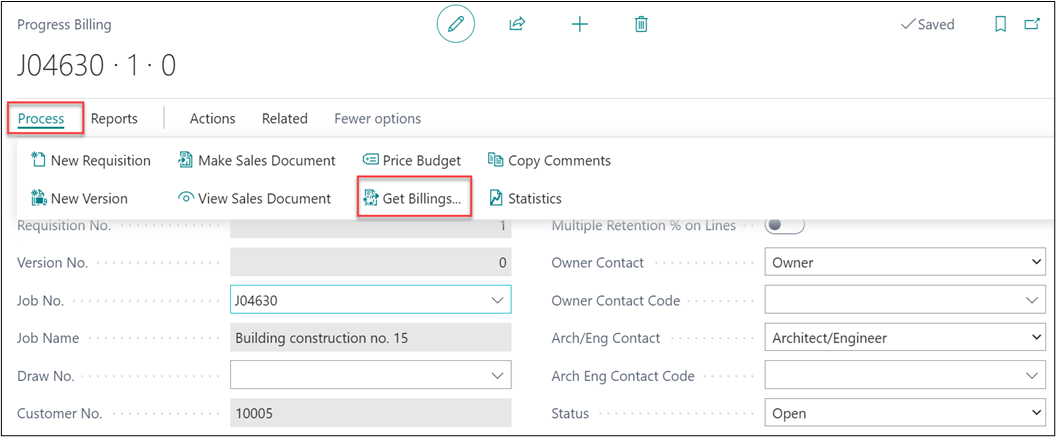
While importing the lines, the system will display a message ‘Should the Project J04630 card be updated to show that it is part of progress bill J04630?’, for master project and sub-project and user can click on ‘Yes’ for both Master Project & Sub-Project.
Second message will get displayed as ‘Is project J04630 a change order for Progress bill J04630?’, where user can opt to click on ‘No’ for Master and Sub-Projects. Click on ‘Yes’ in case of importing the change order lines.
Once lines are imported it will automatically populate the field “Contract Forecast Date” as you have mentioned “Contract Date” on Project card.
Note: In case of the sublevels (Change Order, Sub Project) Contract Date can be entered on the Progress Billing lines before creating the sales invoice and the AIA report will consider the “Contract Forecast Date” to indicate if the Change order is added in the current or previous period.
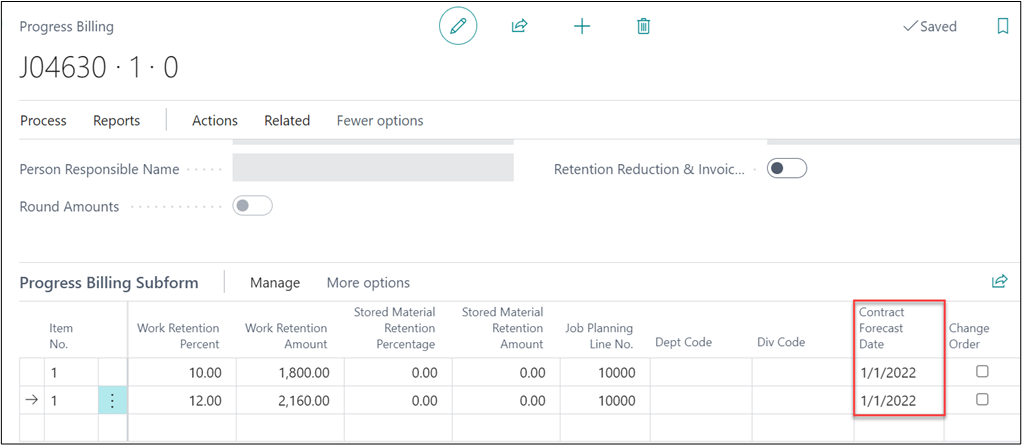
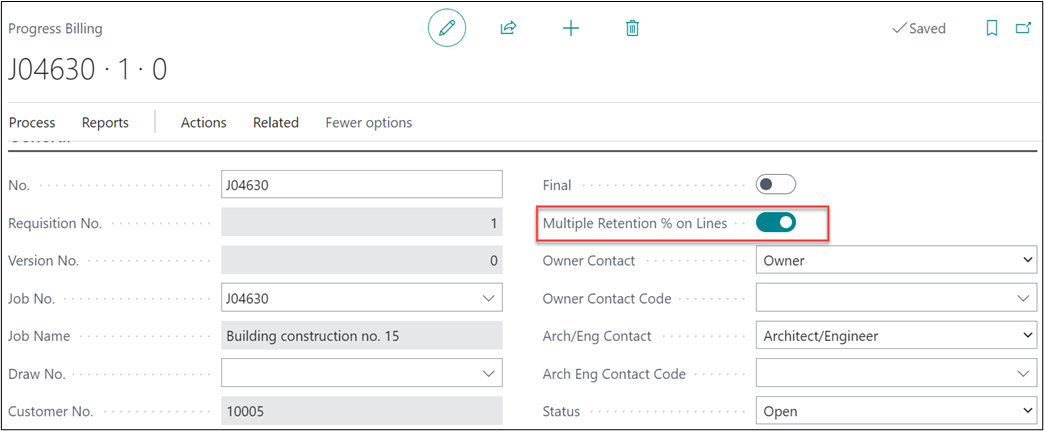
In this example, the Retention % is different for Master Project (10% Retention) and for Sub Project (12% Retention), so to calculate retention, enable the Boolean of “Multiple Retention % on Lines” from the General fast tab.
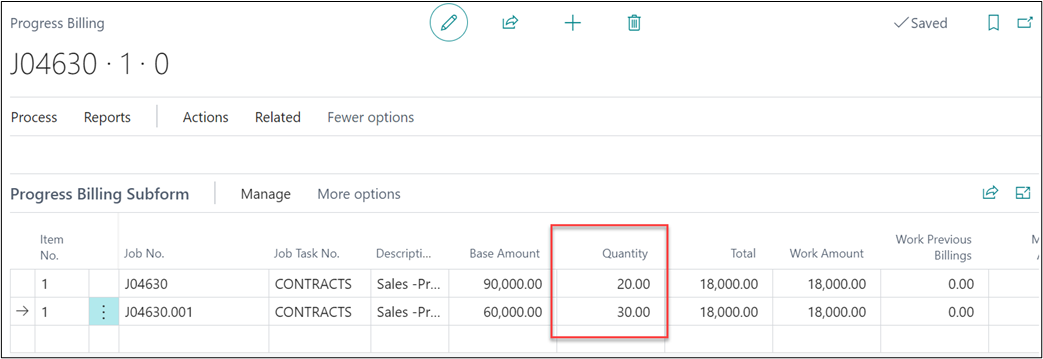
Enter the percentage in the “Quantity” column, see below.
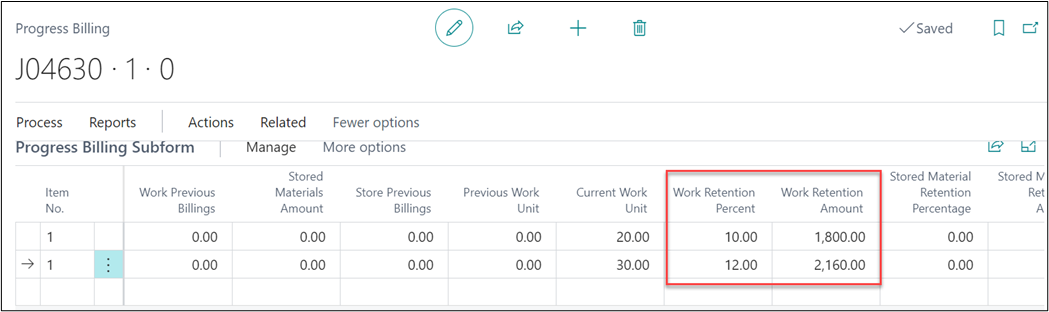
Enter the “Work Retention Percent” on both the lines for retention calculation.
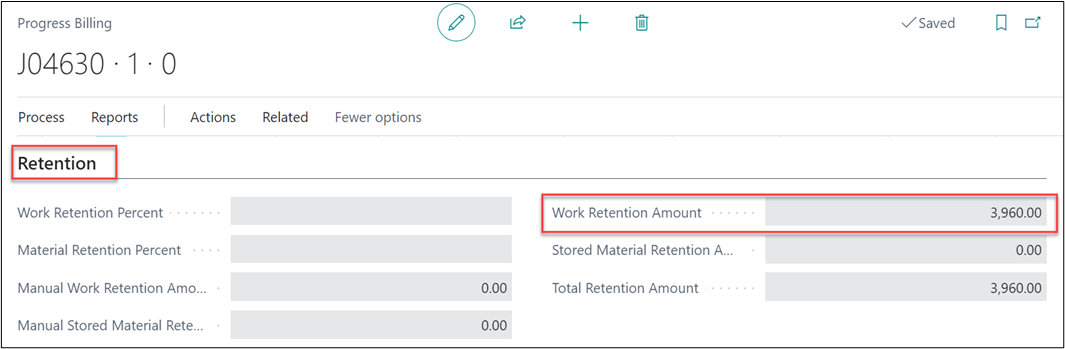
On the Retention fast tab, the field “Work Retention Amount” will show the total of Work Retention for all the lines.
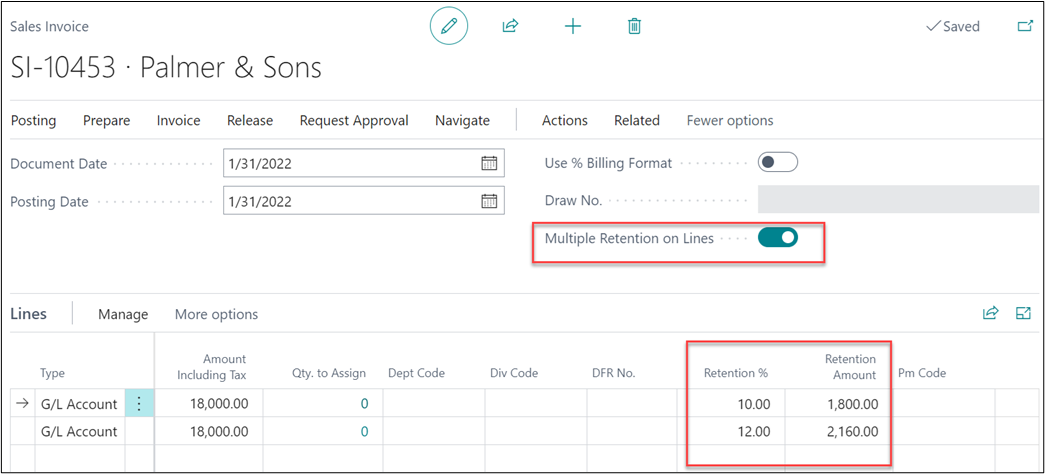
On a sales invoice, the Boolean “Multiple Retention on Lines” will become true automatically. The “Retention %” and “Retention Amount” on the lines of the sale invoice, will flow from the Progress Billing page for each line.
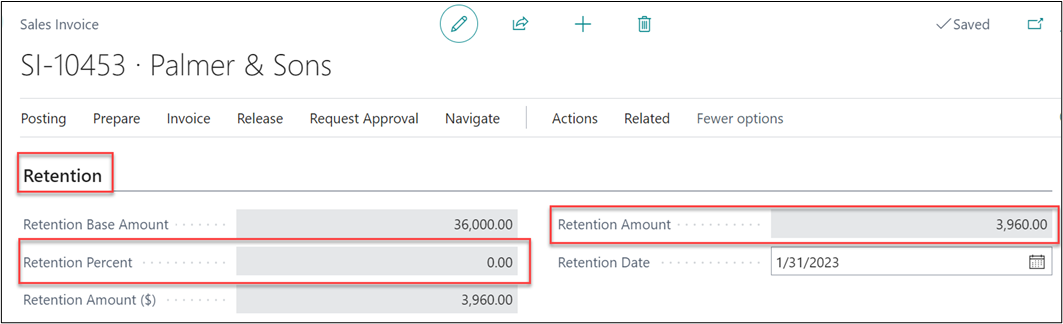
On the Retention fast tab, there would be no value mentioned on field “Retention Percent”, when Multiple Retention % is enabled. All the retention amount for each line will be added and be shown on field “Retention Amount”.
You can also run the “Combined CO AIA G702 and AIA G703” report from the progress billing to view the details and analyze the billing, see below.
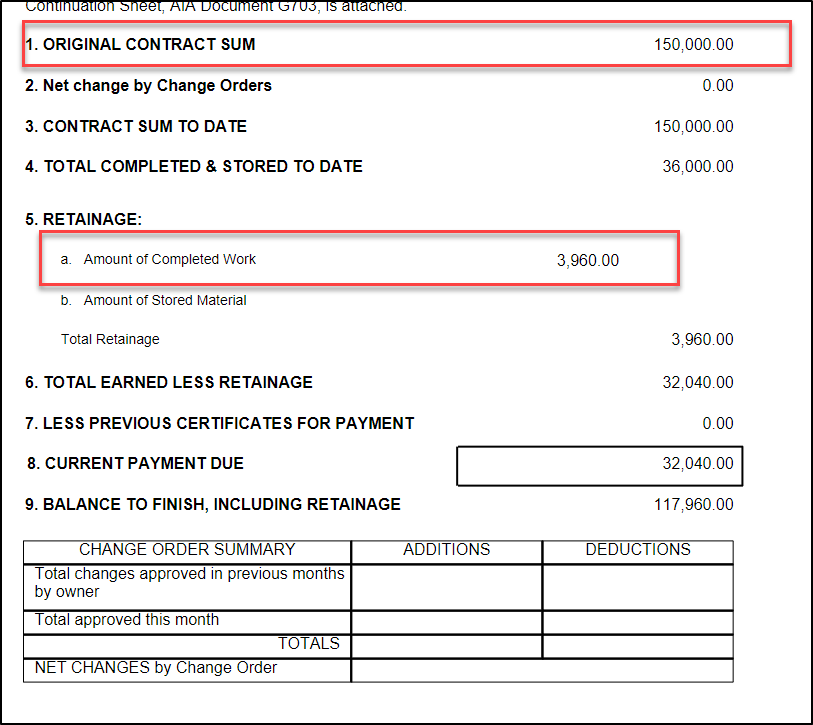
The “Original Contract Sum” shows contract amount as combined value of Master Project and Sub Project.
The “Amount of Completed Work” shows all the work amount that is been completed.