Ch 03 – Change Orders in Progress Billing
Contents
| INTRODUCTION |
| CHANGE ORDERS |
| 1. Addition of Change Order Document |
| 2. Addition of Change Order Planning Line |
| 3. Reports |
INTRODUCTION
A change order is work that is added to the original scope of work of a contract. A change order may force a new project to handle significant changes to the current project.
A change order for a project can be created in two ways,
1. One is the standard process, where you create a separate document for a project using “Create Change Order” function.
2. Second is to mark the project planning lines “Change Order” on the Master Project itself.
You can include both the forms of change order into the Progress Billings.
1. Addition of Change Order Document
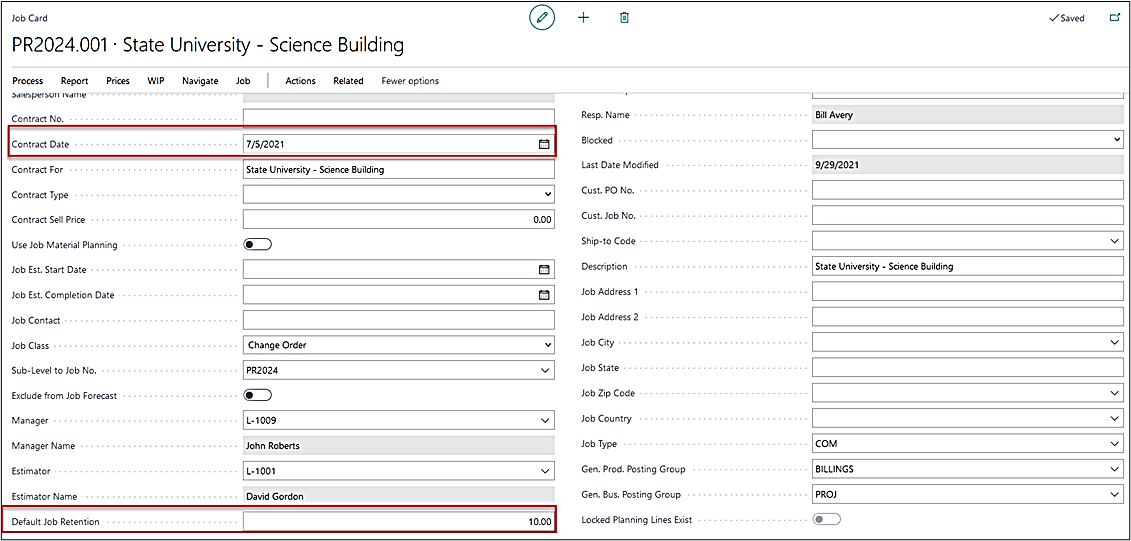
To include a change order project in a progress billing requisition, below are certain points related to “Contract Date” and “Default Project Retention %” (if applicable) that must be noticed for correct and smooth process.
1. The Contract Date on the project card is used to alter whether a Change Order Project is to be shown as ‘Current Month’ change orders or ‘Previous Months’.
2. The Contract Date on the project card is compared to the Requisition Billing Date on a progress bill.
3. If the change order contract dates are in the same month as the requisition date, then the change order billing value will show as ‘Current Month’ change order.
4. If the change order contract date is prior to requisition billing date, then it will show as previous month’s change order.
5. If you do not enter any date in the contract date, the change order will not appear on the billing documents at all.
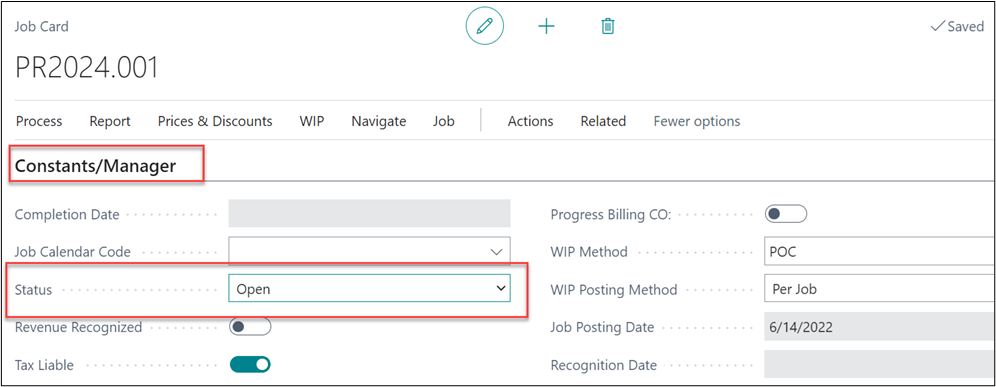
In the Progress Billing for a change order to be considered, the Status must be “Open” on the Constants/Manager fast tab of the project card.
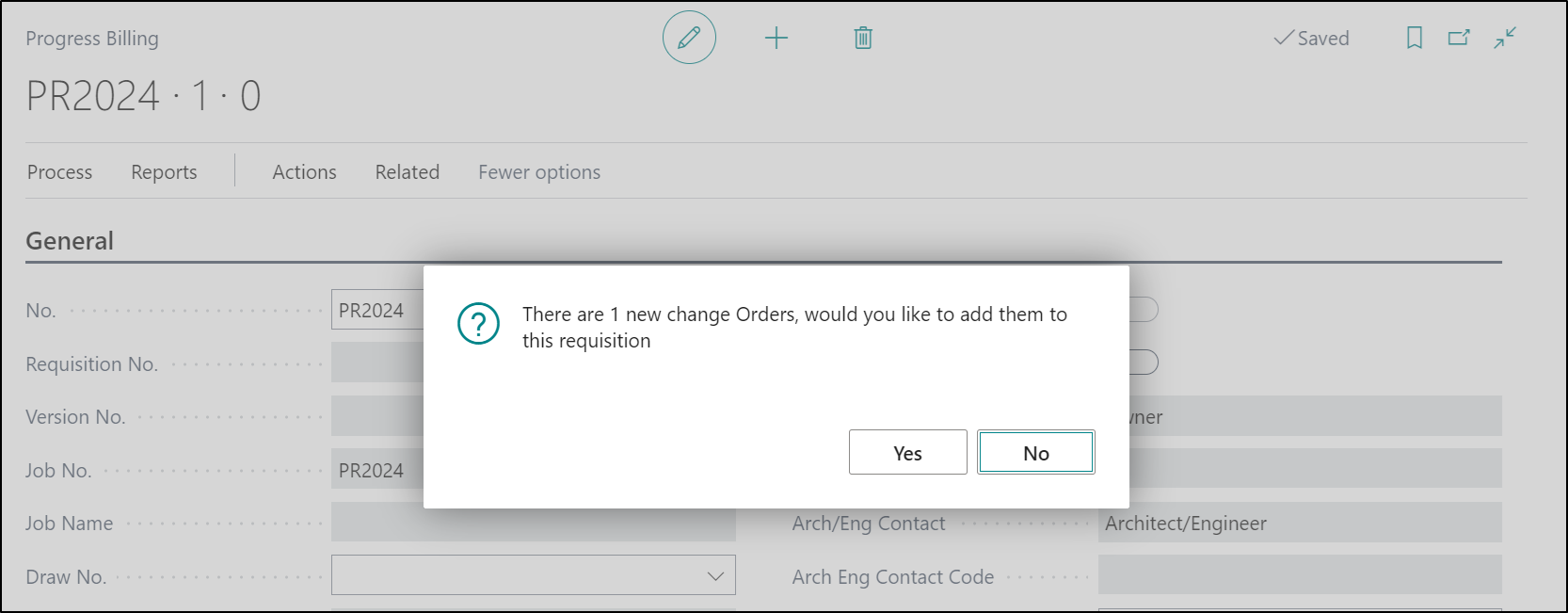
To select a change order on the progress billing,
1. In case of the first requisition, you can use the “Get Billings” function and select the required change order project.
2. If you are creating a second/subsequent requisition or a new version for an existing requisition, then the system will display a message as below, where you can click on Yes to add the change order.
You’ll notice that Planning Line from Change Order has now been added to your Progress Billing Lines.
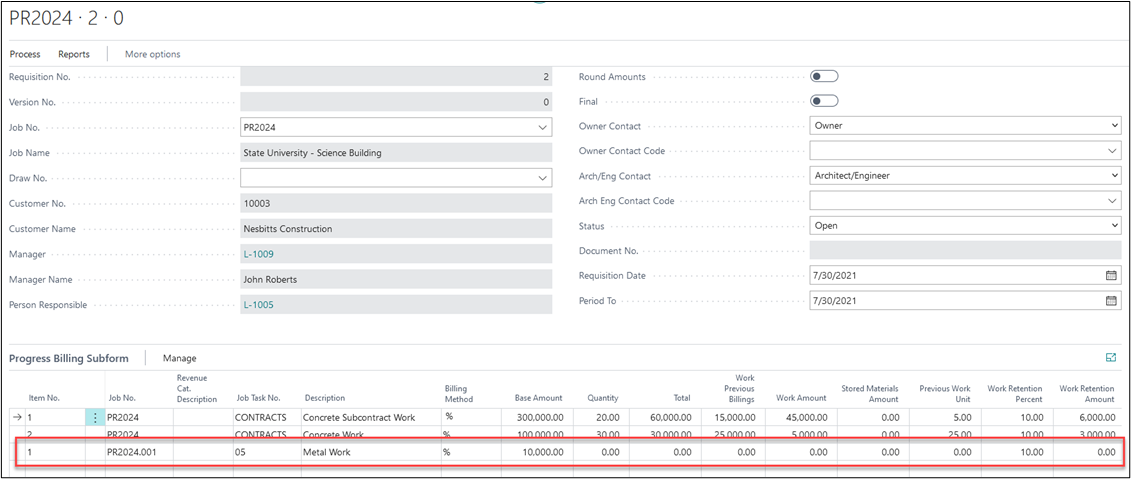
From here you can continue the process of the normal progress billing and run each available report to see that the Change Order has been added.
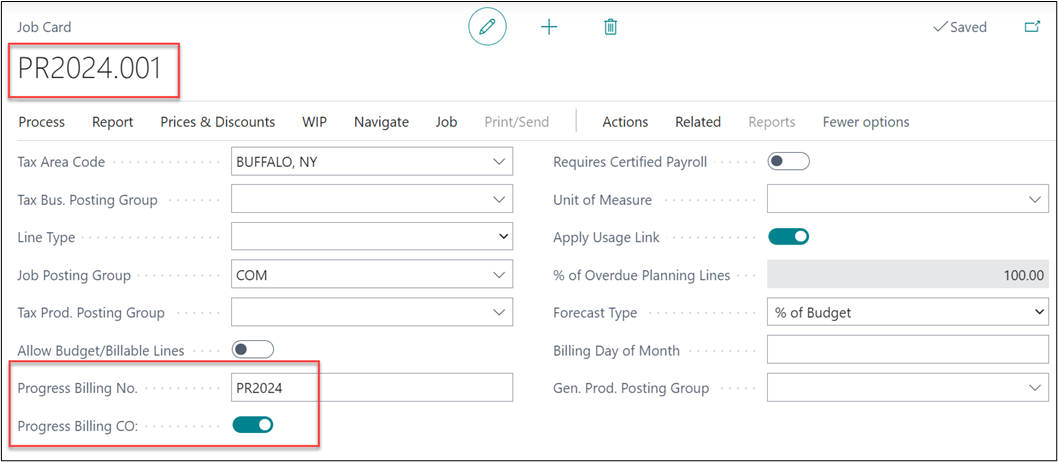
Additionally, on the change order project card under Constants/Manager fast tab, the “Progress Billing No.” field will get updated with the Master Project No., and the “Progress Billing CO” Boolean will become “True”.
2. Addition of Change Order Planning Line
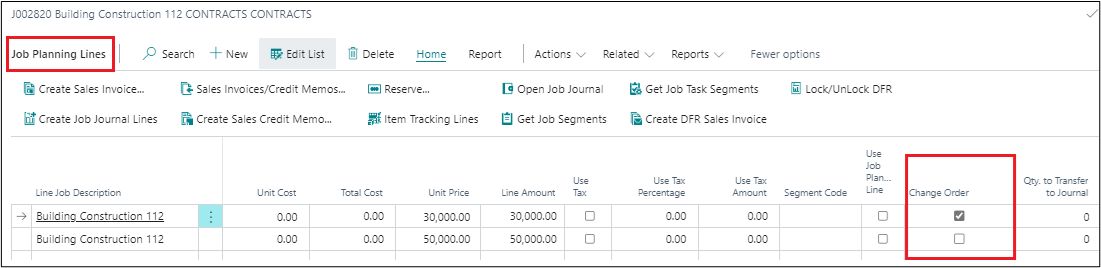
On a project while creating the project planning lines, identify the lines that need to be marked as “Change Order”, see below.
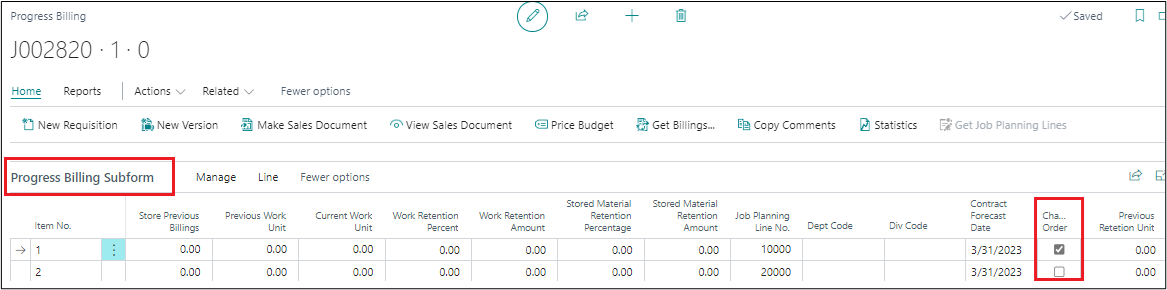
When the planning lines are carried over to the Progress Billing, the markings also get updated to the progress billing lines, see below.
3. Reports
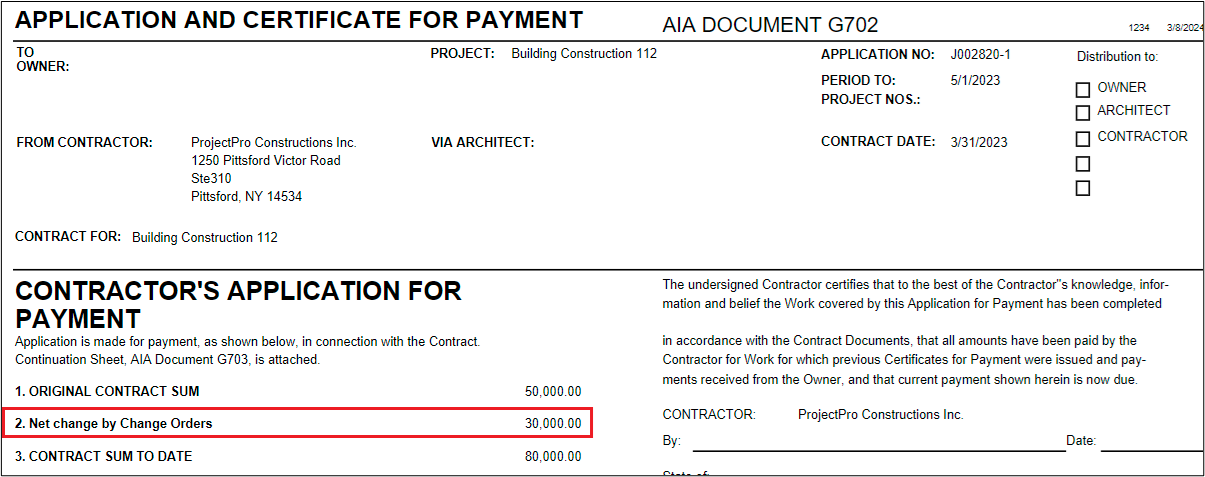
Users can also run the report “Combined CO AIA G702 and AIA G703” to analyze the information for Main Contract and Change order.
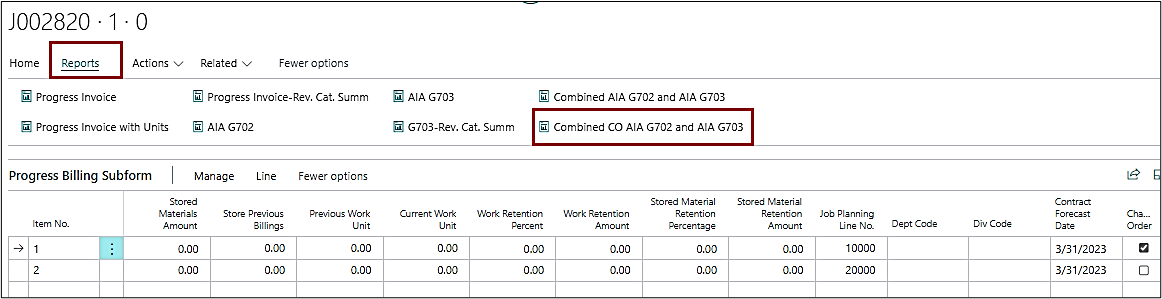
A two-page report with change order value will be generated which can be sent to your Customer as well, see below.