Ch 16 – Daily Field Report (DFR) for Time and Material
Contents
| INTRODUCTION |
| Add DFR No. Series on Project Card |
| Setting up Unique Prices |
| Posting the Usage |
| Creating DFR No. |
| Lock/Unlock DFR |
INTRODUCTION
Daily Field Report
A daily field report is a pre-formatted document that stores information about a day’s work, typically for a work crew. With this daily field report form, you can collect information about your workday, then share it with others. This is a great way to organize your day and track important info.
Add DFR No. Series on Project Card:
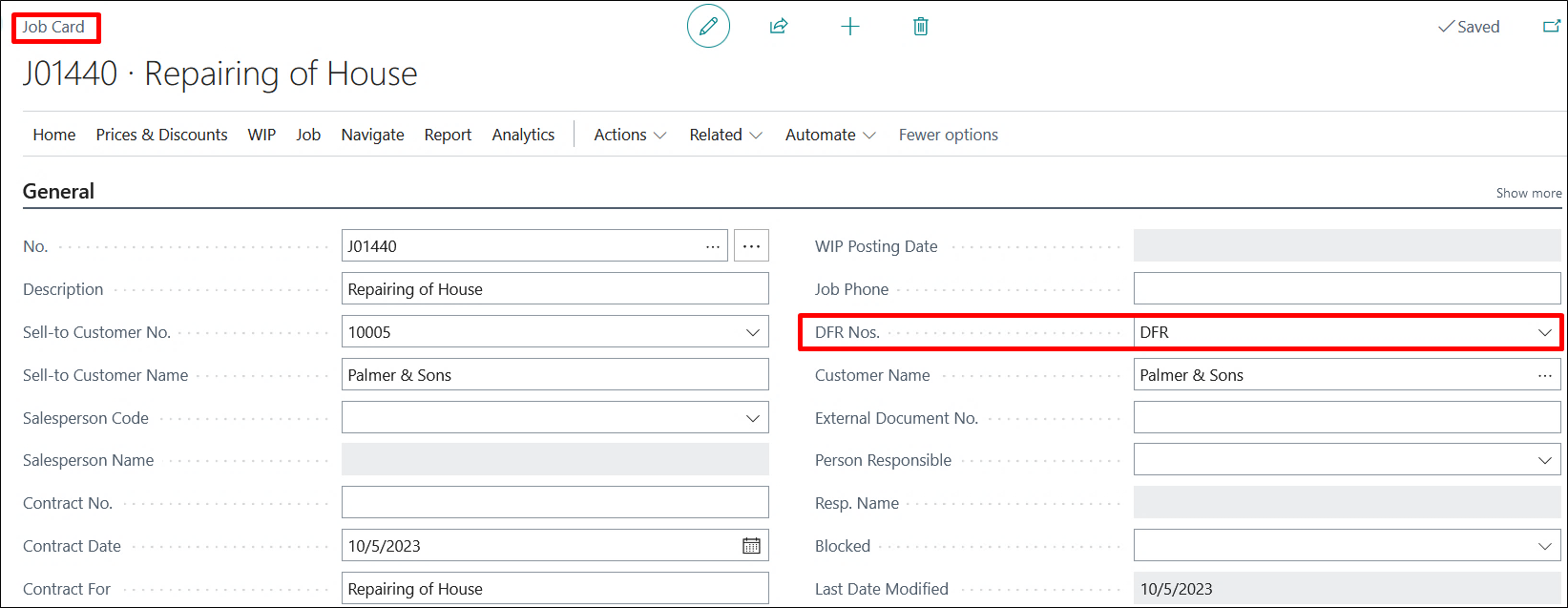
User first create a Project card and then on General fast tab they need to add the DFR Nos.
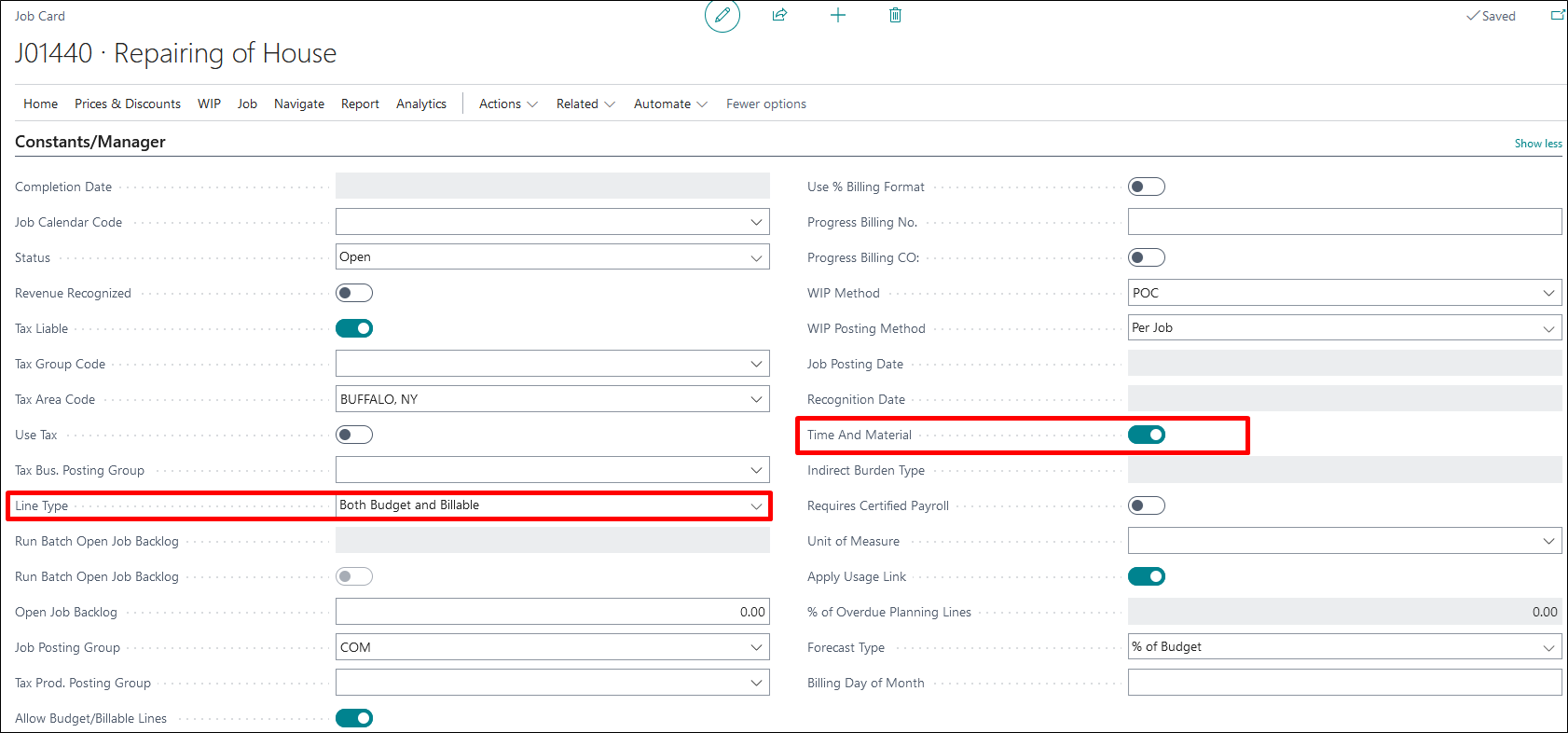
Then on the Constants/Manager fast tab user needs to turn on the Time and Material Boolean on and then system automatically selects the Line Type.
Setting up Unique Prices:
User needs to set the special prices for Resource and Cost Categories

Here we have taken 2 cost categories and set the Markup% accordingly.

Now, we go back to the Project card and set Special prices for Resources through Price & Discounts button on the ribbon.

Now on the Project Resource Cost/Price page user have to set the cost and the price of the resource and on the basis of the difference Markup % is calculated.

Posting the Usage:
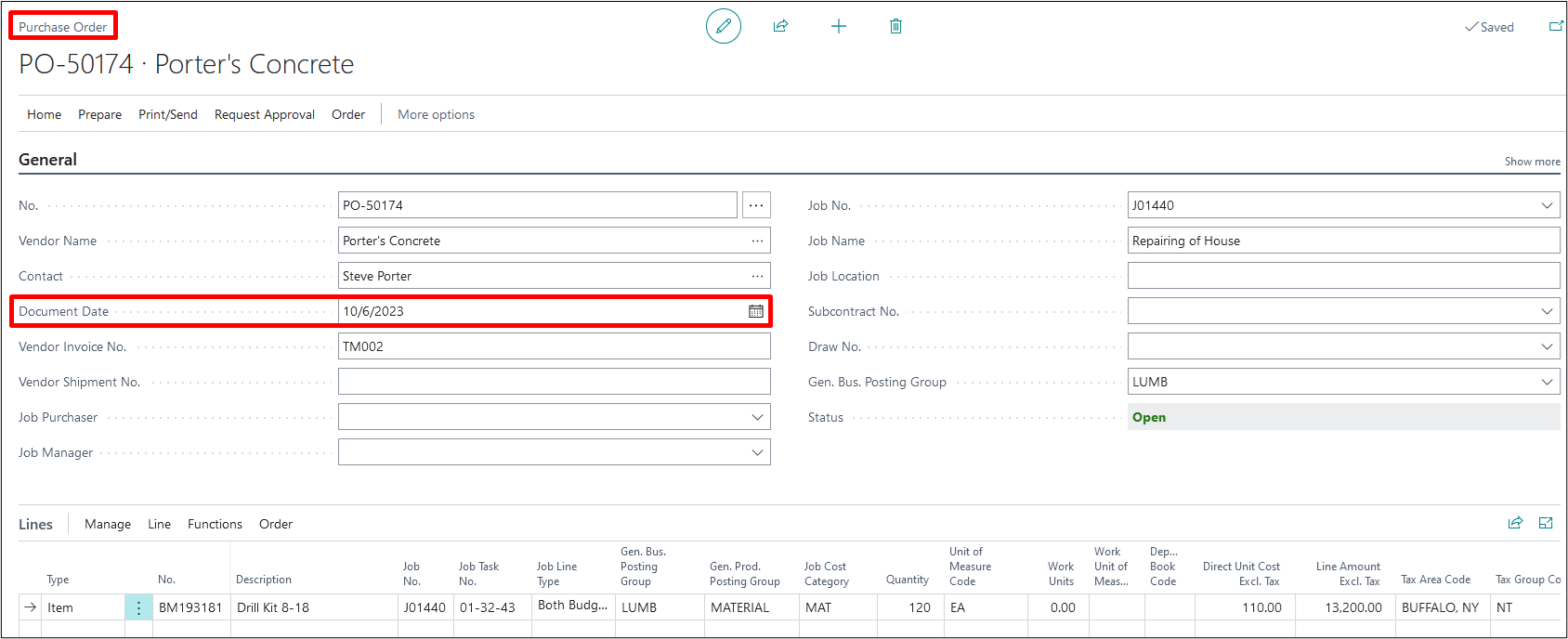
Now on the Purchase Order user needs to define the Document Date for which he is posting the usage.
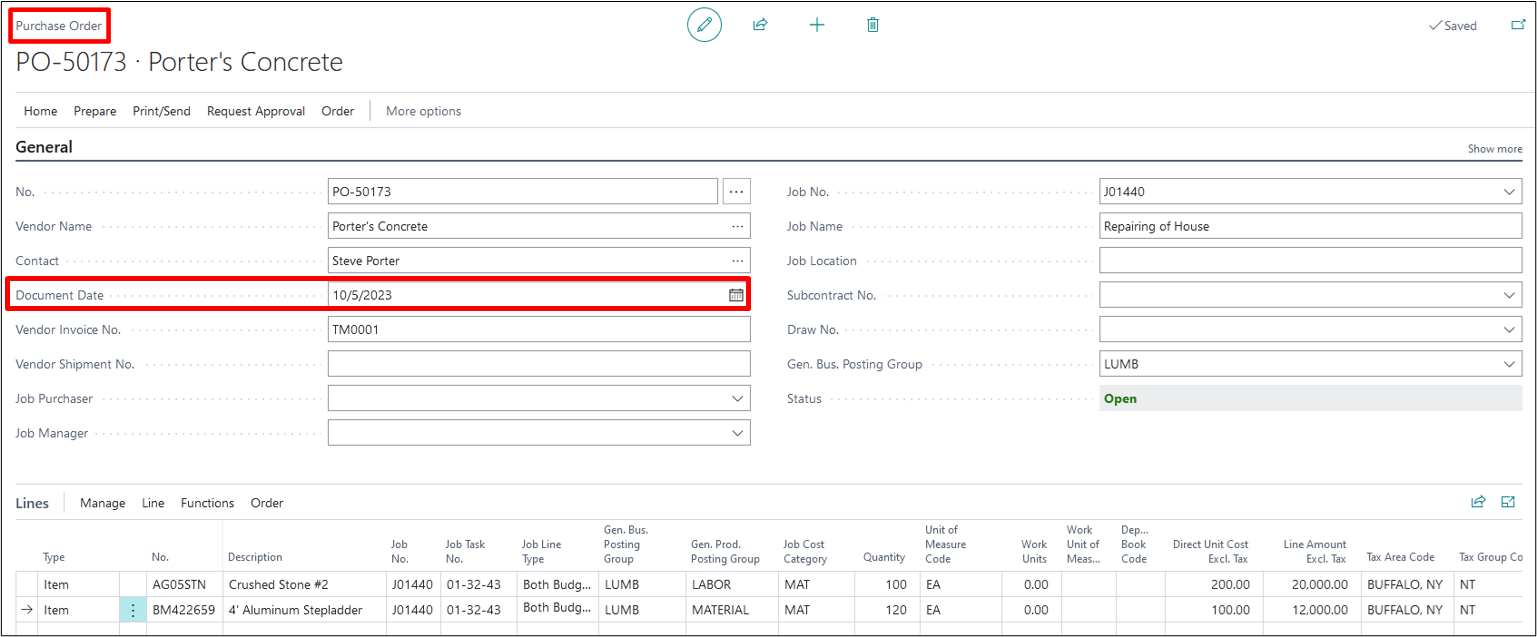
Now on the next Purchase Order the user have to select the date on which the next purchase is made.
Now on the Project Journals user can post the usage of the Resources and also can select the different dates on which the Resources are used.

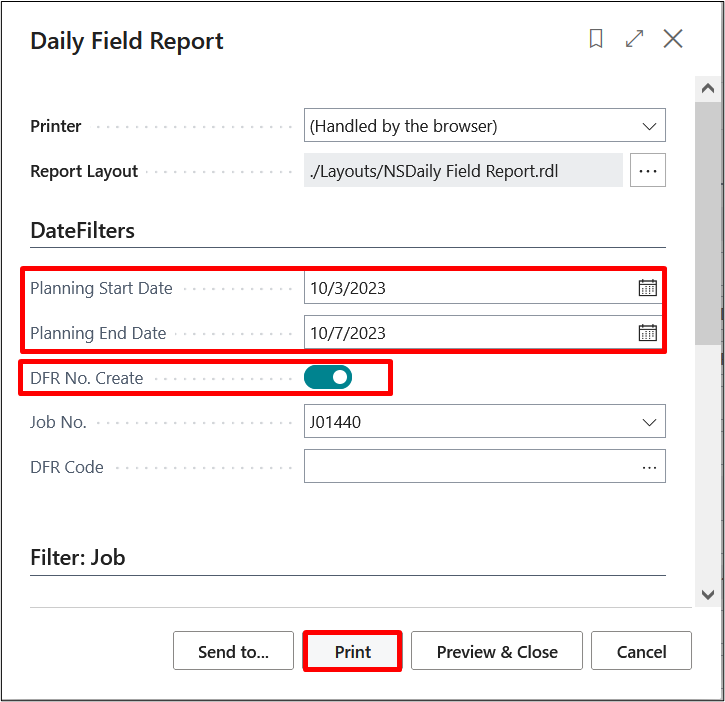
User can go back to the Project Card where he can create a DFR no. by running the Report Daily Field Report from the ribbon.
Creating DFR No.:

By selecting the Daily Field Report, a request page is opened where the user can select the dates of usage posting to create the DFR numbers.
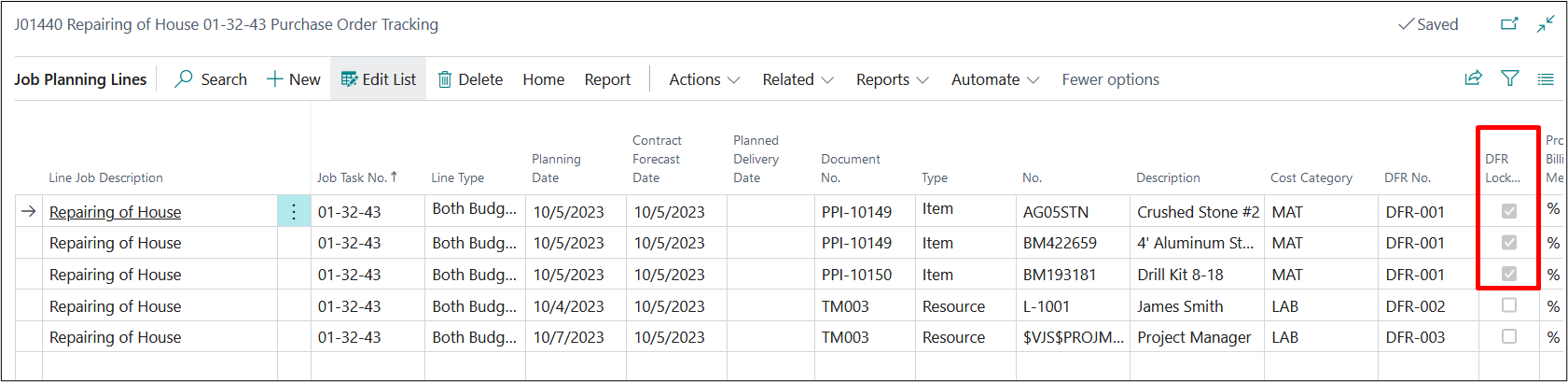
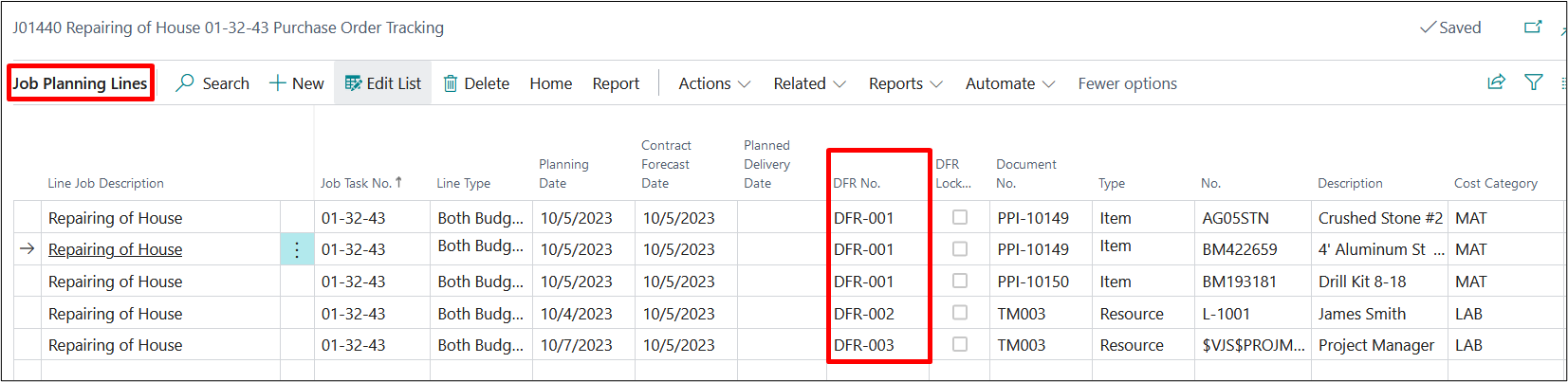
Now on the Project Planning lines we can see that different DFR numbers have been generated based on the posting of usage and for this user needs to run the DFR report of different dates. User can also add the DFR No. manually.
Lock/Unlock DFR:
If the user wants to make the DFR No. un-editable then the User can Lock/Unlock the DFR by selecting Lock/Unlock DFR button from the ribbon.
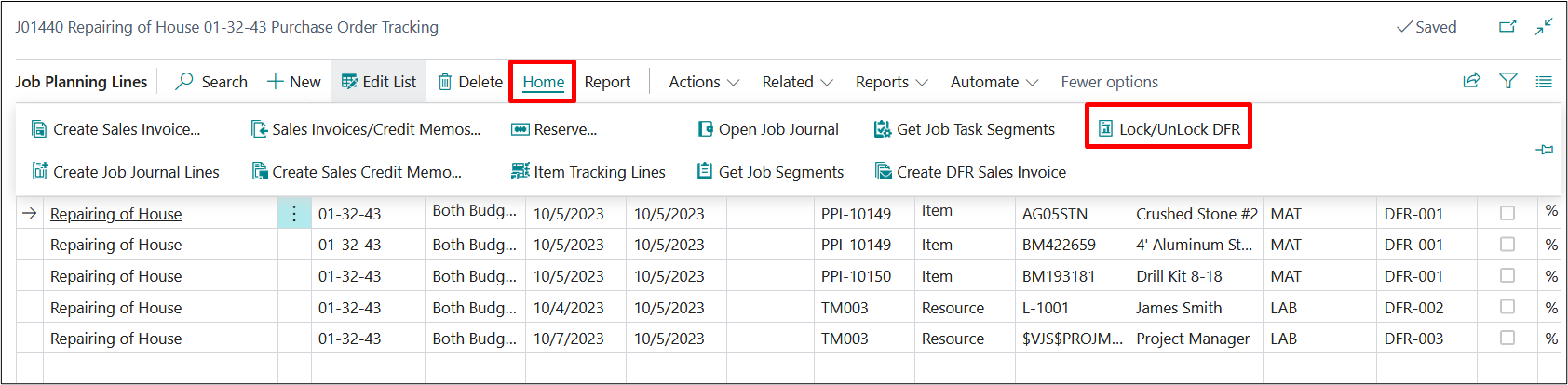
Then a request page of Lock/Unlock DFRs opens up and user have to fill the required details.
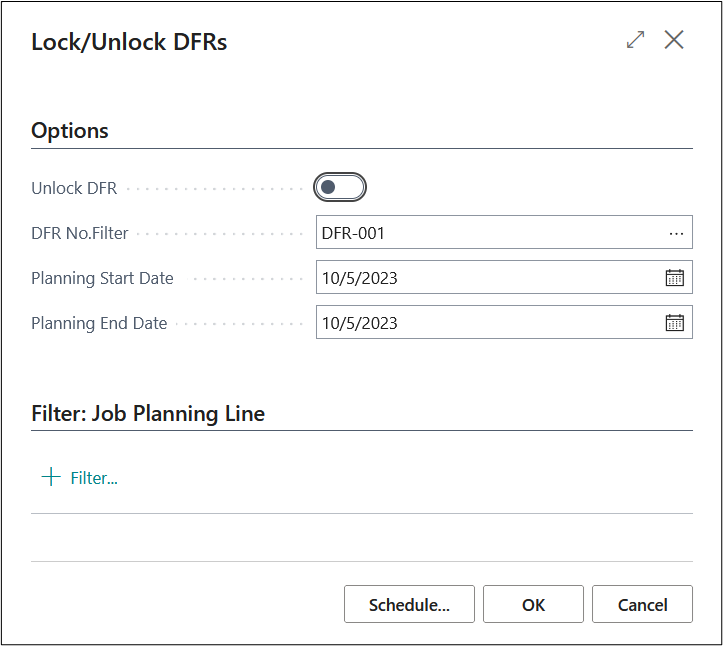
Then on the Project Planning lines we can see the selected DFR No. have been locked and now we cannot change the DFR No.