
Ch 01 – Subcontract Process
Contents
SUBCONTRACT CARD
The purpose of the Subcontract module is to manage your subcontractor’s contracts, change orders and work performed. This information can be set up and managed with Subcontract Cards.
From a project card, you can access the Subcontracts list for the specific project you are in.
For a complete list of your subcontracts, you can search “Subcontracts” from the search Icon. Alternatively, if your role type is ProjectPro Manager, you can select the Subcontracts option from your role center.
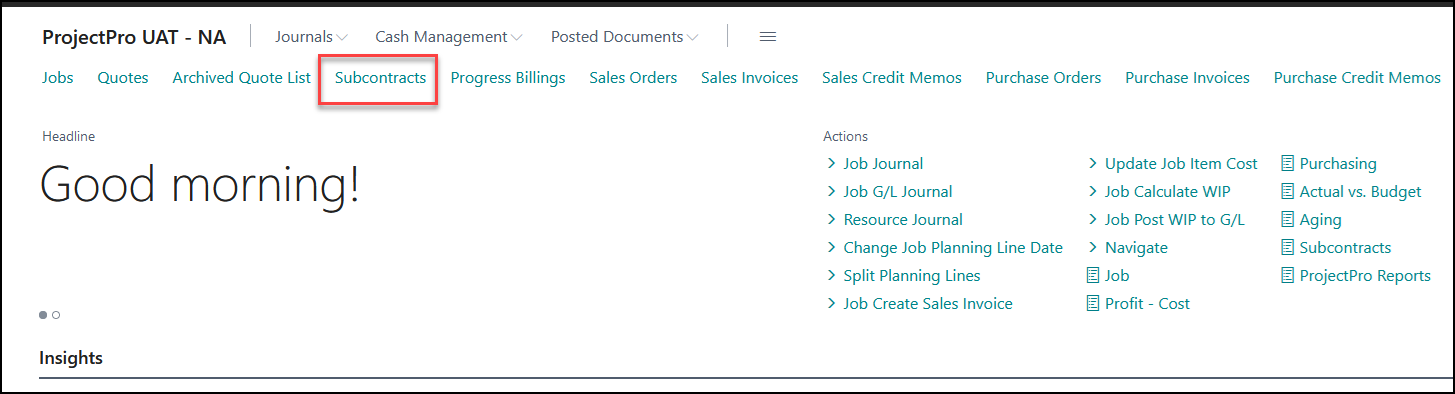
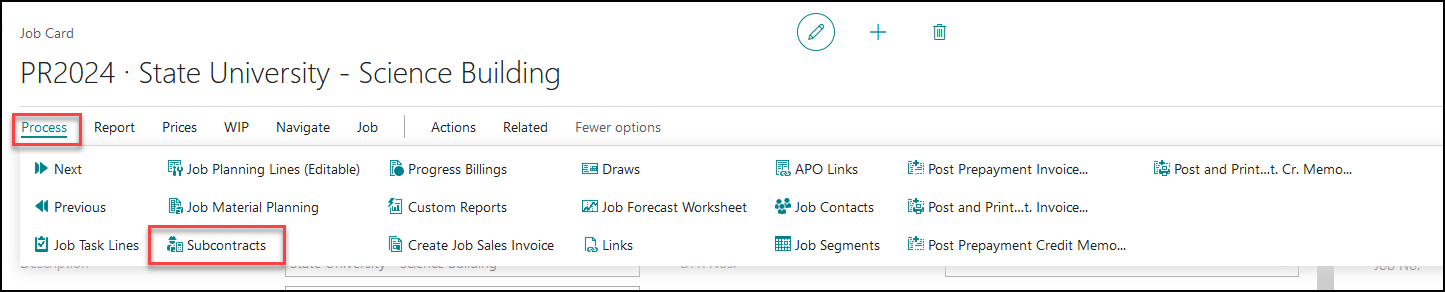
Once selected, you will find a list of your subcontracts as we have shown below.
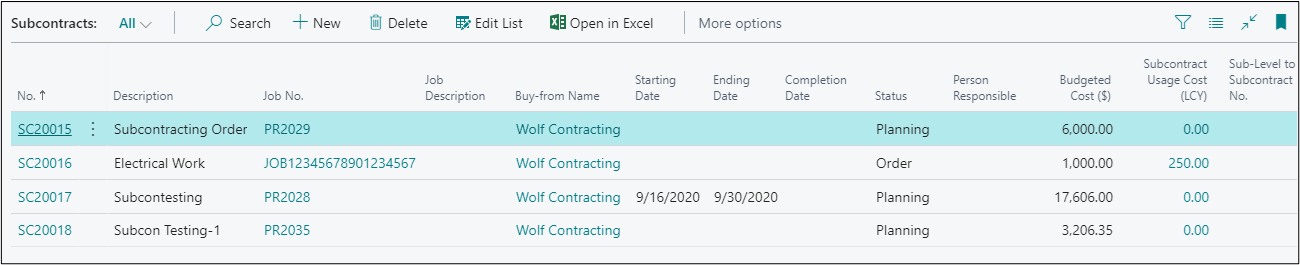
Select an existing subcontract to edit or create a new one.
A Subcontract Card is similar to a Project Card. Below we will detail each field and it’s use.
1.1 General Fast Tab
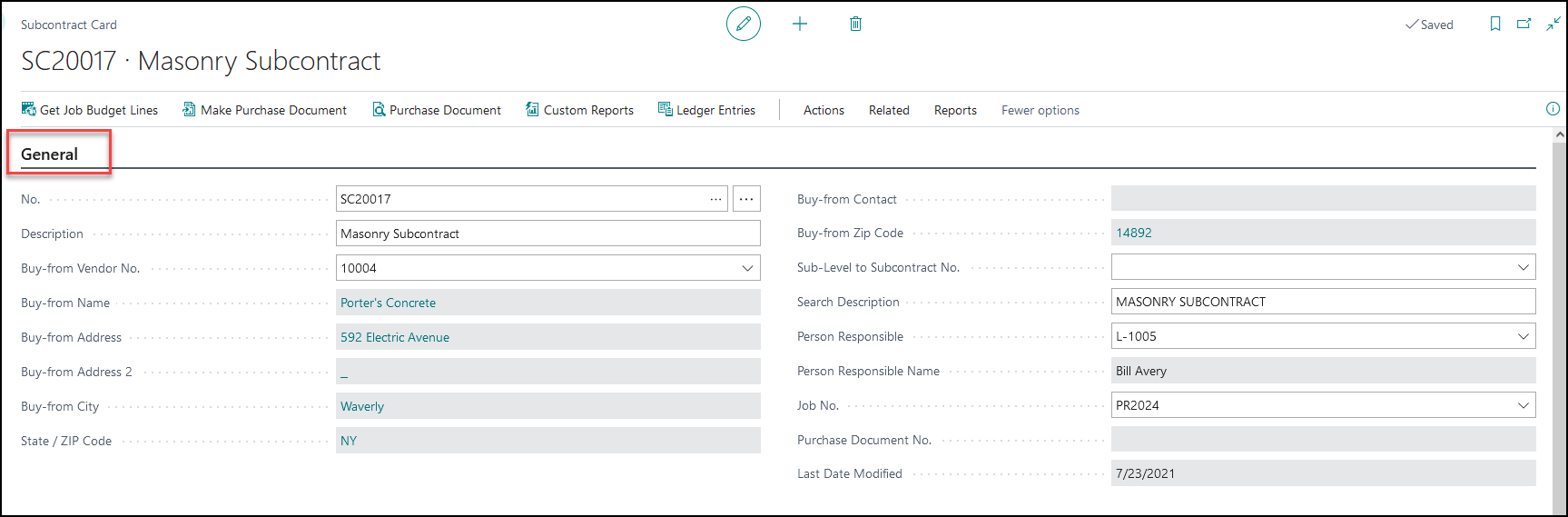
| FIELD | DESCRIPTION |
| No. | Subcontract number – manual or automatic. To automatically assign the next available No. user needs to set the no. series in the project setup page and to generate the next no. from your No. Series, tab off this field on the subcontract page. |
| Description | Specify the task name user like to assign to the subcontractor. |
| Buy-From Vendor No. | Enter vendor for the Subcontract |
| Buy-From Name | Vendor name defaults from Vendor no. selected |
| Buy-From Address | Vendor address defaults from Vendor no. selected |
| Buy-From Address 2 | Vendor address defaults from Vendor no. selected |
| Buy-From City | Vendor city defaults from Vendor no. selected |
| State | Vendor State defaults from Vendor no. selected |
| Buy-from Zip Code | Zip Code defaults from Vendor no. selected |
| Buy-from Contact | Vendor contact defaults from Vendor no. selected |
| Sub-Level to Subcontract No. | If this subcontract is related to another subcontract, please specify the associated subcontract. |
| Search Description | The Subcontract Description becomes the Search Description unless it is changed. |
| Person Responsible | This field contains the code of the person responsible for the Subcontract. You can click the Assist Button in the field to see a list of resources. |
| Project No. | The Project no for which this Subcontract is made. |
| Last Date Modified | This field shows when the project card was last modified. When you change information on the Subcontract card, the program automatically updates the Last Date Modified field to show the current system date. |
1.2 Subcontract Lines Fast Tab
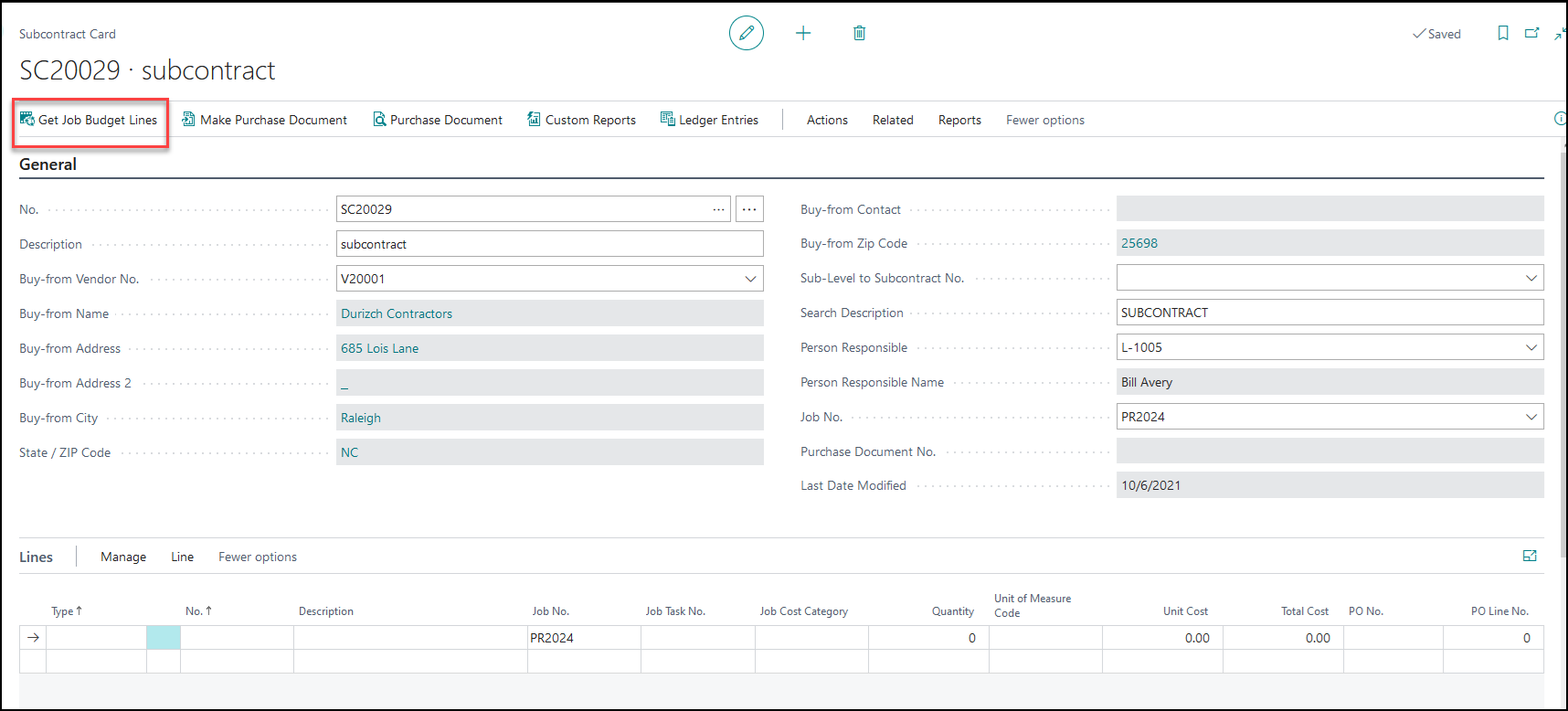
You can assign Project Planning Lines to a subcontract by selecting “Get Project Budget Lines” from the ribbon. Your Project Planning Lines will be displayed on a new page for you to select from.
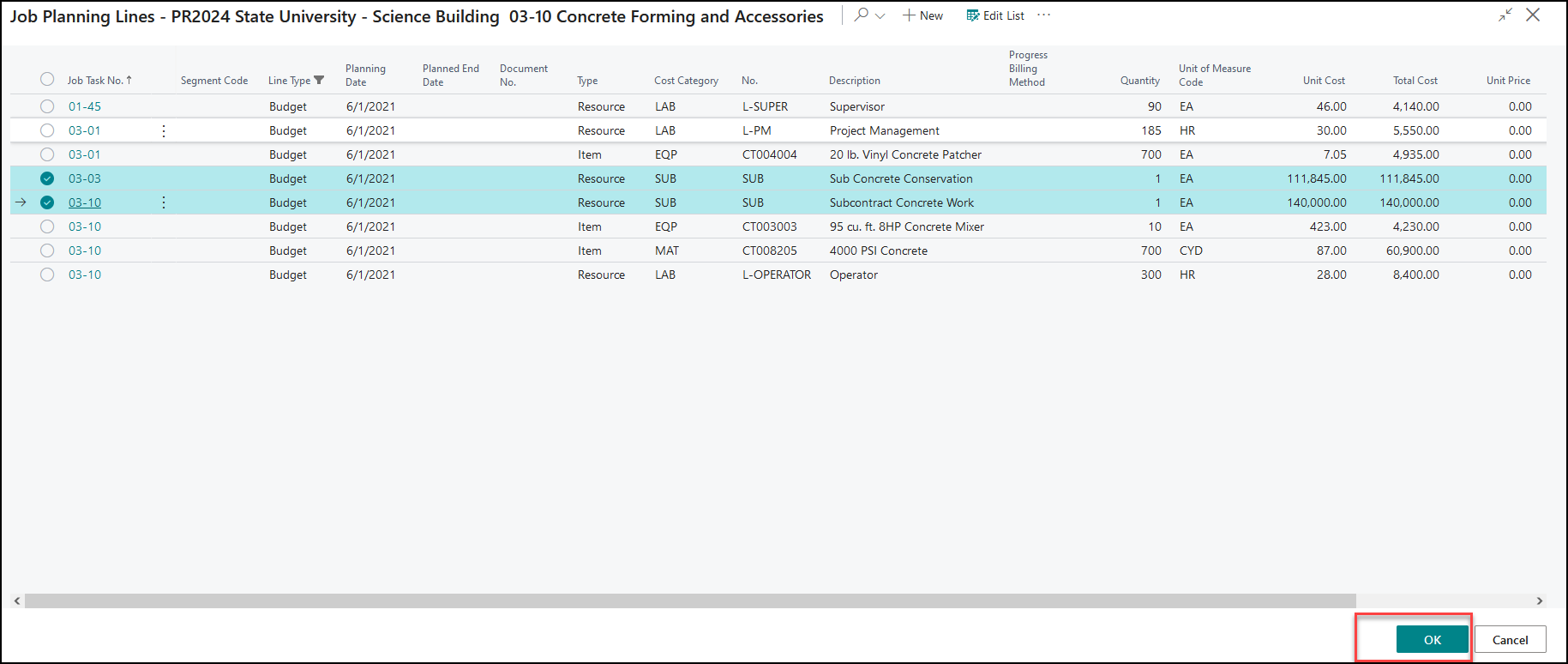
Choose the lines associated with this Subcontract and select “OK” to add them to the subcontract card.
You will notice the lines that were selected above are now available on the subcontract card in the “lines” section.
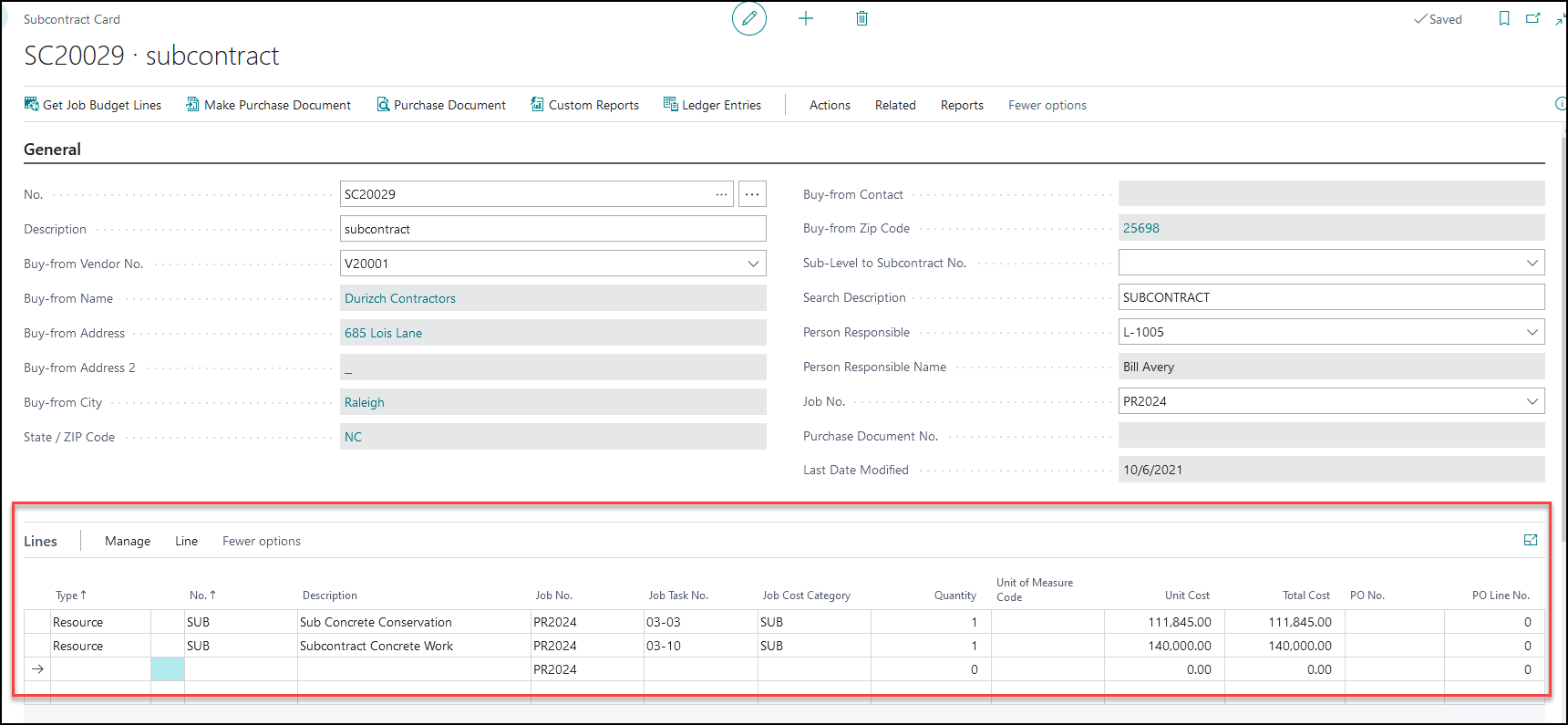
If you need to manually add a line to the subcontract card, you can do so from the “Lines” section.
Note: Manually added lines will affect only the subcontract card and project ledger entries page. These lines will not be updated on the Project Planning Lines page and will not adjust the project budget.
Below we have detailed each column user will need to enter if user choose to enter a line manually.
Note: Depending on user’s personalized view, user may not see all the fields below.
| FIELD | DESCRIPTION |
| Type | This field contains the type of account to which the subcontract line relates. The options are: <Blank>, Item, Resource and G/L Account. |
| No. | This field contains the number of the account to which the Item, Resources Or G/L Account is posted, depending on the selection in the Type field. User can see the numbers available by clicking the Assist Button in the field. |
| Description | The application automatically displays the name of the item, Resources or G/L account to which this entry applies. User can change the description. |
| Project No. | Select the Project No. the Subcontract is for. |
| Project Task No. | Select the Project Task No. associated with the Subcontract. |
| Task Description | A project task description is a statement that provides detailed information about a specific task. |
| Project Cost Category | A project cost category, also known as a cost code or cost category code, is a specific classification or categorization of costs associated with a particular project or project. |
| Starting Date | Enter the Subcontract starting date for the associated line. |
| Quantity | User can enter the number of units for the item or G/L account number and resources, that should be specified on the line. |
| Unit Cost | This field contains the unit cost for the selected Type and No. on the line. Unit Cost is automatically retrieved of the selected Type and No. |
| Total Cost | This field is the calculated total of Quantity*Unit Cost |
| Unit of Measure Code | Unit of Measure for the Subcontract amount. |
1.3 Constants Fast Tab

| FIELD | DESCRIPTION |
| Vendor’s Project No | If the same project number appears differently in the vendor’s records, please provide the specific vendor project number for clarification.” |
| Creation Date | Specify the date on which a subcontract agreement was officially established or created. |
| Starting Date | It marks the commencement of the subcontracted work. |
| Ending Date | It marks the conclusion of the subcontracted work. |
| Completion Date | When change the Subcontract status from Open to Completed Completion date automatically populated. |
| Retention Percent | Enter Subcontract Retention Percentage |
| Status | Select status of the Subcontract. Options are Planning, Quote, Order, Completed. Note: Your subcontract must have a status of “order” to post. |
| Subcontract Class | Specifies whether the subcontract card is a Master or a Change order |
1.4 Invoice and Payments Fast Tab
| FIELDS | DESCRIPTION |
| Invoice Received | This field shows the purchase Invoice value for a particular period. |
| Payment Made | This fields will be impacted after paying to the vendor for that project and Subcontract no. |
| Retention Held | This field shows the retention amount held by the contractor and create the vendor ledger entries with retention ledger code “Retention.” |
1.5 Manager Fast Tab

| FIELDS | DESCRIPTION |
| Reporting Status | This status is like the Manager Project Status on our Project Card. This is for informational purposes only and can be adjusted as needed |
| Status Date | This date will automatically update when the Reporting Status is changed |
| Estimated Start Date | This date serves as a reference point for project planning and execution, helping ensure that work proceeds smoothly and in accordance with the project’s timeline. |
| Starting Date | It marks the commencement of the subcontracted work. |
| Estimated Ending Date | It refers to the anticipated date on which a specific project, task, or activity is expected to be finished or concluded. |
| Ending Date | It marks the conclusion of the subcontracted work. |
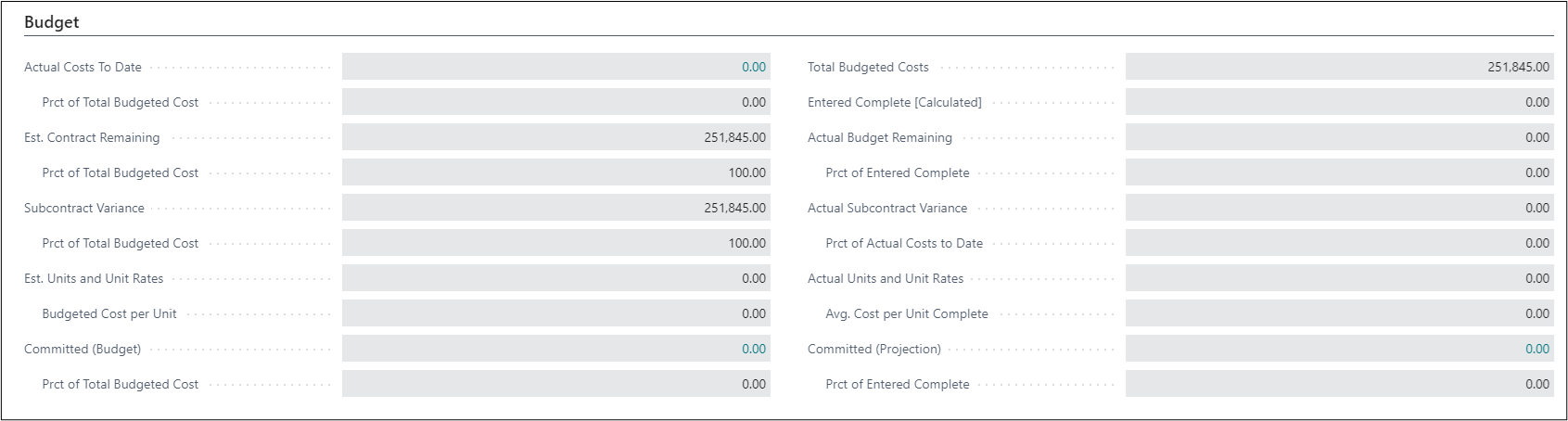
From the subcontract card, you can view summarized data related to budget, costs and payments made. Below you will find samples of each summarized view you can use.
1.6 Budget Fast Tab
| FIELDS | DESCRIPTION |
| Actual Cost to Date | Specify the Actual Cost/ posted purchase document for that subcontract for the Project to Date. |
| Prct. of Total Budgeted Cost | “Percent of [Actual Costs To Date] / [Total Budgeted Cost] ” mainly it’s a % of Actual cost to date. |
| Est. Contract Remaining | [Total Budgeted Cost] – [Actual Costs To Date] Remaining part of the contract that has not been posted yet. |
| Prct. of Total Budgeted Cost | It shows the % of Est. contract remaining value. “Percent of [Est. Contract Remaining] / [Total Budgeted Cost] “ |
| Subcontract Variance | If the “Actual Cost to Date” is Less than or equals to the “Total Budgeted Cost” then “Subcontract Variance” will not be calculated. |
| Prct of Total Budgeted Cost | It shows the % of the Subcontract Variance field. “Percent of [Estimated Profit (Loss)] / [Total Budgeted Cost] “ |
| Total Budgeted Costs | Specifies the Total Budgeted Costs. it is the total of planning lines that are on the Subcon sub form page. |
| Prct of Entered Complete | |
| Committed (Budget) | Value for Open Purchase order that has not been posted yet. |
| Prct of Total Budgeted Cost | % of Open Purchase Order-Percent of [Committed (Budget)] / [Total Budgeted Cost] “ |
| Committed (Projection) | Value for Open Purchase order that has not been posted yet. |
1.7 Costs Fast Tab
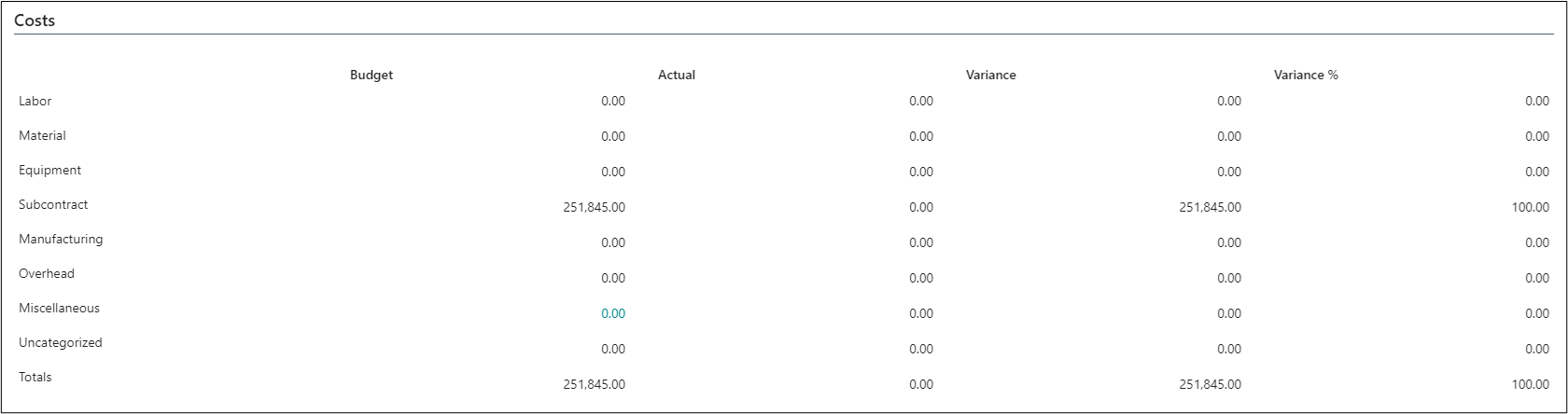
| FIELDS | DESCRIPTION |
| Labor | This field is showing the value whether Budget / Actual or Variances for Resources if value for project cost category is LAB. |
| Material | This field shows the value for Item and value in project cost category is MAT. |
| Equipment | This field shows the value for Item and value in project cost category is EQP. |
| Subcontract | This field shows the value for Item/G/L and value in project cost category is MAT. |
| Manufacturing | This field also update based on Project cost category. |
| Overhead | If project cost category is OVHD then field will be updated. |
| Miscellaneous | If project cost category is MISC then field will be updated. |
| Uncategorized | If there is no project cost category, the value will be updated in this field. |
| Totals | Total shows the value for total of all the columns. |
1.8 Status Fast Tab
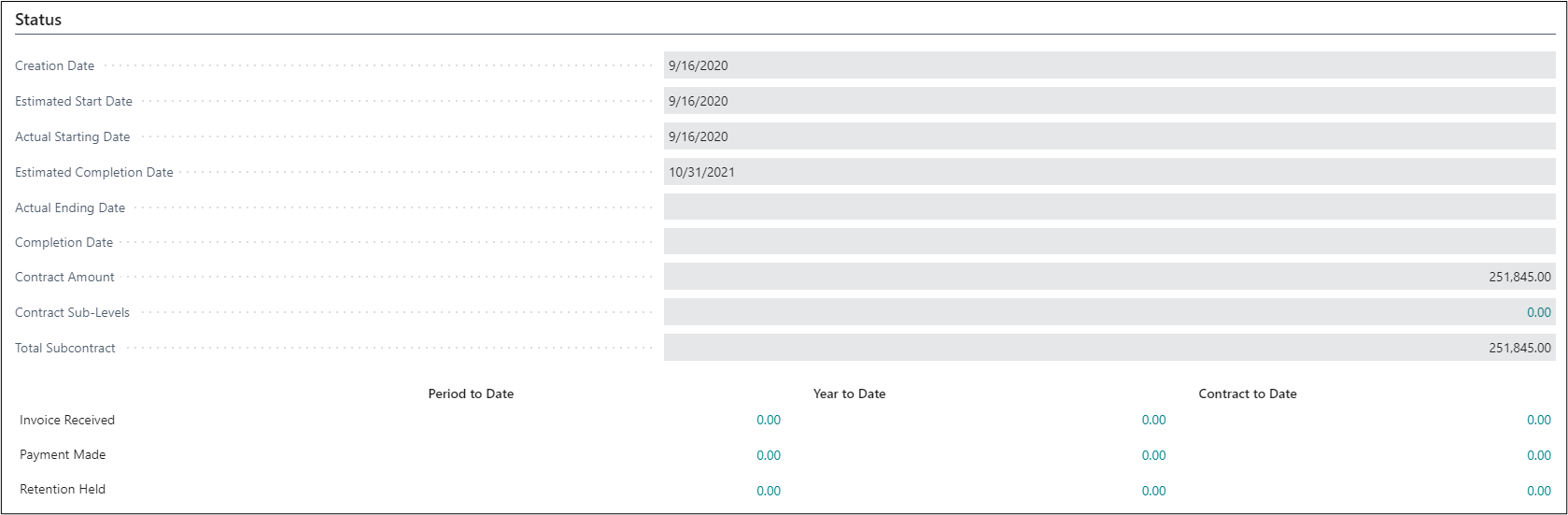
| FIELDS | DESCRIPTION |
| Creation Date | This field automatic update when user update the value in creation date under constant tab. |
| Estimated Start Date | This field automatic update when user update the value in Estimate start date under Manager tab. |
| Actual Starting Date | This field automatic update when user update the value in starting date under Constant or Manager tab. |
| Estimated Completion Date | This field automatic update when user update the value in Estimated Completion date under Manager tab. |
| Actual Ending Date | This field automatic update when user update the value in Ending date under Constant or Manager tab. |
| Completion Date | When change the Subcontract status from Open to Completed Completion date automatically populated. |
| Contract Amount | This field shows the budget for the Master Subcontract. |
| Contract Sub-Levels | This field shows the budget for the change order Subcontract. |
| Total Subcontract | This field will add budget for Master as well as Change order subcontract. |
MAKE PURCHASE DOCUMENT
From the ribbon select “Make Purchase Document/Create PO or Add lines to PO”
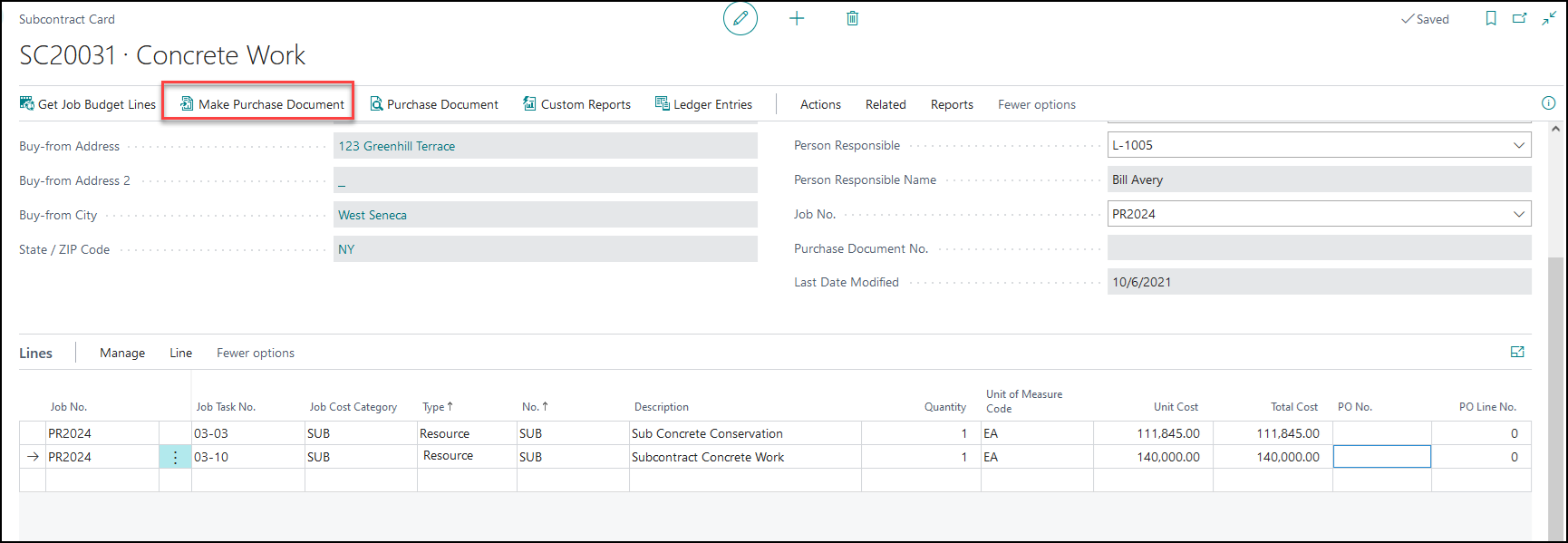
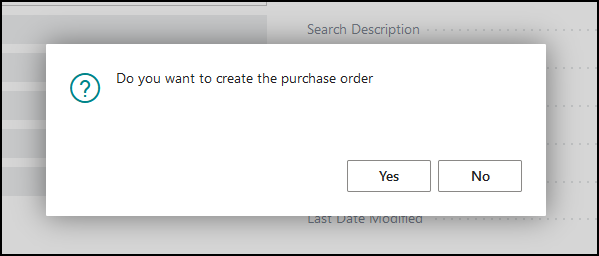
When prompted for confirmation that you are looking to create a Purchase Order, select “Yes”.
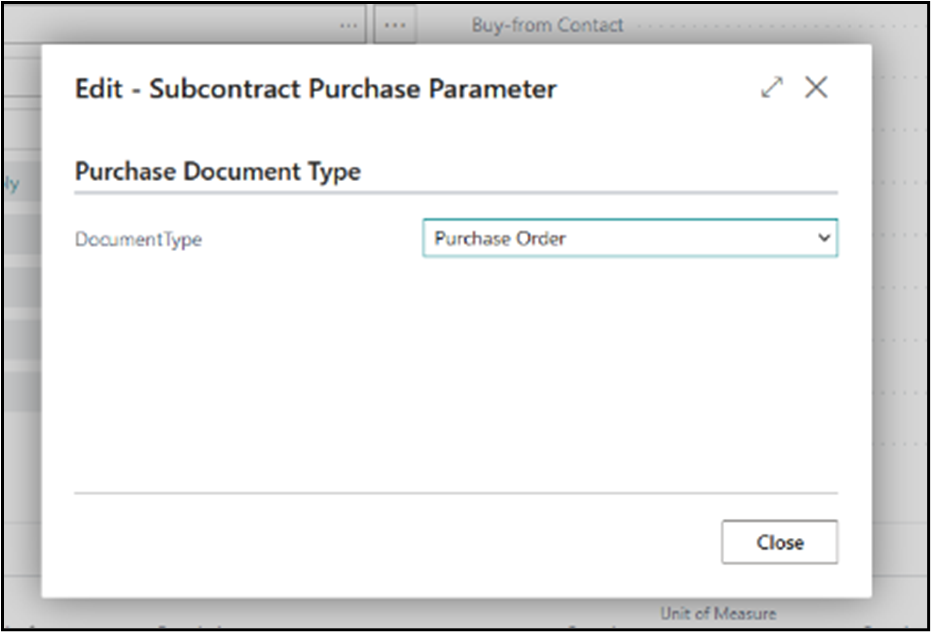
Document Type will default to “Purchase Order”. You can select “Close.”
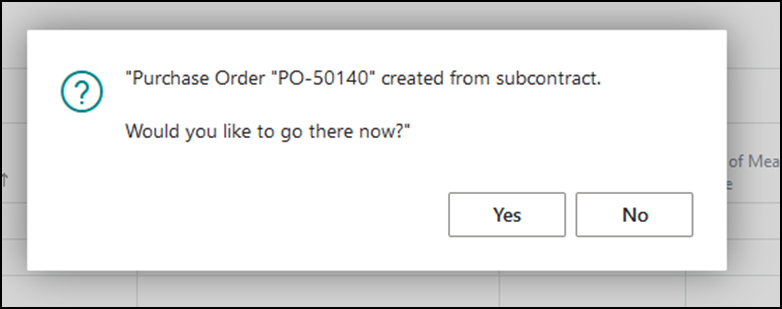
Confirmation of the Purchase Order creation will pop up. From here you can view the Purchase Order or select “no” to close to the prompt.
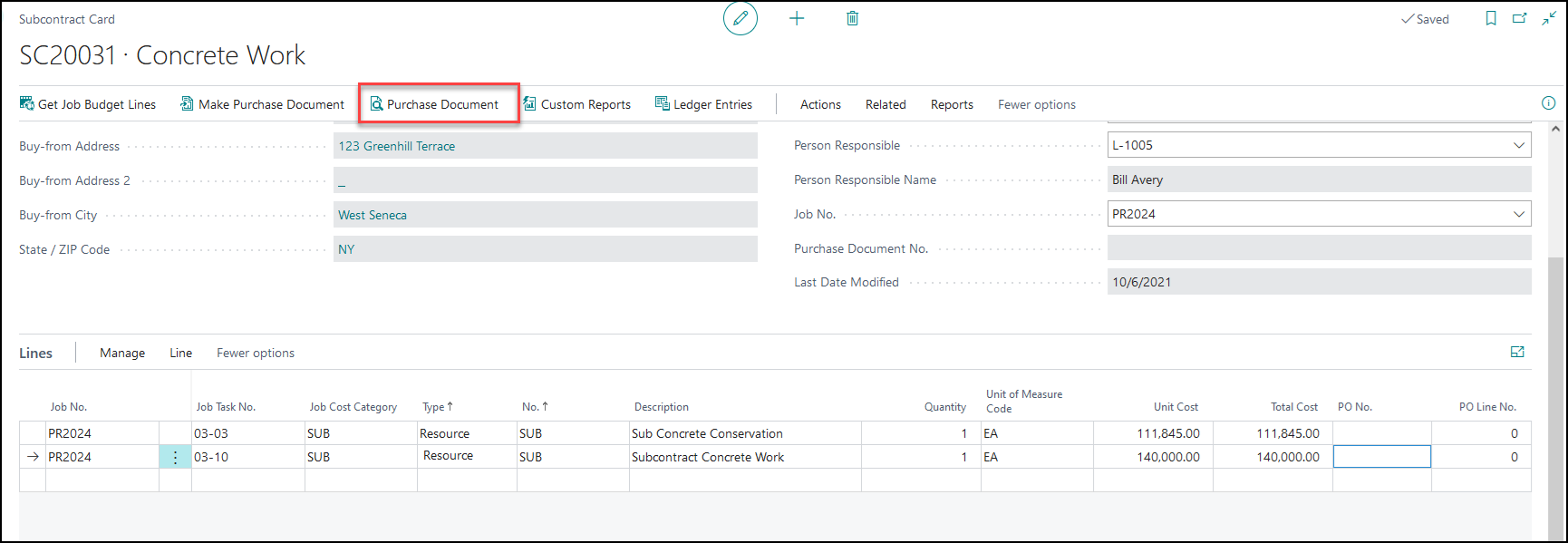
Now your Purchase Order is created, User can select “Purchase Document/ View Purchase Order” from the ribbon at any time to view and pay the Purchase Order.
SUBCONTRACT CHANGE ORDER
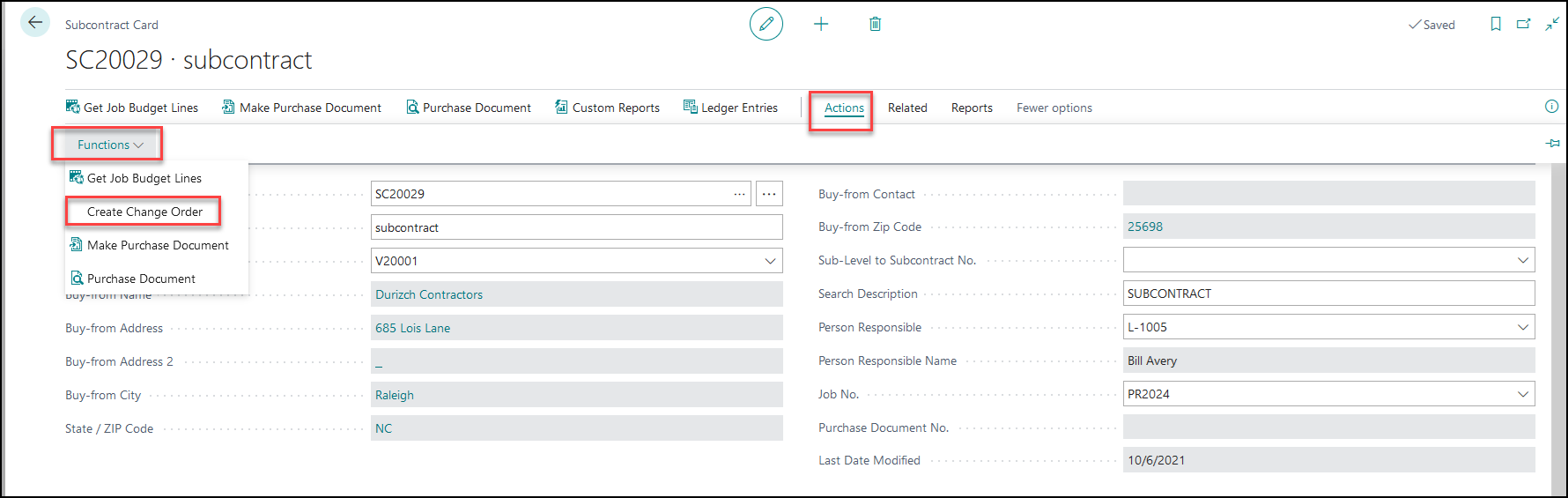
From the Subcontract card ribbon, select “Action” and then Functions. Now select “Create Change Order.”
You will be promoted with confirmation that the subcontract has been created, information about the number assigned, and you are given the option to view the newly created change order card if you wish.
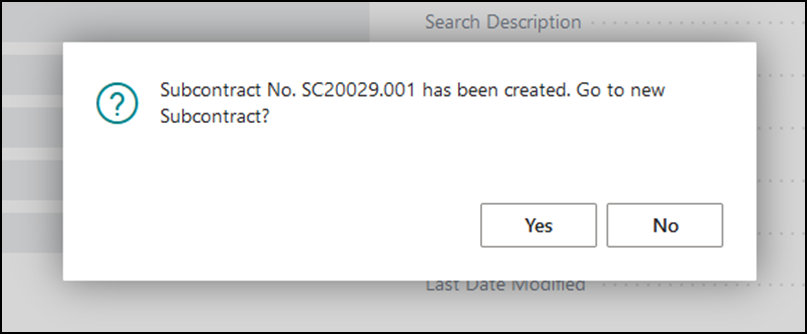
Note: Subcontract Change order will appear in Subcontract list page with “Sub-Level to Subcontract No.” value.