Ch 01 – Project User Tasks
Contents
| INTRODUCTION |
| SETUPS |
| 1. Field Management Setup |
| 2. User Task Category List |
| USER TASKS |
| 1. User Tasks on ProjectPro Manager and Field Manager Role Center |
| 2. User Task Creation |
INTRODUCTION
The User Task functionality provides allows you to create User Tasks and link that task to the different ProjectPro modules like Subcontract, Progress Billing, Project Quote, etc. On the ProjectPro Manager and Field Manager role center, a shortcut is provided in the form of cues where these user tasks can be viewed based on Due Dates and Category.
SETUPS
1. Field Management Setup
On the Field Management Setup, there are two setups under the User Tasks fast tab.
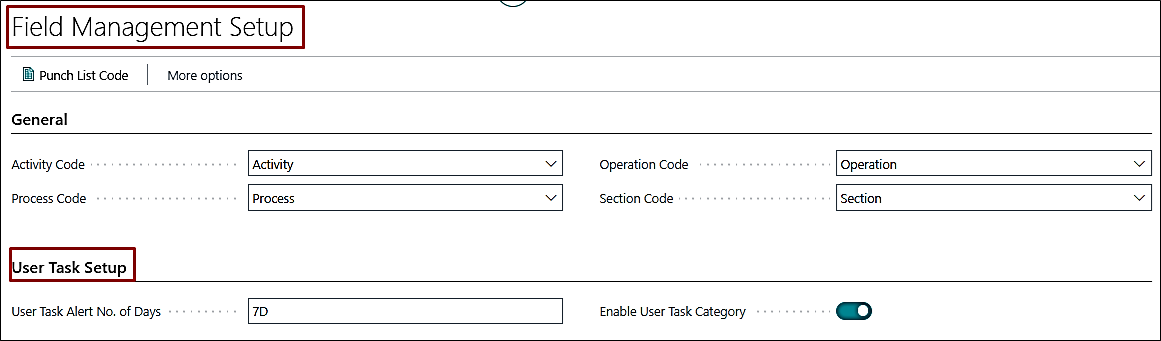
- User Task Alert No. of Days: Specifies the number of days within the date range of the “Current Date” and the “Due Date” to trigger an alert Cue on the role center to act. For example, if the defined value is 7D, and the user task’s Due Date is within 7 days from the work date, it will trigger a notification.
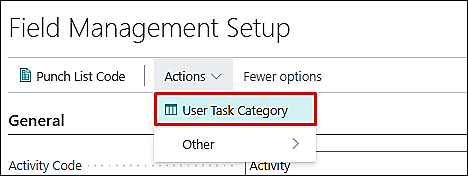
- Enable User Task Category: Enable it to use User Task Cues on the Role Center. You can also set the sequence and names of the Cues from the “User Task Category” page available on this setup’s ribbon under the Actions section.
2. User Task Category List
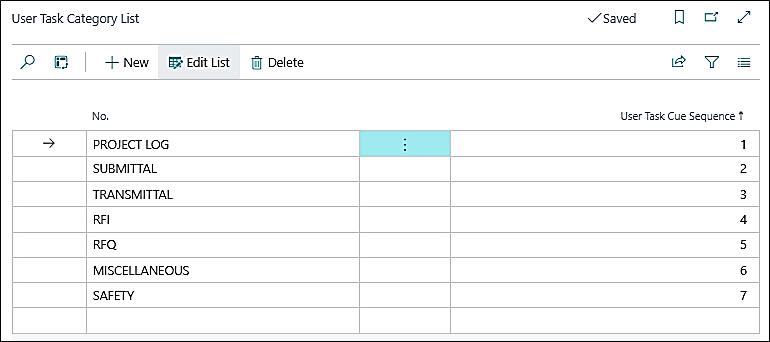
The User Tasks Category List can be accessed when the “Enable User Task Category” is enabled on the Field Management Setup. On this page, you can specify the name and sequence of the Cues to appear on the ProjectPro Field Manager role center.
Here you can define up to 7 names and sequences of the cues only.
USER TASKS
1. User Tasks on ProjectPro Manager and Field Manager Role Center
On the “ProjectPro Field Manager” Role Centre, the User Task Cues are available under the section “Activities ProjectPro” with headings “Project User Task” and “Overdue Project User Task”.
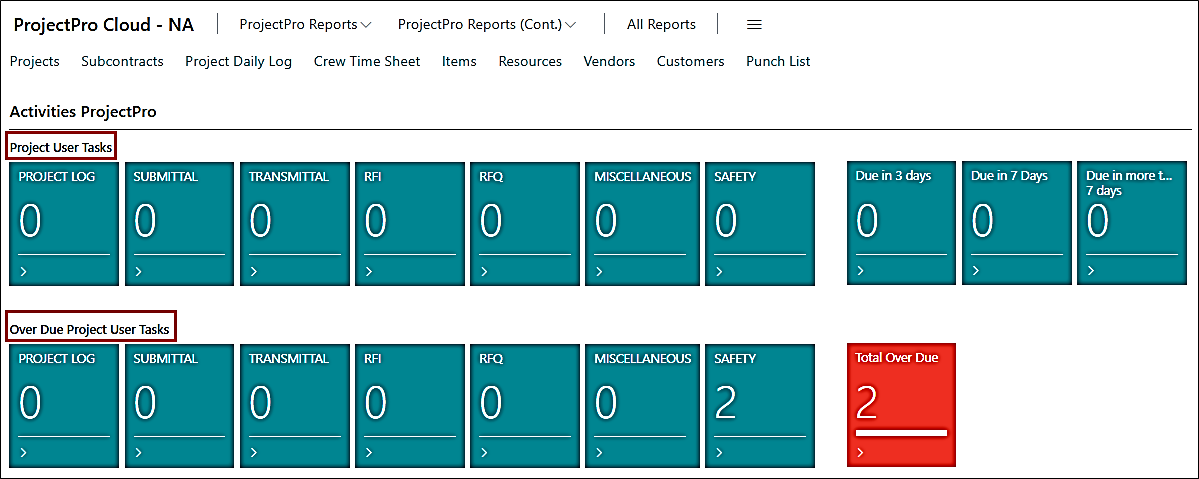
Project User Tasks: This shows the user tasks that have a due date after the work date.
Overdue Project User Tasks: This shows the user tasks that have a due date before the work date.
2. User Task Creation
Search for the “User Tasks” from the Global Search and click on “New” from the related page that opens.

This will open a new user task card for you to enter the required details.
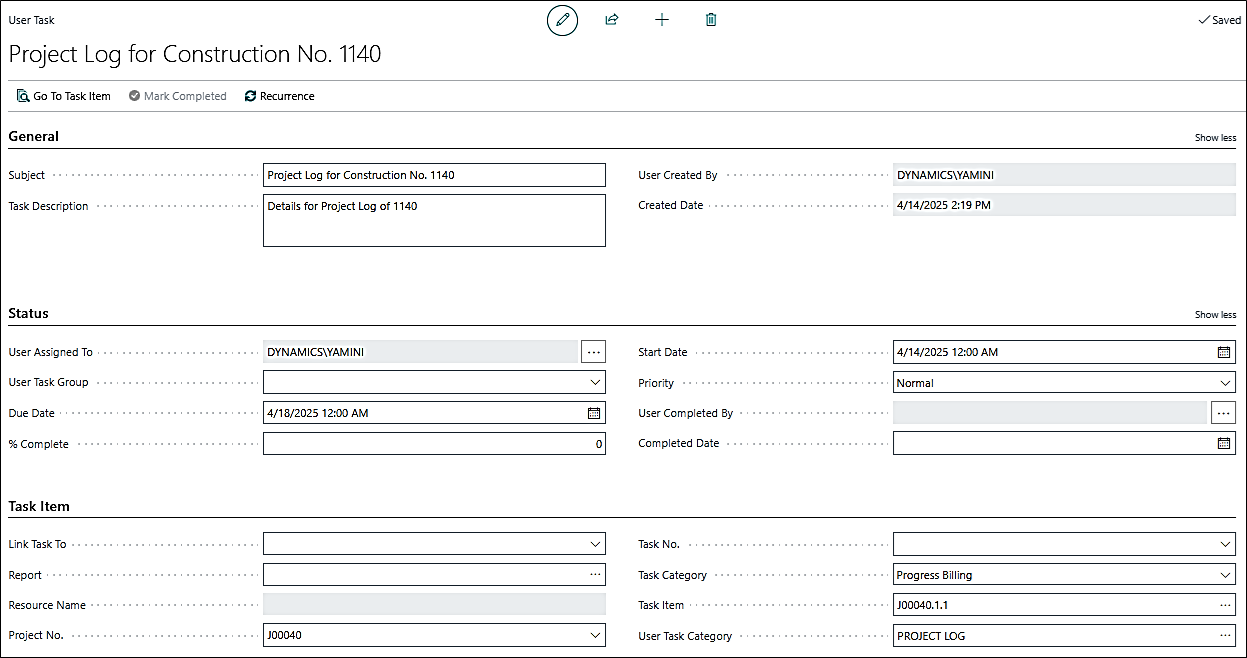
| FAST TABS | FIELDS | DESCRIPTION |
|---|---|---|
| General | Subject | Specifies the title of the task. |
| Task Description | Specifies what the task is about. | |
| User Created By | Specifies the user who created the task. | |
| Created Date | Specifies the date on which the task is created. | |
| Status | User Assigned To | Specifies the user assigned to the user task. |
| User Task Group | Specifies the user group assigned to the user task. | |
| Due Date | Specifies the due date of the task must be completed. Based on this, the user tasks are divided into Project User Tasks (due date before work date) and Overdue Project User Tasks (due date after work date) on the role center. | |
| % Complete | Specifies the progress of the task. | |
| Start Date | Specifies the date the task must start. | |
| Priority | Specifies the priority of the task from the 3 given options: Low, Normal, High | |
| User Completed By | Specifies who completed the task. | |
| Completed Date | Specifies when the task was completed. | |
| Task Item | Link Task To | Specifies if you want to link the user task to a Report or a Page. |
| Report/Page | Based on the selection in the above field, select the required report or page from the objects list to which you want to link this user task. | |
| Resource Name | Specifies the name of the resource that is assigned to the task. | |
| Project No. | Specifies the Project No. you want to assign to the user task. | |
| Task No. | Select the Project Task No. you want to assign to the user task based on the Project No. selected above. | |
| Task Category | Select among the different task categories you want to assign to the user task: Job Material Planning, Job Quote, Job Task, Progress Billing, and Subcontract. | |
| Task Item | Select the related document to link based on the Task Category selected above. | |
| User Task Category | Select the user task category to which the user task belongs. This classifies the Cue on which the user task will appear on the role center. |
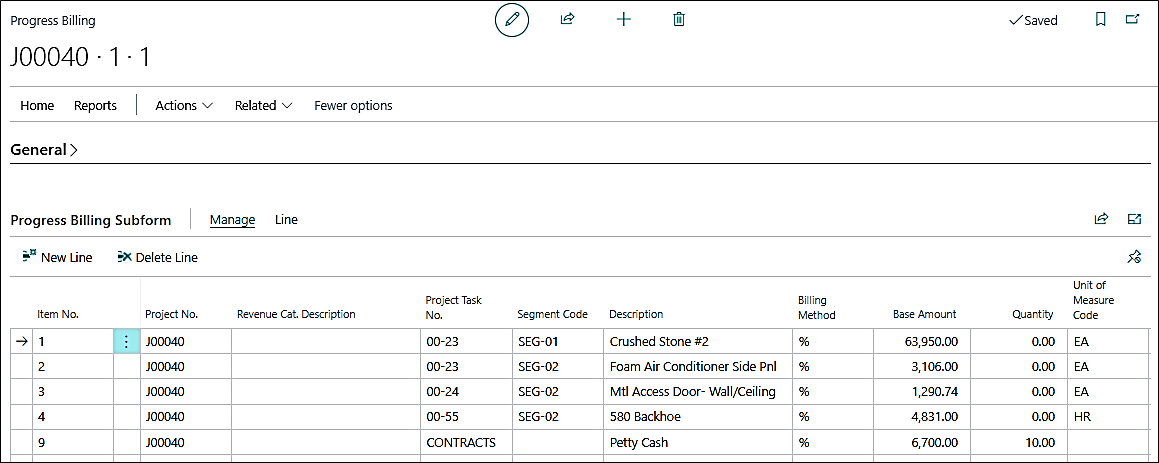
After assigning all the values, you can open the linked task item of the user task using the “Go to Task Item” option on the user task’s ribbon on the card. See below example based on the value selected above on the user task card, a progress billing requistion gets opened.