Ch 04 – Progress Payment
Contents
| INTRODUCTION |
| PROGRESS PAYMENT |
| 1. Creating a Progress Payment |
| 2. Reports |
| 3. Send to PO |
| 4. Subcontract PO |
INTRODUCTION
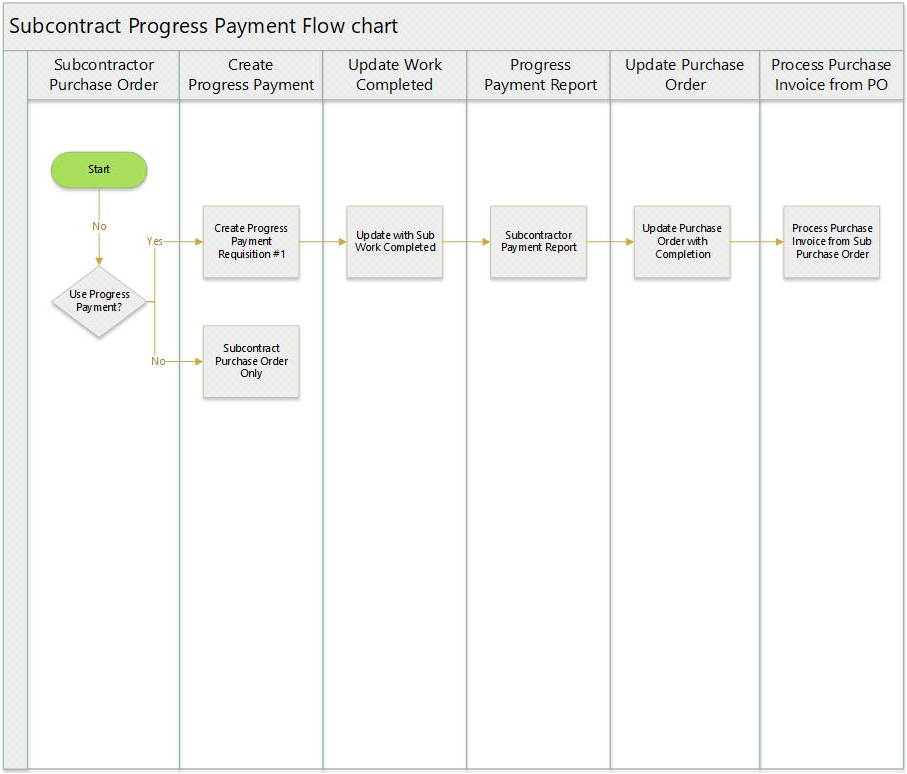
Progress Payments for your subcontractors is a method for tracking and approving what portion has been completed and a progress report for internal purposes or to send to your subcontractor showing what has been approved for processing as a vendor invoice from the Subcontract Purchase Order.
PROGRESS PAYMENT
1. Creating a Progress Payment
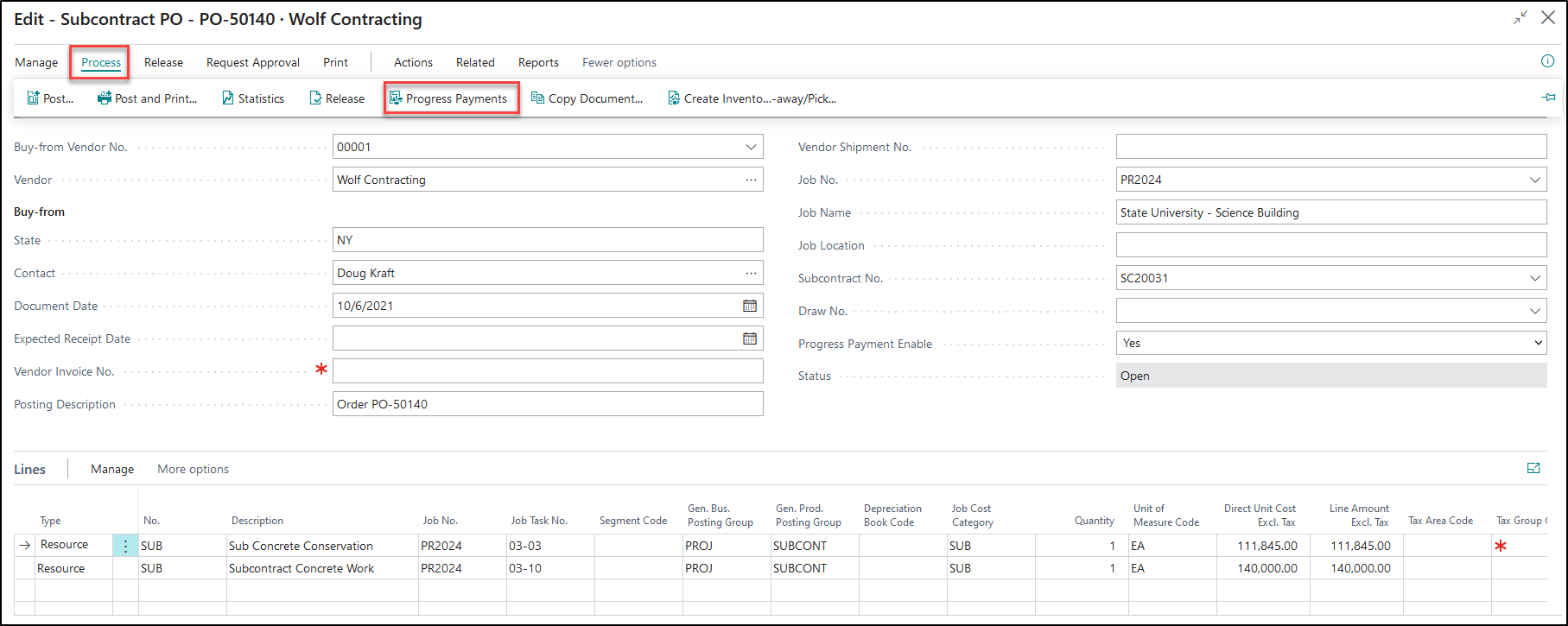
The progress payments are created from the subcontract purchase order. From the Subcontract PO, click on Process → Progress Payments from the ribbon.
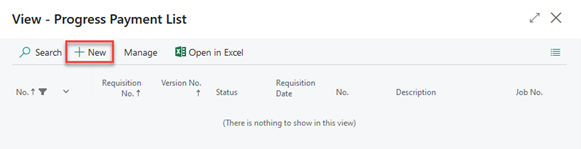
A Progress Payment List will open as below, click on “New” to create a new progress payment.
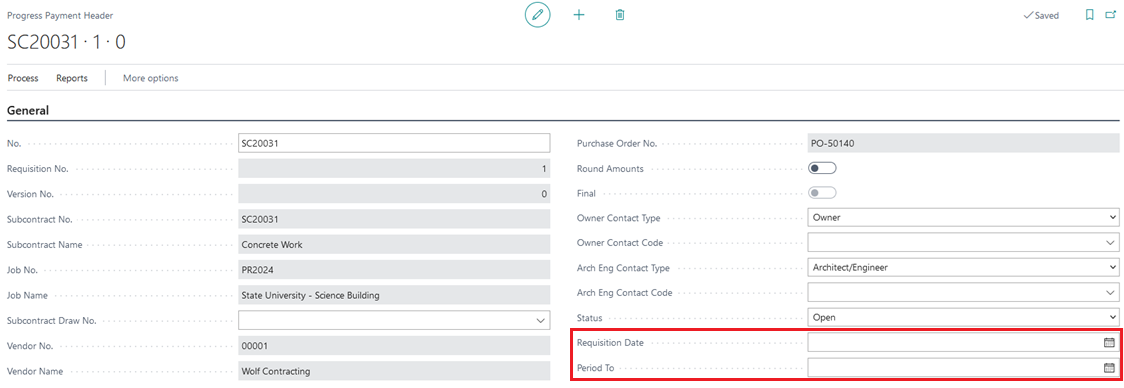
The General fast tab fields will get auto updated based on the information from your Subcontract PO. Enter the “Requisition Date” & “Period To” date to proceed.
To populate the Progress Payment lines, click on Process → Get PO from the ribbon. The lines here will get updated from the Purchase Order
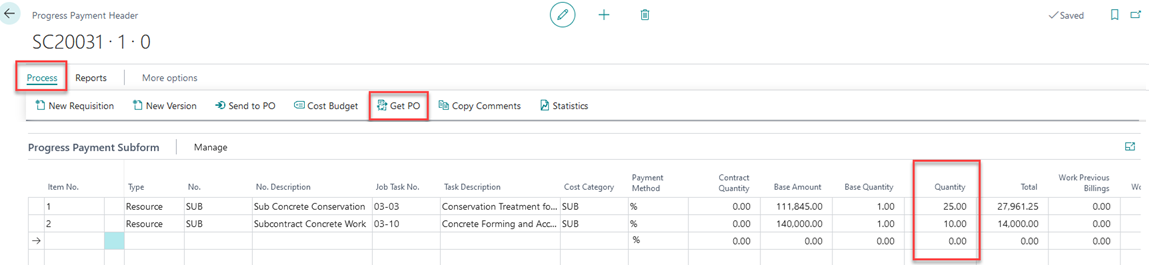
Enter the percentage that you will be paying for each line under the field “Quantity”.
2. Reports
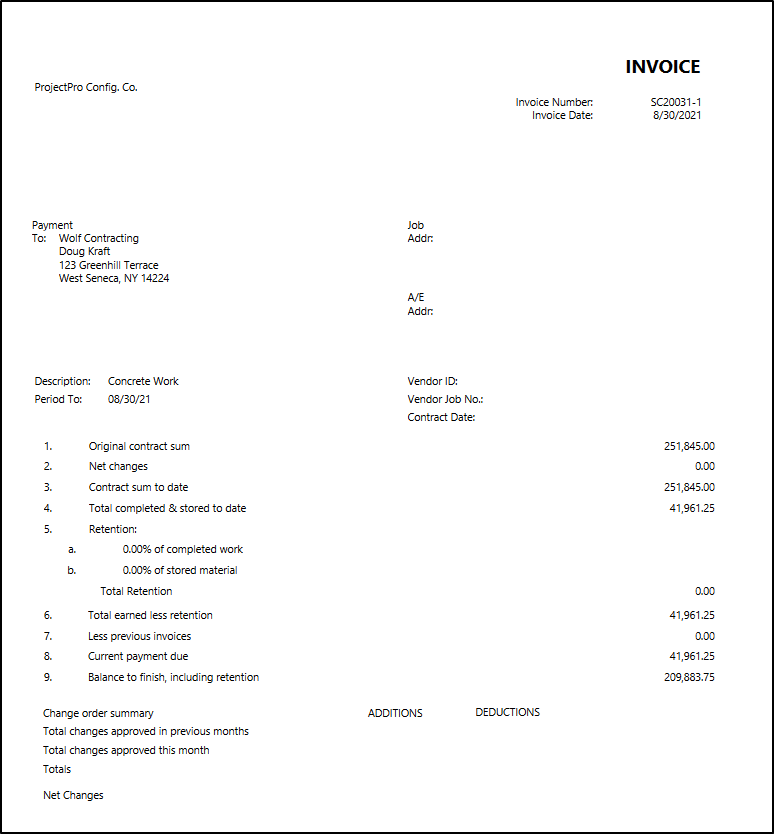
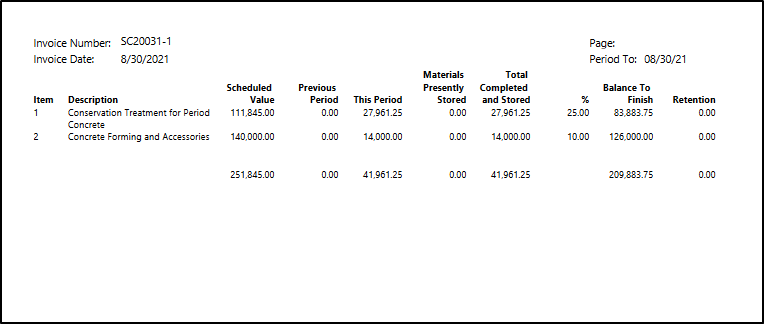
The Progress Payment report can be run from the Reports section on the ribbon of progress payment card. Once clicked, a request page will open with the information related to your Progress Payment Report. Select “Preview and Close” to view the report.
A two-page progress payment report will be generated that can be printed and sent along with the Vendor payment, if required.
3. Send to PO
When you have completed your progress payment, click on Process → Send to PO, to update the purchase order.

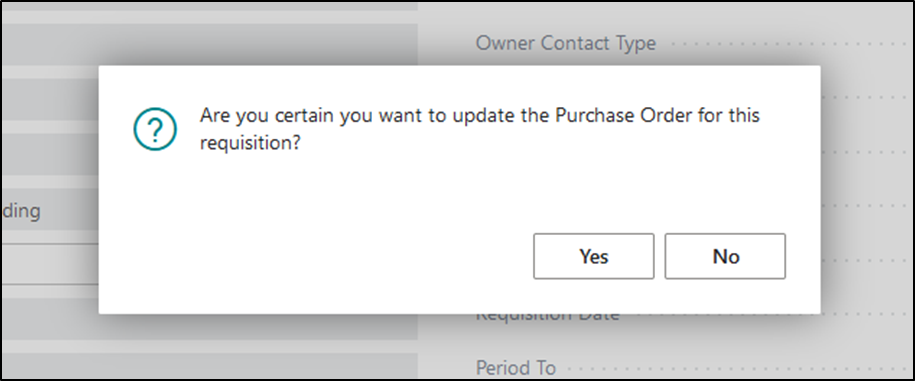
You will be prompted for confirmation if you would like to update the Purchase Order. Select “Yes”.
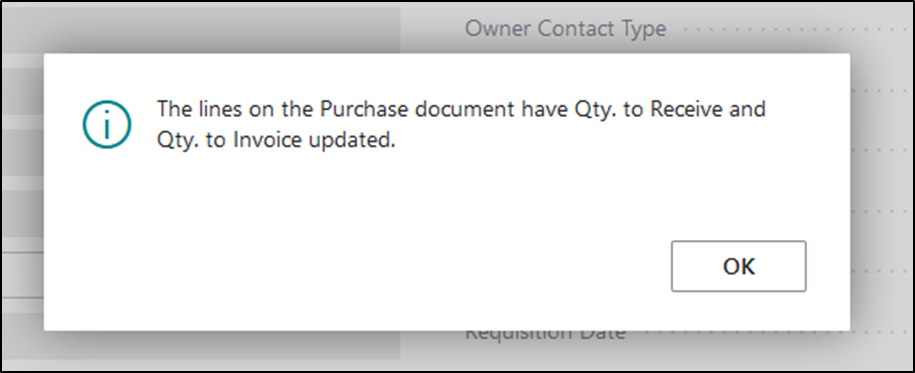
Once completed, you will receive confirmation of the update. Click on “OK”.
4. Subcontract PO
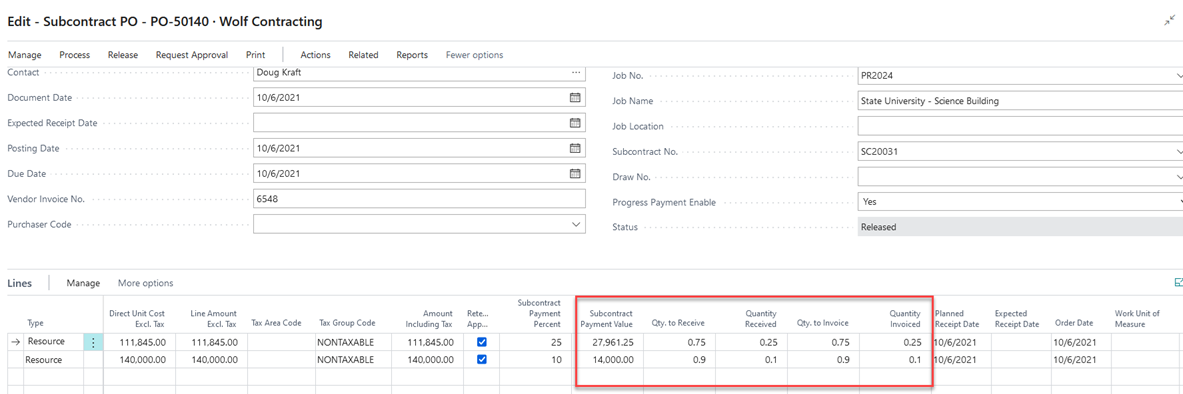
On the Purchase Order Lines, the “Subcontract Payment Percentage” column will get updated with the percentage of each line that was paid from the progress payment. Along with this, the columns “Qty. to Receive” and “Qty. to Invoice” will also get filled in to reflect the same information.
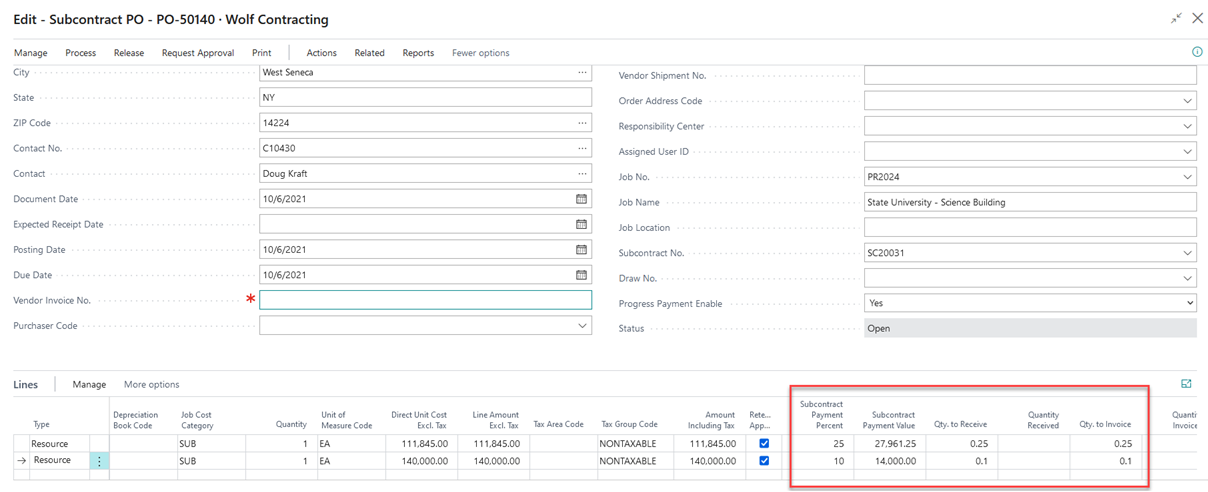
Enter the Vendor Invoice No. and Posting Date and post the PO.

The columns “Qty. Received” and “Qty Invoiced” reflect on Subcontract Purchase Order.