Ch 06 – Retention Reduction and Invoicing
Contents
| RETENTION REDUCTION & INVOICING |
| Retention Invoice |
| Sales Invoice |
| Combined CO AIA G702 and AIA G703 Report |
RETENTION REDUCTION & INVOICING
Retention Reduction is a function used when a customer wants to reduce the retention rate. On progress billing, there is a feature called “Retention Reduction and Invoicing” which allows a user to reduce the retention percentage and invoice at the same time.
Let’s take an example of progress billing having both master and its sub-level projects billed till 2 requisitions with different retention percentages at the line level.
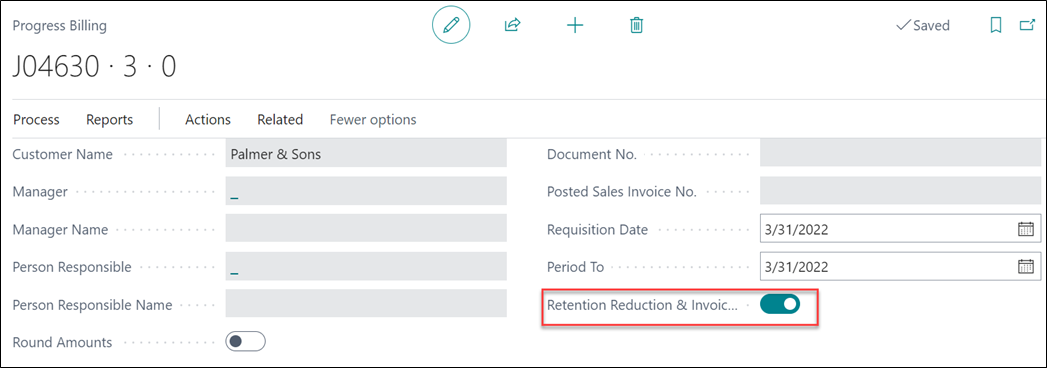
Now, the next requisition needs to be billed with the reduced Retention % for master and its sub-level projects. At this point you must turn on the Boolean for “Retention Reduction & Invoicing”, see below.
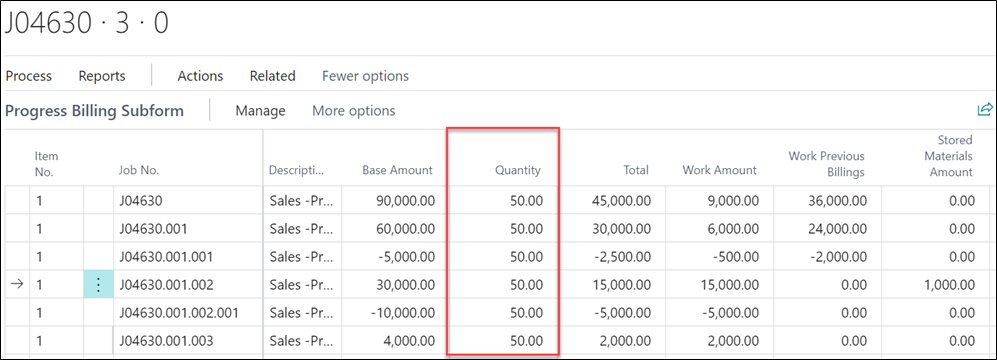
Enter the required “Quantity” or “Work Amount” for the required lines, to define the current billing amount.
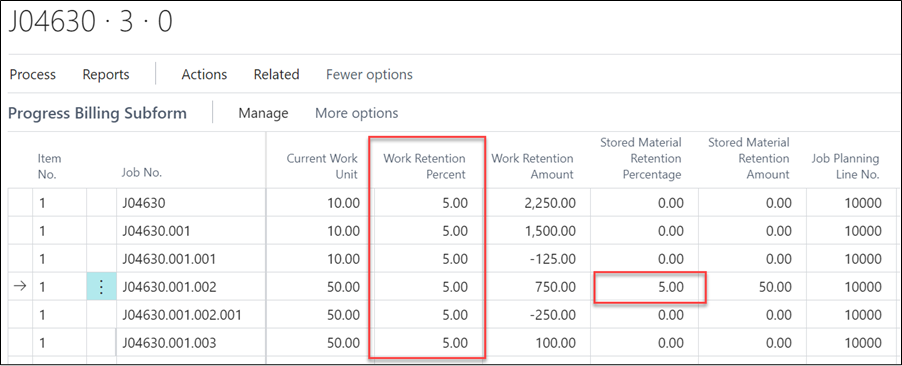
Enter/change the “Work Retention Percent” with reduced percentage value for required lines. Along with this, you can also define the “Stored Material Retention Percentage” to reduce the stored material amount, see below.
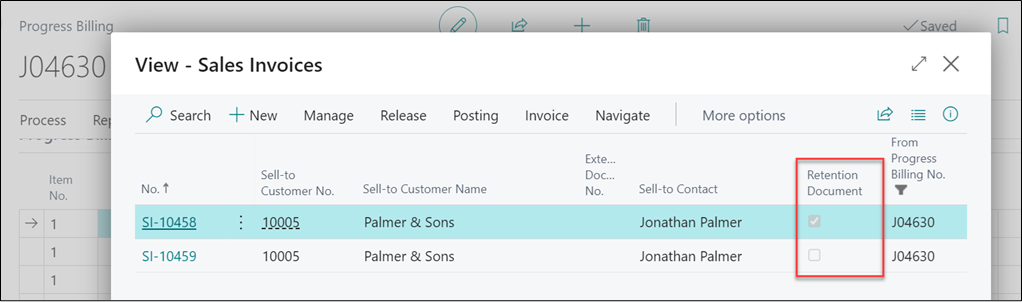
Once done, create a sales invoice. This time the system will create two invoices, one as “Retention Sales Invoice” and other as a “Normal Sales Invoice” due to additional billings, see below.
1. Retention Invoice
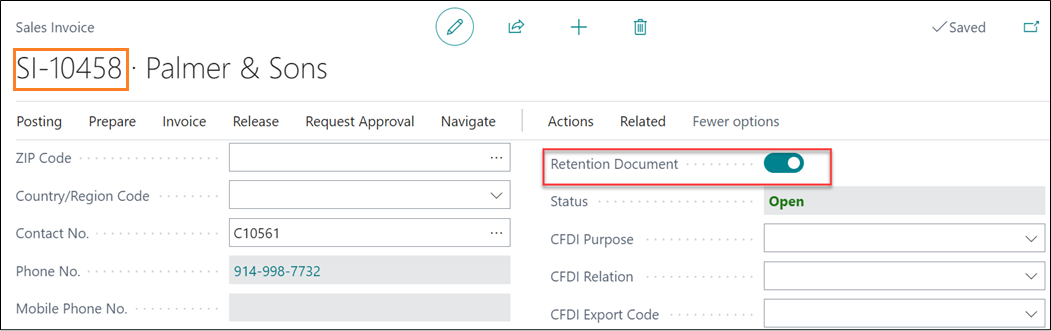
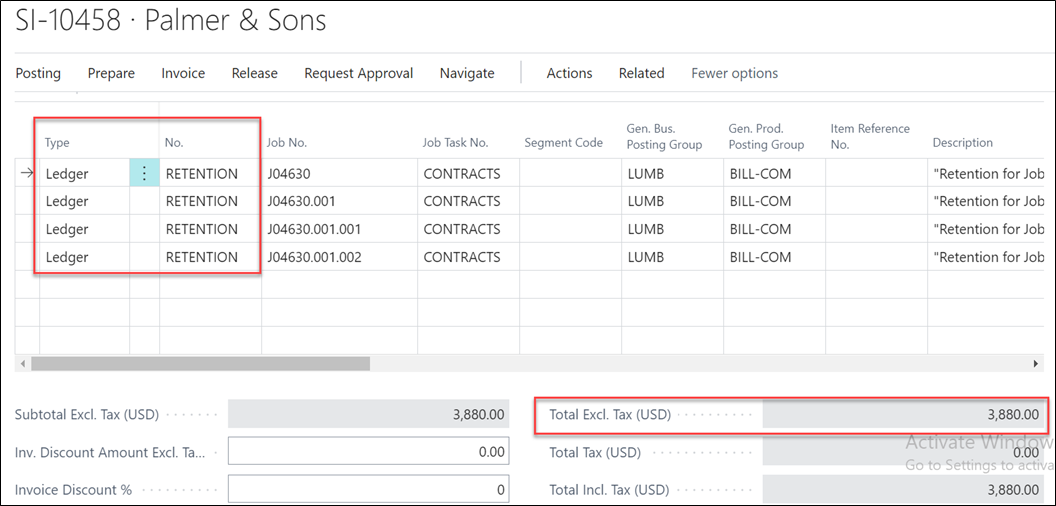
On the retention invoice, the “Retention Document” field will be set to TRUE.
2. Sales Invoice
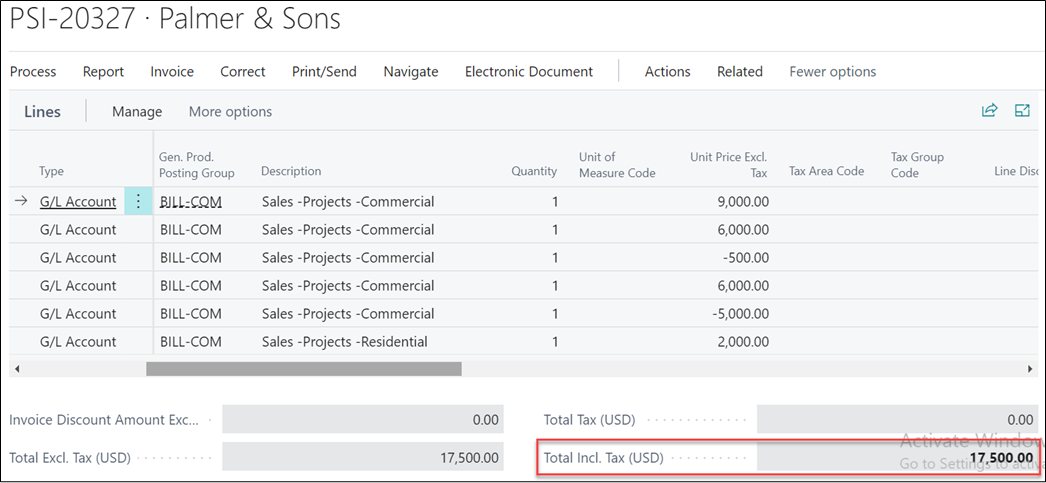
A sales invoice is generated due to the additional billing.
3. Combined CO AIA G702 and AIA G703 Report
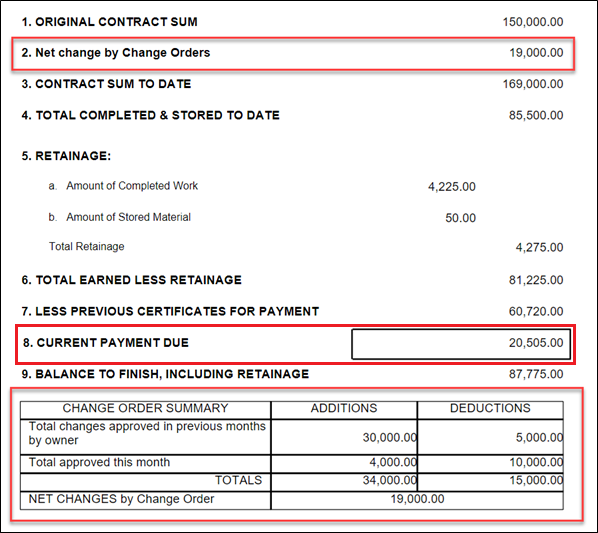
Run/Print the report “Combined CO AIA G702 and AIA G703” to see the details as below:
1. The “Net Change by Change Orders” will show the value after adjusting the positive and negative values of the change orders.
2. The “Current Payment Due” will show the added value of sales invoice after deducting the Retention and the Retention Reduction Invoice.
3. The “Change Order Summary”, details will be shown based on the contract value in the Additions column and the billed amount in the Deductions column.