
Ch 06 – Draws and Pay When Paid
Contents
| INTRODUCTION |
| 1. Projects Setup |
| 2. Defining Draws on the Project |
| 3. Creating Sales Invoice |
| 4. Creating Subcontract Purchase Order |
| 5. Pay When Paid Batch |
INTRODUCTION
The “Pay When Paid” mechanism operates based on specific Draw numbers. Essentially, a subcontractor’s compensation is contingent upon the contractor receiving payment for a particular draw. If the contractor does not receive payment from the customer for that draw, the subcontractor’s payment may be delayed until the issue is resolved. Basically, Draw feature is the linkage between the Sales documents, Progress Billings and the Vendor invoice for the project and is used for tracking the bills.
1. Projects Setup
The Projects Setup has the default payment terms code to be defined for the Draws and the Pay when Paid.
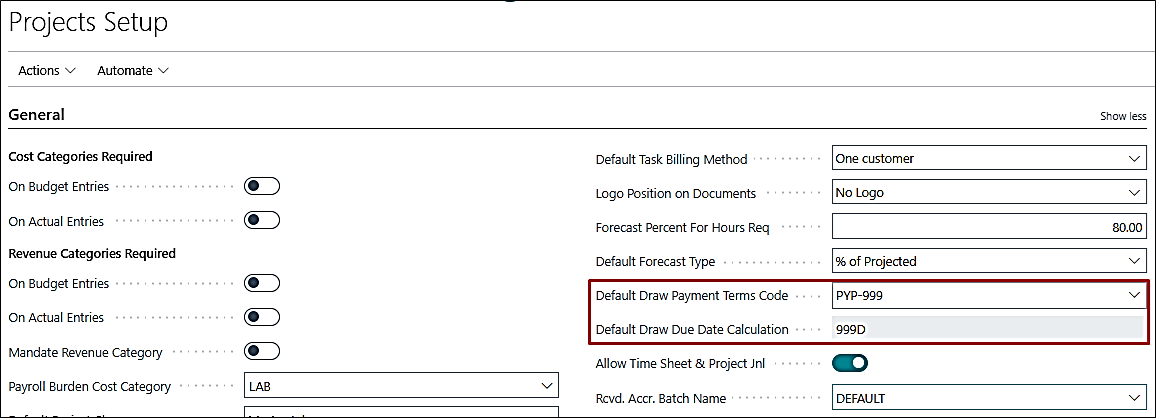
- Default Draw Payment Terms Code: Specifies the default Draw Payment Terms Code to be set for vendors when using “Pay when Paid” business process. The “Pay when Paid” is the term of paying your vendors when your customer pays you, i.e., this will get updated on the purchase documents when a “Draw No.” is selected. Typically, in ProjectPro this is with the one set to “999D” due date calculation.
- Default Draw Due Date Calculation: Specifies the calculation for default Due Date based on payment terms code selected above.
2. Defining Draws on the Project
Create a project in the similar manner as per the business requirement and additionally, click on “Draws” from the Home section on the ribbon.
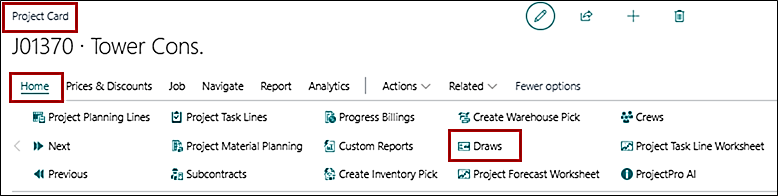
This will open a page to create the Draws as below. Please note that, no transaction can be performed if the Draw is marked as “Closed”.

Further, define the “Pay When Paid Term” on the project card under Invoice and Shipping fast tab as below. In any case, if this is not defined then by default this is considered as “0D”.
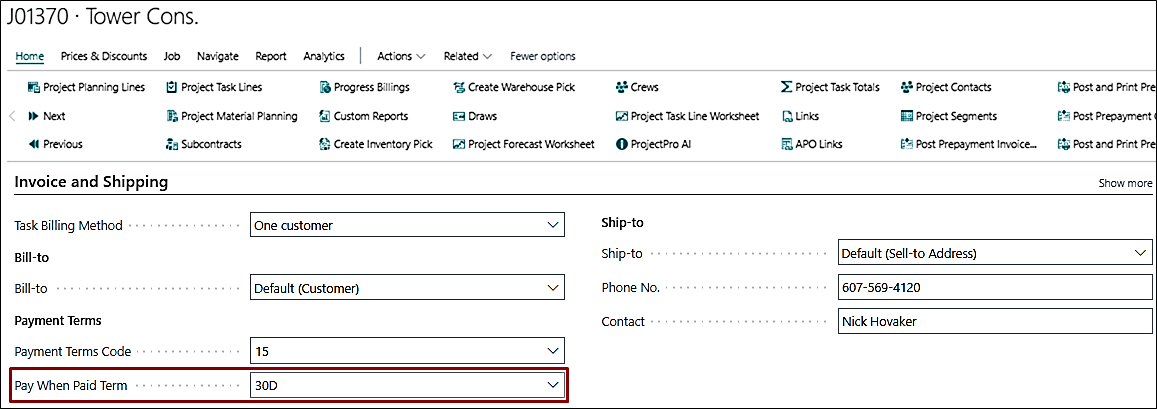
This “Pay When Paid Term” is used in the calculation of due dates for vendor ledger entries and update them with the new ones. The term defined here are added to the “Posting Date” of the payment received of the related Draw No. customer entry, and thereby recalculating the new “Due Date” for vendor ledger entries associated with a specific draw number.
3. Creating Sales Invoice
Generate a bill for the customer against the task done through Progress Billing.
- On the progress billing requisition select the required Draw No. on the general fast tab to create a link between the sales and purchase documents.
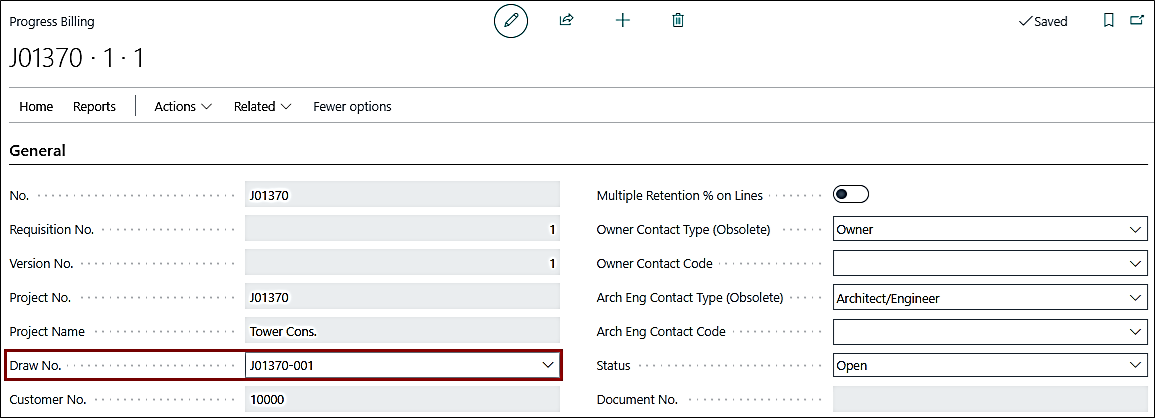
- Once the Sales Invoice is posted, you can check the Draw No. being populated to the posted document.
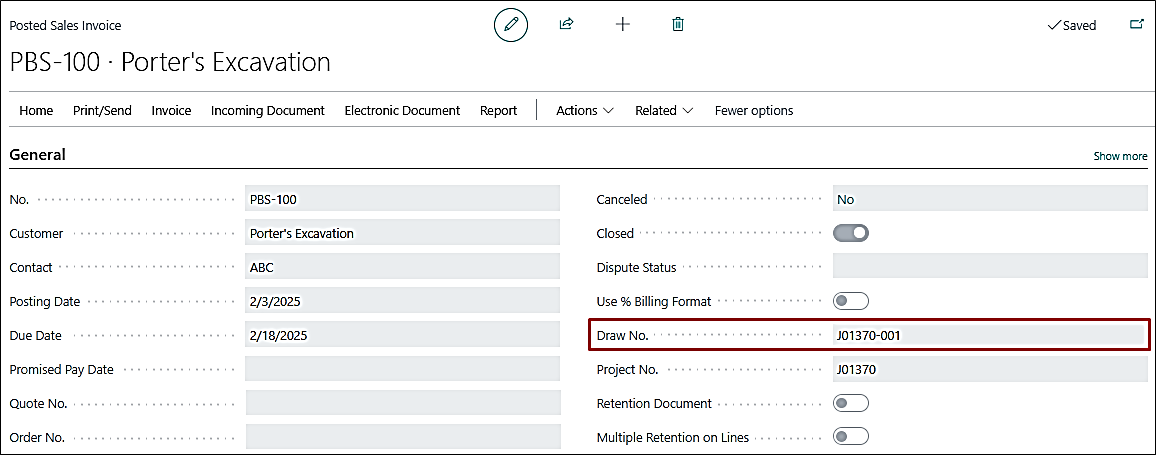
- You can verify the sales document being linked against the Draw No. selected on the Draws list.
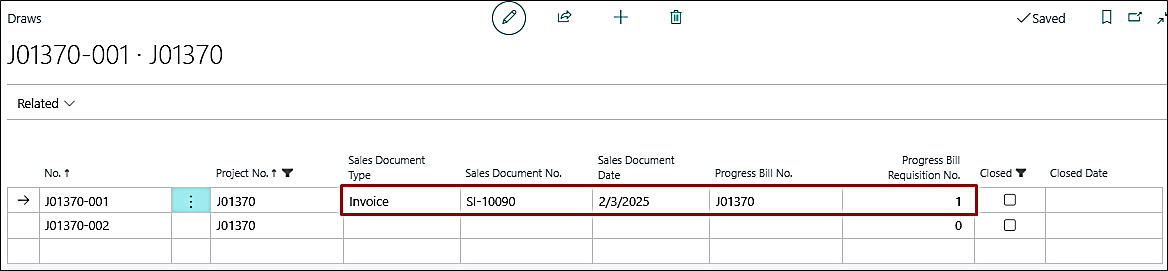
Note: If the same draw no. is used in multiple requisitions, then the latest sales and posted sales document no. is updated on the Draws list, i.e., replacing the old values eventually.
4. Creating Subcontract Purchase Order
Create a subcontract purchase order and select Draw No. on it. Once that is selected, the system will auto update the Payment Terms Code to “PYP-999” based on the projects setup.
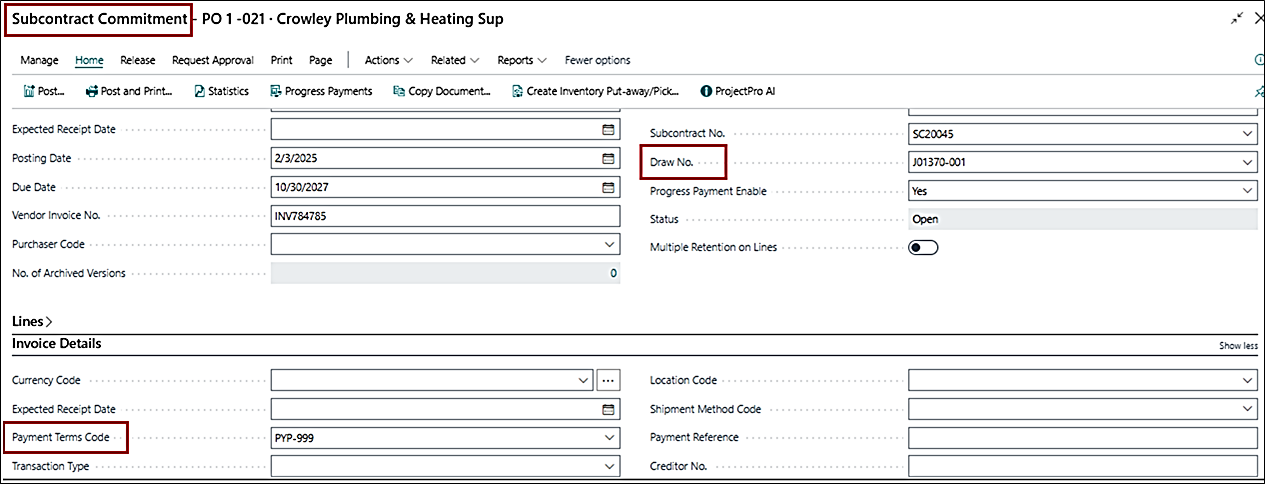
On posting the purchase document the Due Date for the Vendor ledger entries will get assigned based on the “Payment Term Code”.

Note: The user can change the Draw No. on the Posted Documents and entries via “Update Document” function on the ribbon if the user has enabled the “Allow Draw No. Changed” on the User Setup.
In the end, receive the payment from the customer for the same “Draw.”

5. Pay When Paid Batch
There is also an option to run the “Update Due Dates – Pay When Paid Batch” if you want to change the Due Date and pay their vendors at the earliest date.
- For running the batch, enable the User Setup “Allow Pay When Paid.”
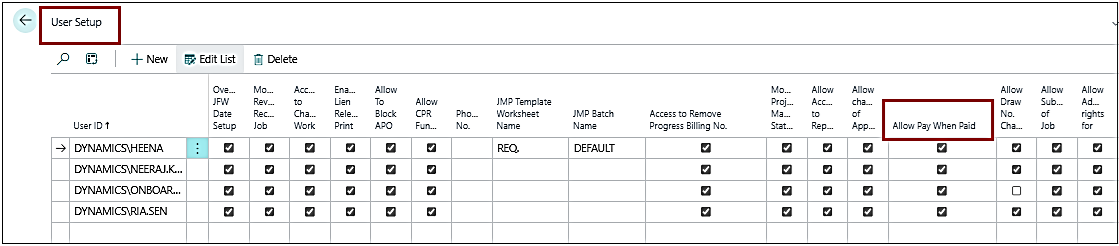
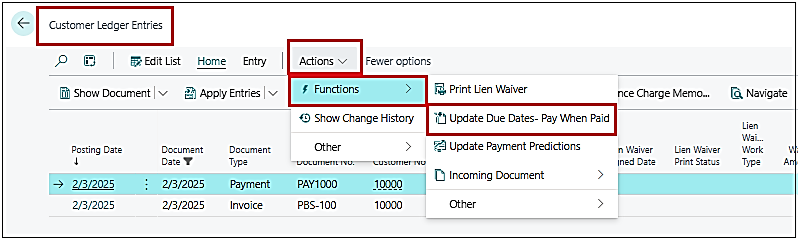
- From Customer Ledger Entries, click on “Update Due Dates- Pay When Paid”.
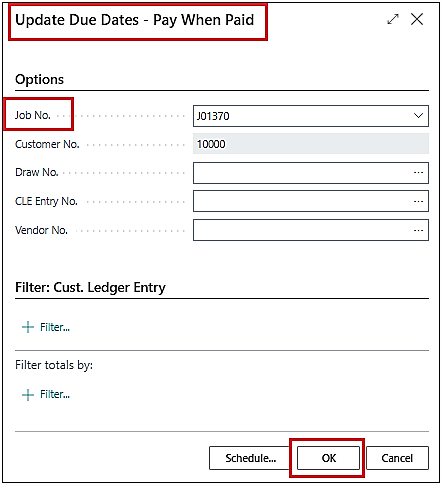
- On the batch report request page, enter the “Job No.” and other required details and click “OK”.
- Based on the filters applied, the “Due Date” on the vendor ledger entries for Document Type “Invoice” and Retention Ledger Code “Normal” will be changed.
- This batch will also enable the “Pay When Paid” Boolean for the related vendor ledger entry, which will exclude that entry upon running the batch again.

Note: Batch will check the posting date of payment for a specific project and draw no. from the Customer Ledger Entries and filter out the Vendor Ledger Entries till that posting date for the same project and draw no. (The Due Date will be calculated as the “Posting Date of Customer Payment on CLE + Pay When Paid Term defined on the Project card.”)
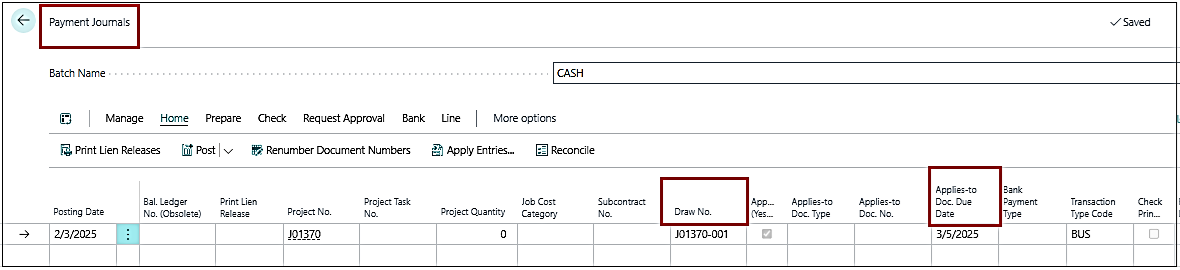
- The same due date will be updated while paying the vendors for the same draw no.
Note: The user can also create a “Job Queue” if the user wants to run the batch for all the projects.