
Ch 08 – Progress Billing with Foreign Currency
Contents
| Progress Billing Foreign Currency |
PROGRESS BILLING FOREIGN CURRENCY
The Progress Billing process also lets you create a sales invoice with foreign currency. To bill the customer in a foreign currency following steps needs to be followed:
Create a new Project → select the “Customer No.” → enter “Contract Date”.
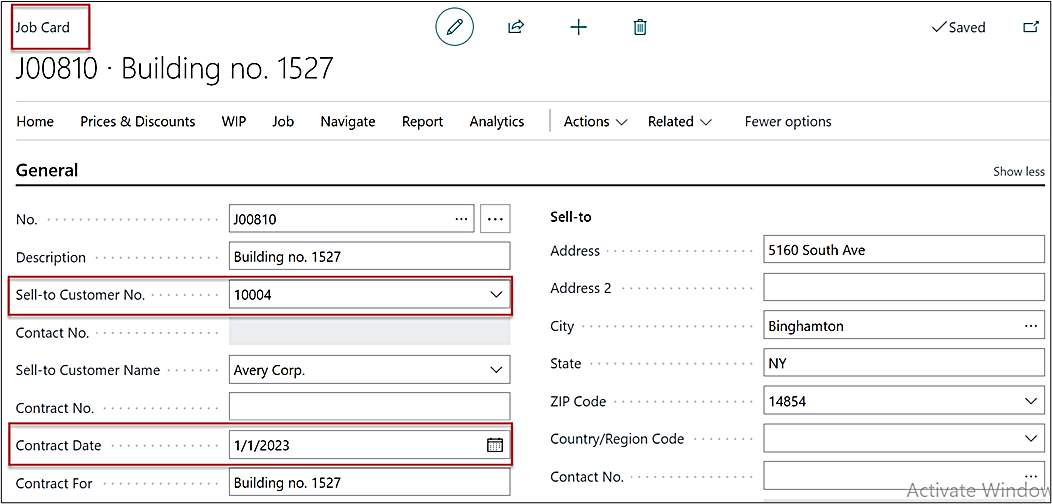
On “Foreign Trade” fast tab, select the currency code on field “Invoice Currency Code”.
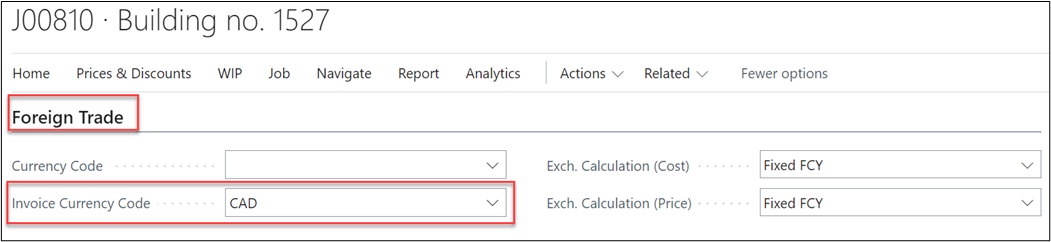
Note: In case there exists Sub- Levels for Project, then the currency code needs to be entered on “Invoice Currency Code” field on all the sub-level project cards.
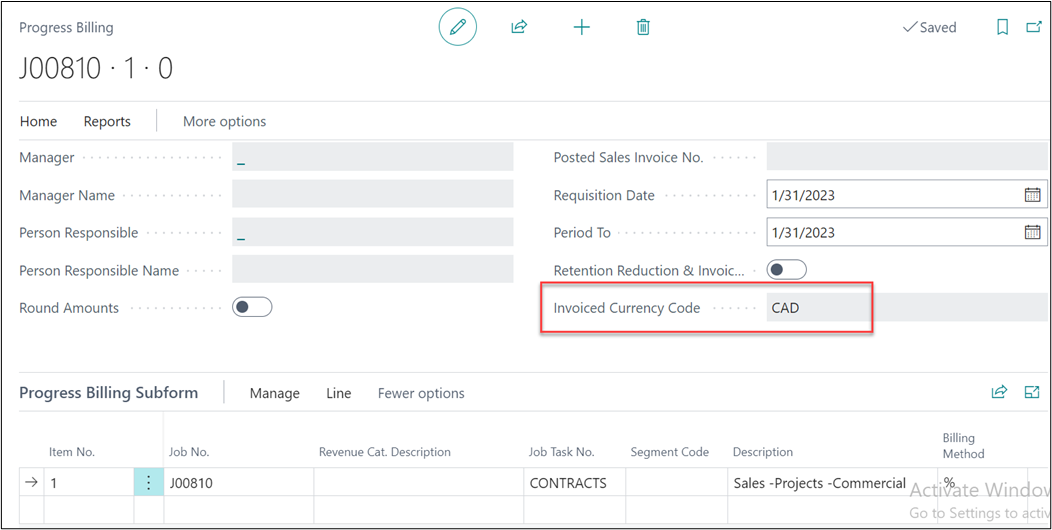
Once details on the Project is created, open Progress Billings to initiate the billing process.
When you update the lines from the project on a progress billing requisition, the field “Invoiced Currency Code” will get auto populated with the currency code entered on the Project card, see below.
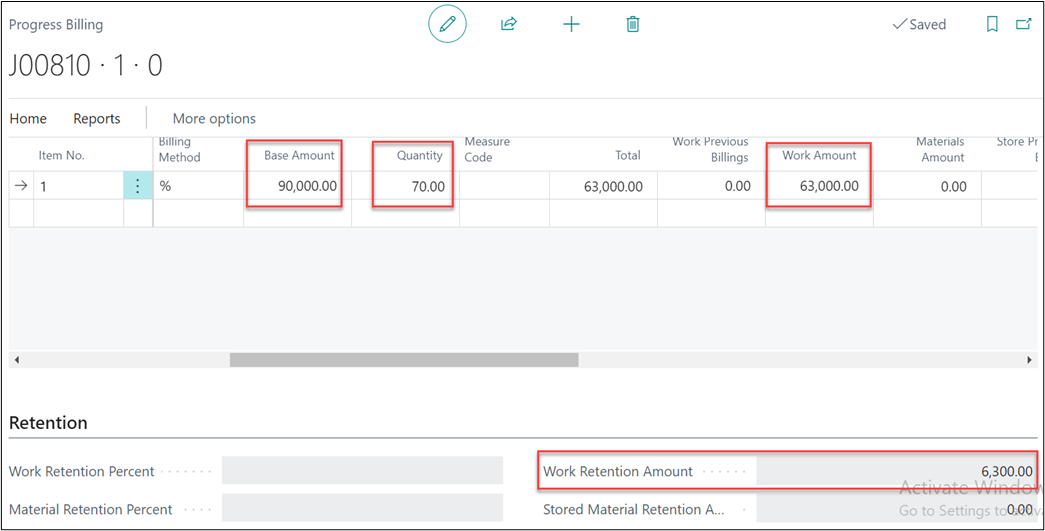
Enter “Quantity” and “Work Retention %” and create the sales invoice.
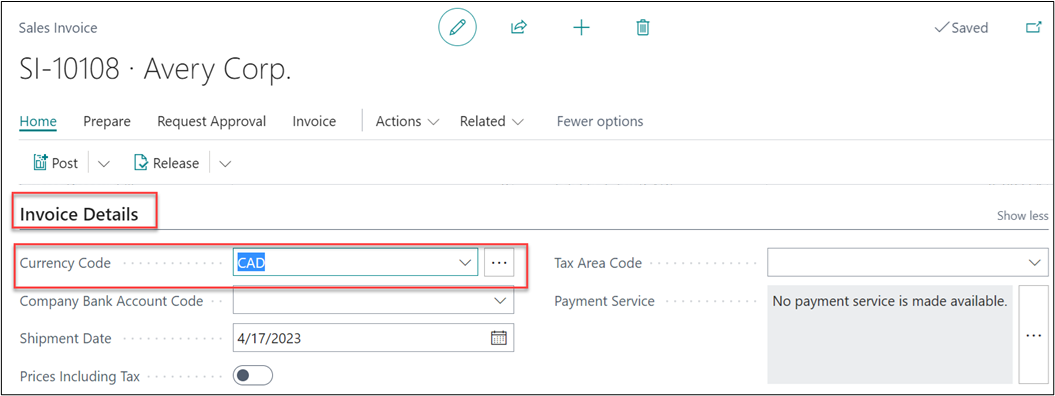
The “Currency Code” will appear on the sales invoice under the Invoice Details fast tab.
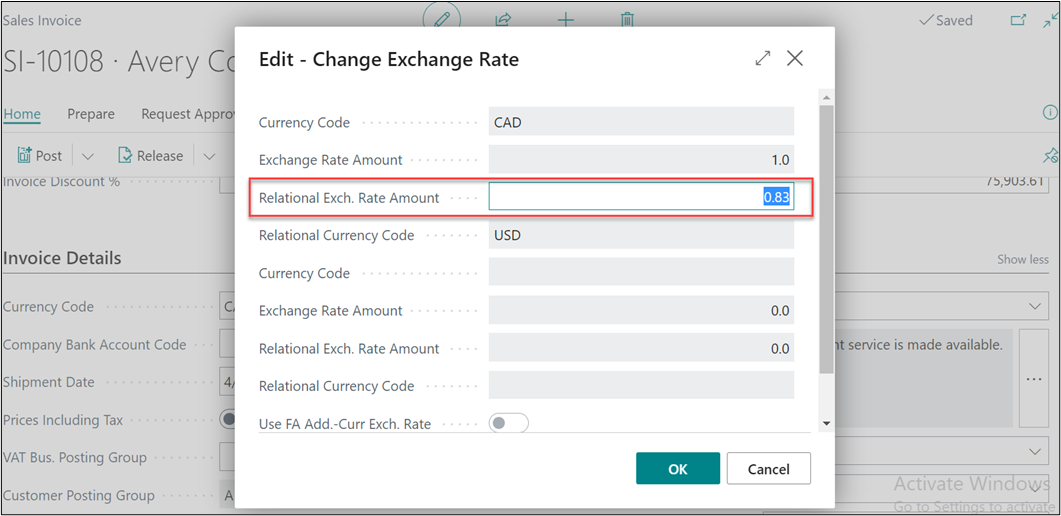
Exchange Rate can also be viewed by clicking on the three dots of Currency Code field. A window will open as below, and Exchange rate can be seen under field “Relational Exch. Rate Amount”.
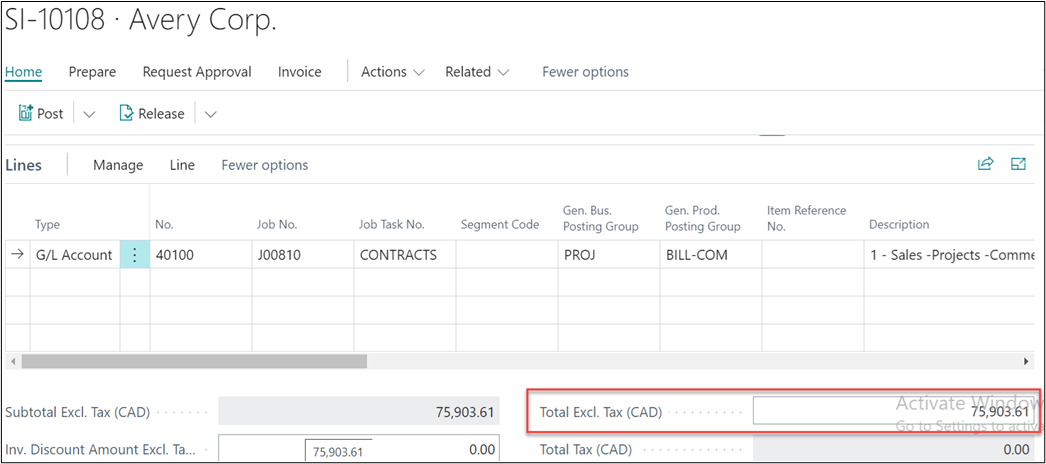
Total invoice value as per the foreign exchange rate can be seen under the Lines fast tab, as below.
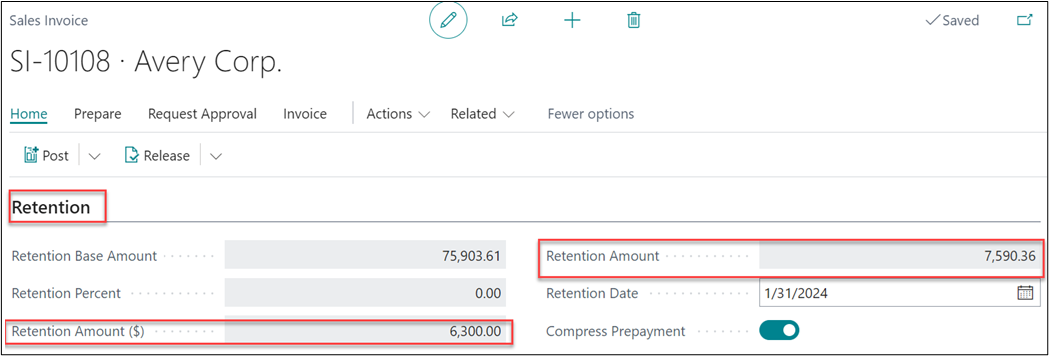
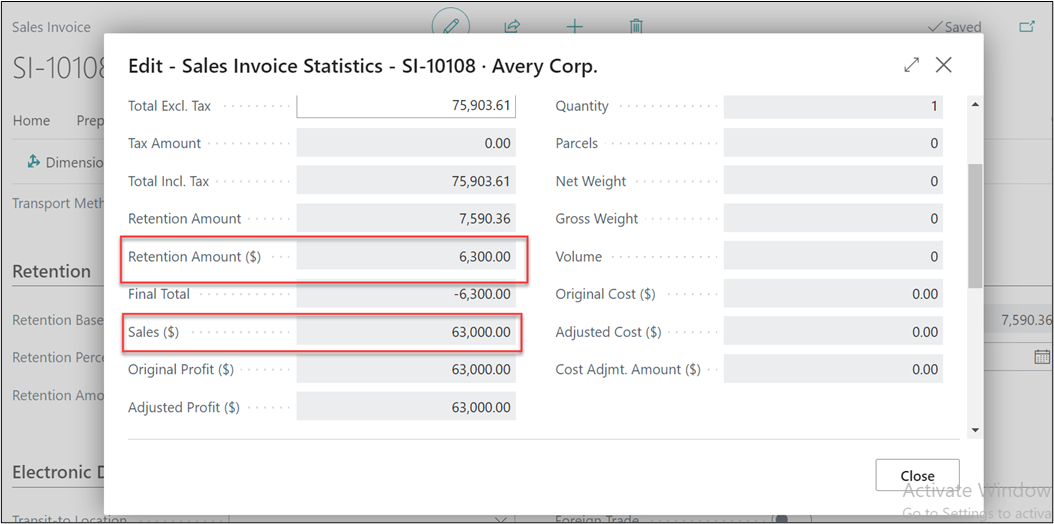
On the Retention fast tab, the field “Retention Amount ($)” will show the value in local currency (LCY) whereas, “Retention Amount” field will show the value in foreign currency (FCY).
On the Statistics page of a sales invoice, we can see the sales value and retention in Local Currency.
Note: On AIA report the value will be shown only in LCY.